
Using the Accounts, Groups & Clients Panel in the New Create Post
The new Create Post experience in SocialPilot gives you a cleaner, more intuitive way to select the right accounts before you begin crafting your content. The Accounts, the Groups and Clients panel now brings all your connected profiles into one organized space, helping you quickly choose where your post will be published. No more switching tabs.
With platform filters, alphabetical sorting, issue indicators, and easy access to Groups and Clients, the panel ensures your account selection process is faster and far more structured. You can also collapse it when needed to create more room for writing while still keeping your selected accounts visible.
Let us explore how the new Accounts, Groups and Clients panel works and how it helps streamline your post-creation workflow:
In This Article
- What’s New in the Accounts Panel?
- How to Select Accounts?
- Using the Accounts Filter
- Managing Groups
- Using the Clients Filter
- Viewing Account Status & Issues
What’s New in the Accounts Panel?
The left panel of Create Post has been rebuilt to reduce switching, scrolling, and guesswork. Here is what’s new:
- All connected accounts now appear in a single list, alphabetically arranged for easy scanning.
- Issues like reconnects or missing permissions are highlighted directly on the account list.
- Clear sections for Accounts, Groups, and Clients help you quickly narrow down your posting destinations.
- No more switching between tabs for previews or platforms. Everything happens in one continuous view.
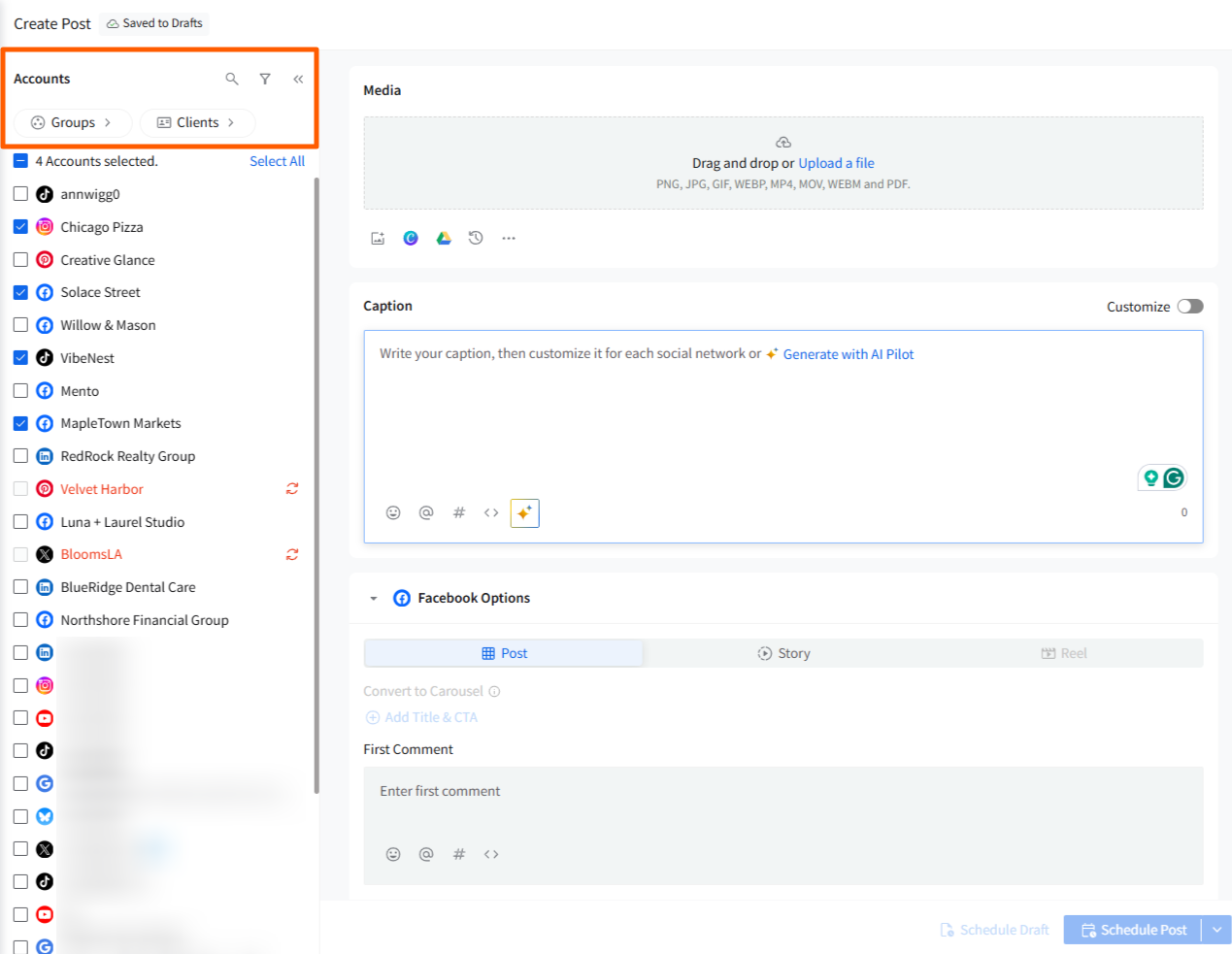
This ensures a faster, cleaner workflow while managing multiple brands or large sets of accounts.
How to Select Accounts?
When you open Create Post, you’ll see all your connected social accounts listed on the left.
To select accounts:
- Click the checkbox beside an account name.
- The selected account(s) will instantly activate relevant platform options under the Caption box.
- You can select as many accounts as you need. SocialPilot will automatically adjust available features based on platform rules.
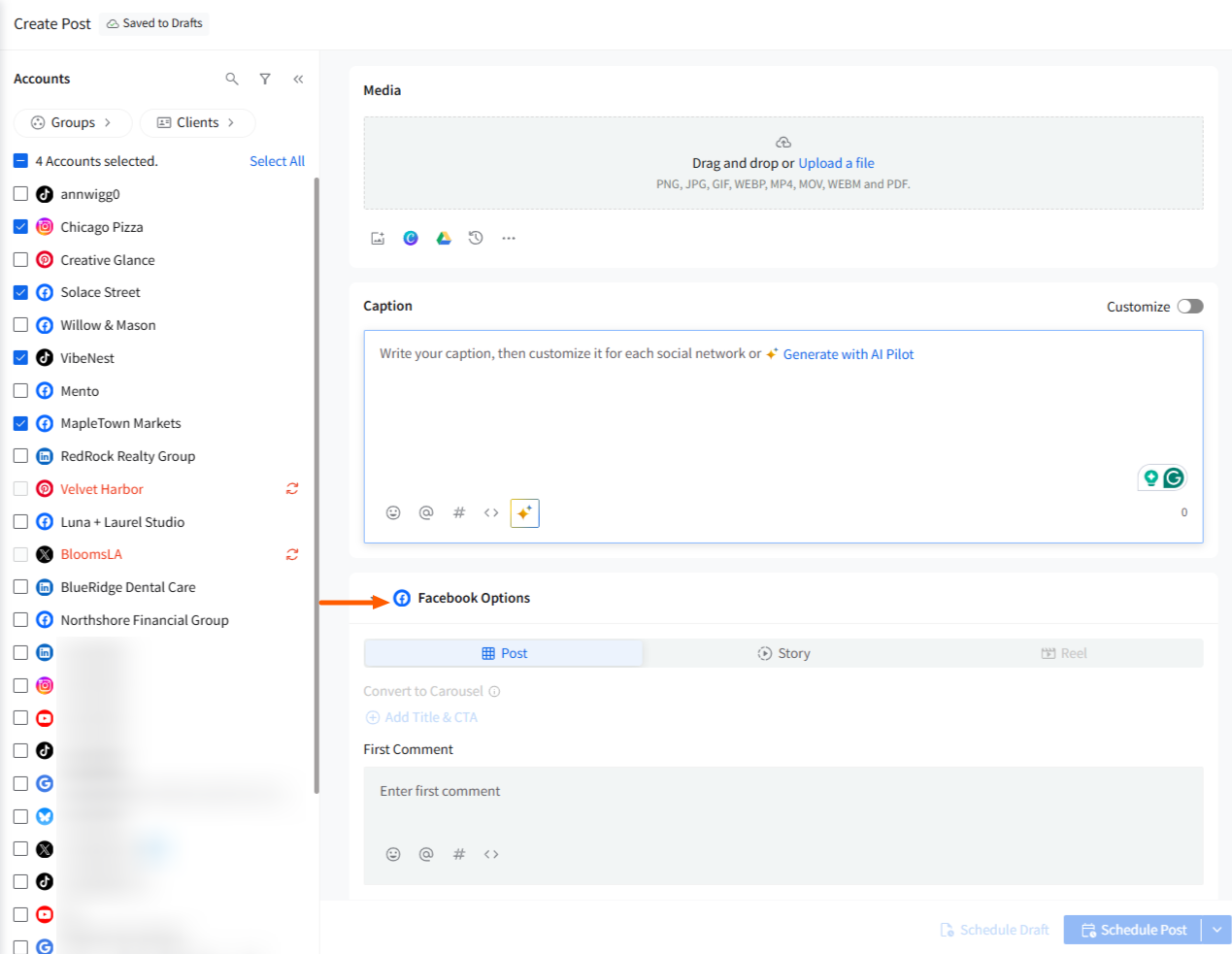
You can also use Select All to choose every account visible in the current filter.
📋 Note:
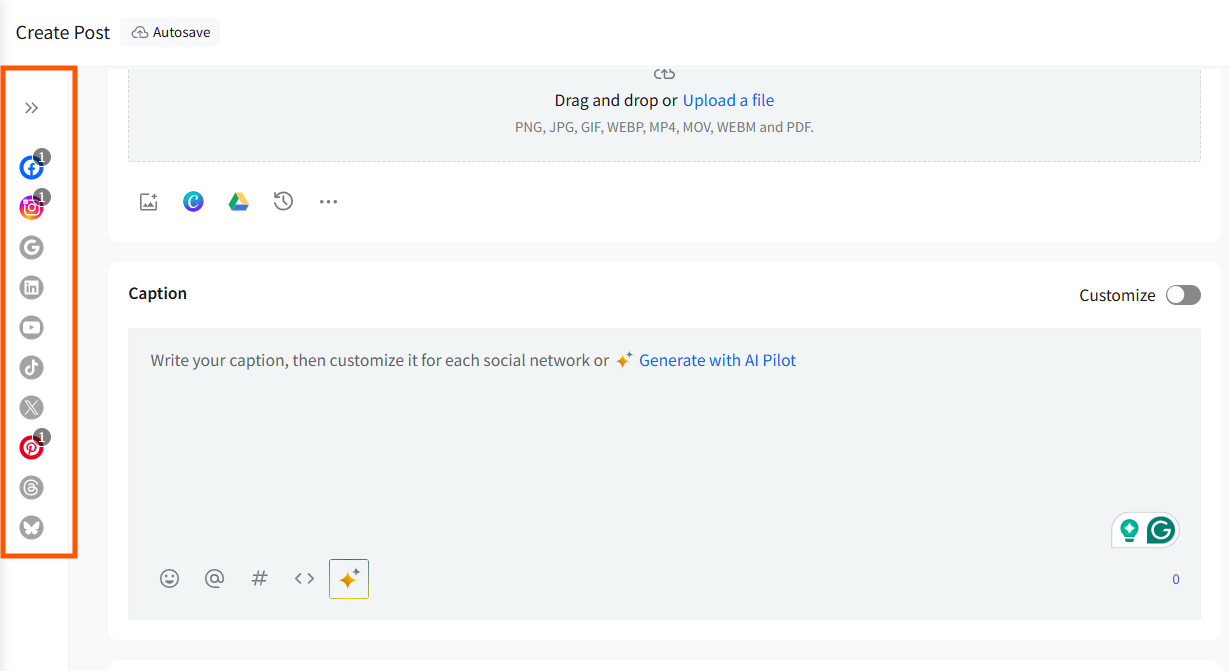
If you want more space while writing or customizing your post:
- Click the collapse arrow to shrink the entire accounts panel into a single vertical strip.
- Selected accounts stay highlighted in color.
- Unselected accounts appear in grayscale.
This allows you to work comfortably in a cleaner, distraction-free writing area while still keeping track of your selected accounts.
Using the Account Filter
Filters help you instantly narrow down your account list by social network.
- Click the Filter icon at the top of the Accounts panel.
- Select one or multiple platform types
- Apply Select All to quickly choose all filtered accounts
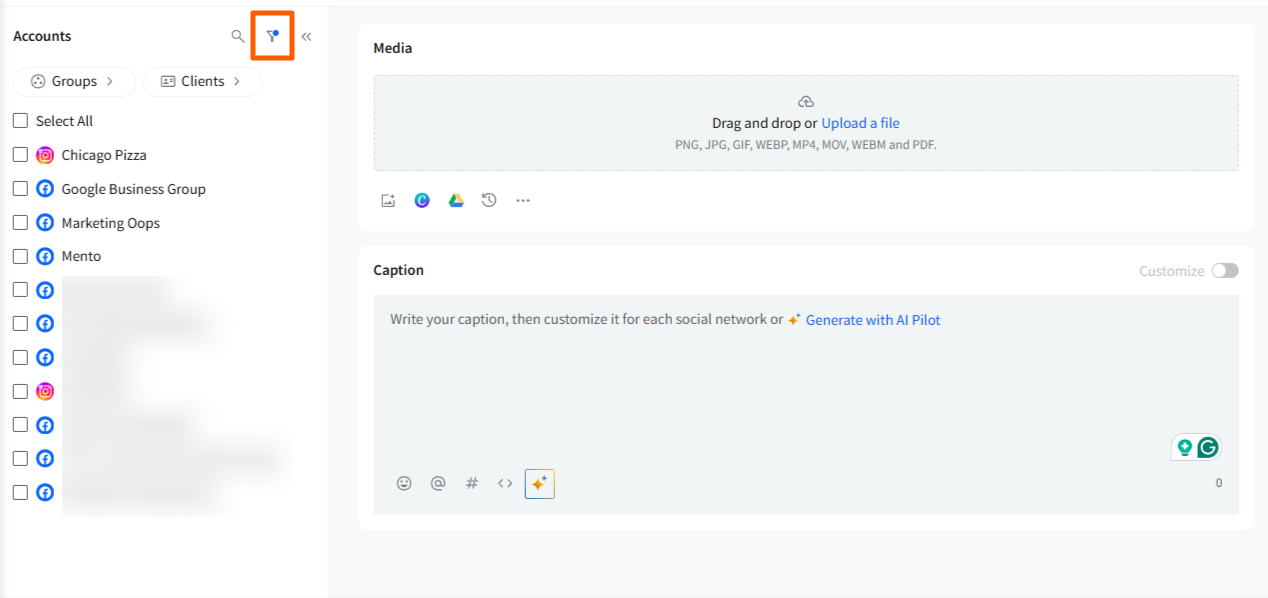
No more scrolling through long lists or searching manually. You see only the platforms you want to work with, making account selection faster and reducing the chance of publishing to the wrong profile.
Managing Groups
Groups allow you to bundle multiple accounts together, so you don’t need to select them manually each time.
In the new Create Post panel:
- Click the Groups tab above the account list.
- You can:
- View existing groups
- Select groups for posting
- Click Create Group if no groups exist
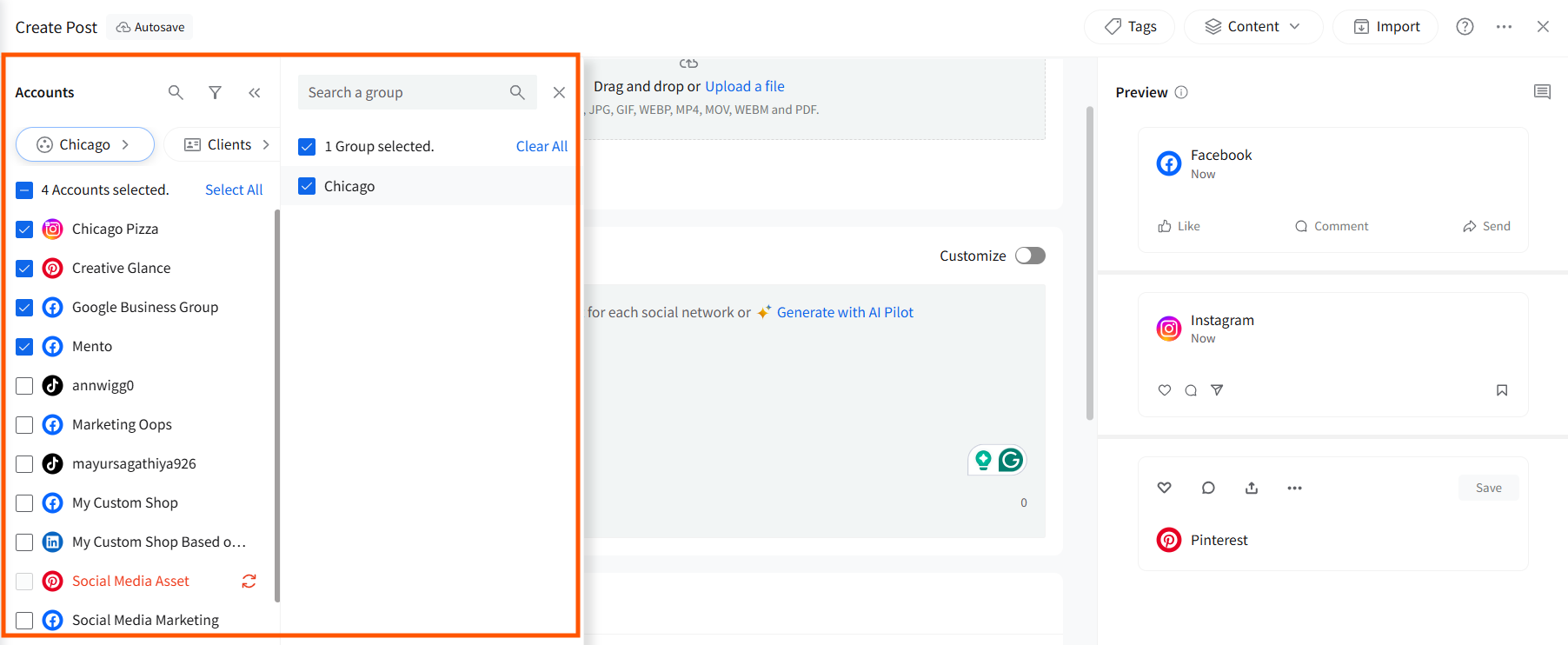
Selecting a group instantly selects every account inside it. Using Groups ensures you never miss adding an account and speeds up posting for brands that require frequent multi-platform publishing.
Using the Clients Filter
The Clients tab displays accounts organized by the client assigned to each account.
Inside the Clients panel, you can:
- Search for a client.
- Select all accounts belonging to that client.
- Select individual accounts within a client’s set.
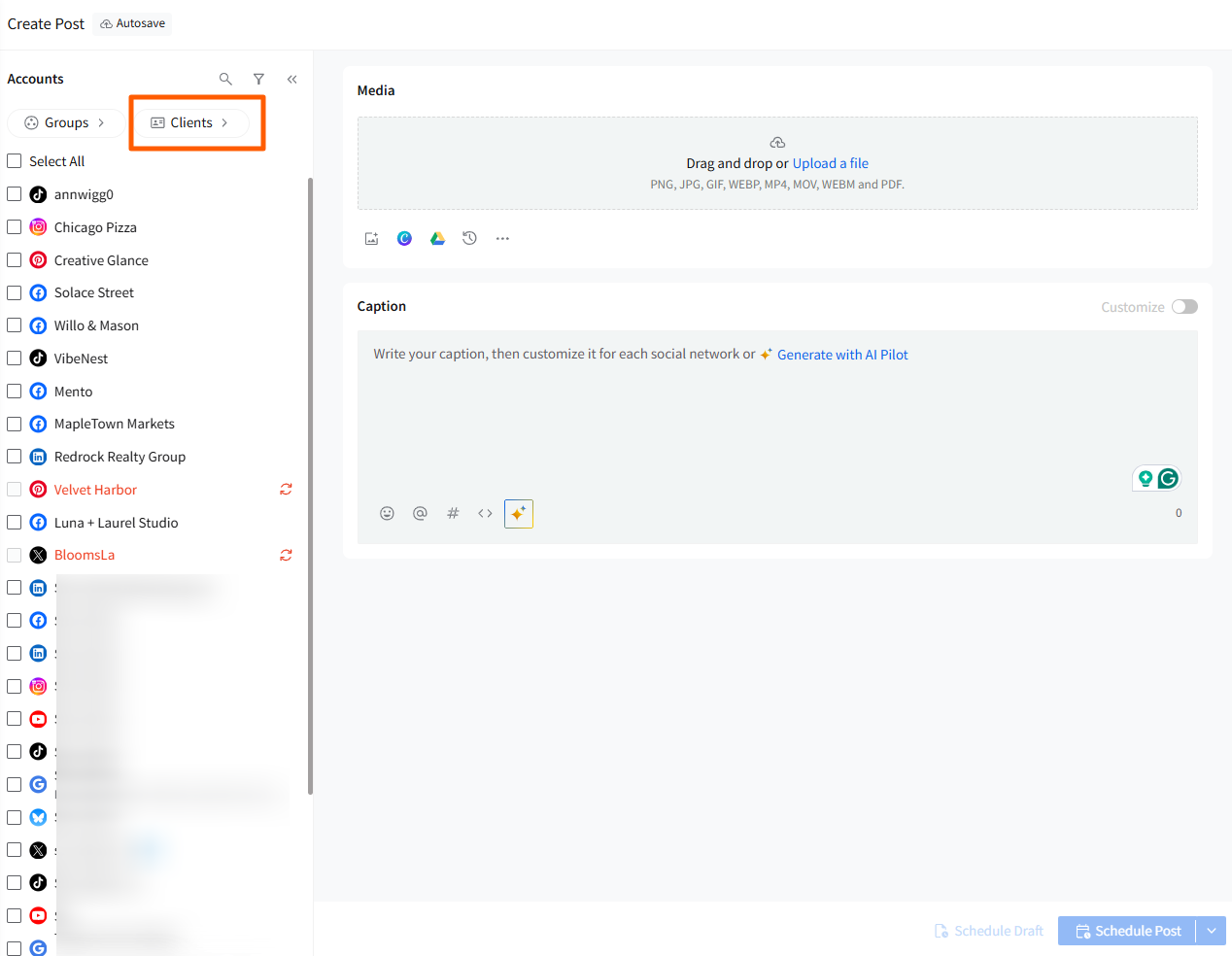
This ensures cleaner workflows for anyone managing multiple clients or brands simultaneously.
Viewing Account Status & Issues
The left panel also highlights:
- Reconnect icons if an account requires re-authentication.
- Error or permission warnings (e.g., missing role on a LinkedIn Page).
- Publishing restrictions based on profile type (e.g., Instagram Personal does not support direct publishing).
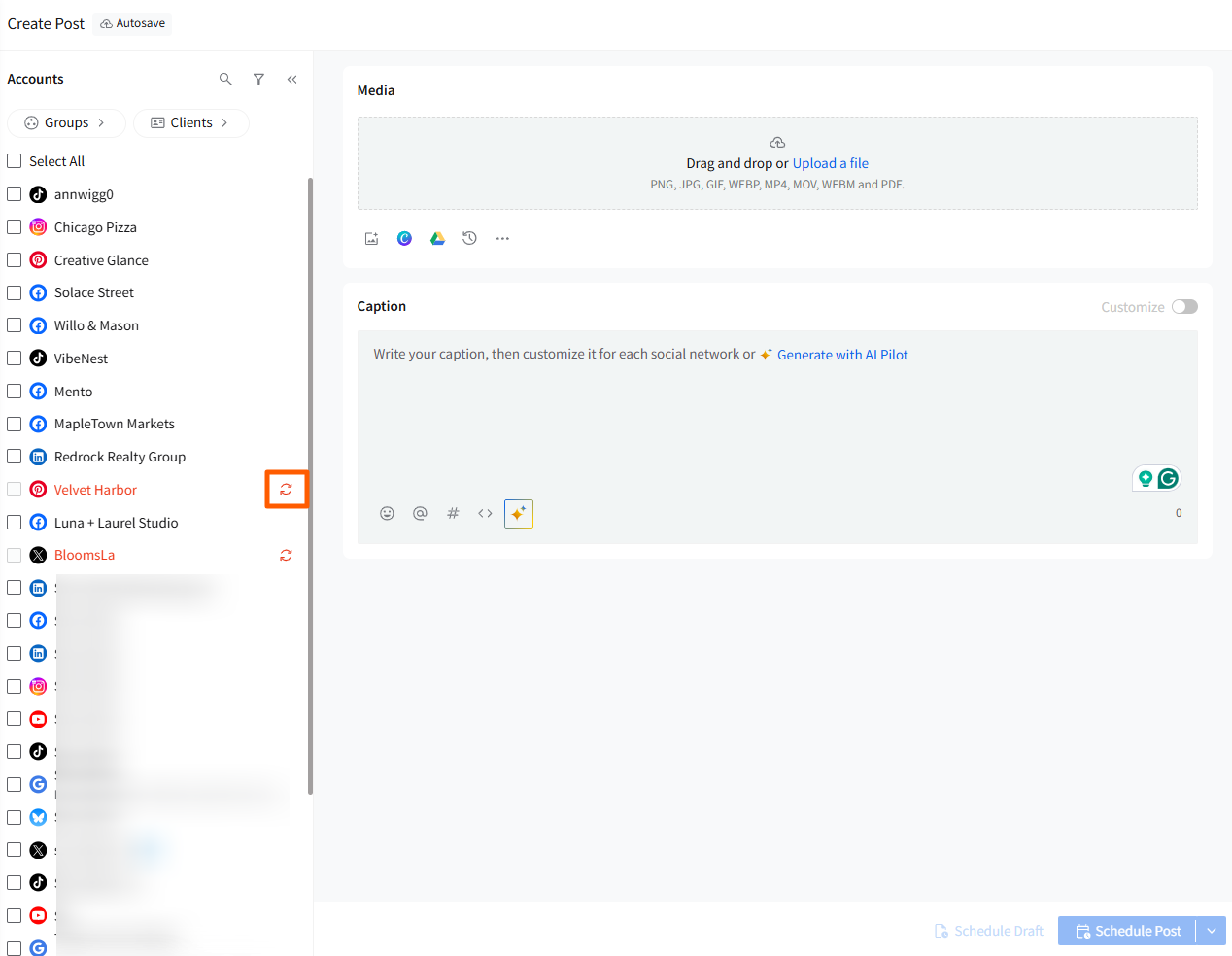
This helps you avoid selecting accounts that may block your post during scheduling.
Related Articles:
-
How to Tag People/Pages While Creating Posts in the New Create Post?
-
How to Create a Custom Post in the New Create Post Dashboard?
-
How to Use the First Comment Feature in the New Create Post?
-
Can I Save Posts as Drafts on SocialPilot in the New Create Post Experience?
-
How to Use Platform Options in the New Create Post Experience?
-
How to View Social Previews in the New Create Post Experience?