
How to View Social Previews in the New Create Post Experience?
A clear, accurate preview is essential when creating posts for multiple social networks. The new Create Post experience keeps previews visible at all times, right beside the editor, so you can review your content the moment you add media, write captions, or customize platform-specific options.
Instead of breaking your workflow to open separate preview views, everything you need is displayed in one continuous space. This streamlined flow helps you craft polished, platform-ready posts with far more ease and confidence.
In This Article
- Where to Find the Preview Panel?
- How Do Previews Update as You Create Content?
- Previewing Multi-Platform Posts
- How Do Multi-Image Posts Appear in Preview?
- Viewing Platform-Specific Customizations
- Comment Panel in Preview
- Switching Between Media Variants (Images / Videos / Reels)
Where to Find the Preview Panel?
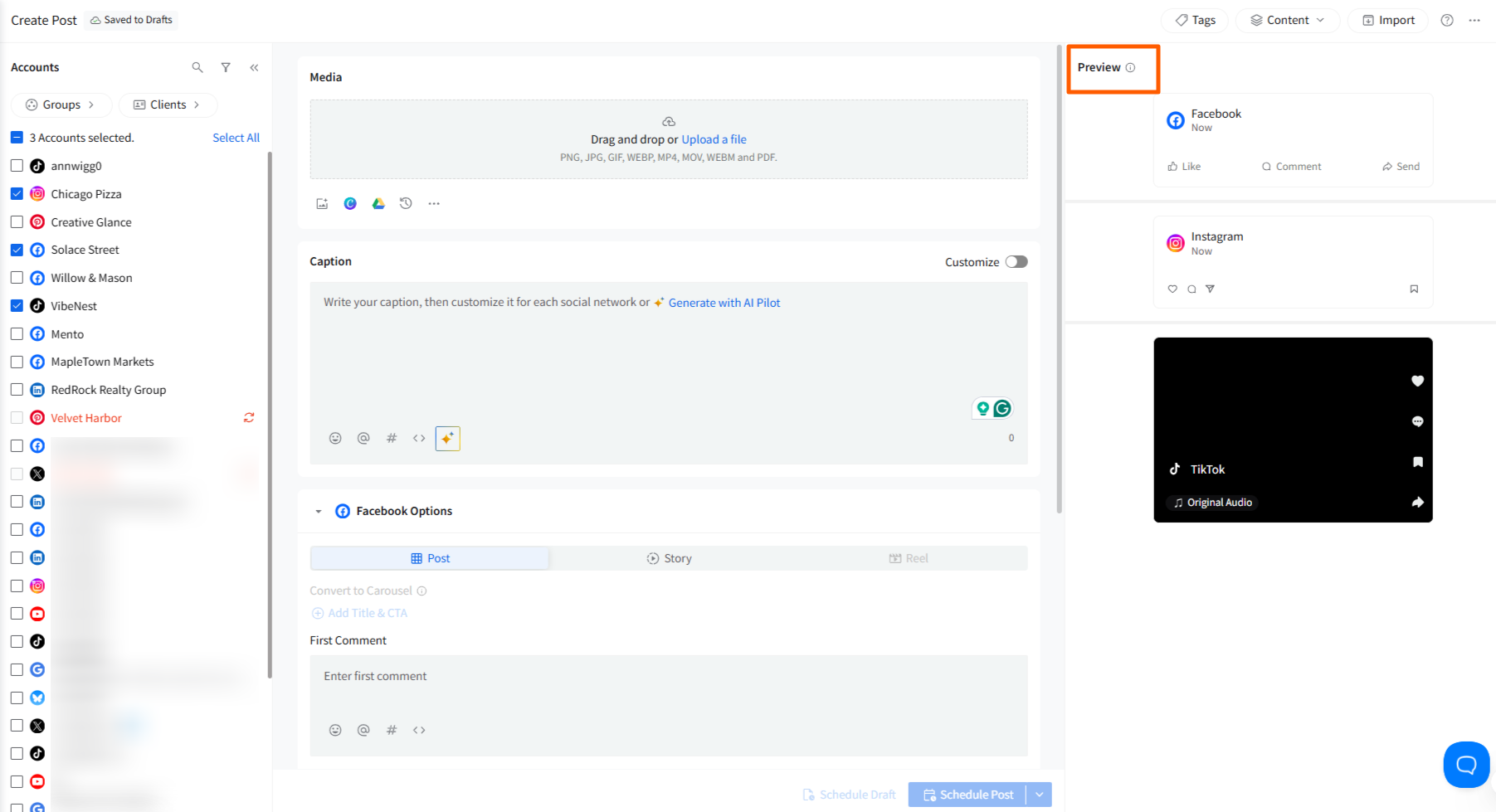
The Preview panel is permanently available on the right side of the new Create Post screen. You do not need to open a separate tab. Previews stay visible while you compose your post in the center editor.
When no account is selected, the preview area remains blank. Once you select an account, the preview automatically loads that platform’s native post style and formatting.
How Do Previews Update as You Create Content?
The preview refreshes instantly as you:
- Select or change social accounts
- Upload media (images, GIFs, videos, PDFs)
- Add or edit your caption
- Insert hashtags, mentions, emojis, or AI-generated text
- Add a first comment
- Apply UTM parameters
- Add location- or platform-specific fields
- Switch between Post / Story / Reel upload types (Instagram only)
Every edit made in the central Create Post composer is reflected immediately on the right side.
Previewing Multi-Platform Posts
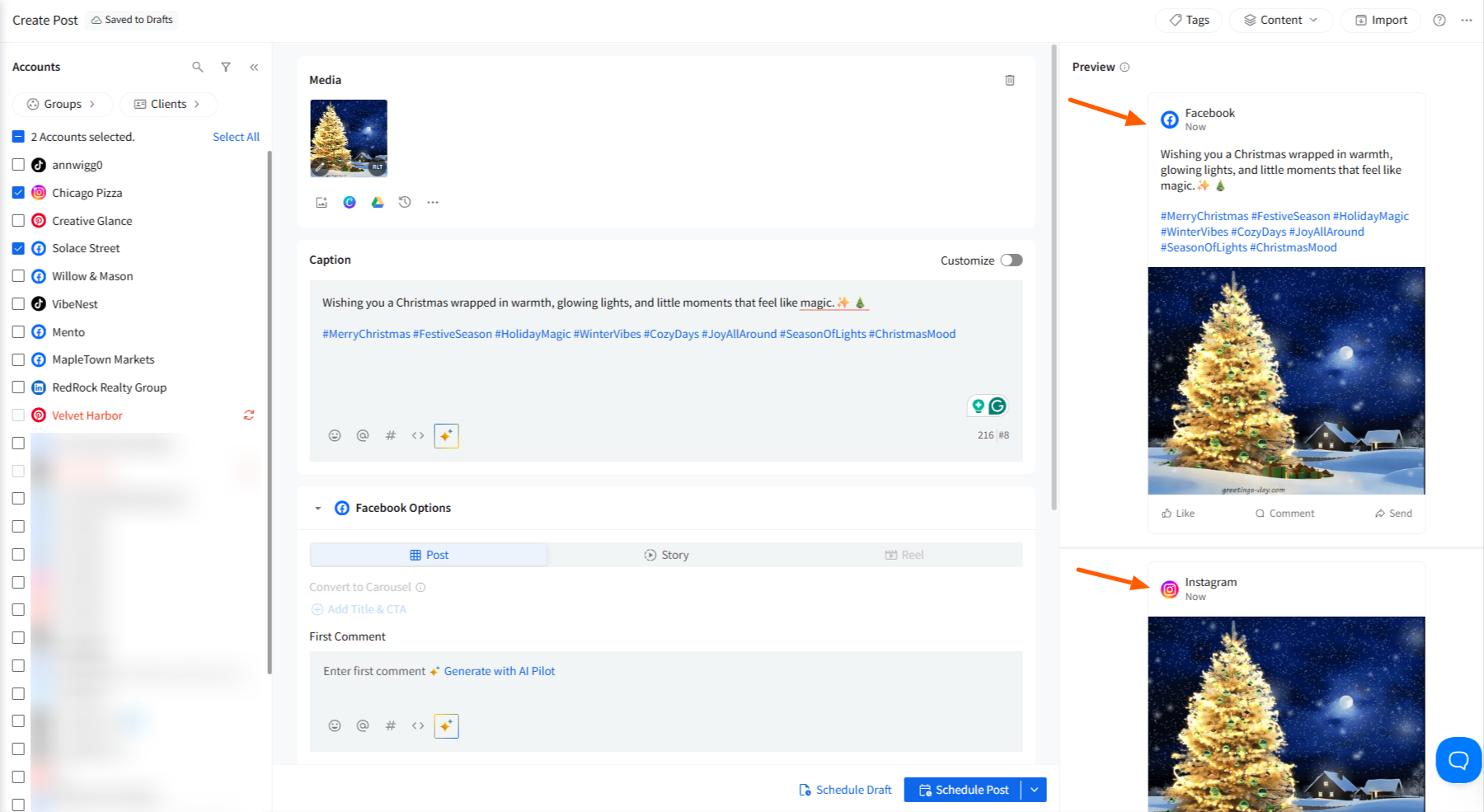
- When you select multiple accounts, the Preview panel automatically displays the previews for all selected platforms.
- Each platform’s preview appears in order, one below the other, on the right side of the Create Post screen.
- This stacked preview layout allows you to review how your post will appear on every platform at the same time, without needing any manual switching.
How Do Multi-Image Posts Appear in Preview?
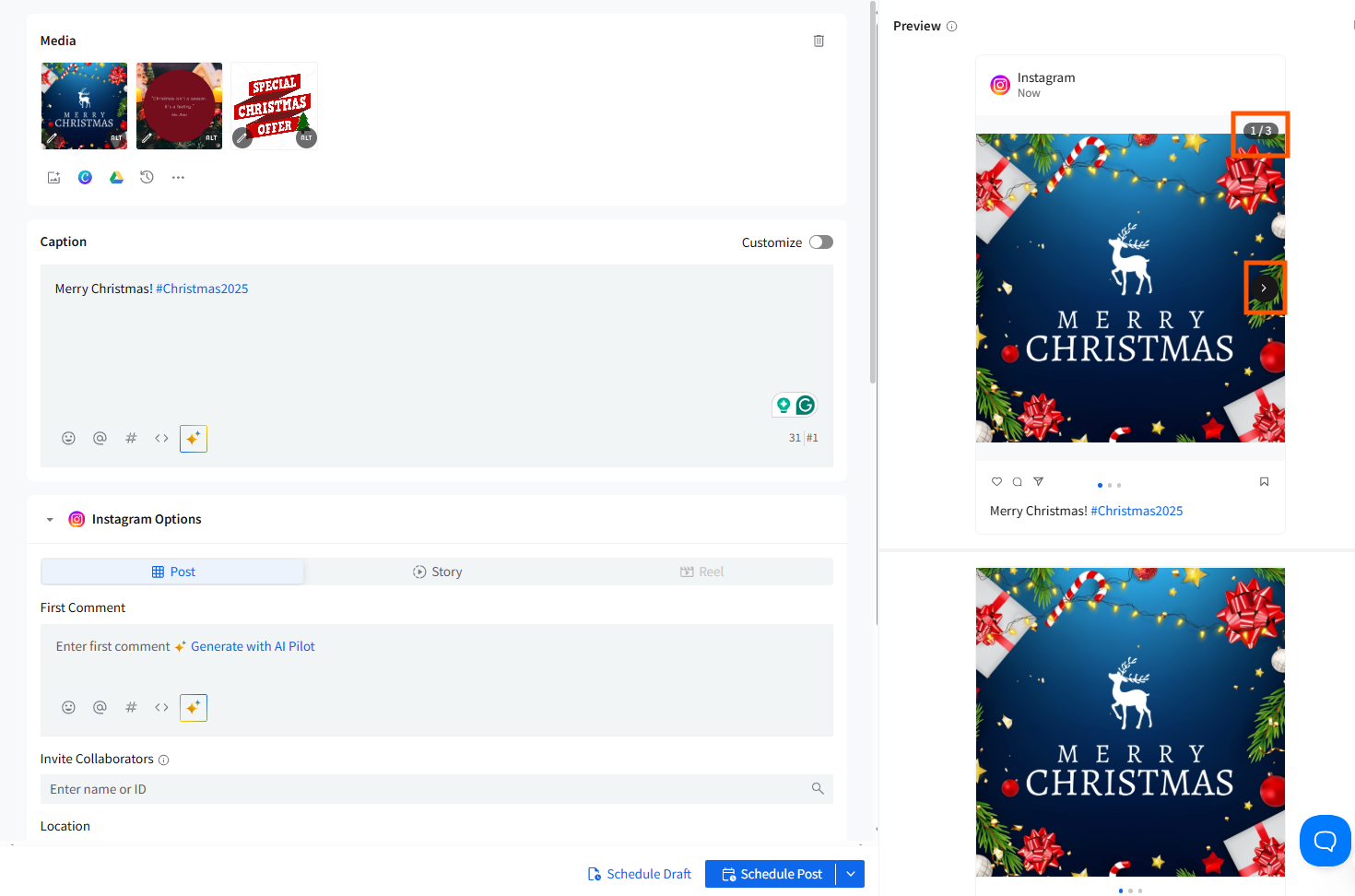
- When a selected platform supports multiple images, the Preview panel displays them exactly in the order they will publish.
- For Instagram and Pinterest, multi-image posts appear in a browser-style slider with arrows, allowing you to click through each image to review the full sequence.
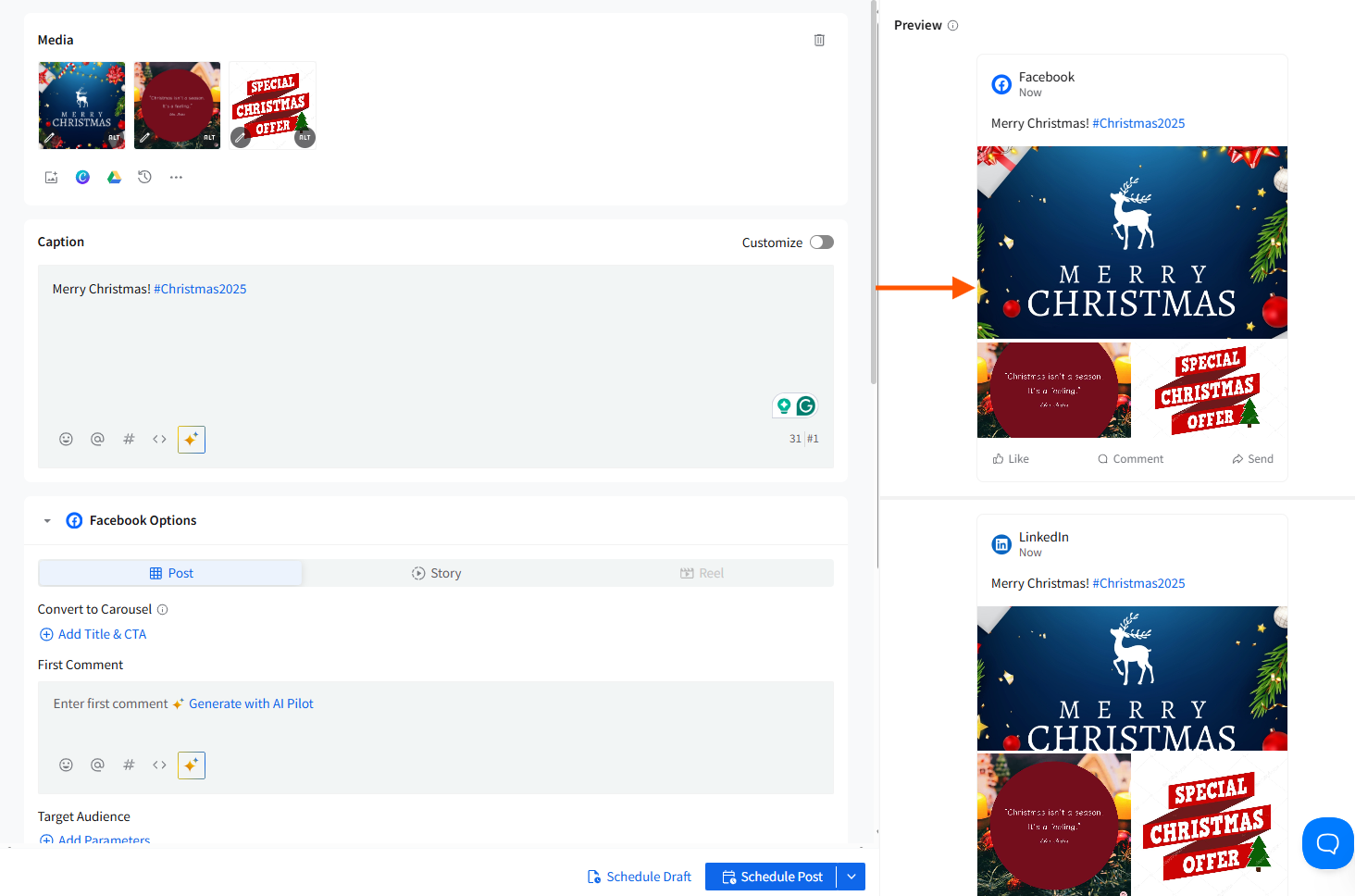
- For platforms like Facebook and LinkedIn, multiple images appear as a collage-style layout—the first image is shown prominently, followed by the remaining images in a structured grid, matching how they will appear when published.
Viewing Platform-Specific Customizations
When you enable Customize in the caption box and start tailoring captions per platform:
- When you write a single caption in the Original Draft, all selected platforms display the same caption in the Preview panel.
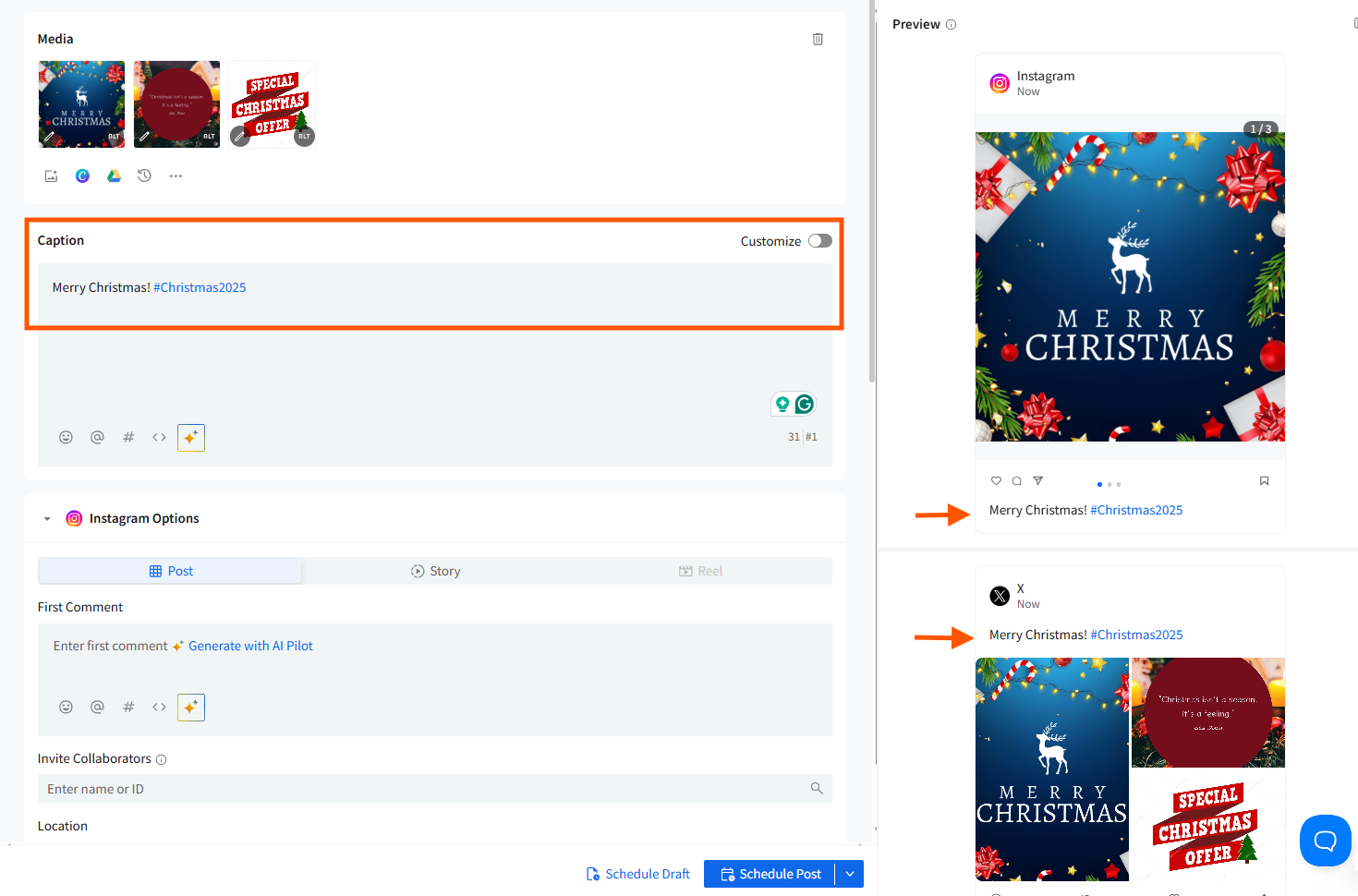
- After turning Customize ON, any platform-specific caption you edit will immediately appear only in that platform’s preview, while all other platforms continue to show the original caption.

- If a platform has not been customized, its preview will continue to use the original draft caption.
- When you turn Customize OFF and confirm, the last edited customized caption becomes the new original caption, and it is applied to all selected platforms. The Preview panel then updates to show this unified caption across every platform.
Comment Panel in Preview
When working with teams, clicking the Comments icon at the top-right of the preview opens a side panel where you can:
✔️View internal comments
✔️Add new comments or feedback
✔️See who created the draft
✔️Track collaboration history
This panel stays anchored to the preview for quick reference while editing.

Switching Between Media Variants (Images / Videos / Reels)
The preview adapts as you change media types:
Images
- Shows the exact crop and layout that will appear on the selected platform.
- Carousel-style previews auto-display if multiple images are uploaded.
Videos
- Loads a playable thumbnail compatible with each platform.
- Reflects supported dimensions (square, horizontal, vertical).
Instagram Reels
- Automatically switches to Reel preview if your media is a vertical video.
- If you upload the Reel before selecting the Reel toggle, the preview still loads the Reel format automatically.
📋 Note:
Some elements cannot be rendered due to platform limitations:
- Facebook Page CTA buttons
- YouTube video processing output
- TikTok cover selection
- Pinterest board layout
- Full LinkedIn document carousel (PDF) pagination
Even when not visible, these settings are still applied during publishing.
Related Articles:
-
Can I Save Posts as Drafts on SocialPilot in the New Create Post Experience?
-
How to Create a Custom Post in the New Create Post Dashboard?
-
Using the Accounts, Groups & Clients Panel in the New Create Post
-
How to Choose a Target Audience While Creating a Post in the New Create Post?
-
How to Use the First Comment Feature in the New Create Post?
-
How to Use Platform Options in the New Create Post Experience?
-
How to Tag People/Pages While Creating Posts in the New Create Post?