
How to Customize Posts for LinkedIn in the New Create Post?
SocialPilot makes it easy to create fully customized LinkedIn posts using a wide range of media, formatting, and platform-specific options. Whether you want to add images, videos, PDFs, emojis, audience targeting, or even schedule the first comment, SocialPilot gives you all the tools you need in one place.
With the updated Create Post interface, the workflow is now simpler and more consistent across platforms. You can add media, customize captions, apply platform-specific options, schedule posts, and enhance your LinkedIn publishing experience with better control and clarity.
In This Article
Here are the customization options available for LinkedIn posts on SocialPilot:
Customization Options for LinkedIn Posts
Here are the customization options available for LinkedIn posts on SocialPilot:
Create a Single Image Post or Document Carousel: Share individual images or upload a PDF/multi-image document to create a carousel.
Tag Another LinkedIn Account: Mention personal profiles or Company pages using the @ symbol to increase engagement.
Share a Video Post: Upload video files and add a Video Title and thumbnail to enhance your LinkedIn content.
Add a GIF for Humor: Insert GIFs to make your posts more engaging.
Design Graphics With Canva: Use Canva integration directly inside the editor to design custom graphics and videos.
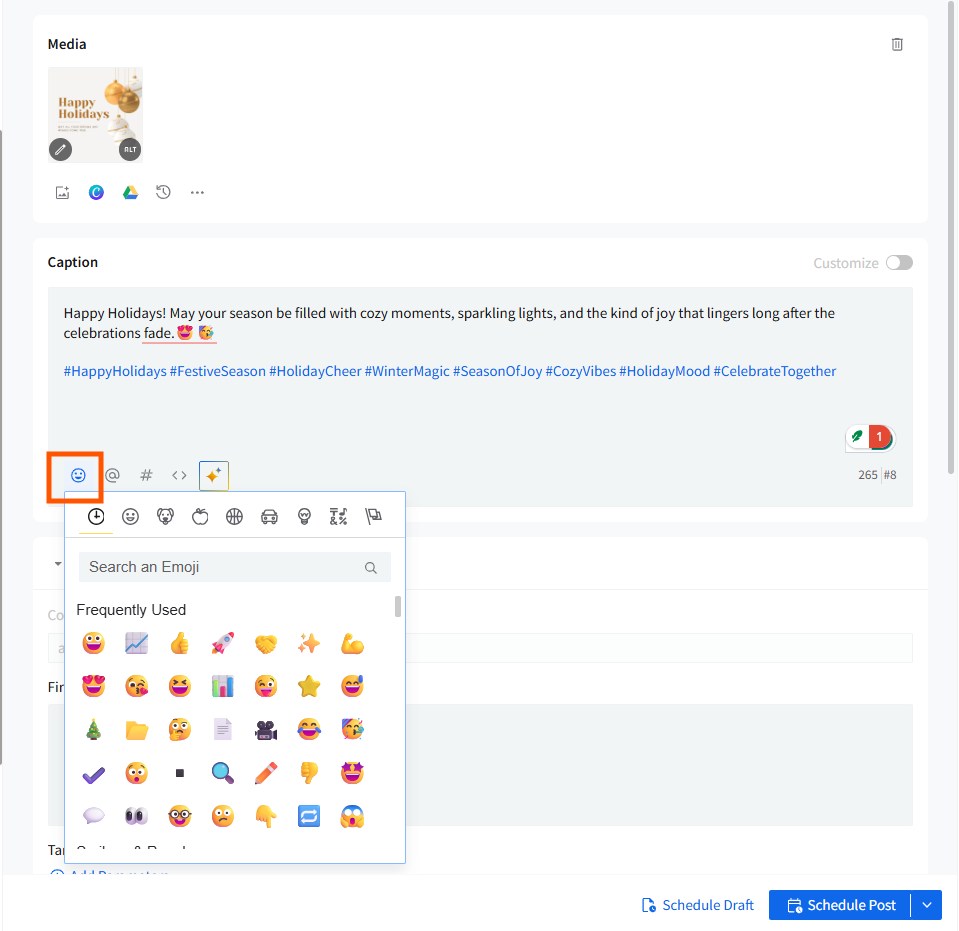
Use Emojis To Express and Connect: Add emojis to convey emotions or highlight important points.
Set up Preferred and Restricted Audiences: Control who can see your posts using audience targeting.
Utilize Custom Fields: Save time by reusing frequently used text snippets.
Add Customized UTM Parameters: Add UTM tags at the post level to track campaign performance across channels.
Schedule the First Comment: Add hashtags, CTAs, or supporting details in a scheduled first comment.
Add PDF Documents: Upload a PDF or convert supported media into a carousel.
Steps To Create an Advanced LinkedIn Post
Follow the steps to create an optimized LinkedIn post using the updated Create Post interface:
- In the SocialPilot dashboard, click on the Create Post button.
- From the Accounts, Groups & Clients panel on the left, select the LinkedIn accounts you want to publish to.
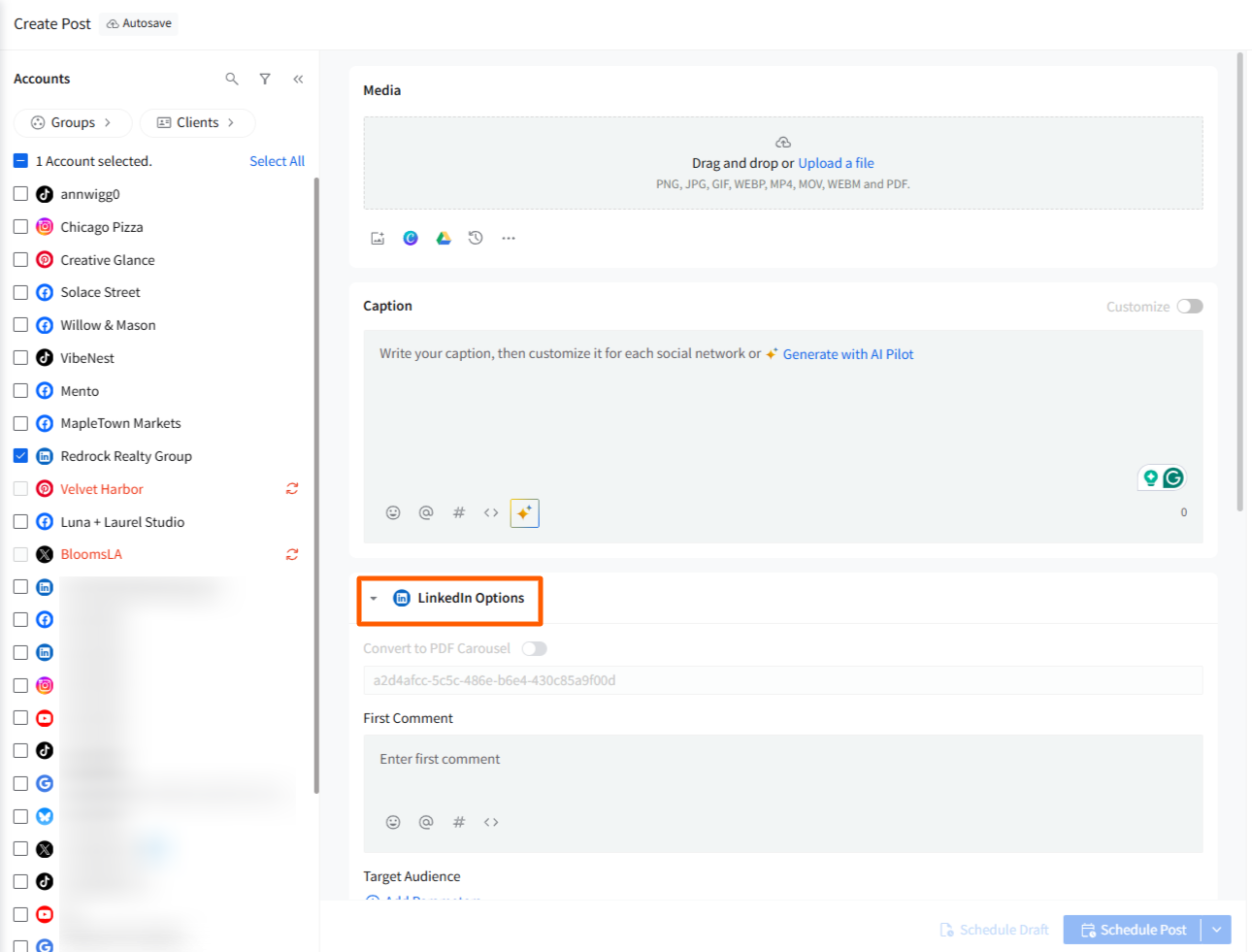
- Once you select at least one LinkedIn account, the LinkedIn Options panel automatically appears below the caption area.
- Add Images, GIFs, Videos, or PDFs: In the new Create Post, the media section is placed directly above the caption box.
You can add only one media type per post—images or video or GIF, or PDF.

📋 Note:
- Upload supported video formats (AVI, MP4, MOV, WEBM) or GIFs.
- In the new Create Post, LinkedIn video settings, like video title, appear only when a LinkedIn account is selected, reducing confusion from earlier workflows.
- Uploading from Sources:
You can upload images directly from your local computer, Dropbox, Google Drive, or Box; drag-and-drop them; or copy-paste them into the Media section.
A preview of the media will appear instantly.
- Using the Global Media Menu:
Next to the media upload buttons, click the three-dot menu to open additional media sources:
- Unsplash
- Dropbox
- Box
- GIPHY
- Fetch from URL (paste an image link or website URL)
This menu makes it easier to pick the right source without switching tabs.

- Using Recently Uploaded Media:
Click the recent media icon next to the drive to open the Recently Uploaded panel.
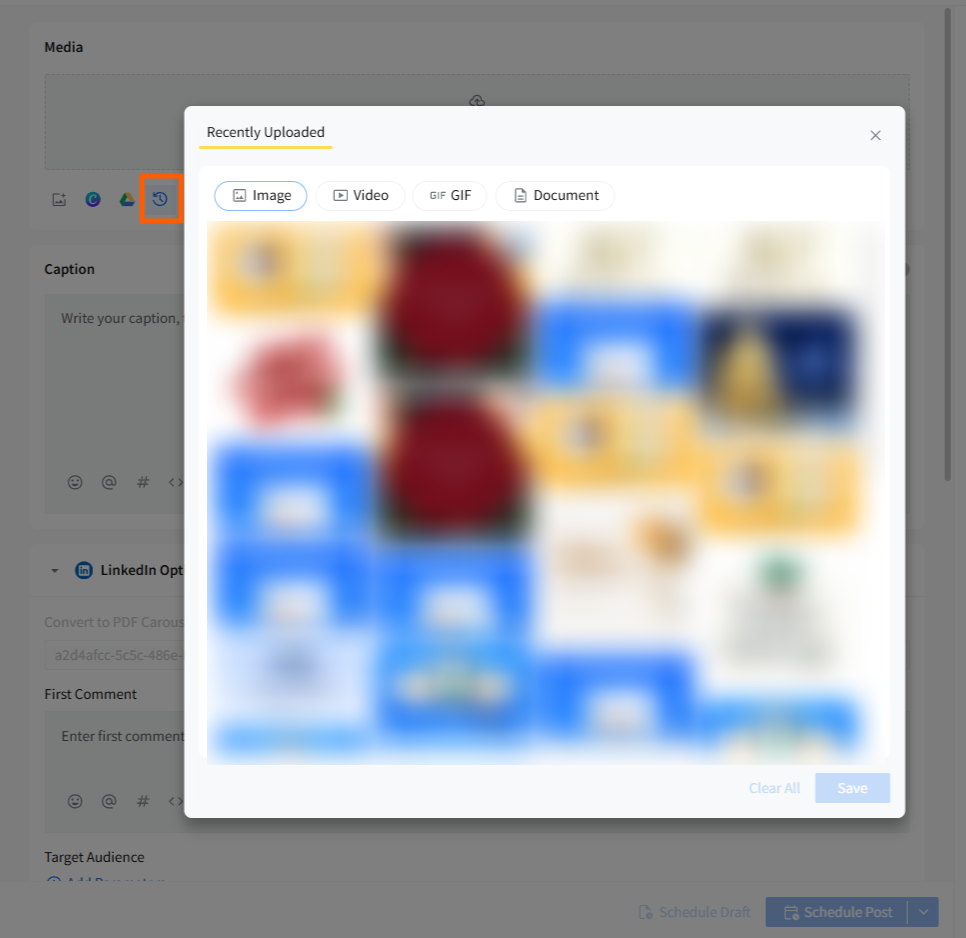
Here, you can quickly reuse any media added in the last 7 days without re-uploading it.
- Create Carousel or Image Posts:
- Upload up to 9 images to share them as a standard LinkedIn image post.
- To create a carousel, turn on the Convert to PDF Carousel option. This option lets you upload up to 30 images that will be converted into a single PDF document.
- You can upload multiple images, which will be converted into a single PDF.
- The new Create Post ensures consistent PDF carousel creation and prevents unsupported combinations through improved error handling.
- Canva Integration:
The Canva integration allows you to create custom graphics and videos directly within the post composer.
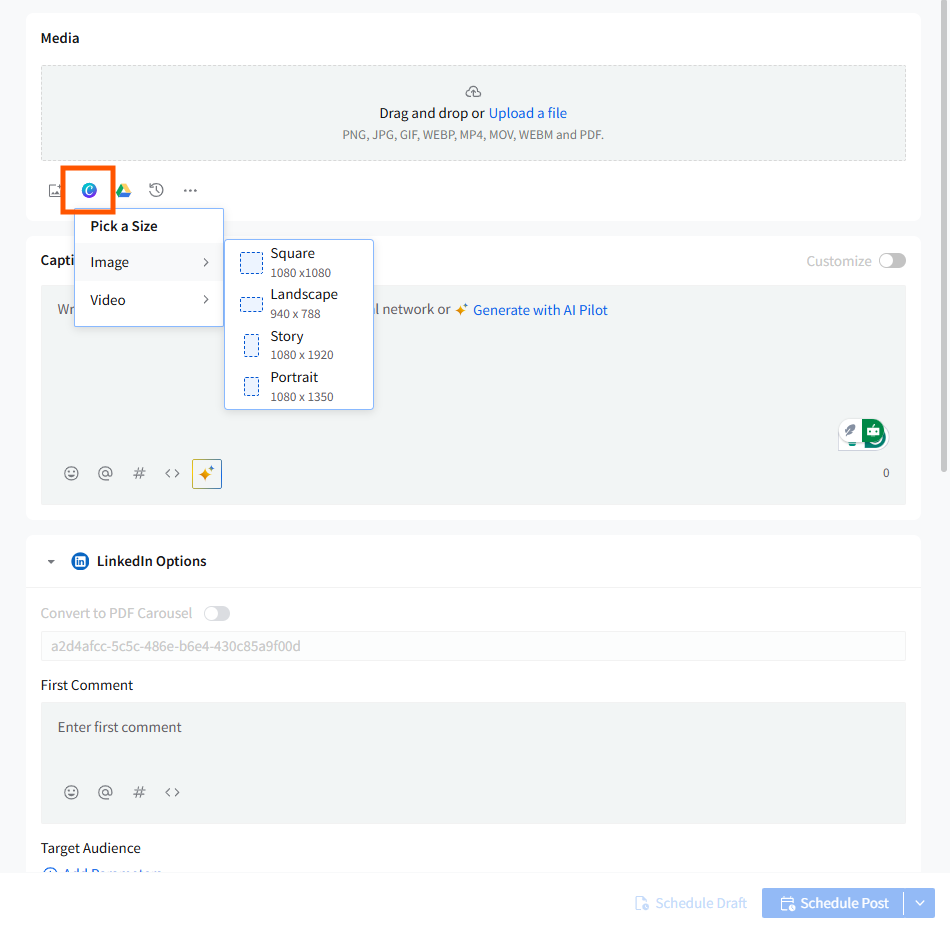
Click the Canva icon inside the Media bar to design custom graphics. Once done, your creation will be imported directly into your post—no manual downloads needed.
- Tag LinkedIn Personal Accounts or Pages:
The next step can be tagging LinkedIn personal accounts and business pages. Click on the @ and enter the account name in the platform option. A list of suggestions will appear. Select the correct account to add it to your post.
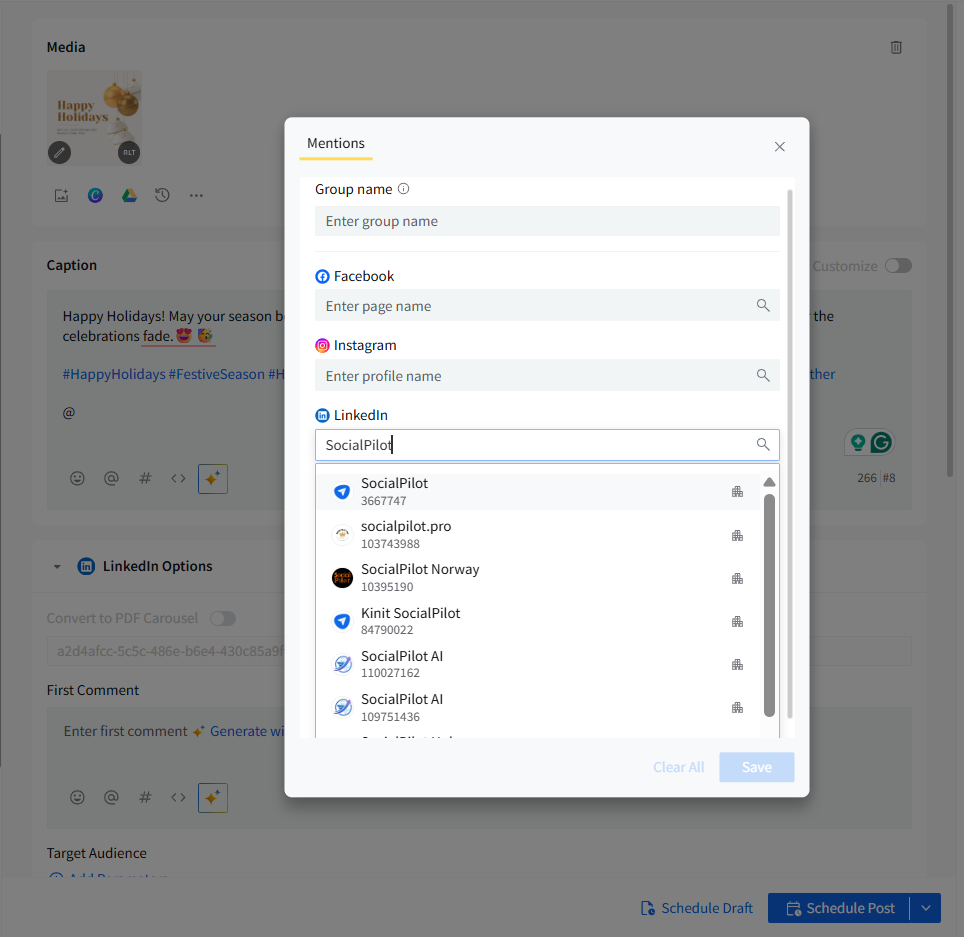
📋 Notes:
Here are the scenarios under which you won't be able to tag other profiles:
- If the profile you've tagged is not following your LinkedIn organization page.
- If the profile being tagged has turned off their profile visibility.
- If being tagged has turned off 3rd-party data sharing.
- When the profile being tagged has turned off their mentions.
- If the profile you want to tag has blocked viewing their profile (this is called "M2M Block on viewer").
- If there is any missing piece of information about the profile being tagged, including First Name, Last Name, or Headline.
- If you are trying to match a profile you want to tag based on the Maiden Name or Additional Name, but that information is not publicly visible.
- If the user's profile you are tagging is not EN_US, it won't be returned under suggestions.
- You can also add emojis to your LinkedIn posts to make them more expressive. Click the emoji icon in the caption editor, browse through the categories, and click to insert your chosen emoji into the post.
- In the new Create Post experience, Target Audience continues to work the same way as before, but with a clearer workflow. Platform options now appear only when at least one LinkedIn account is selected, which means you’ll see the Target Audience settings as soon as you choose a supported LinkedIn Page.
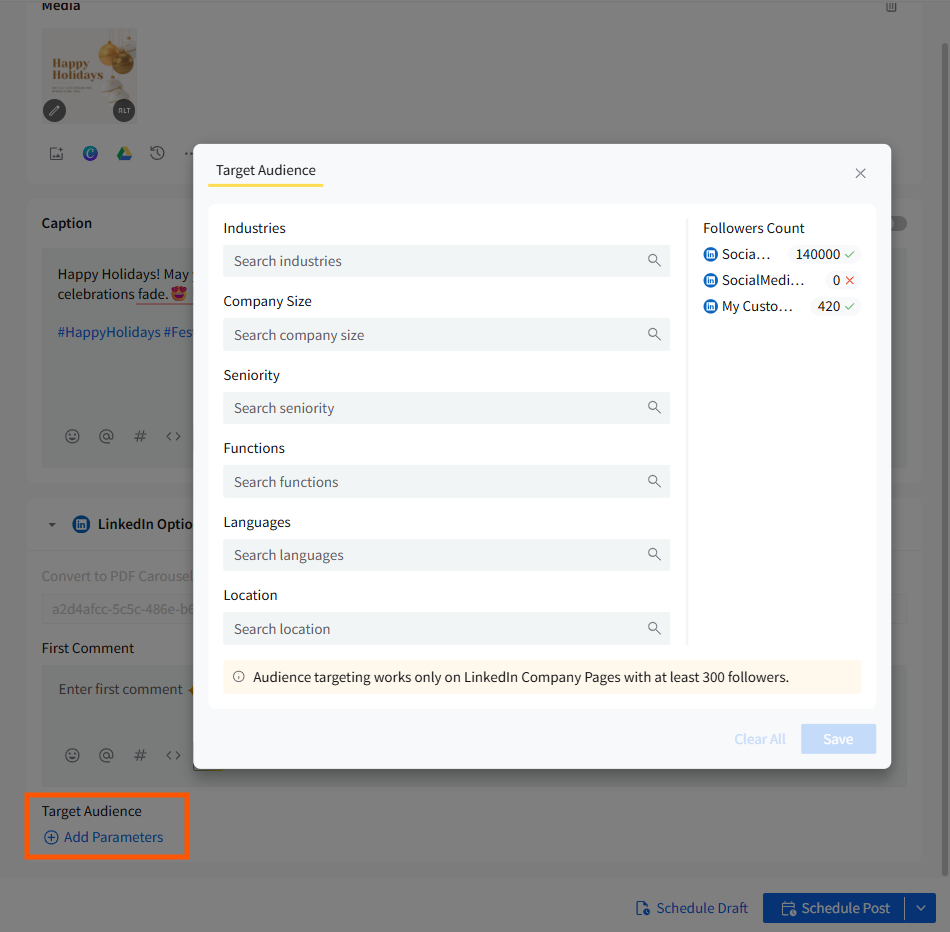
Audience targeting lets you define who can view your LinkedIn post. Once you’ve selected your LinkedIn account(s), you can open Target Audience within LinkedIn Options and apply your preferred visibility settings.
📋 Note: Audience targeting is only available for LinkedIn Company Pages with at least 300 followers. This requirement remains unchanged in the new Create Post
- Custom fields allow you to save commonly used snippets of text, such as disclaimers or contact information, which can be easily inserted into posts. Set up your custom fields in the account settings and select them from the post composer whenever needed.
- You can add custom UTM parameters to any links you share in your posts. This enables you to track the performance of your social media campaigns through Google Analytics or other tracking tools. In the new Create Post, UTMs apply at the post level, ensuring consistent tracking across networks without accidental per-network mismatches.
- SocialPilot allows you to pre-schedule the first comment for your LinkedIn posts. Enter your first comment under LinkedIn Options. The new Create Post keeps this experience familiar but improves clarity by placing First Comment within LinkedIn-specific options.
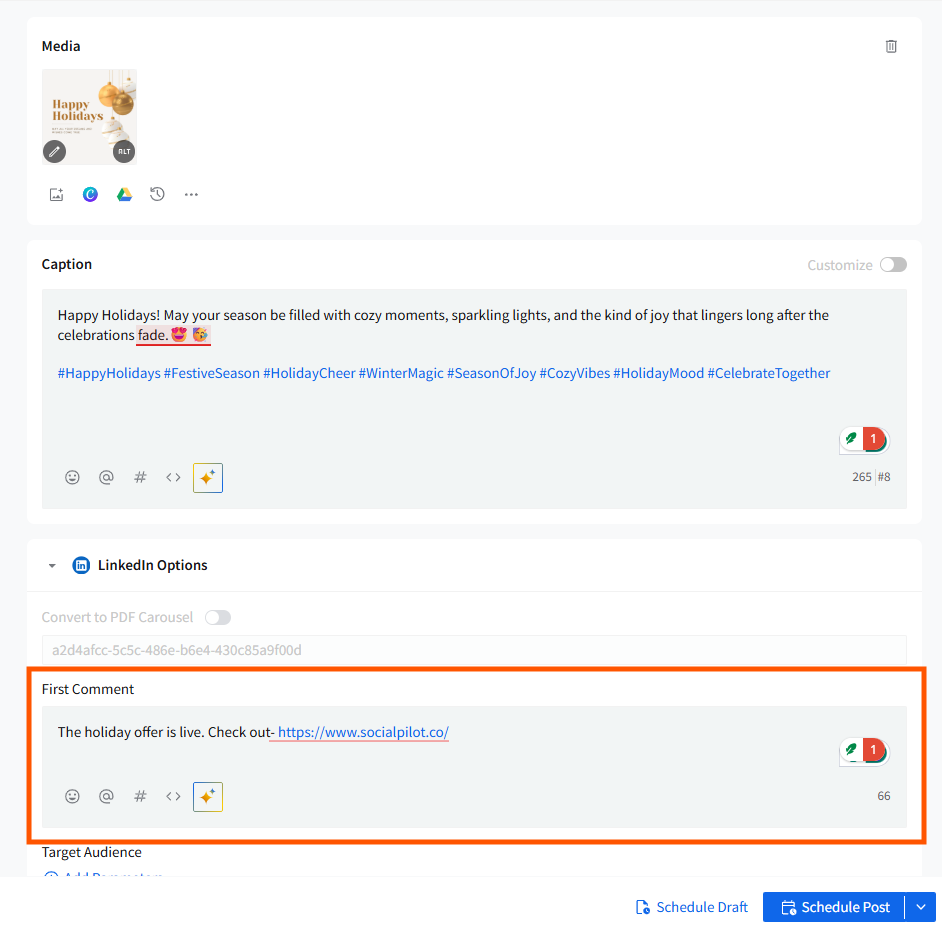
Enter your desired text, hashtags, or CTAs in the designated First Comment field. After adding your First Comment, continue composing your main post. Once done, you can either schedule the post for later or publish it immediately. The First Comment will automatically follow your main post based on your settings.
📋 Note:
The first comment only publishes on LinkedIn, even if the post is shared across other networks.
Related Articles:
-
How to Create a Custom Post in the New Create Post Dashboard?
-
How to Customize Posts for Google Business Profile in the New Create Post?
-
How to Customize Posts for Instagram in the New Create Post?
-
How to Customize Posts for Pinterest in the New Create Post?
-
How to Create a TikTok Carousel on SocialPilot in the New Create Post Experience?