
How to Customize Posts for Pinterest in the New Create Post?
SocialPilot makes it easy to create and schedule Pinterest posts, ensuring that marketers can manage multiple accounts efficiently. With the new Create Post experience, customizing Pinterest posts feels smoother and more intuitive. SocialPilot now brings all your Pinterest-specific tools into a cleaner workflow, so you can focus on creating Pins that stand out. Whether you're sharing a single image, multiple visuals, or a video, the redesigned flow helps you set everything up quickly and confidently.
Follow these steps to customize and publish Pinterest-specific content:
- In the SocialPilot dashboard, click on the Create Post button.
- From the Accounts, Groups & Clients panel on the left, select the Pinterest accounts you want to publish to.
- In the new Create Post experience, platform options, including Pinterest Options, appear only after you select at least one supported account.

- Add media from your local device or connected sources such as Google Drive, Dropbox, or Box in the media section above the caption box. Accepted formats: PNG, JPG, GIF, WEBP for images, and MP4 or MOV for videos. You can also design and upload content from Canva.
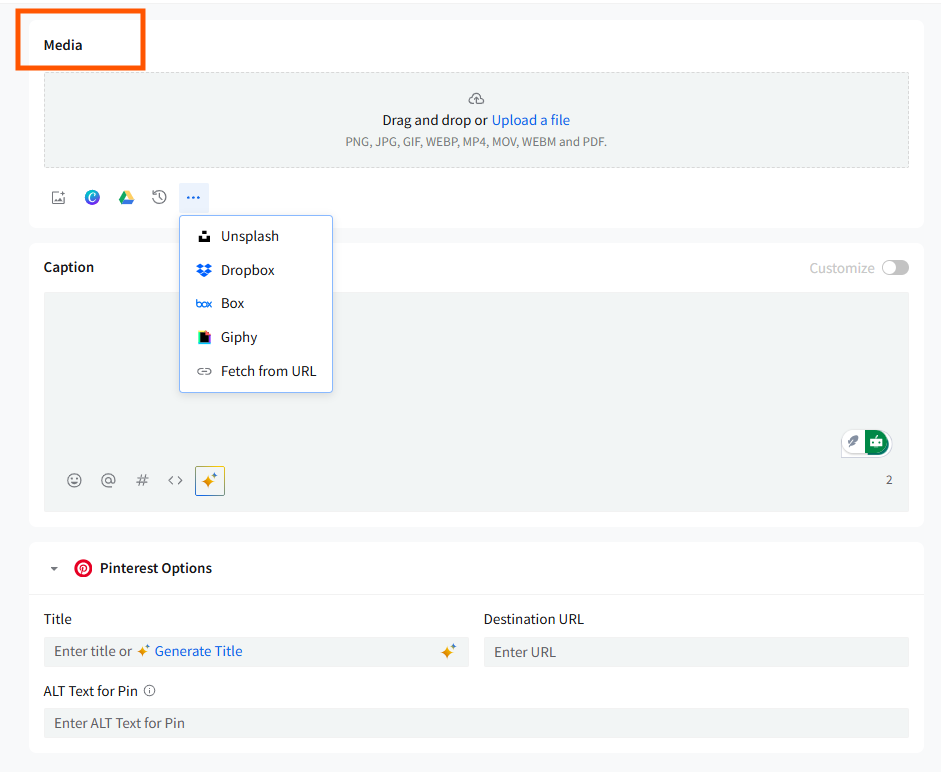
- You can also use the menu (···) under the Media section to import content from Unsplash, Giphy, or Fetch from URL.
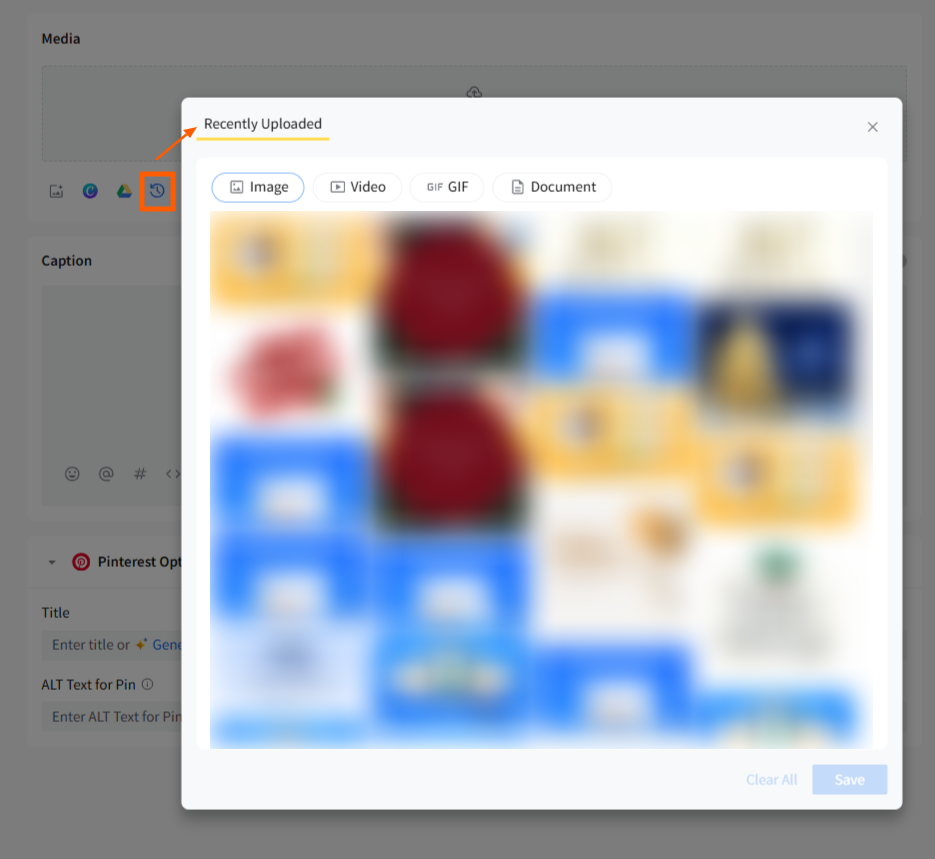
- In the new Create Post’s media section, there is a recent media icon next to the drive to view the Recently Uploaded panel. Here, you can quickly reuse any media added in the last 7 days without re-uploading it.
📋 Notes:
- In the new Create Post experience, Pinterest now supports a single Title and Description for all images in a multi-image post. Multiple titles or descriptions per image are no longer supported.
- Pinterest flags shortened URLs as spam, so use the full link. UTM parameters will be added automatically.
- The options to adjust your media now appear in the media section itself for easy editing and managing.
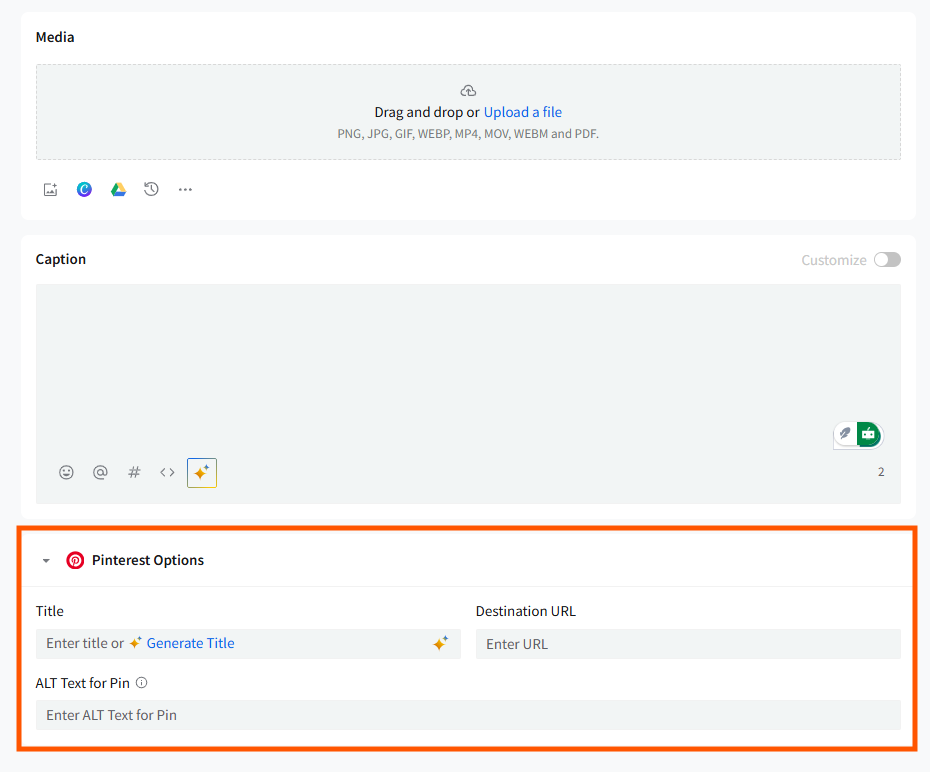
- The ALT Text, Title (up to 100 characters), and Destination URL for Pin are now available under Pinterest Options. ALT Text is activated whenever at least one Pinterest account is connected.
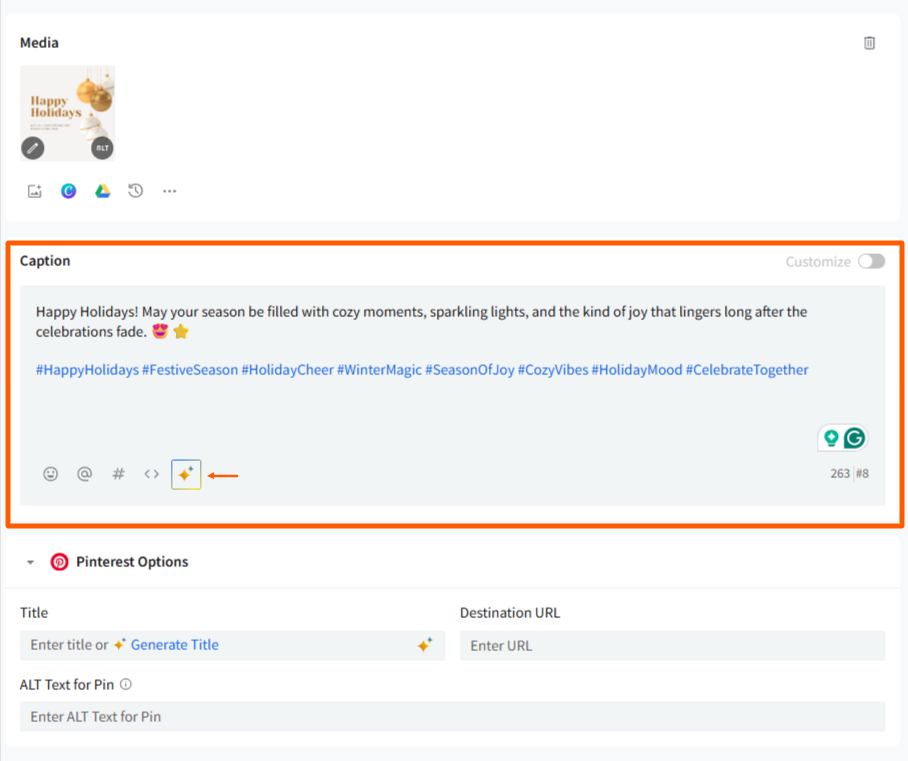
- Write your Pin Description in the caption area and customize it using emojis, Custom Fields, or UTM parameters (if your caption contains a URL).
- Preview your post in the right-side Preview panel to check if everything is set.
- Set the date and time to schedule your post.
UTMs apply at the post level and behave the same across all networks in the new Create Post flow.
📋 Notes:
- If you have recently changed your Pinterest username from the native platform, it is recommended that you go to SocialPilot and refresh your connection.
- Manage Accounts -> Edit Pinterest board -> Reconnect
Reconnecting one of the boards from the Pinterest account will refresh the connection for the rest of the boards from that account. This will help SocialPilot maintain appropriate access to your Pinterest account and not hamper the scheduling and publishing flow.
📋 Note:
SocialPilot supports the following video formats:
- .avi
- .mp4
- .mov
- .webm