
Does SocialPilot Provide TikTok Direct Publishing in the New Create Post?
With the new Create Post experience, publishing TikTok content through SocialPilot becomes a lot smoother. You can upload your video, set all your TikTok-specific options, and choose how you want it published, either through Direct Publishing or with a Mobile Reminder if you prefer making final edits on the app. The updated workflow keeps everything organized in one place so you can plan your TikToks confidently without juggling multiple steps or tools.
In This Article
- How To Opt for TikTok Direct Publishing?
- How To Share TikTok Videos Using Push Notifications?
- Why Do I Need Credentials To Share on My Client’s TikTok Account?
How To Opt for TikTok Direct Publishing?
Here is how you can publish TikTok videos directly from SocialPilot using the new Create Post experience:
- In the SocialPilot dashboard, click on the Create Post button.
-
From the Accounts, Groups & Clients panel on the left, select the TikTok account(s) you want to publish to.
In the new flow, TikTok Options appear only after a TikTok account is selected.
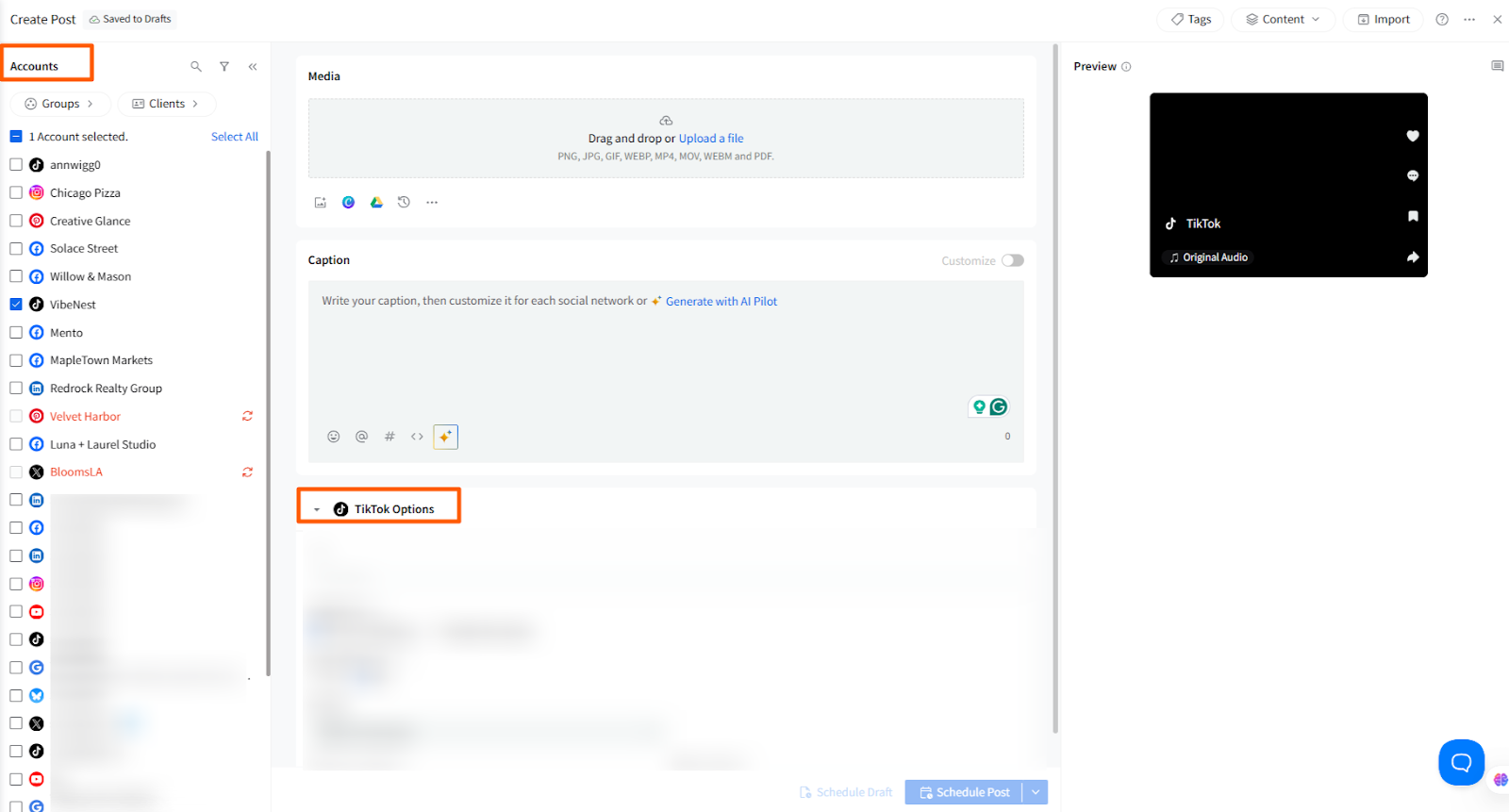
- The new Create Post experience gives you a cleaner and more flexible Media section, making it easier to upload and manage your content before publishing.
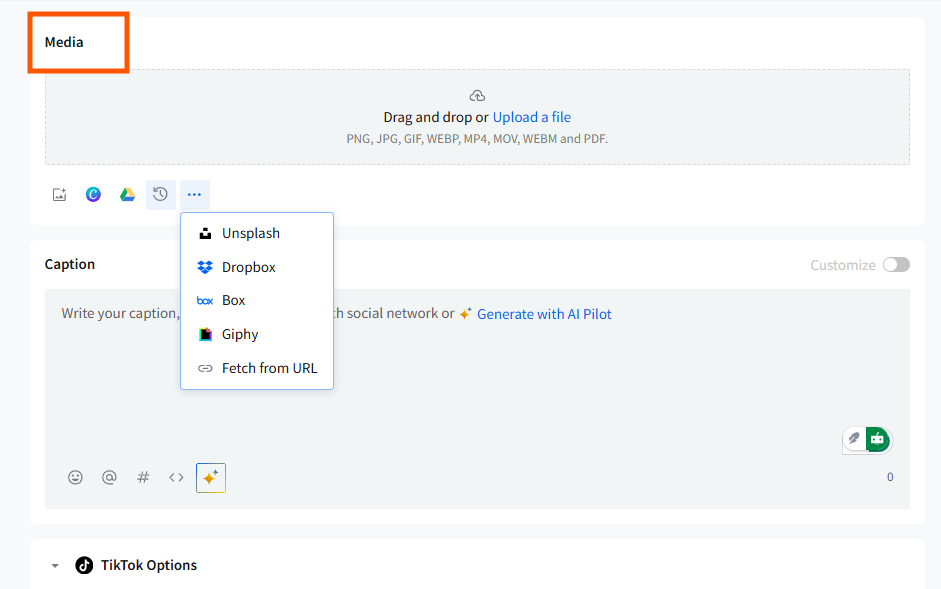
- To upload your video, you can choose from multiple sources, like uploading from your local device, Google Drive, Dropbox, Box, Canva, Unsplash, Giphy, or Fetch from URL.
- Your most recent uploads are now available under Recently Uploaded, allowing you to quickly reuse any media file added in the last 7 days without having to upload it again.
📋 Note: TikTok video requirements:
- Length: 3 seconds to 10 minutes
- Format: MP4 or MOV
- Max size: 512 MB
- Resolution: 360-4096 px (height/width)
- Frame rate: 23-60 FPS
- Codec: H.264, H.265
- When you upload a video in the new Create Post experience, the Media section displays all the video-specific tools supported by TikTok. After uploading a video, you’ll see options like Video Title, Change Thumbnail, and Add Subtitle.
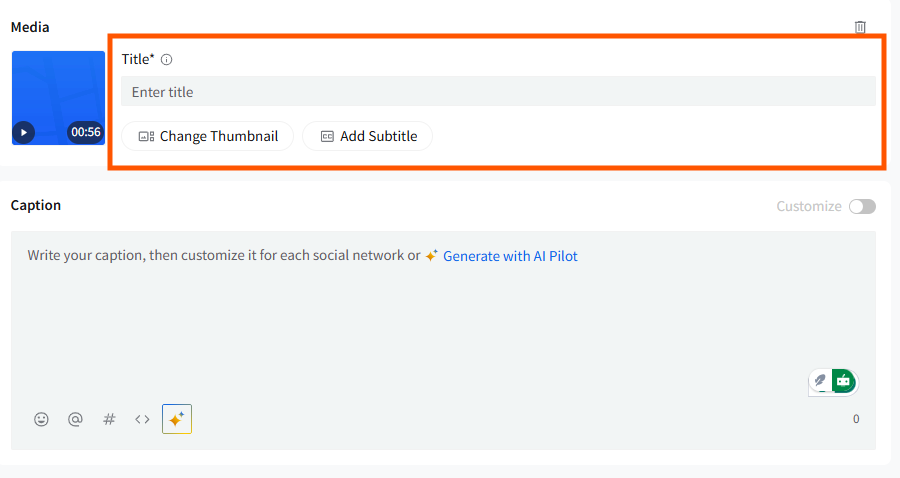
- Choose a thumbnail from the provided stills.
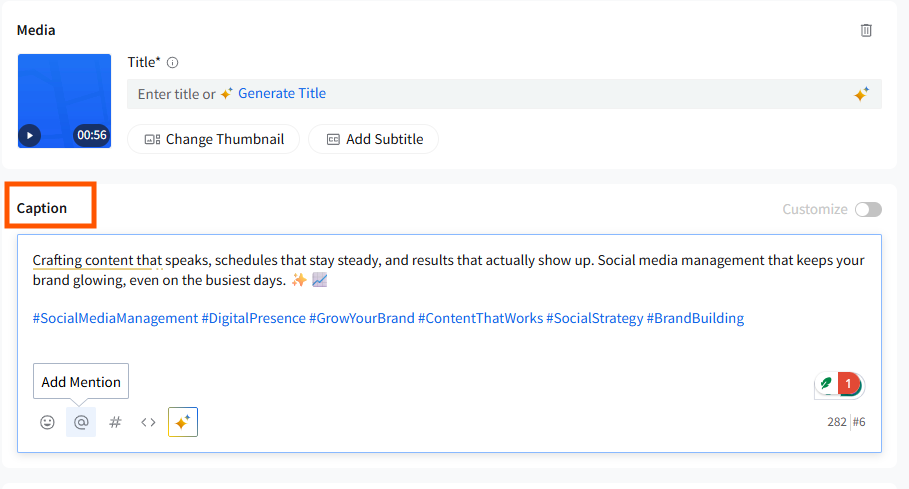
- Enter a description (up to 2,200 characters). You can add hashtags and emojis and mention users by entering their exact username.
- The default mode is Direct Publishing.
When using direct publishing, you can configure the following TikTok Options:
Privacy Settings:
- Public
- Mutual Friends
- Self
Allow Users To:
- Comment
- Duet
- Stitch
If any of these settings are disabled in your TikTok profile, TikTok will override your video-level settings.
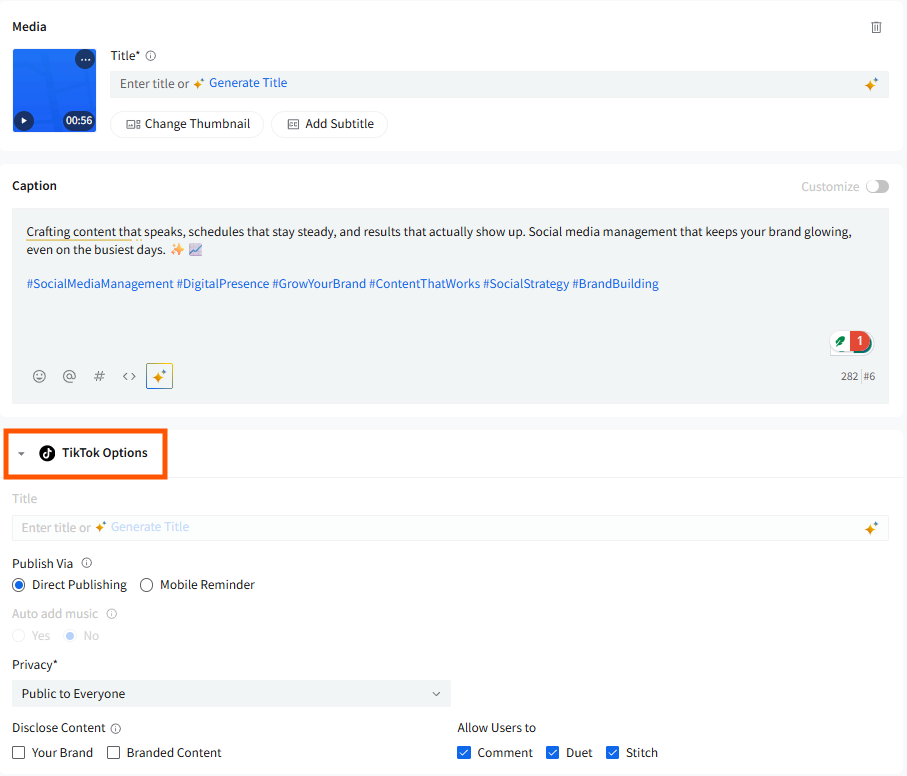
📋 Note: By default, all engagement settings (comments, duets, and stitches) are enabled.
- Choose the TikTok account, then set the date and time for scheduling your post.
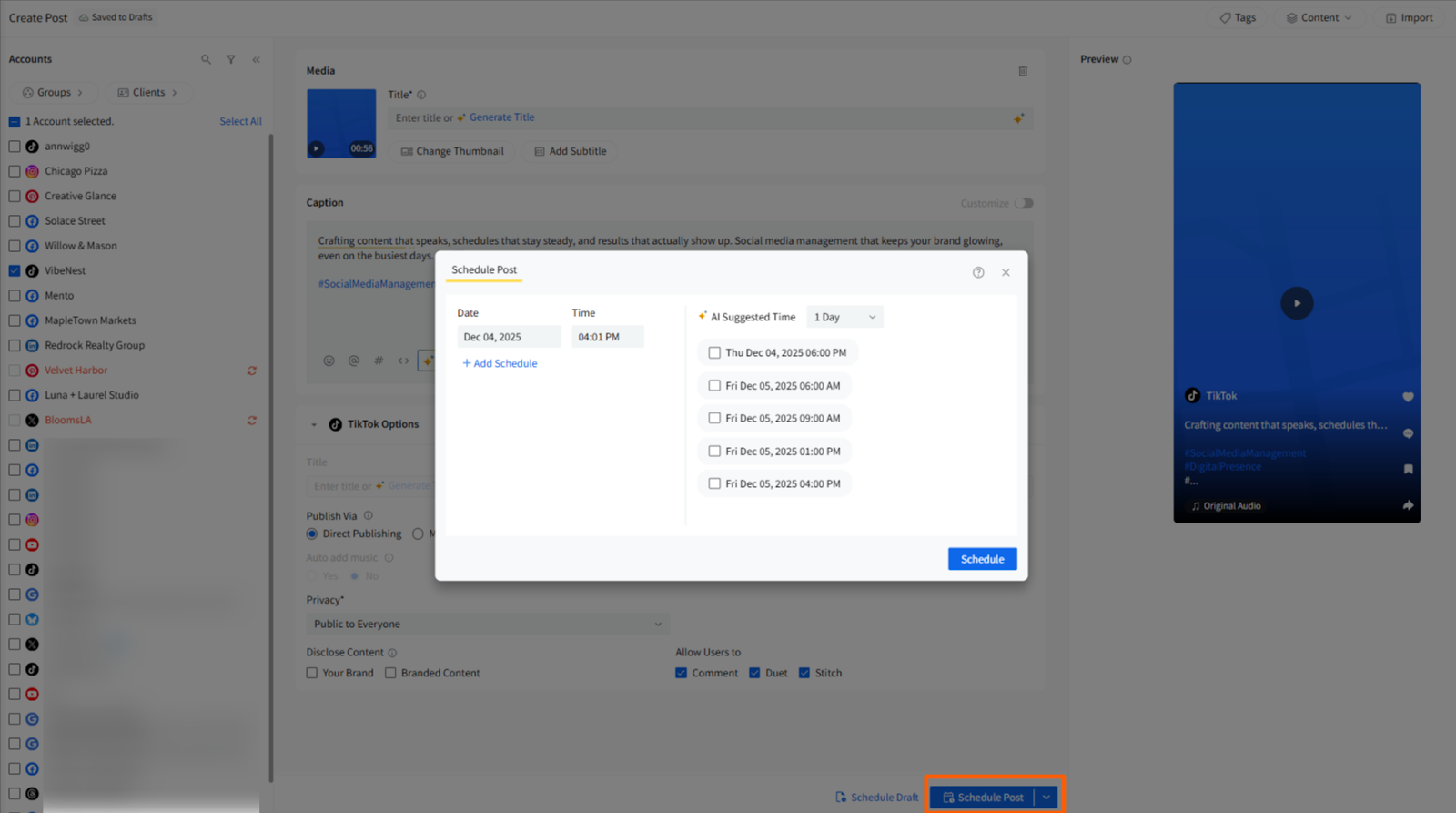
📋 Note: You can cross-post your TikTok video to other selected platforms at the same time.
- If you are promoting your own brand or a partner’s brand, you must declare it by selecting Branded Content. This option becomes mandatory when privacy is set to Public or Mutual Friends.
📋 Note:
- You cannot select “Self” privacy when Branded Content is enabled.
- If no privacy setting is chosen, the post will default to Public to everyone.
- Posting limits may apply depending on the creator account (typically around 15 posts/day), shared across all API clients using Direct Post.
How To Share TikTok Videos Using Push Notifications?
If you would like to make any last-minute edits or prefer manual control over the final post, you can opt for mobile reminders. Here’s how you can share TikTok videos using push notifications
Before starting, make sure to download and log into the SocialPilot app on your mobile phone for Android or iOS and that notifications for the app are enabled to receive the mobile reminder.
Follow the steps below to learn how to share TikTok videos using push notifications:
- Create Post → Select a TikTok account → Upload video → Select thumbnail → Add description.
- Toggle from Direct Publishing to Mobile Reminder in the TikTok Options.
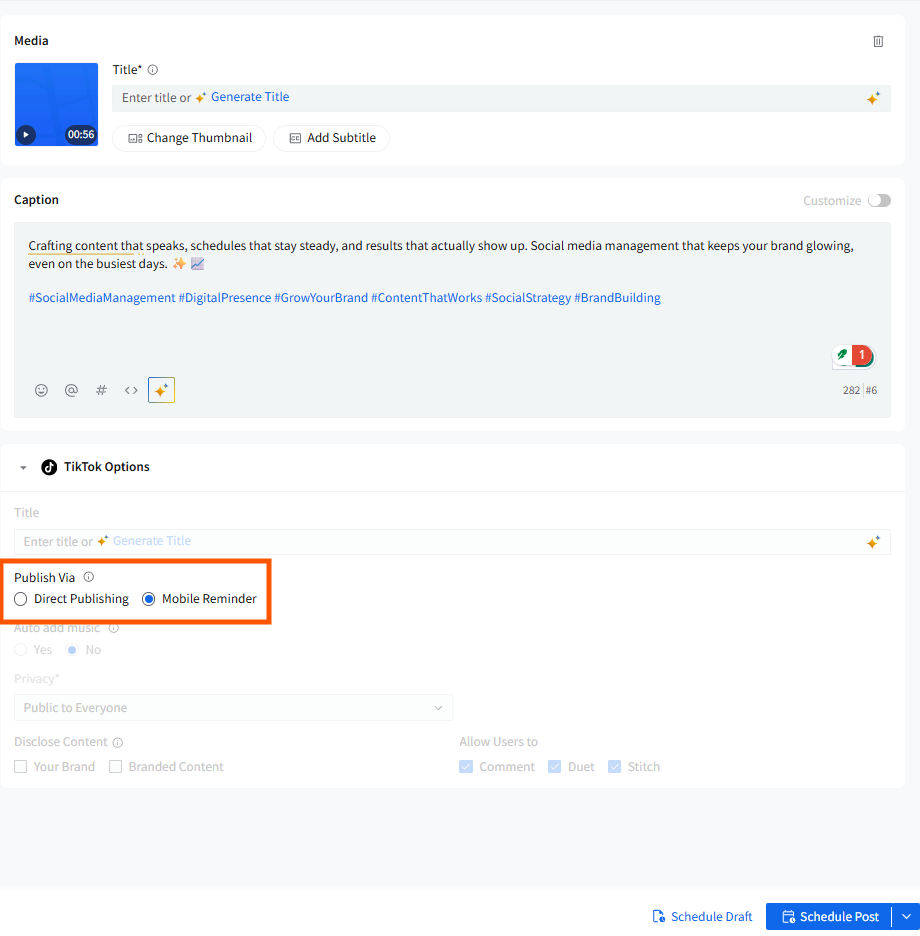
- At the scheduled time, you will receive a push notification on your phone.
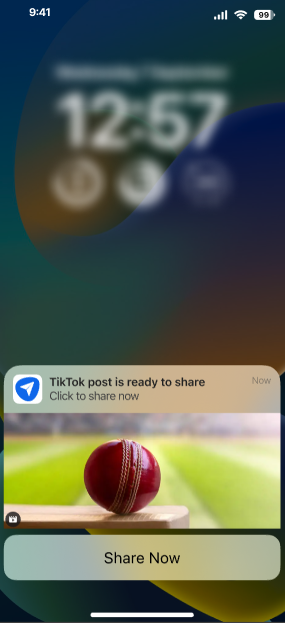
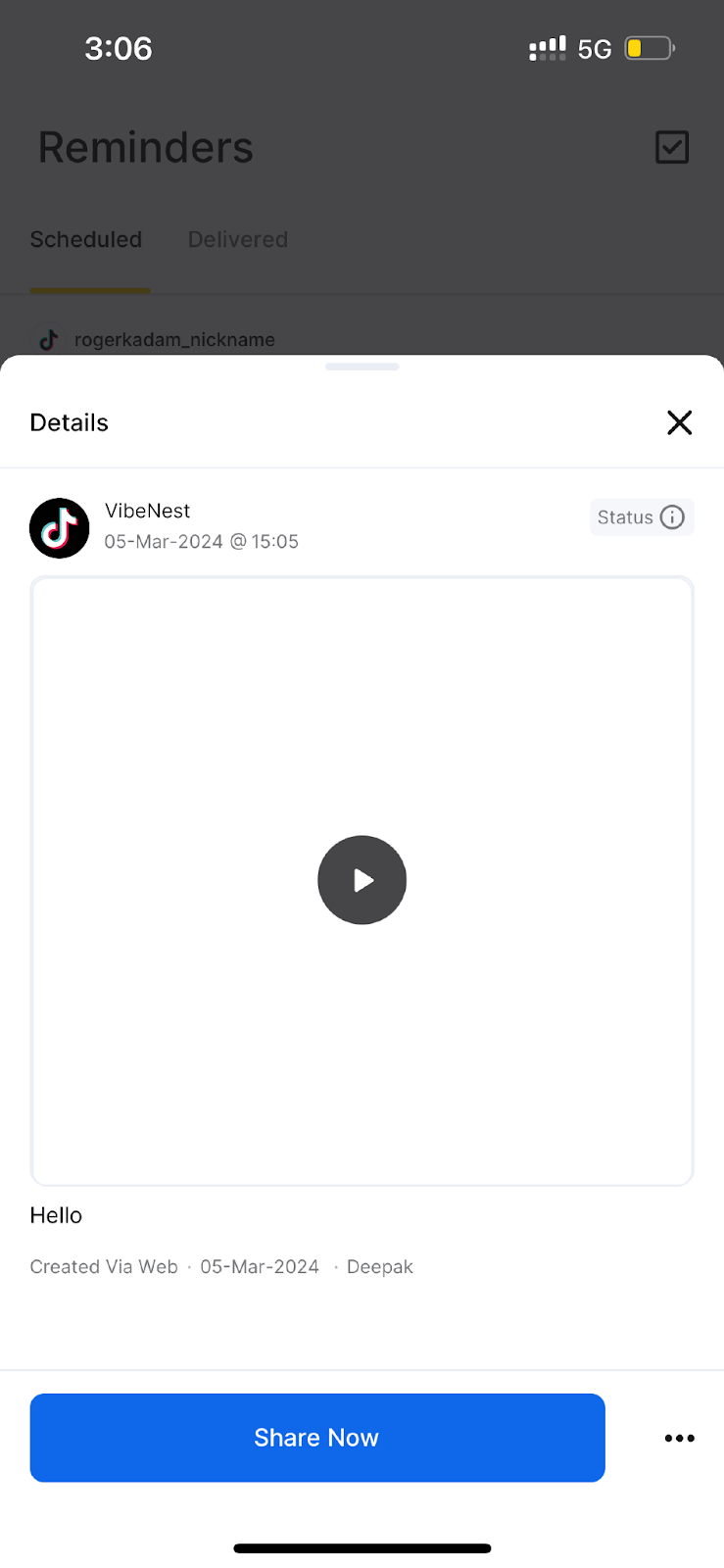
- Tap Share on TikTok from the notification or from the Scheduled Posts section under Reminders in the app.
-
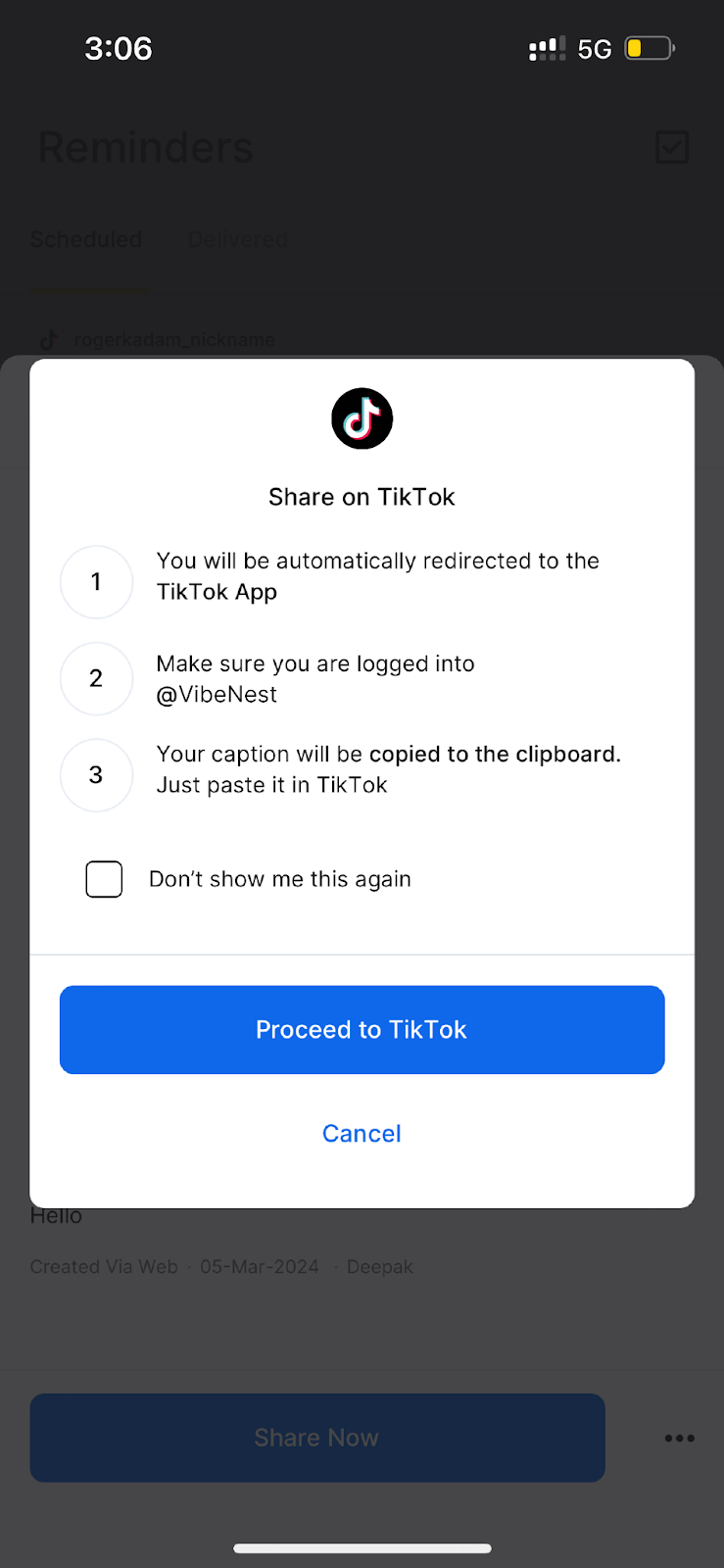
SocialPilot will open TikTok with a preview of your post.
Tap Share Now, then tap Proceed to copy your post description to the clipboard.
- Paste the description into TikTok’s caption box and click Post to complete publishing.
📋 Note: If you miss the notification, the post will still be available under the Scheduled Posts tab in the Reminders section of the app.
Why Do I Need Credentials To Share on My Client’s TikTok Account?
You do not need your client’s TikTok credentials when scheduling through SocialPilot.
If you choose Mobile Reminder instead of Direct Publishing, your client will simply receive the reminder in their TikTok application and can approve the post from their device.