
How to Customize Posts for Twitter in the New Create Post?
With the new Create Post experience, customizing your Twitter posts is now quicker and more effortless. Everything, from media uploads to mentions and GIFs, is organized more clearly, so you can focus on crafting posts that get seen and engaged with. SocialPilot helps you set up your tweet just the way you want, without any usual back-and-forth or confusion.
In This Article
Customization Options for Twitter Posts
Here are some of the customization options you get while scheduling Twitter posts:
- Write Your Tweet in the Caption Editor: Your character limit depends on your Twitter account type—Premium accounts can write up to 25,000 characters, while free accounts are limited to 280.
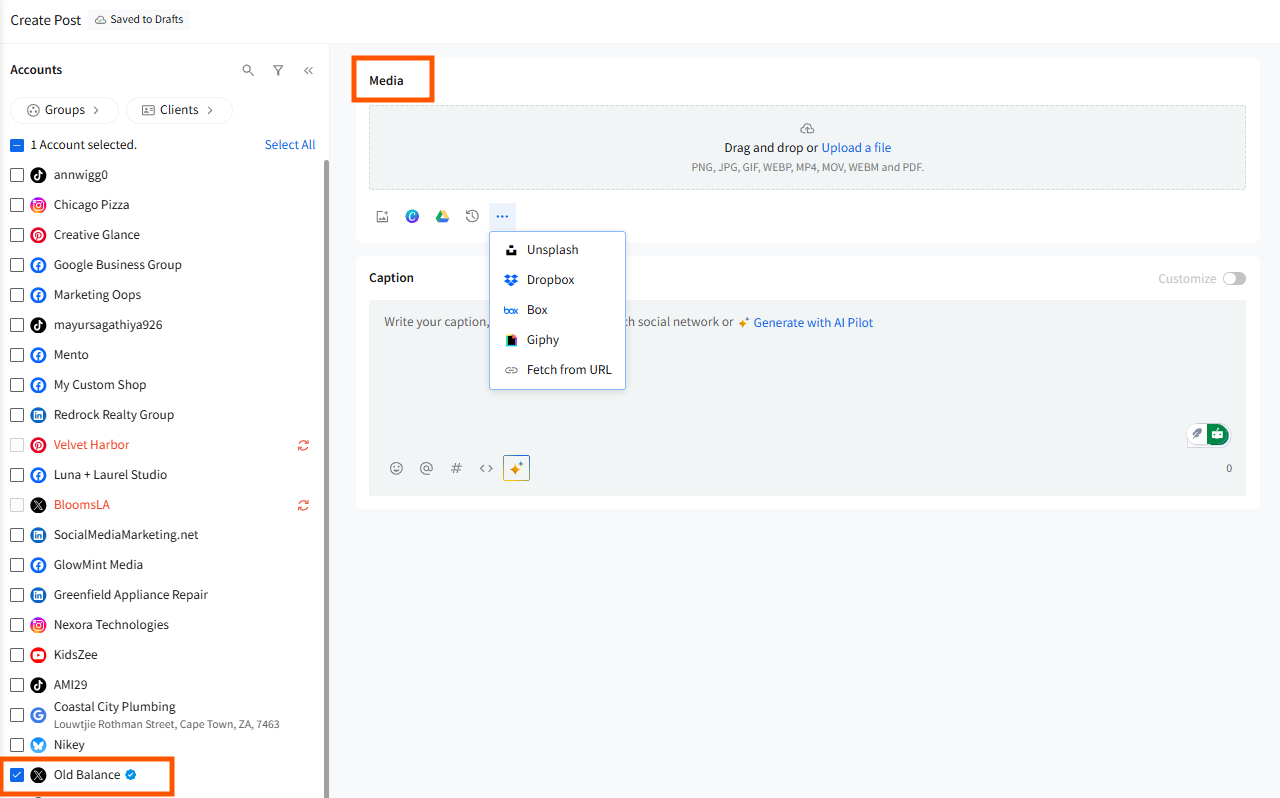
- Create an Image Post: All image uploads are available under the revamped Media section. You can now choose from multiple sources like Upload from device, Recently Uploaded (access media you added in the last 7 days), Google Drive, Dropbox, Box, Canva, Unsplash, Giphy, and Fetch from URL.
- Tag Another Twitter Account: Mention Twitter accounts to increase visibility.
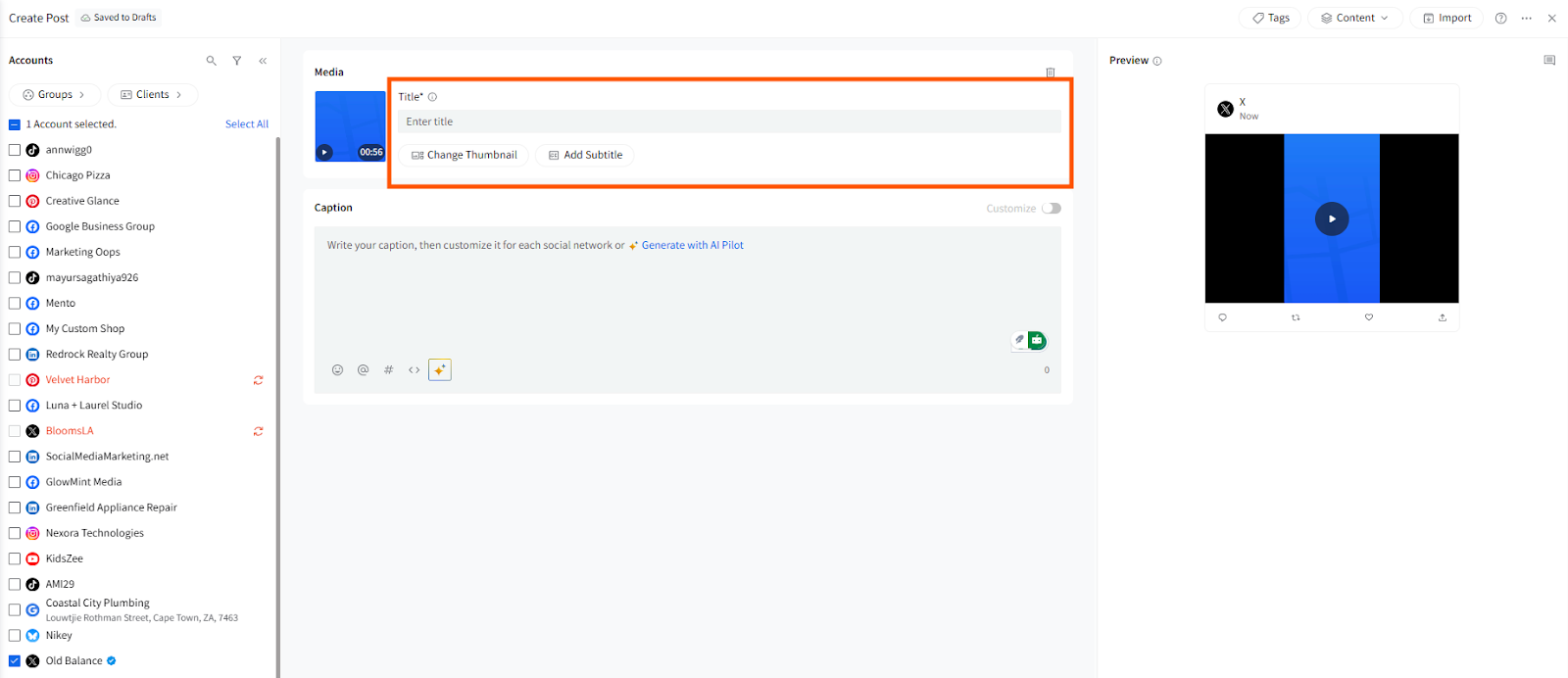
- Share a Video Post: Upload a single video from the Media section.
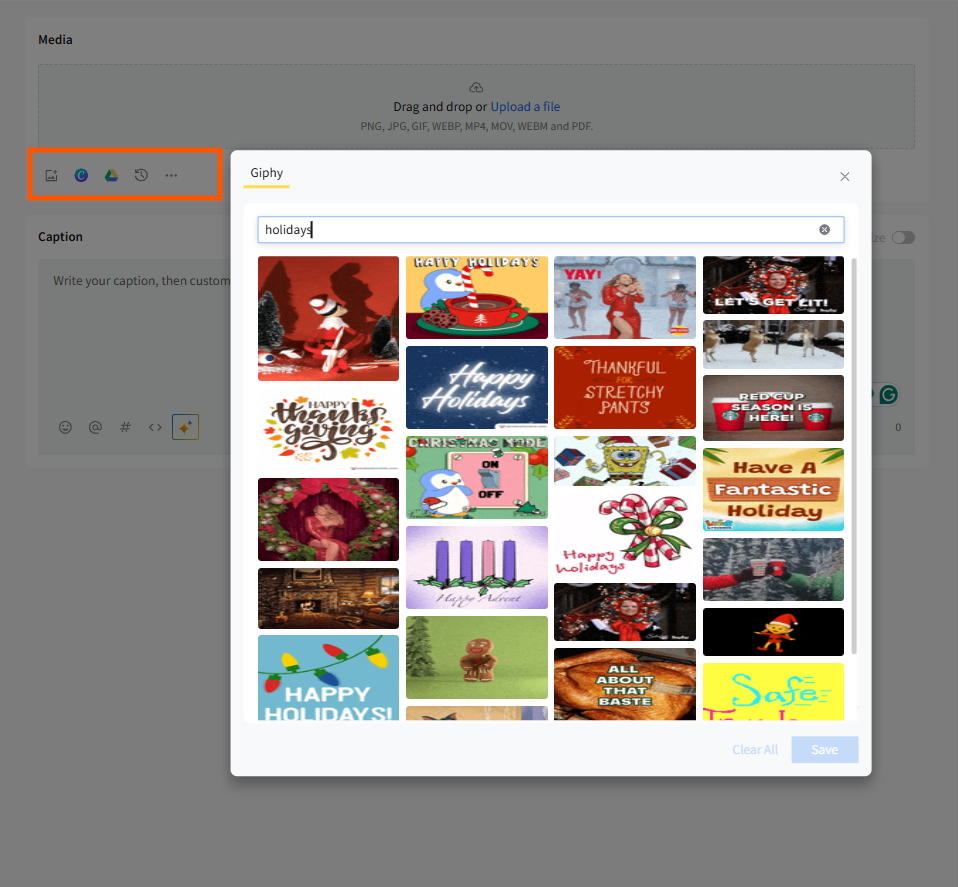
- Add a GIF: Enhance your tweet with a GIF from Giphy.
- Design With Canva: Create and attach custom graphics without leaving SocialPilot.
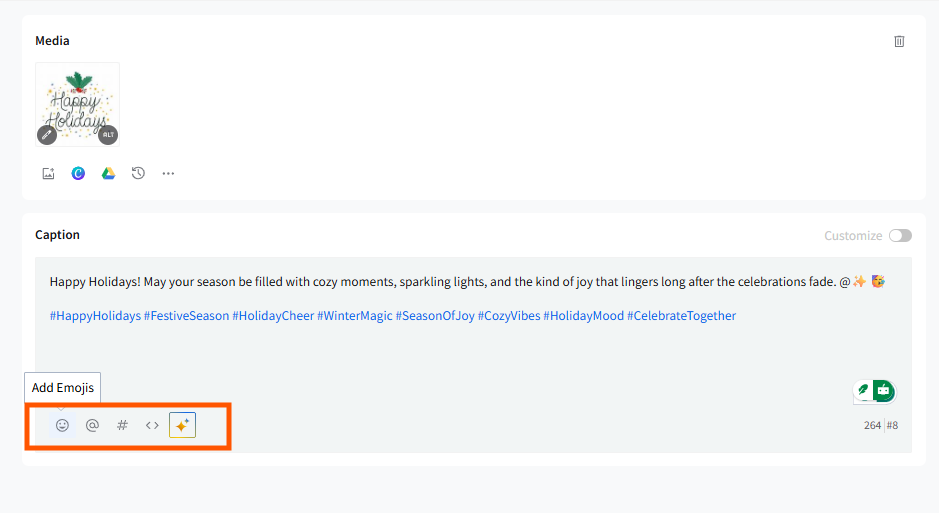
- Use Emojis: Add emojis to express your emotions and connect with your audience.
📋 Notes:
- Twitter does not support albums or carousel posts. Only a single media type can be added per post in the new Create Post experience.
- You can also copy-paste your media in the media section to add an image to your content in seconds.
How to Customize Twitter Posts on SocialPilot?
Follow these steps to create and customize a Twitter post using the new Create Post experience:
- Select your Twitter account(s) from the left-side Accounts Panel. Once selected, you will automatically see an outline of how the tweet will look on Twitter in the right-side Preview panel.
- You can upload images using any of the supported media sources:
Uploading Images:
Upload directly from your local device or cloud storage services like Google Drive, Dropbox, or Box.
Using External Sources:
Click the … menu under the Media section to choose from:
- Unsplash
- Dropbox
- Box
- Giphy
- Fetch from URL
Public URL Option:
You can also add an image by pasting a public URL.
📋 Note:
Twitter does not support albums or carousel posts. Only a single media type can be added per post in the new Create Post experience.
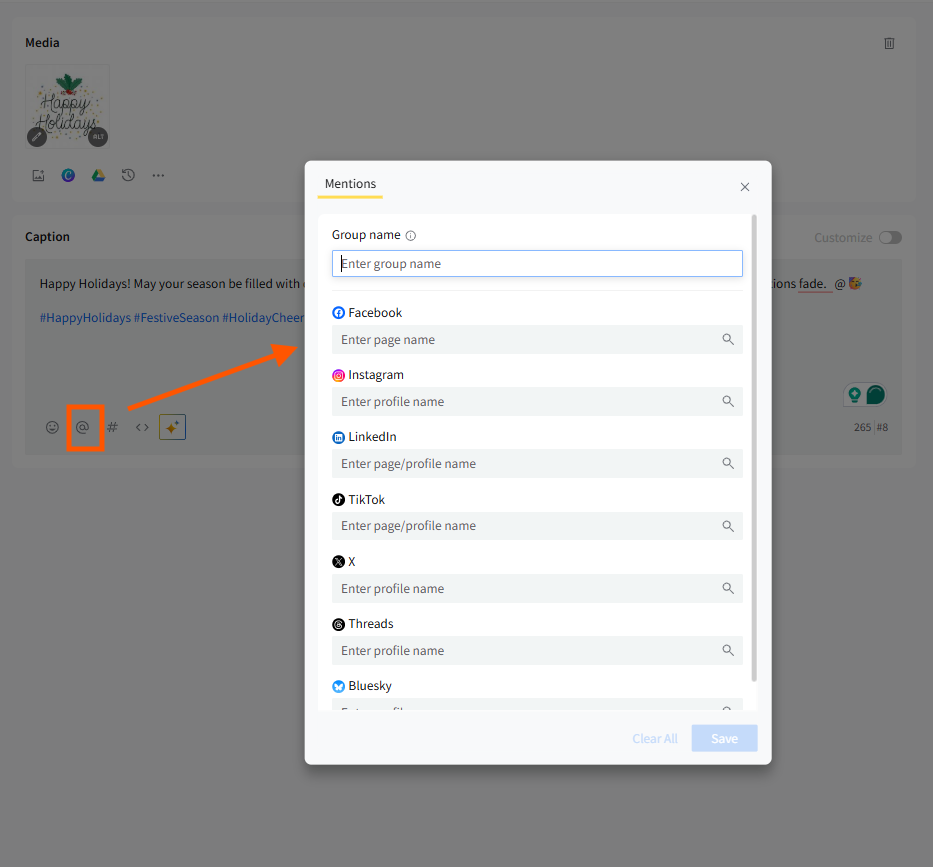
- Select the Mention option ‘@’ in the caption box. A suggestion list will appear. You can choose the correct handle to add it to your tweet.
-
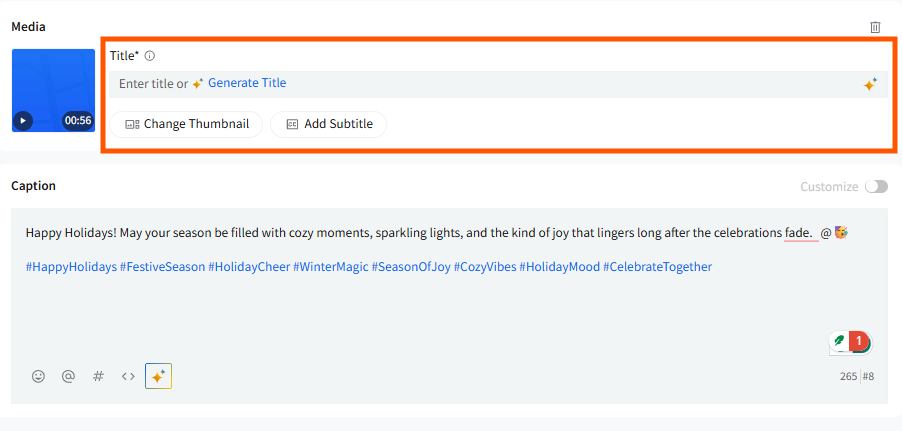
In the Media section, upload a single video from your local device or connected cloud sources.
Video-specific options such as Change Thumbnail, Video Title, or Subtitles will appear only if Twitter supports them.
💡 Supported video formats:
- .avi
- .mp4
- .mov
- .webm
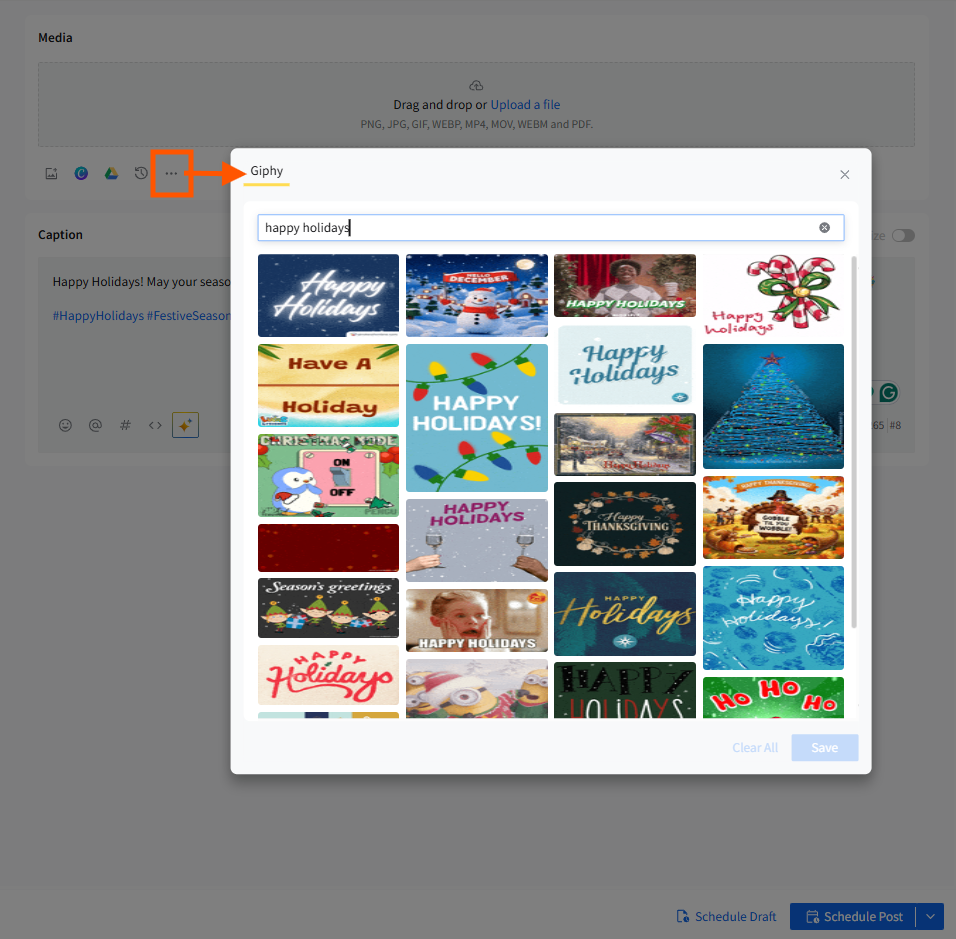
- To add a GIF in the Media section, open the External Sources menu and select Giphy. Search for a keyword, browse the results, and click the GIF you want to add.
- You can also create your graphic. Click the Canva icon, log in, and start designing. When finished, your design is automatically added to the Media section.
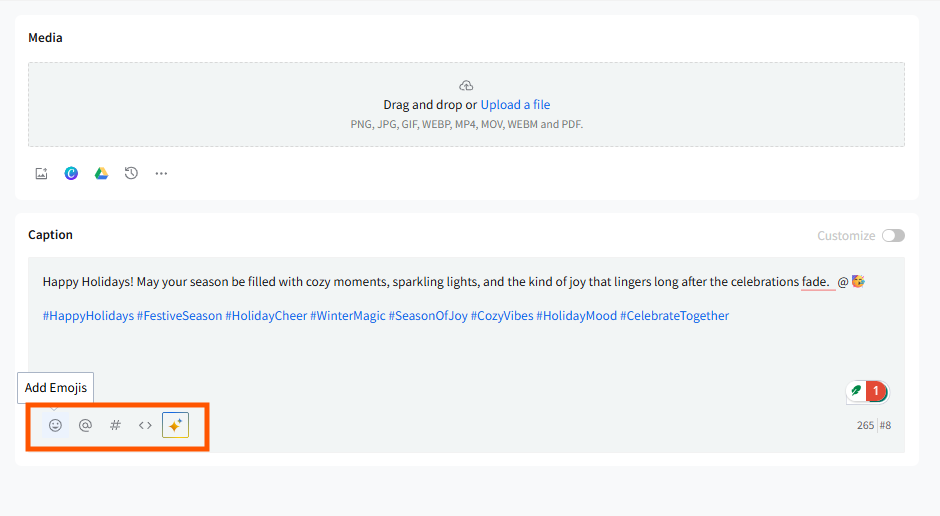
- You can add emojis to your Twitter posts to make them more expressive and to help convey the tone of your message. Click on the emoji icon in the caption box to browse and select the appropriate emojis.
Related Article:
- Does SocialPilot Support Twitter Premium Subscription?
-
How to Create a Custom Post in the New Create Post Dashboard?
-
How to Customize Posts for Google Business Profile in the New Create Post?
-
How to Customize Posts for Instagram in the New Create Post?
-
How to Customize Posts for Pinterest in the New Create Post?
-
How to Create a TikTok Carousel on SocialPilot in the New Create Post Experience?