
How Do Groups Work in the New Create Post?
Managing multiple social accounts can become time-consuming when you need to select profiles individually for every post, feed, or content action. Groups simplify this workflow by allowing you to organize accounts together and select them in one click. With the new Create Post experience, Groups are now even easier to access, helping you set up your posts faster and with fewer steps
In This Article
- What Does a Group Mean?
- How To Create a Group?
- How To Manage Groups?
- How Do Groups Work in the New Create Post?
What Does a Group Mean?
In SocialPilot, a Group is a collection of your connected social media accounts that allows you to organize accounts into groups based on themes or topics. Actions like creating a post, sharing suggestions, adding feeds, etc., require you to select the account(s) every time. It can get cumbersome to sort through, identify, and select accounts when you have so many of them. Groups make it easier for you to find accounts.
How To Create a Group?
- Follow the steps below to create a Group on SocialPilot:
- Go to the SocialPilot panel and click on Groups.
Now, click on Create Group from the sidebar menu.
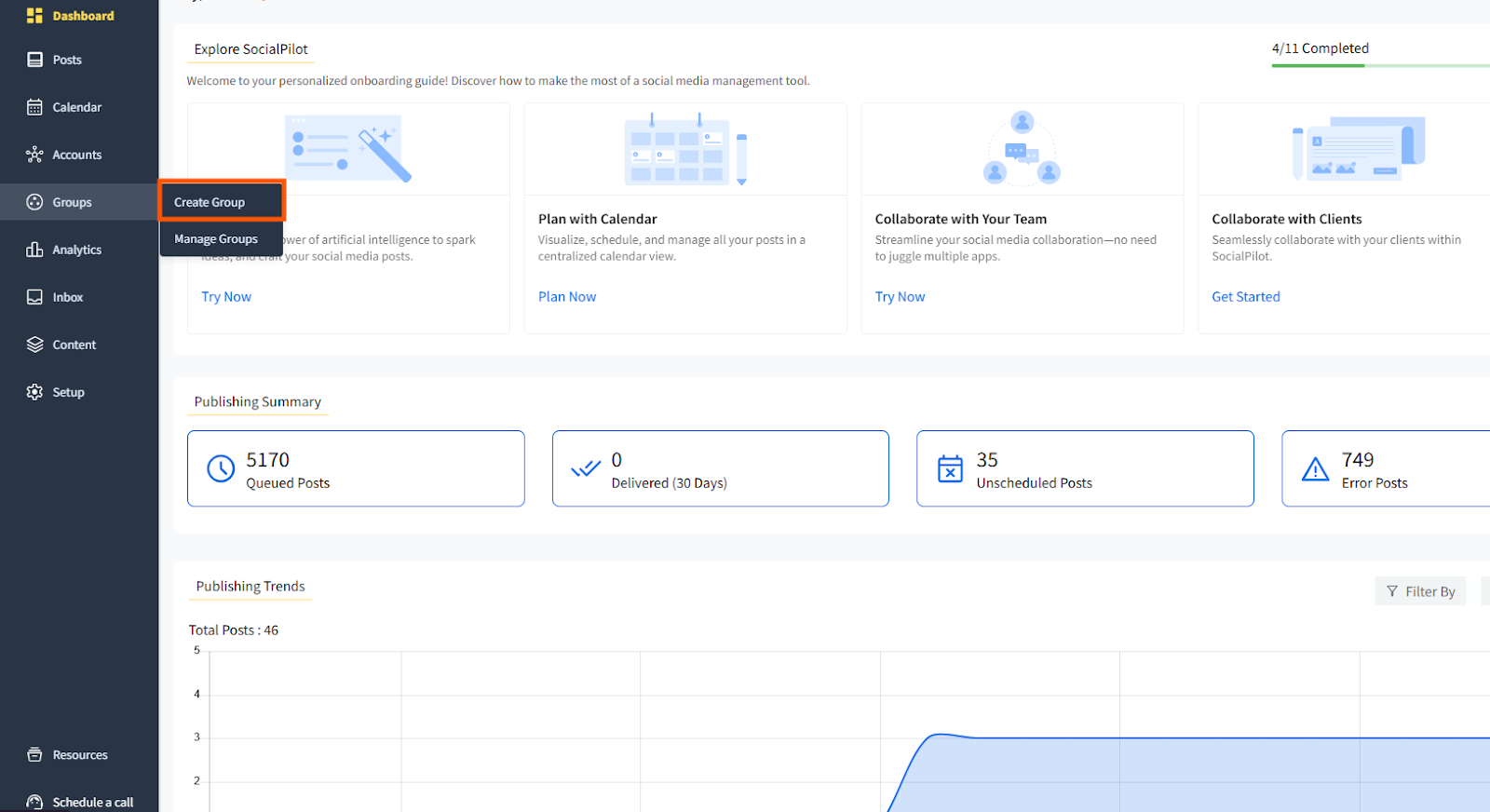
- Enter a Group Name that helps you identify those accounts, and then write a Group Description to add relevant details about the accounts in this group.
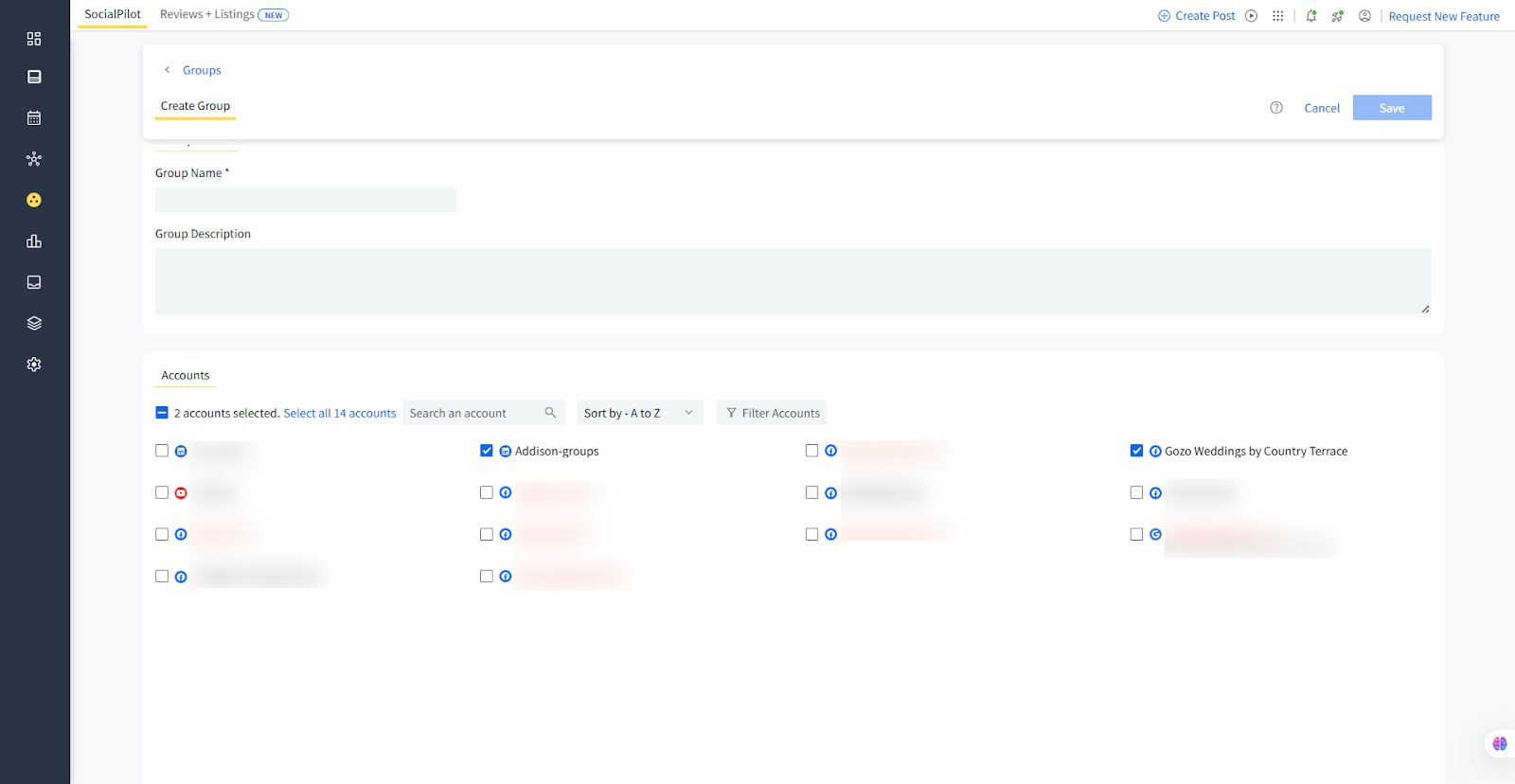
- Choose the accounts you wish to include in this group and click on the Create Group button to finalize the setup.
When you create a post, simply select a group, and all accounts in that group will be automatically selected. This method ensures you don’t miss adding any accounts while scheduling posts and reduces the effort required to manage multiple accounts.
How To Manage Groups?
If you need to add or remove accounts from an existing group, follow the steps below:
- From the SocialPilot panel, click on Groups and then go to Manage Groups.
- Click the Edit or Delete button on the group you want to modify. Here, you can add new accounts, delete accounts, and change the group name and description as needed.
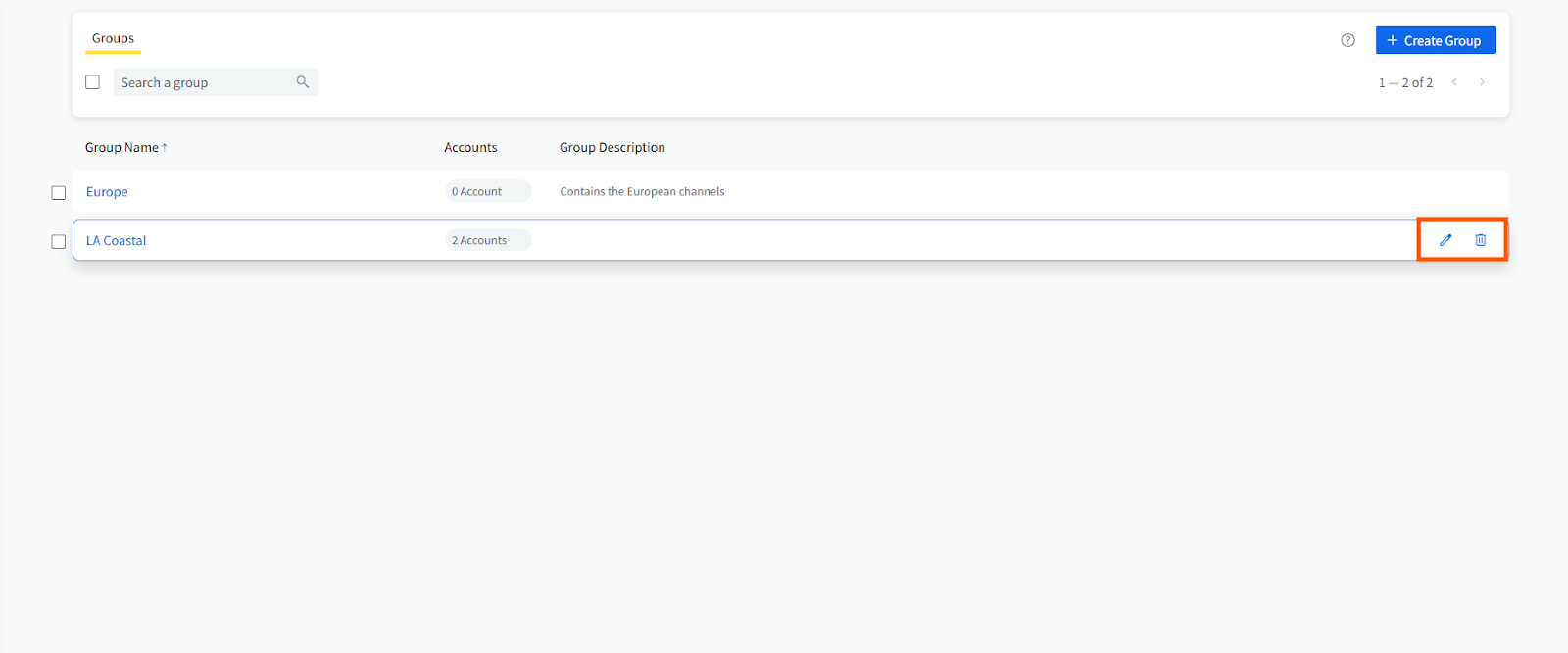
📋 Note: Deleting a group does not lead to the deletion or disconnection of the associated accounts.
How Do Groups Work in the New Create Post
- Groups now appear inside the left-side Accounts panel when you open Create Post.
- Click Groups or Clients to open the drawer directly beside the account list.
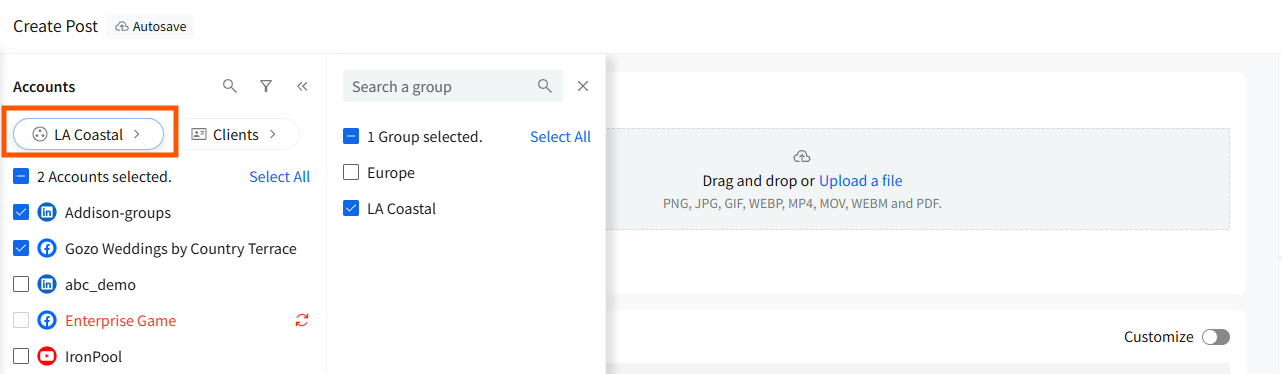
- When you select a Group, the full name of the first selected Group is displayed clearly.
-
You can scroll horizontally to view all selected Groups or Clients when there are many.
Selecting a Group automatically selects all accounts inside that Group, just like before.
Group selection works independently of:
- Customization mode
- Platform-specific options
- Media or caption changes
This updated placement ensures account and Group selection happen before you begin drafting your post, creating a cleaner, more intuitive workflow.