
How To Add Custom UTM Parameters in the New Create Post?
UTM parameters allow you to track your social media campaigns and understand where your traffic is coming from. SocialPilot lets you create custom UTM sets and attach them to links in your posts, helping you measure campaign ROI efficiently.
With the new Create Post, UTM settings are now applied at the post level, and the option appears only when your post contains a URL or a link preview.
In This Article
How To Set Up UTM Parameters?
- On the left-hand navigation bar, click Setup and select UTM Parameters.
-
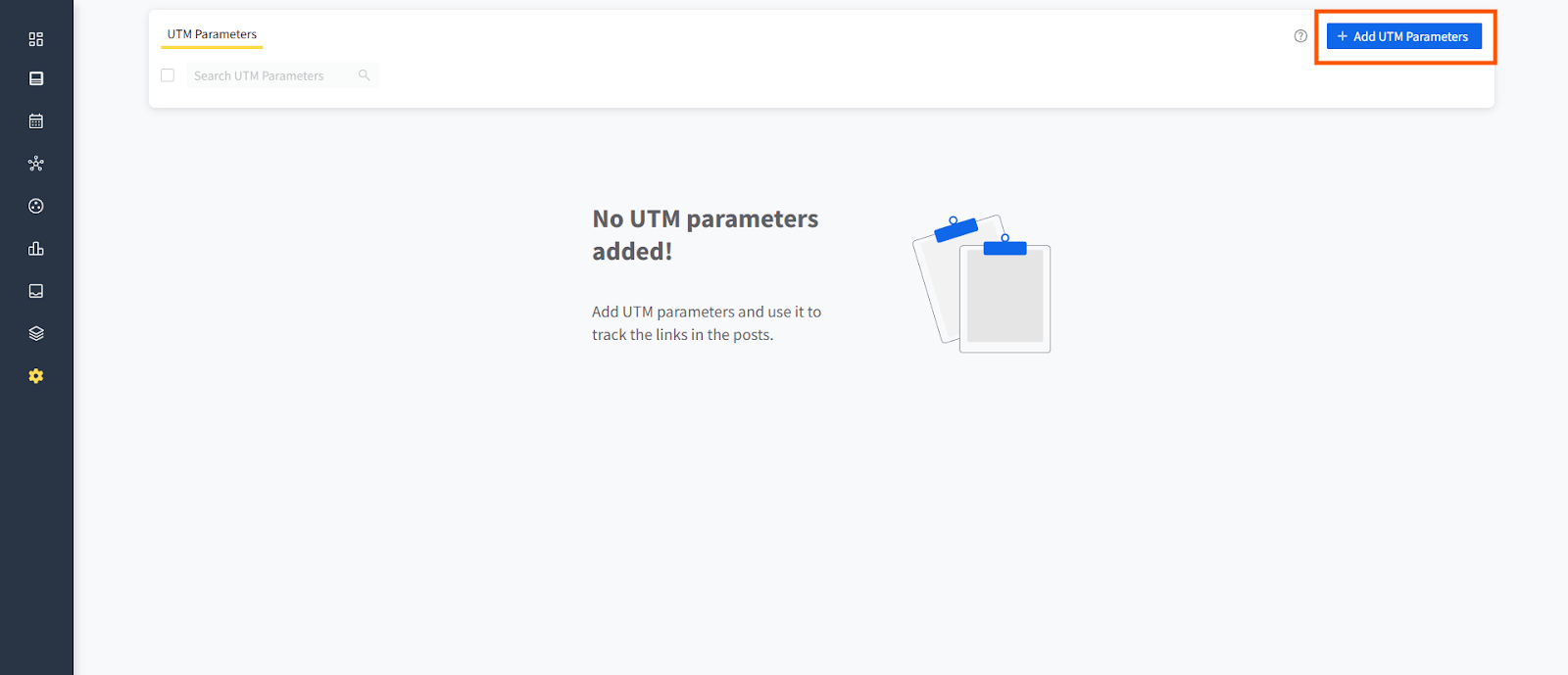
Click on Add UTM Parameters.
- Enter the name of the social media campaign you want to track.
- Fill in the utm_source field (mandatory). Choose a predefined type or enter a custom value.
- Next, select and enter the utm_medium value.

- You can add up to five optional fields to further customize your parameter set.
- Check the box if you want these UTM parameters to be the default.
- Preview the generated link at the bottom and click Save.
All created UTM sets appear under Setup → UTM Parameters, where you can edit or remove them.

📋 Note:
Setting UTM parameters as default will ensure they are applied across all posts created through 'Create Post,' 'Bulk Schedule,' and other scheduling methods. You can override it at the post level.
How To Attach UTM Parameters To Posts in the New Create Post?
Creating UTM parameters on SocialPilot is an easy task.
- Go to Create Post and enter your content.
-
Add the link you want to share.
The UTM option appears only when your post contains a URL or a link preview.
- Click the UTM icon and select the desired UTM set from the dropdown.
- A preview will appear on the right side of the composer with your link and its attached UTM parameters to show how it will get published on your selected platform.

- If URL Shortening is enabled, UTMs will not be visible in the preview but will still be applied to the published link.

- Choose your preferred scheduling option and publish or schedule your post.
a) Editing & Duplicating Posts-
- If you edit an unpublished post, any previously applied UTM set remains attached.
- If you duplicate a post, the duplicated draft retains the UTM that was applied to the original draft.
- When you reshare a published post, the UTM on the original post is not carried forward automatically. SocialPilot applies the default UTM set (if one is configured).
If no default is set, no UTM is appended on resharing unless you select one.
b) Resharing a Published Post-
- When you reshare a previously published post, the UTM attached earlier is not carried forward.
- The default UTM set is applied.
- If no default exists, no UTM is applied unless manually selected.
📋 Note:
- Changes to a default UTM set affect future posts and scheduling flows; they do not retroactively change UTMs already published on live posts.
- UTMs also work for RSS automation and bulk scheduling.