
How to Add Alt Text to Images and GIF Posts in the New Create Post?
Adding alt text to your images and GIFs makes your social media posts more inclusive by ensuring that visually impaired users relying on screen readers can understand the content. SocialPilot makes it easy to add and customize alt text across supported platforms, helping you create accessible and meaningful posts.
Below is the updated step-by-step process for adding alt text in the new Create Post experience:
- Go to the Create Post section in SocialPilot.
- Upload an image or a GIF from your local device or through integrations such as Google Drive, Dropbox, Box, or Unsplash.
- After uploading, hover over the media and click on the “Alt Text” option. Click on it to open a pop-up.
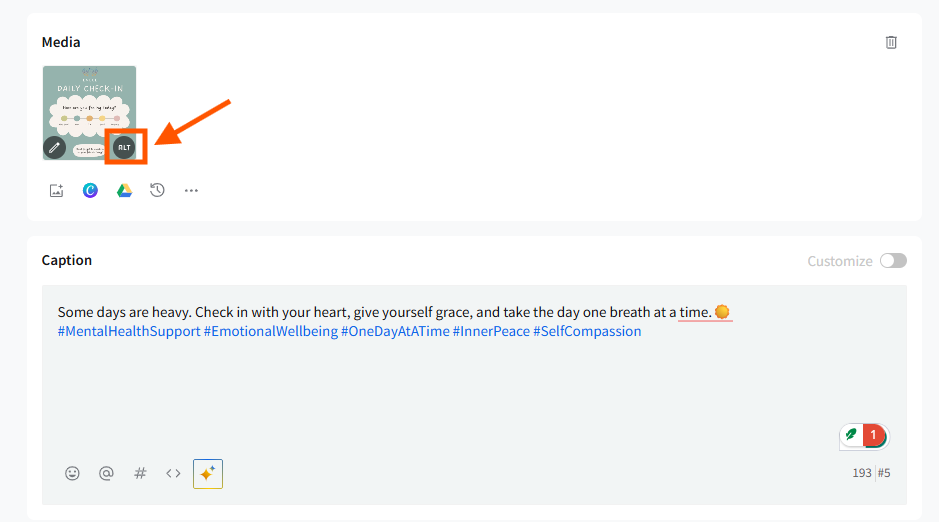
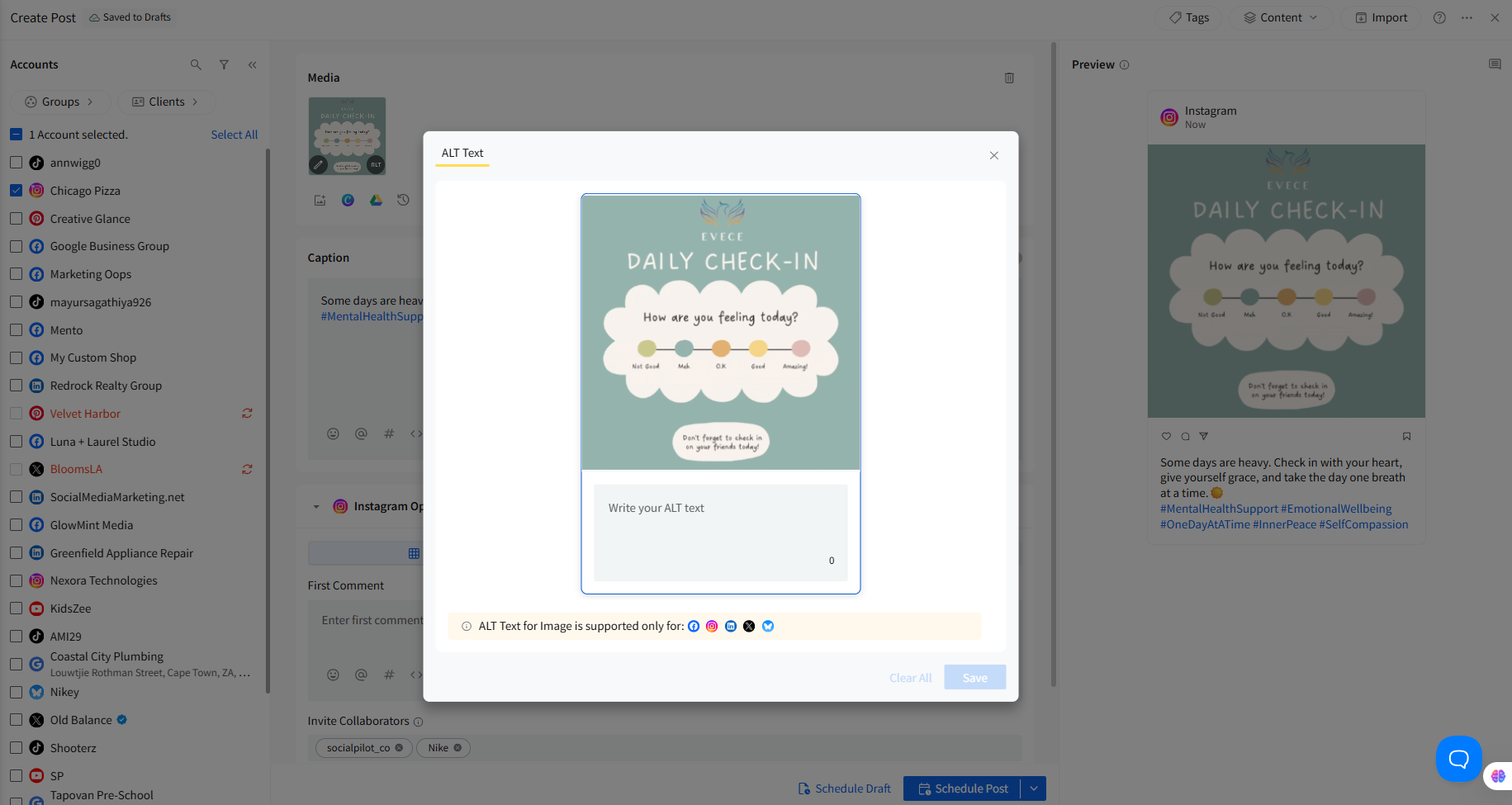
- In the pop-up, you will see:
- A preview of the image or GIF
- A text field titled “Write your ALT text”.
Enter a clear and descriptive alt text that explains what the media contains.
📋 Notes:
- Alt Text is only supported for Facebook, Instagram, LinkedIn, X (Twitter), and Pinterest.
- For Pinterest, ALT Text is added inside Pinterest Options as a dedicated field labeled “ALT Text for Pin”.
- After writing your alt text, click Save.
- Choose the social media accounts where you want to publish the post.
- Once you have added and customized the alt text, schedule your post as usual. The alt text will be included across all the selected platforms.
Notes:
Character Limits for Alt Text:
- Facebook: 8000 characters
- Instagram: 1000 characters
- Twitter: 1000 characters
- Pinterest: 500 characters
If your alt text exceeds the character limits set by the platform, SocialPilot will notify you, and the post will not be scheduled until the alt text is edited to fit within the allowed limits.