
How To Edit Video Thumbnails on SocialPilot in the New Create Post?
A well-designed video thumbnail grabs attention and sets the expectation for the video, directly impacting viewer engagement and click-through rates. Editing thumbnails allows creators to choose the most visually appealing and relevant image, ensuring the thumbnail accurately reflects the video’s content and appeals to the target audience.
Here is how you can choose and edit video thumbnails while scheduling video content.
In This Article
Edit Video Thumbnails
Selecting a specific frame allows you to highlight the most compelling moment of the video, which can significantly improve initial engagement.
- Start by going to Create Post and uploading your video inside the Media section.
- Once the video finishes uploading, you will see the Change Thumbnail option directly inside the Media block.
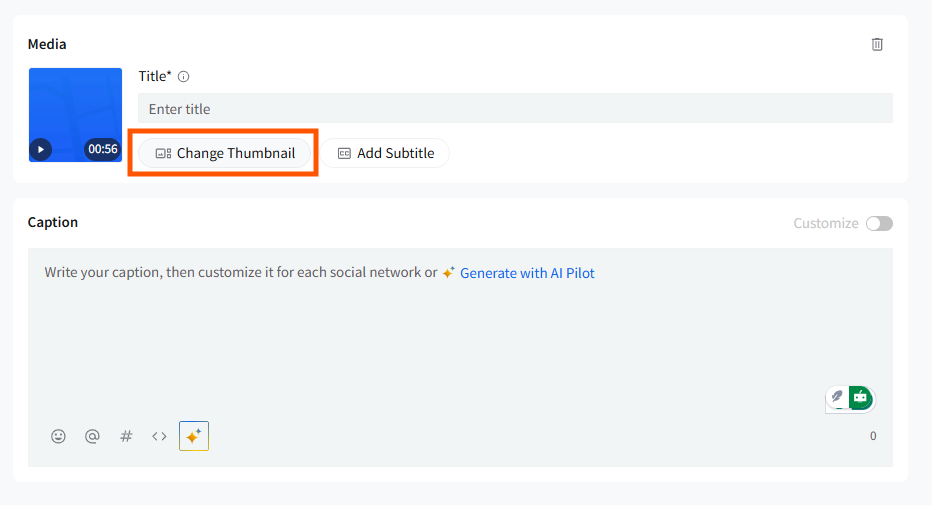
- Click Change Thumbnail to open the thumbnail editor.
- Inside the thumbnail editor, you can:
a) Select a frame from the video
- A strip of frames appears below the preview.
- Click any frame to use it as your thumbnail.
b) Upload a custom thumbnail
On the right side, use the Custom Thumbnail upload area to:
- Upload from URL: If your image is hosted online, paste the URL of the image in the designated field and click 'Upload.'
- My Device: To upload a file from your computer, click on 'My Device,' then navigate to the image file you wish to use and select it.
- Dropbox/Google Drive/Box: If your image is stored in a cloud storage service, click on the respective service icon. You will need to log in to your account (if not already connected) and select the image you want to upload as a thumbnail.
- Recently Uploaded: You can also use an image you might have recently used or only uploaded in your media section. Recently uploaded media is available for 7 days for reuse.
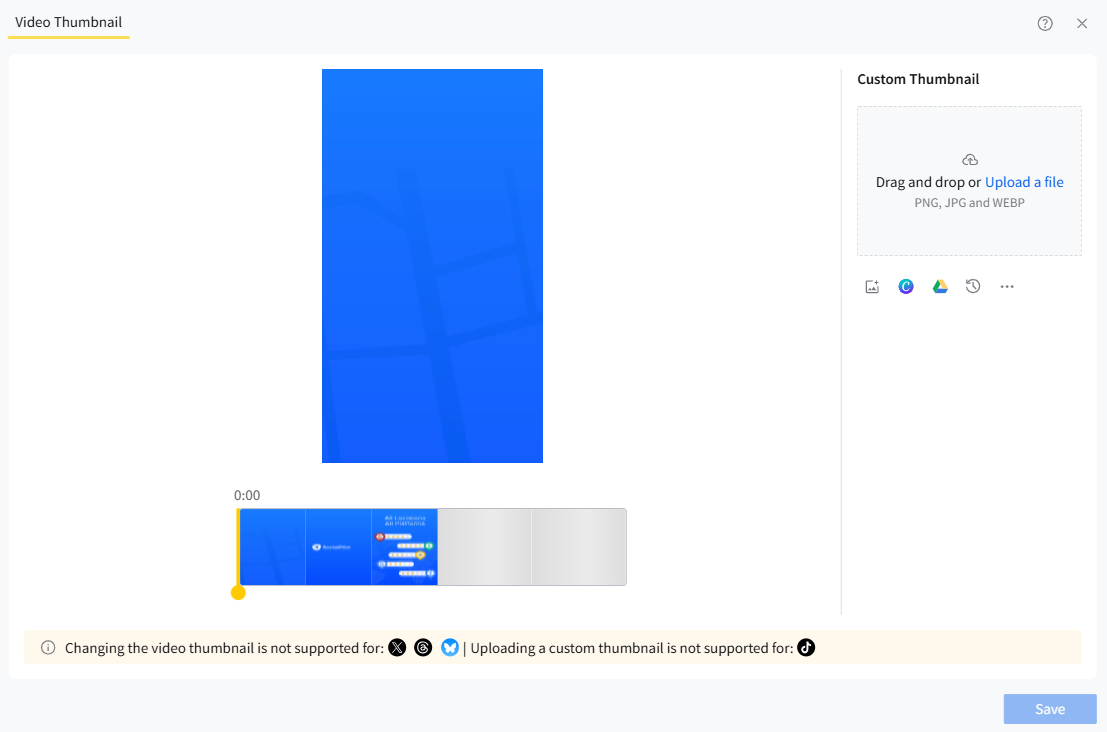
c) Use auto-extracted stills: SocialPilot displays automatically generated frames you can pick from.
5. After selecting or uploading a thumbnail, click Save.
Your video and chosen thumbnail are now ready to be published or scheduled.
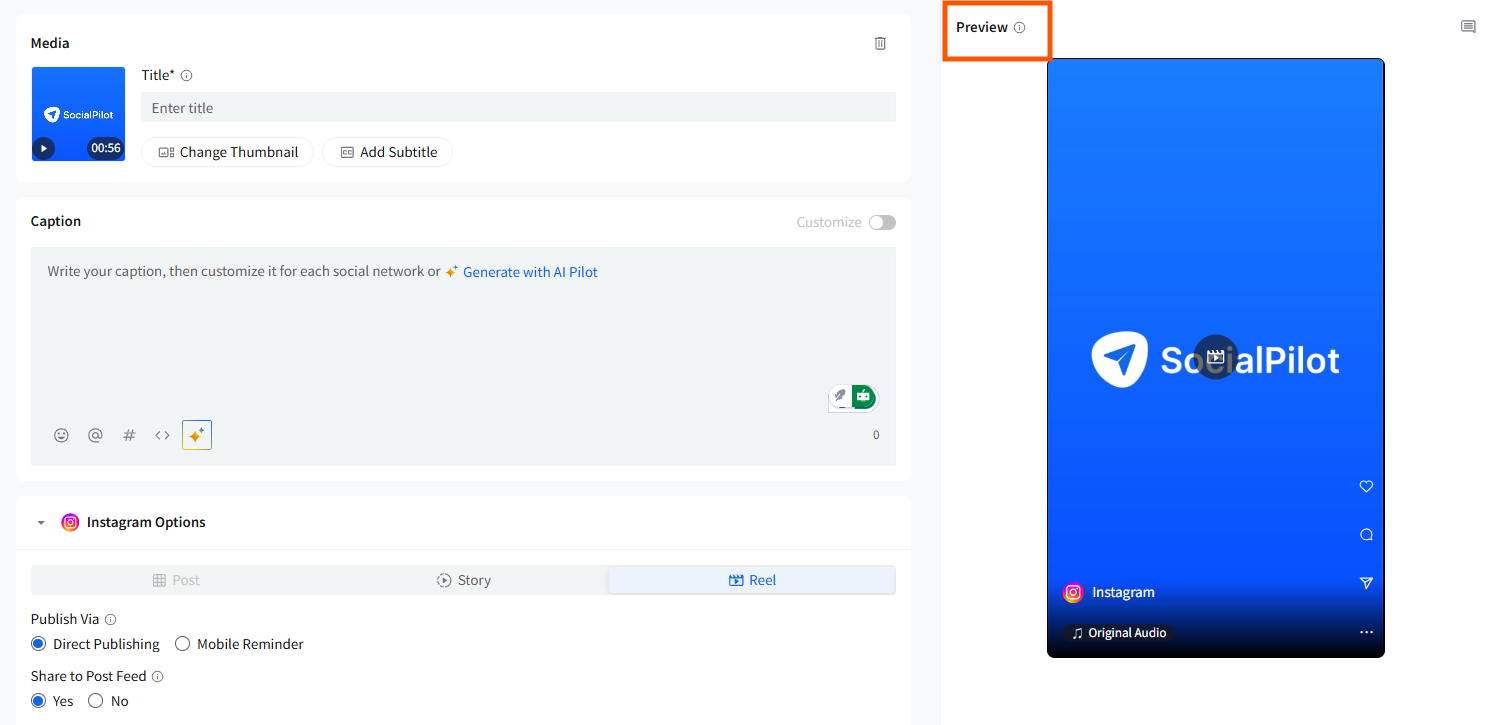
Use the Post Preview panel to see how the video thumbnail will appear on the selected platforms before scheduling.
Supported Social Networks and Post Types
| Social Network | Type of Post | Editing thumbnail supported | From the Video Frames | Custom Thumbnail |
| Post | Yes | Yes | Yes | |
|
|
Story | No |
|
|
|
|
Reel | Yes | Yes | Yes |
| Post | Yes | Yes | Yes | |
|
|
Story | No |
|
|
|
|
Reels | Yes | Yes | Yes |
| X (Twitter) |
|
No | No | No |
|
|
Yes | Yes | Yes | |
|
|
Yes | Yes | Yes | |
| YouTube |
|
Yes (but only for verified channels) | Yes | Yes |
| TikTok |
|
Yes | Yes | No |
| Threads |
|
No |
|
|
| Tumblr |
|
NA |
|
|
| Google Business Profile |
|
NA |
|
|
| Bluesky |
|
No |
|
|