
How To Fix Issues Regarding Image Dimensions in the New Create Post Experience?
Each social media platform has unique image dimension requirements. If the images you want to schedule exceed the platform's limitations, SocialPilot automatically optimizes them to ensure your posts are published smoothly. However, if the image dimensions are incompatible with the selected platforms, SocialPilot will display an error message: “Incorrect image dimension.”
To resolve this issue, you can either resize your image to fit the platform's specifications or crop it to the appropriate aspect ratio. SocialPilot provides built-in tools for both solutions, so there's no need to use an external editor.
In This Article
Cropping an Image on SocialPilot
Let us see how you can crop an image on SocialPilot:
- Compose your post by adding text and uploading images from the Media section.
- Select the accounts for posting from the left side panel.
- If an uploaded image doesn’t meet the platform’s criteria, a red error indicator will appear on the image. Errors or warnings are mentioned near the scheduling buttons.
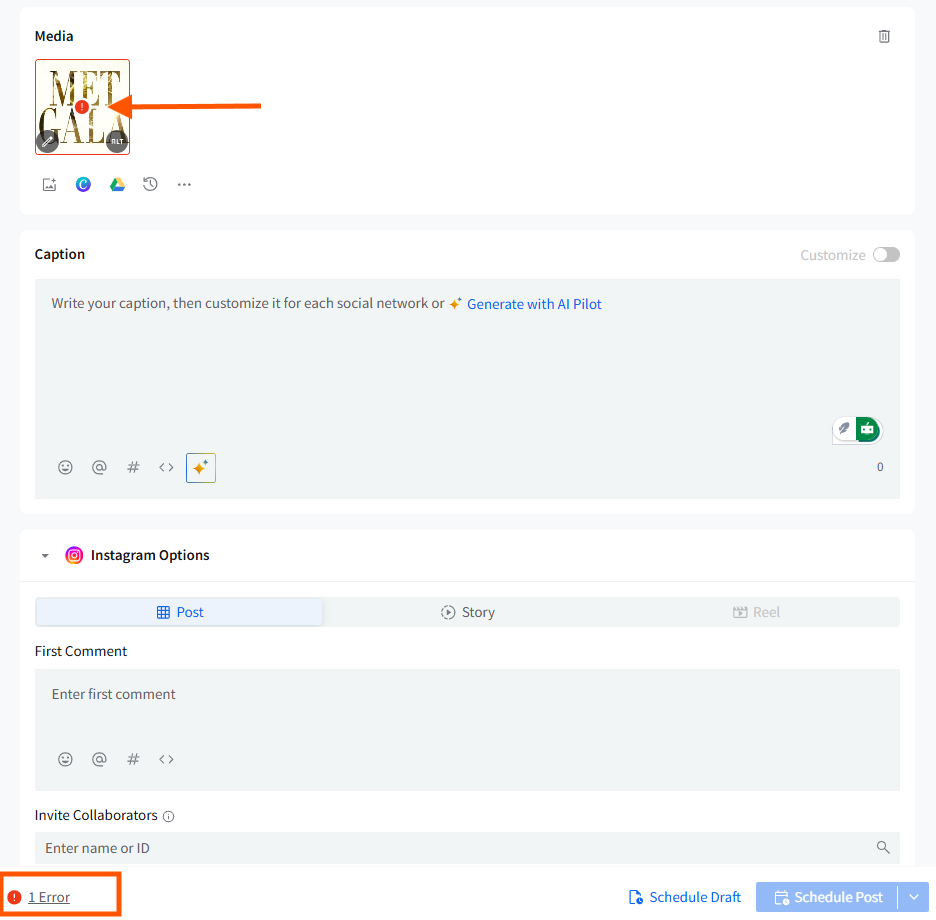
- Clicking on Error/Mentions opens the Needs Attention panel on the right, where you will see the platform-specific error message.
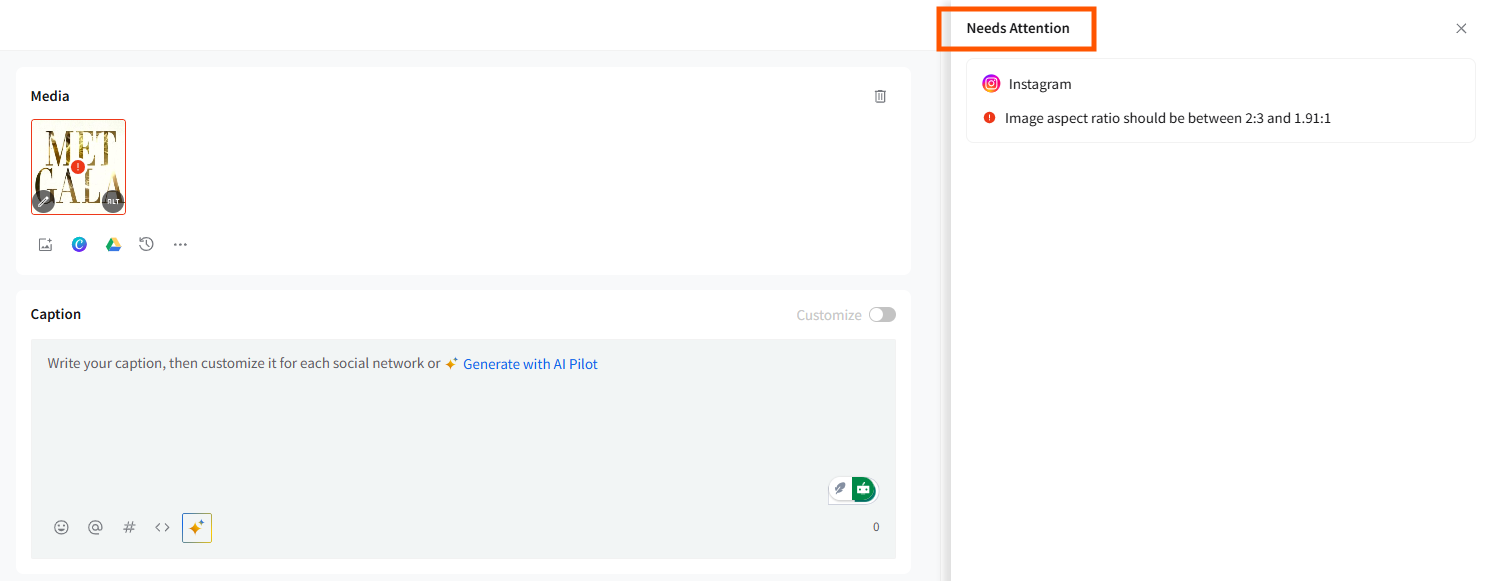
- Once you know what the error is, hover over the image inside the Media section and click the three-dot menu. Select Edit to open the image editor.
- The image editor will open with the Crop menu selected by default.
- Choose a predefined aspect ratio or select Custom to manually crop the image. Adjust the crop frame to focus on the desired area.
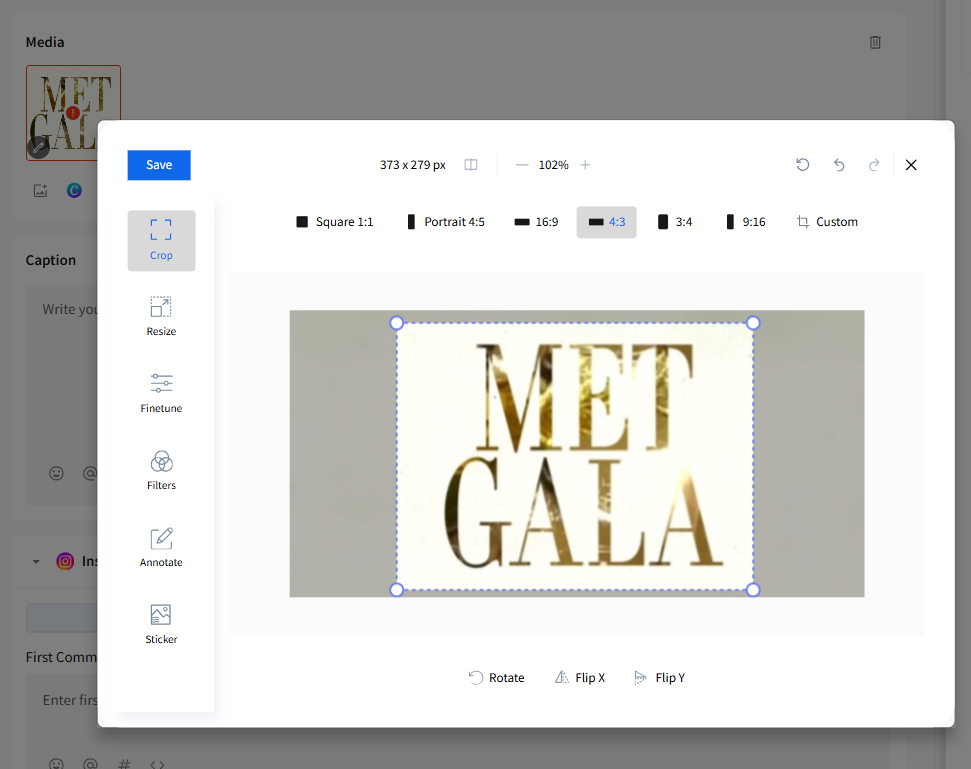
After cropping, if the image still doesn’t meet platform requirements, SocialPilot will show the error again. You can use the following options:
- Undo: Reverses the last change.
- Redo: Restores the undone change.
- Revert: Removes all edits and returns the image to its original state.
Once cropping is complete and no further errors are shown, click Done to finalize the edits.
📋 Note: When an image triggers errors for multiple platforms, SocialPilot may prompt you to apply the fix across all selected platforms. Clicking Yes will correct the dimensions wherever required.
Resizing an Image on SocialPilot
Follow the steps below to resize an image on SocialPilot and remove the error message:
- Upload your image in the post composer and open the editor by clicking on the pencil icon on the image.
- Select the Resize option from the left-hand side menu below the Crop tool. The current width and height of the image will be displayed at the bottom of the image preview.
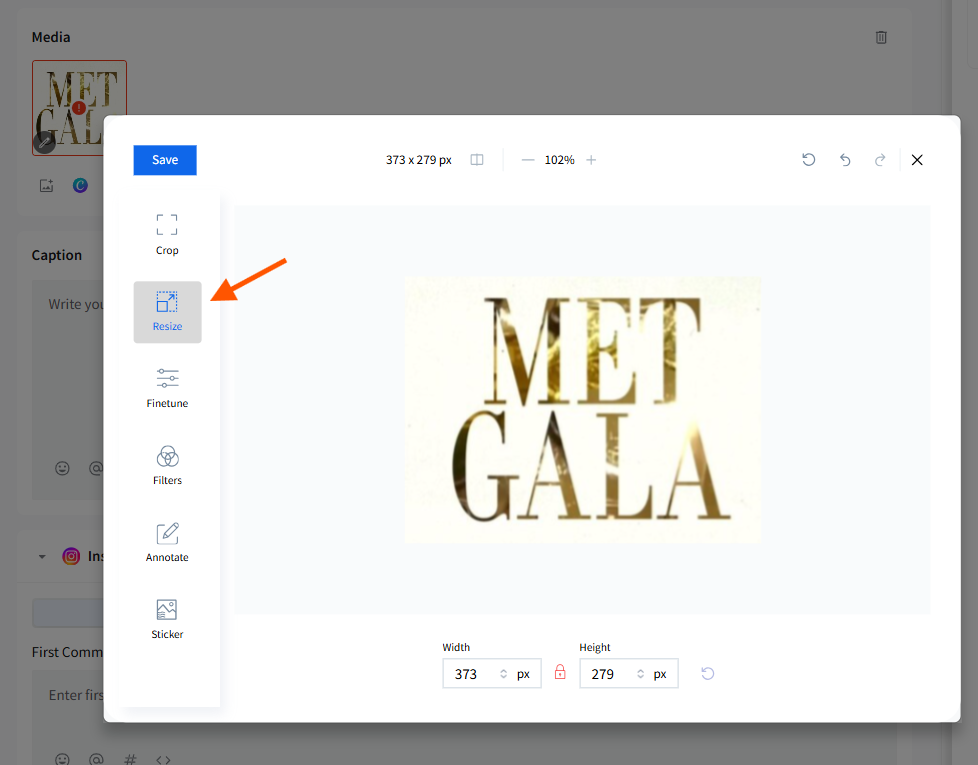
- Adjust the width or height values to resize the image. The aspect ratio will automatically adjust unless you unlock it.
- Clicking the lock icon between the width and height fields will maintain the current aspect ratio while allowing you to change the dimensions.
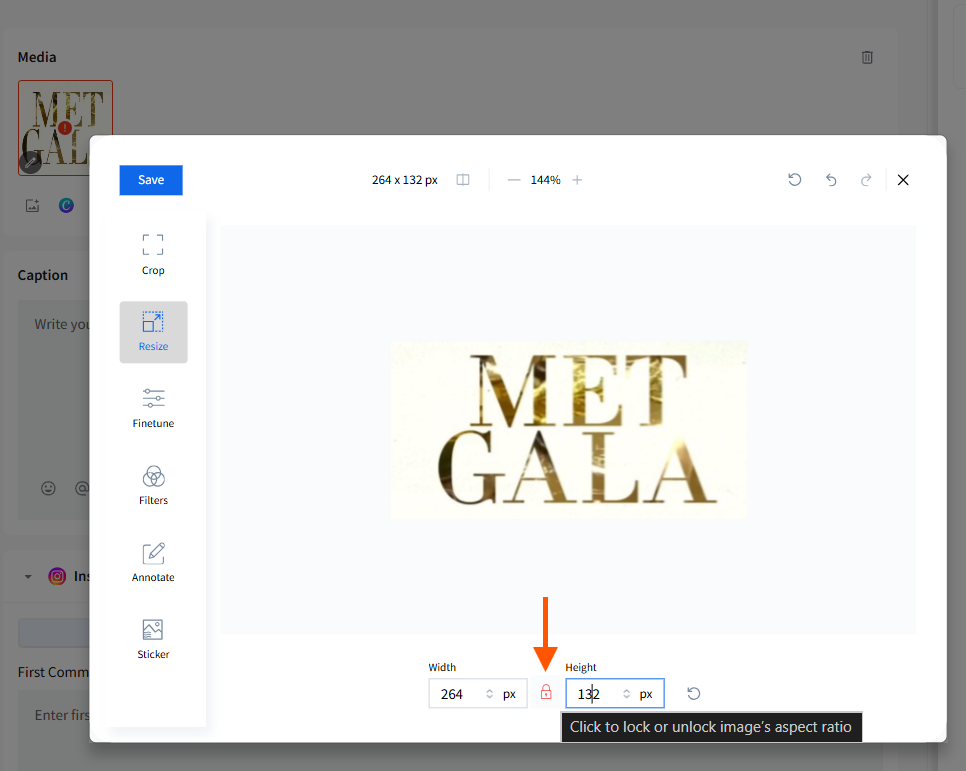
- After resizing, click Done to apply the changes.
📋 Note:
Resizing or cropping changes made to the uploaded media apply to all selected platforms, even when the Customize toggle is turned on.
Customize only lets you edit captions per platform — media cannot be customized per platform.
If you want to use a different image, a different crop, or a different size for a specific platform, you must create a separate post.