Can I Save Posts as Drafts on SocialPilot in the New Create Post?
Drafting posts and revisiting them later, or sharing them with team members for feedback, is a crucial part of effective content management. SocialPilot provides robust features for saving posts as drafts, allowing for better collaboration and error reduction. Additionally, you can save feed content for future use.
In This Article
- How Drafts Work in the New Create Post Composer
- Save Drafts With Dates
- How To Access Drafts With Dates
- How To Filter Drafts
How Drafts Work in the New Create Post Composer
- Access your SocialPilot dashboard and click on Posts in the main navigation menu.
- Select Create Post to start drafting your content.
- Enter your content into the text box provided. You can include text, images, and other media as needed.
With the redesigned Create Post experience, posts are now auto-saved automatically.
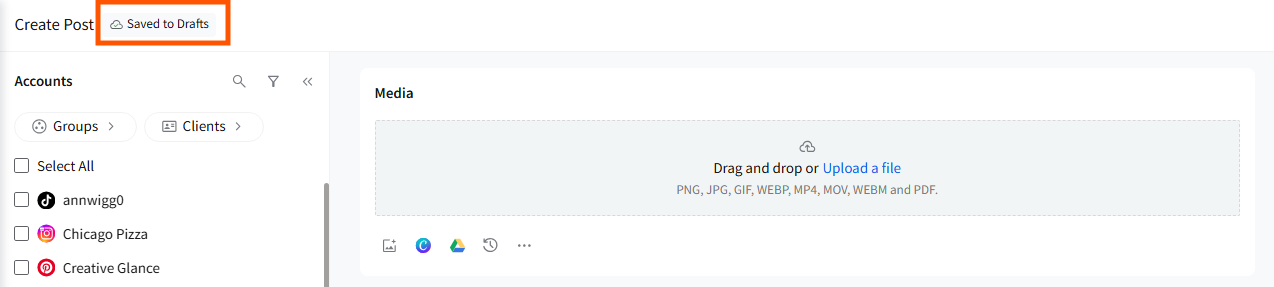
As soon as you write a caption, upload media, or make any changes, SocialPilot saves your draft in real time. You will see a “Saved to Drafts” indicator at the top.
Note:
Your auto-saved drafts can be accessed under the Drafts tab, where you can view, edit, or schedule them as needed.
Save Drafts With Dates
Saving drafts with dates helps you plan your content more effectively by placing them directly on your content calendar.
To save a draft with a date:
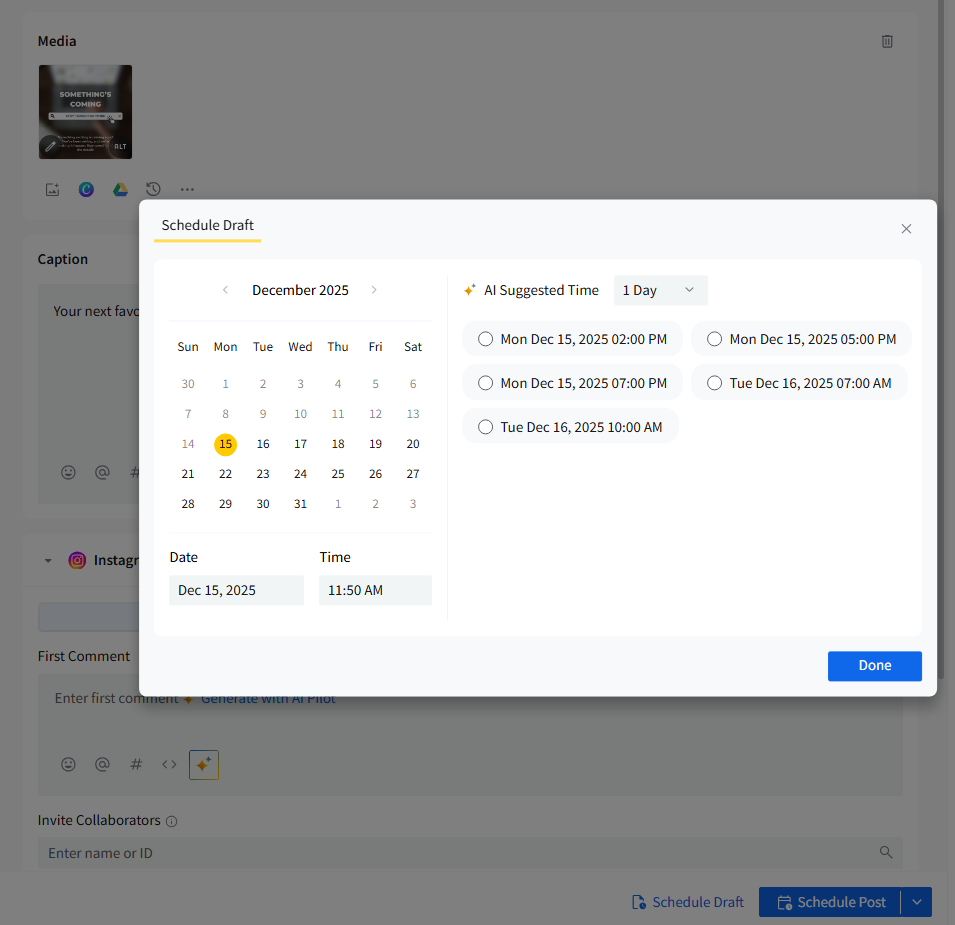
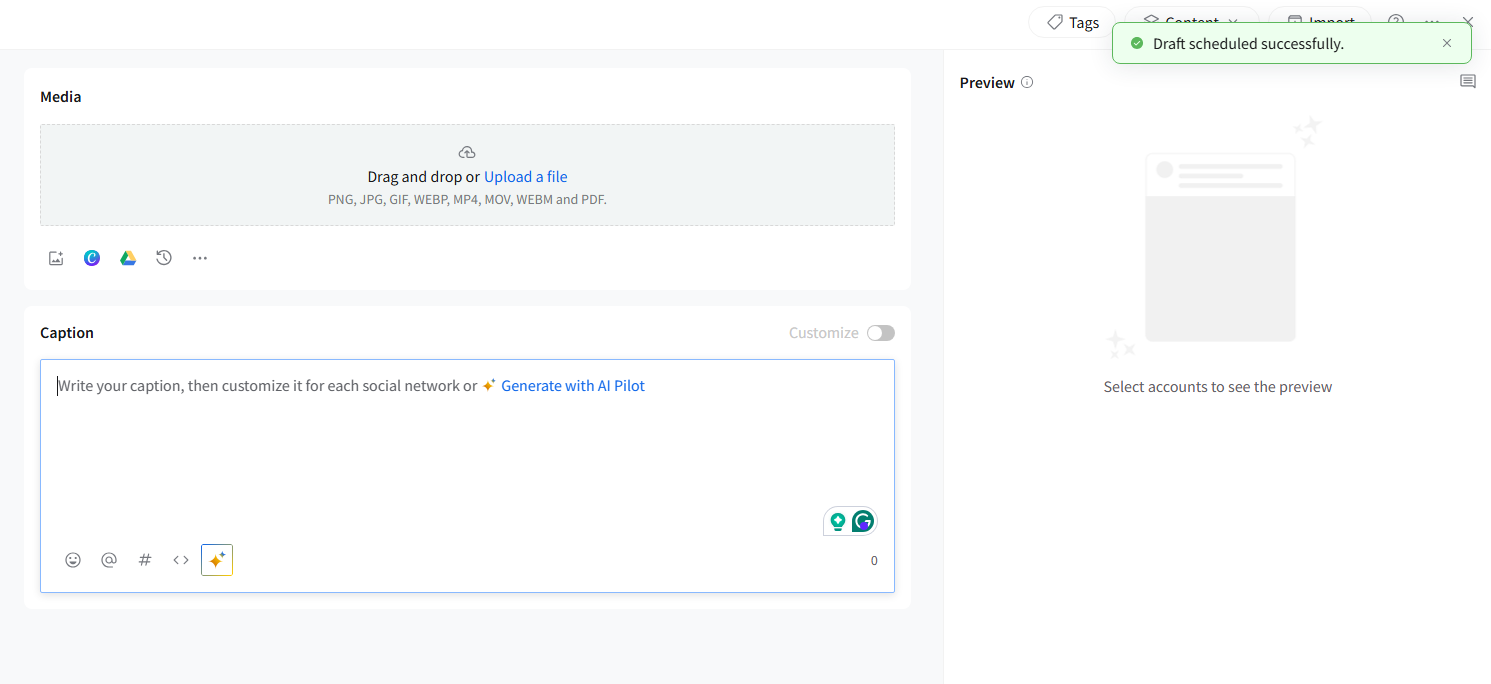
- Click on Schedule Draft from the dropdown next to the Schedule Post button.
- Select the date and time you want to assign to the draft.
Your draft will now appear on the calendar with a “Draft” badge beside it.
Note:
Between Schedule Draft and Schedule Post, whichever option you select last becomes the default visible option on the button the next time you save or schedule.
How To Access the Drafts With Dates?
Follow the steps to access Drafts with dates:
- To access the Calendar view, go to Posts >> Calendar.
- Here, you will be able to see queued posts, published posts, and drafts with dates and times added to them with a Draft badge.
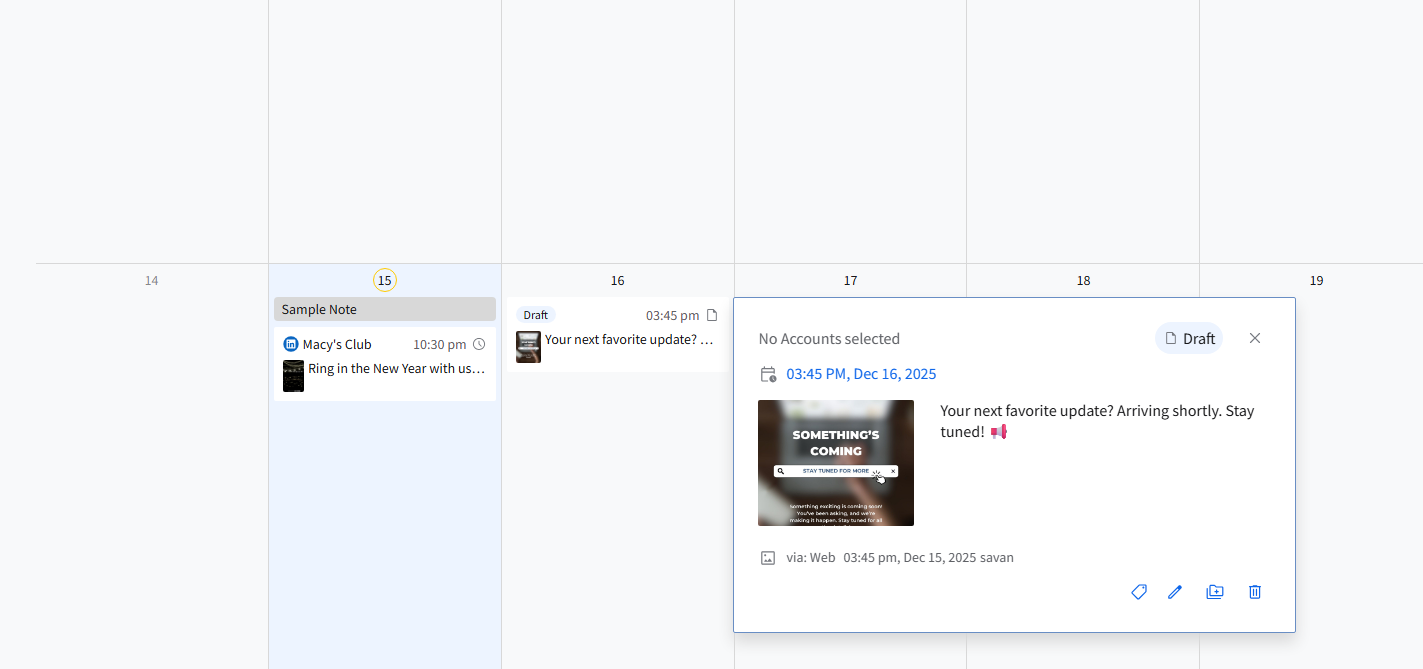
There are filters available on the calendar that can help you see posts based on their STATUS, including Queued, Delivered, and Draft.
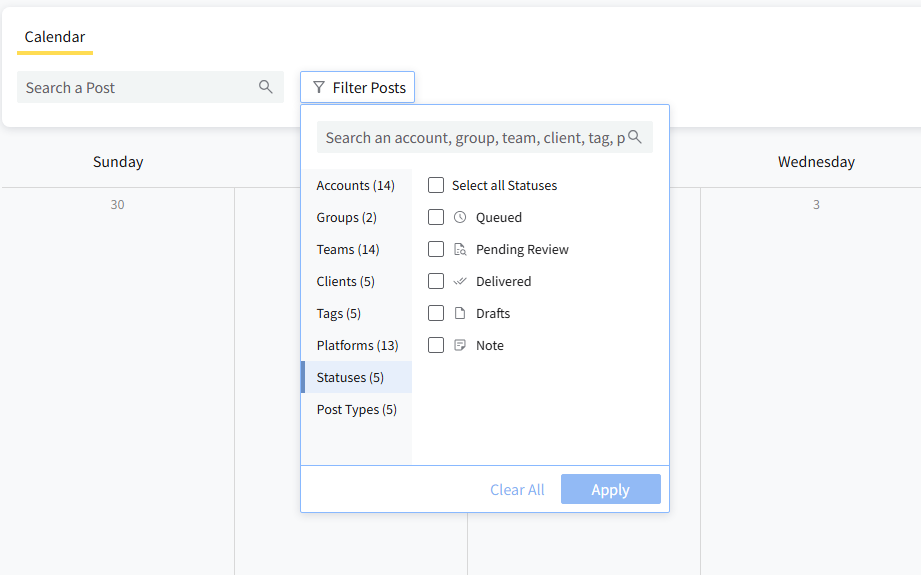
Note: Drafts without dates assigned to them cannot be seen on the content calendar.
Saving drafts with or without dates is completely the user’s choice. Both options are available, and auto-save happens as the user keeps editing the content. However, since saving drafts with dates makes them visible on the content calendar, taking them into account while planning your content for the upcoming week or month becomes easier.
Other than being on the calendar, drafts with dates behave exactly like drafts without dates.
You can as easily change or remove dates on a draft.
Here’s how:
- Go to Posts >> Drafts or find the draft in the Calendar.
-
In the Drafts list, click on the time stamp to change it.
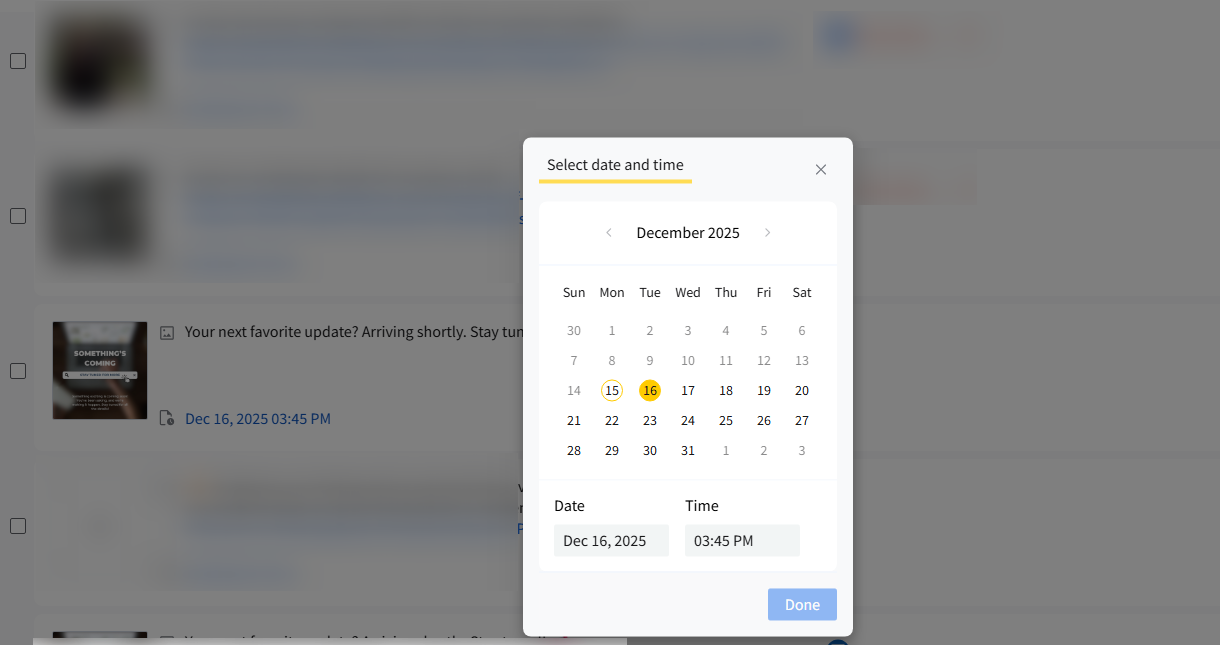
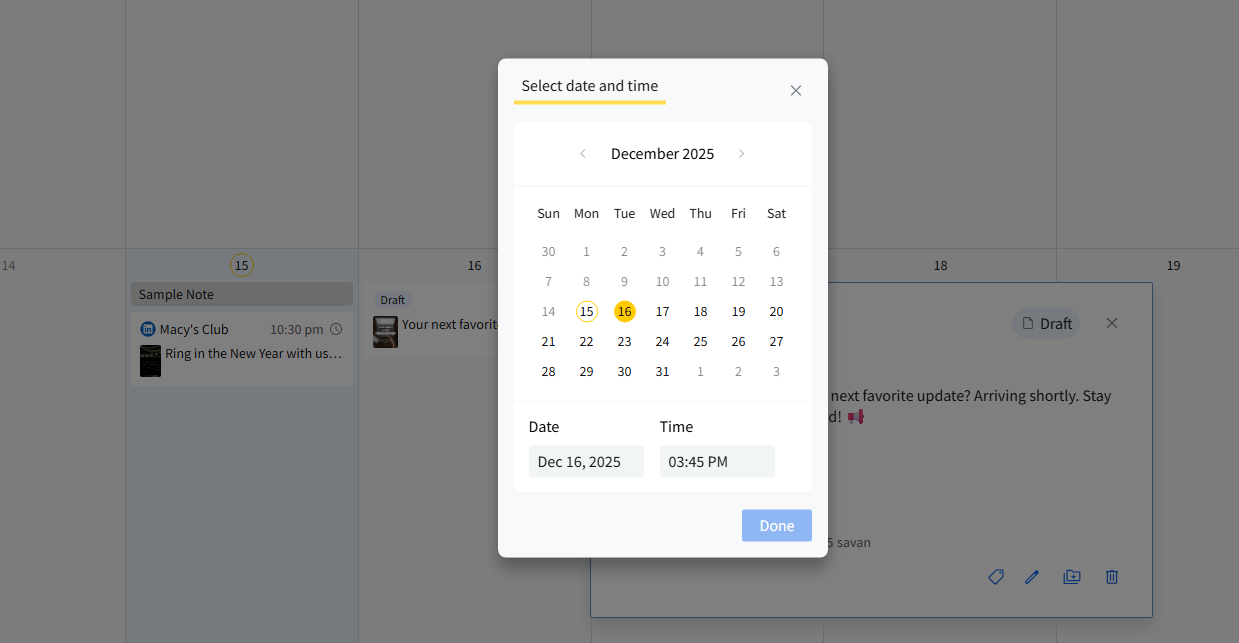
- In the calendar view, clicking on the draft card will open it, and you can click on the dates to change it.
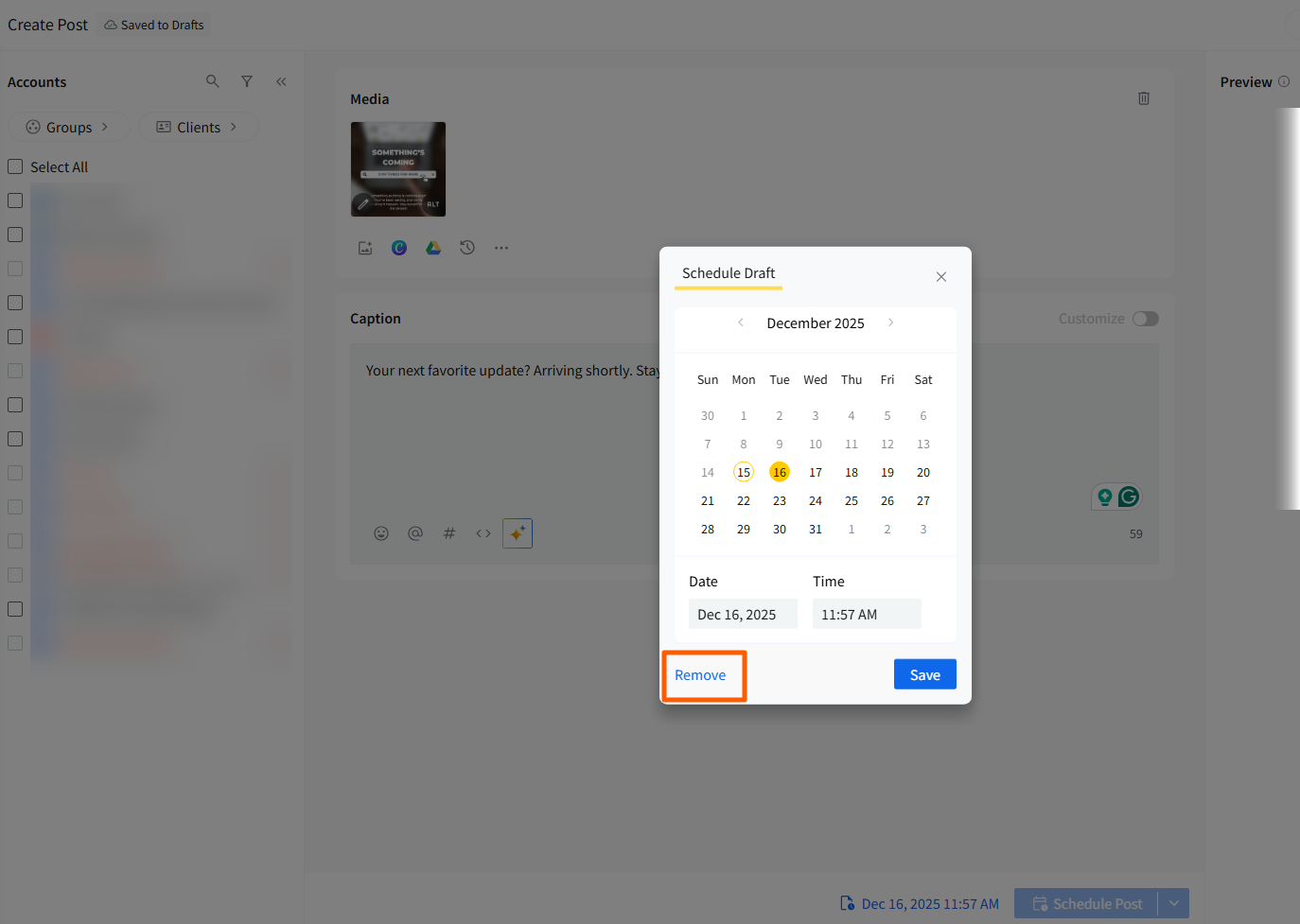
- To delete the dates, click on the Edit icon on the draft card to open it in full view.
-
Click on remove to move the draft from the calendar to the dedicated drafts folder.
How To Filter Drafts
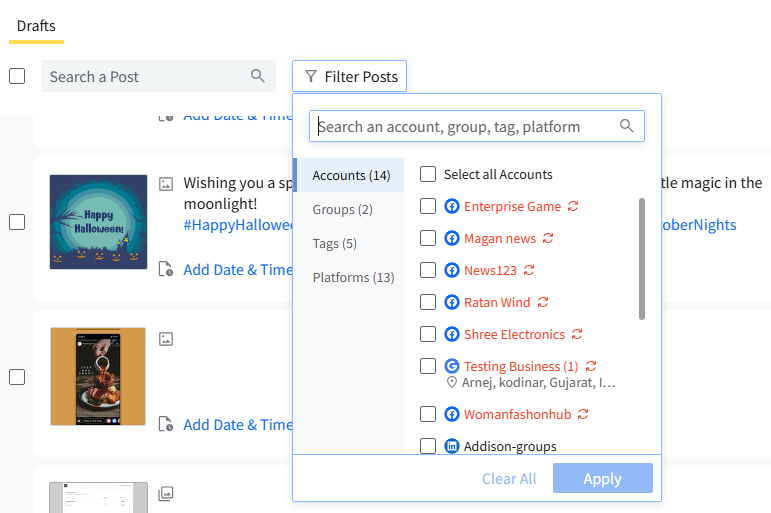
You can filter drafts by:
- Accounts
- Teams
- Tags
- Platforms
You can select more than one tag to filter drafts.
At the bottom of the tags list, there is a toggle:
- Off: Shows drafts that match any selected tag.
- On: Shows drafts that match all selected tags.
If you keep it in the off position, any draft that matches even a single one of the selected tags will be filtered out. But if you switch the toggle on, the draft that has all the selected tags will be filtered out.