
How To Tag an Image on Instagram in the New Create Post Experience?
SocialPilot allows you to tag public profiles on images while scheduling your Instagram posts via Direct Publishing. Here is how you can tag users in your images before publishing.
- Start by creating your post on SocialPilot. Click on Posts > Create Post.
- You can add your content and media (images or videos) from the Media section at the top of the composer. Upload images from your computer, Dropbox, Google Drive, or Box, or use stock images available through Unsplash. You will also see your Recently Used media if you have uploaded files before.
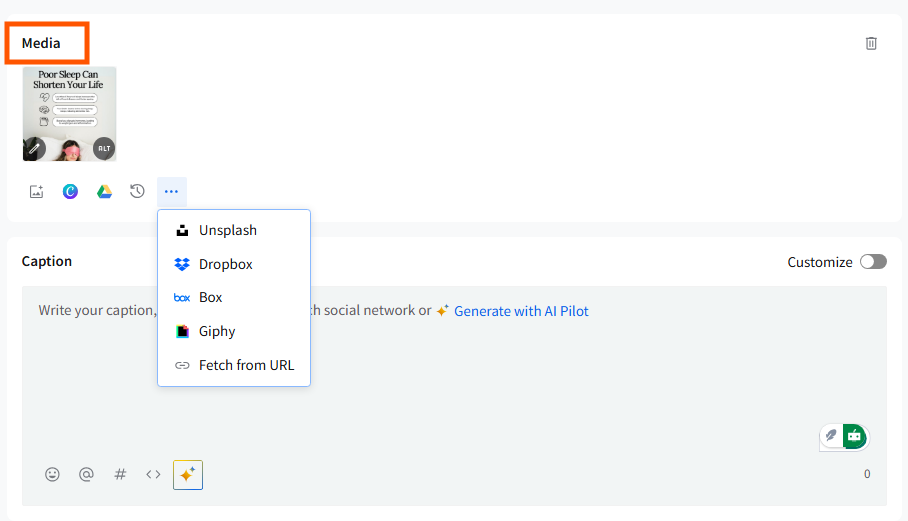
- After adding an image, hover over the uploaded media and click on the three-dot menu (⋯). You will see the Tag People option. Click on it to open the Tag popup.
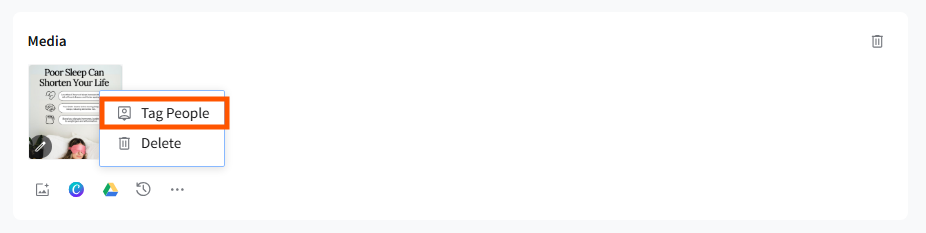
📋 Note: Instagram image tagging is available for all images (up to 10) only for posts sent via Direct Publishing. Tags are not supported for mobile reminders.
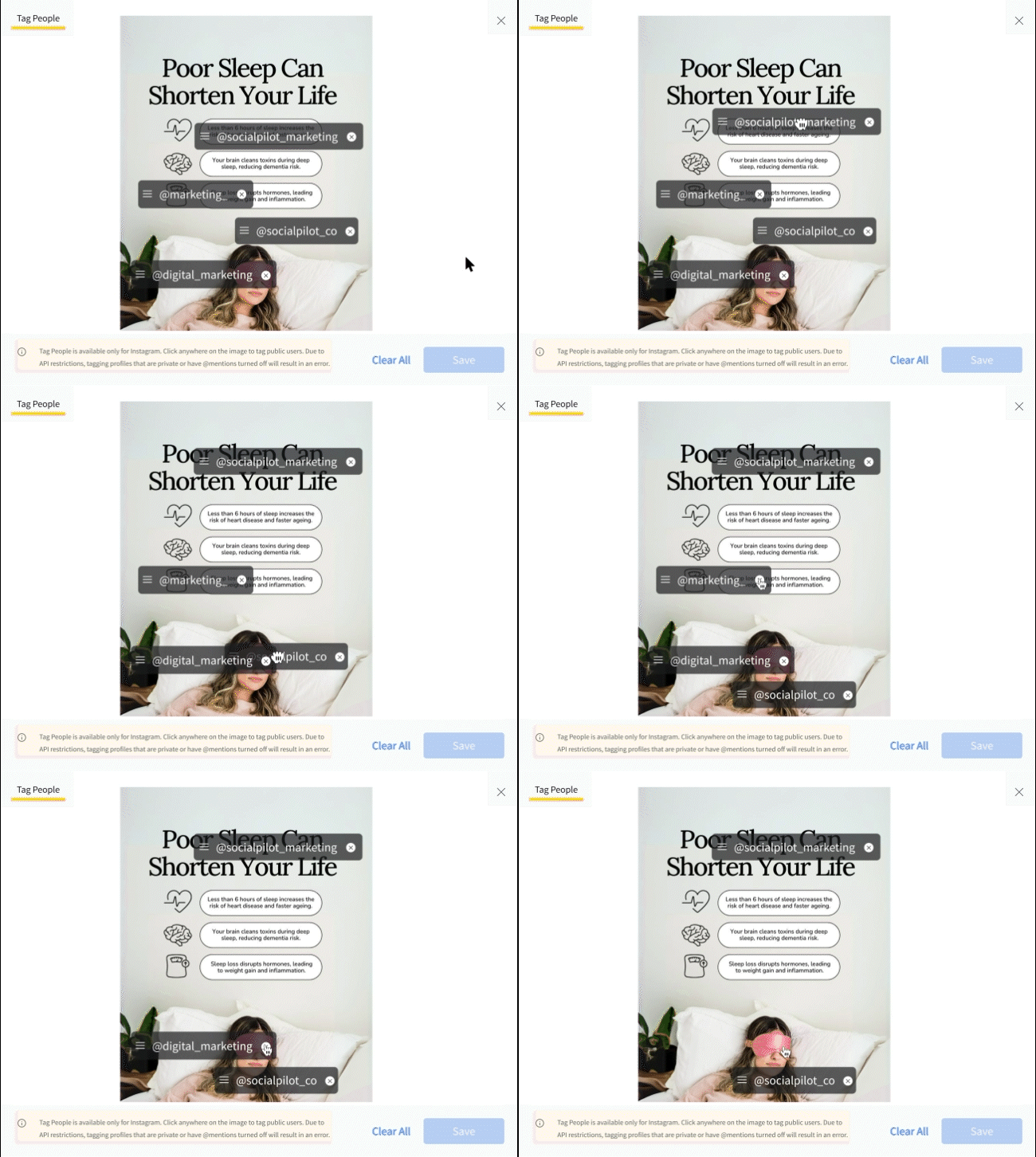
- In the pop-up, click anywhere on the image to place a tag.
- Type the handle of the account you wish to tag (for example: @socialpilot_co). This will tag that profile at the selected spot on your Instagram post.
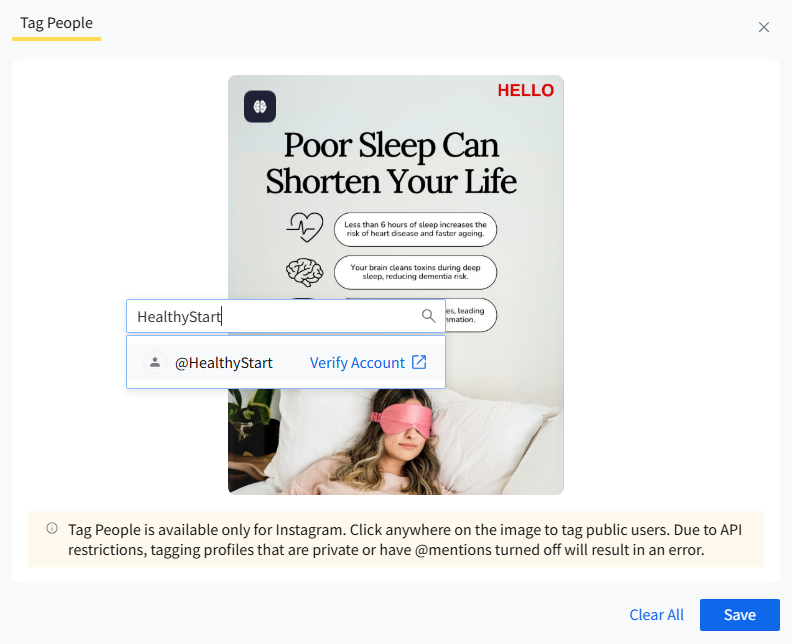
You can click on the Verify Account button to check if the handle is correct. This will redirect you to that profile’s Instagram page.
📋 Note: Due to Instagram API restrictions, you cannot tag private profiles or profiles that have @mentions disabled.
- You can tag up to 20 public profiles on your image. This includes business profiles, creator profiles, and any public accounts.
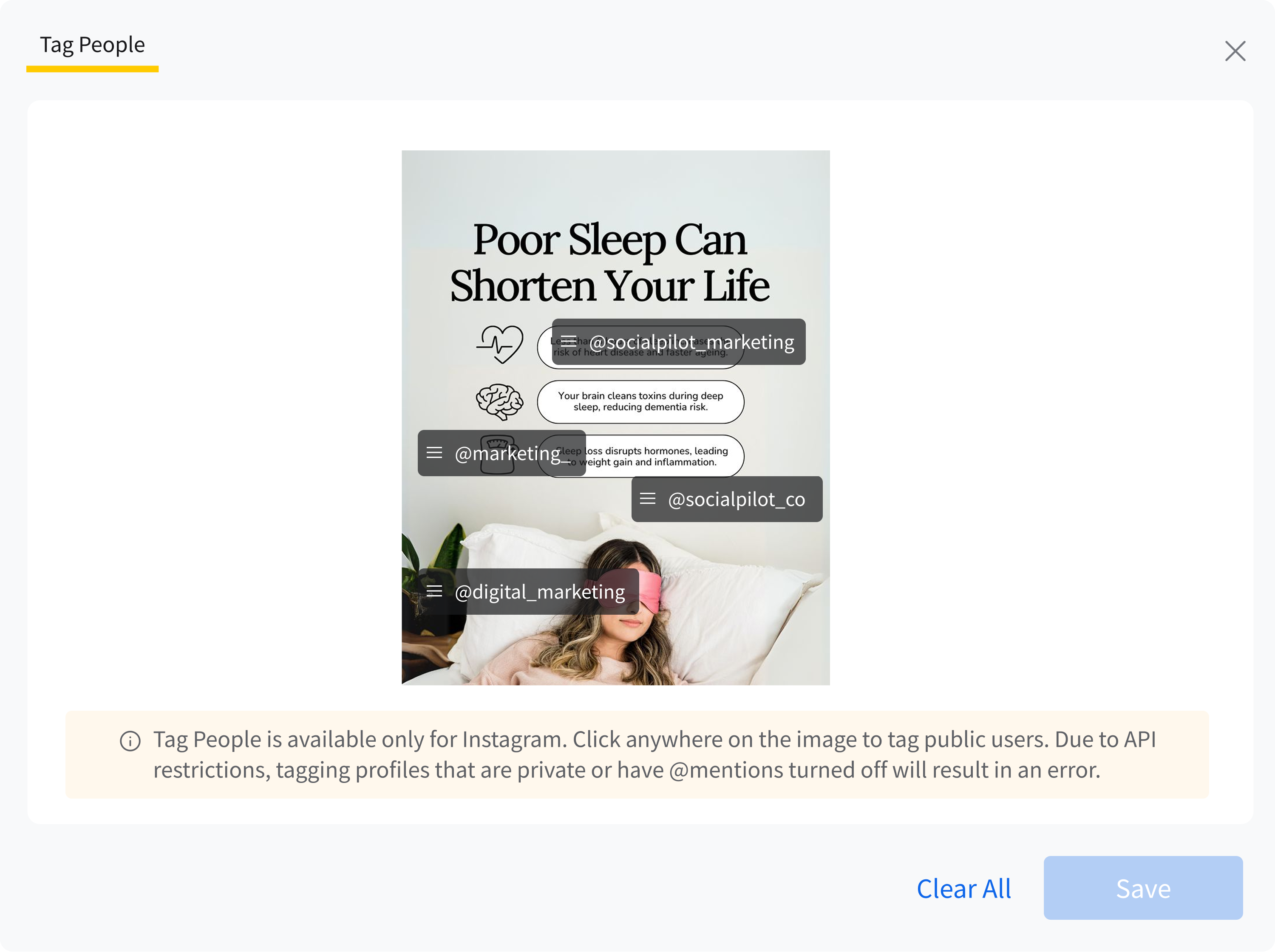
- You can move the tag around the image by dragging it to the correct position. To remove a tag, simply click the X on the tag. Once you are done tagging Instagram users on your image, click Save.
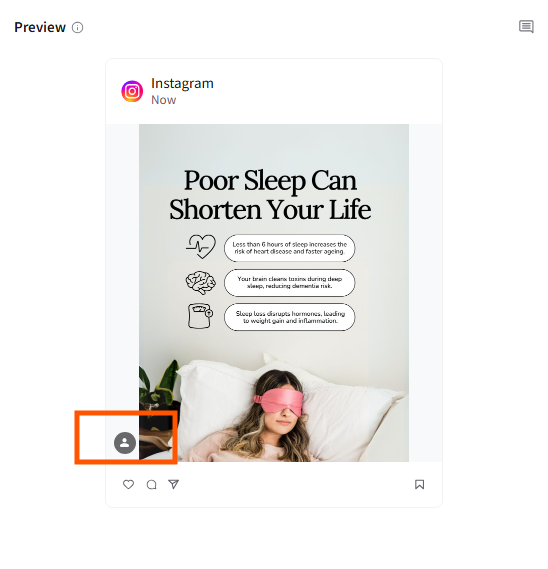
- You will then see the total number of profiles tagged on your uploaded image. You can click Tag People again to update or remove tags as needed. The Post Preview will show you if the Tag will be visible when the post goes live or not.
- Schedule your post using any scheduling option, such as Add to Queue, Share Now, or Share Next. Your published post will show the tags on Instagram.