
How to Customize Posts for Instagram in the New Create Post?
SocialPilot enables direct publishing of Instagram Posts, Stories, and Reels for Business and Creator accounts. For Personal accounts, mobile reminders through the SocialPilot app remain the required publishing method.
With the redesigned Create Post experience, all media uploads, caption writing, and platform-specific customizations appear in a cleaner, more structured layout, making it easier to tailor Instagram content while ensuring full support for the latest publishing requirements.
This guide will walk you through how to customize Instagram content using the new post composer.
Follow these steps to create an advanced Instagram customized for maximum reach and engagement.
- Go to your SocialPilot dashboard. Click on Post and then Create Post to get started.
- From the left-side Accounts panel, select the Instagram account(s) you want to publish your content to.
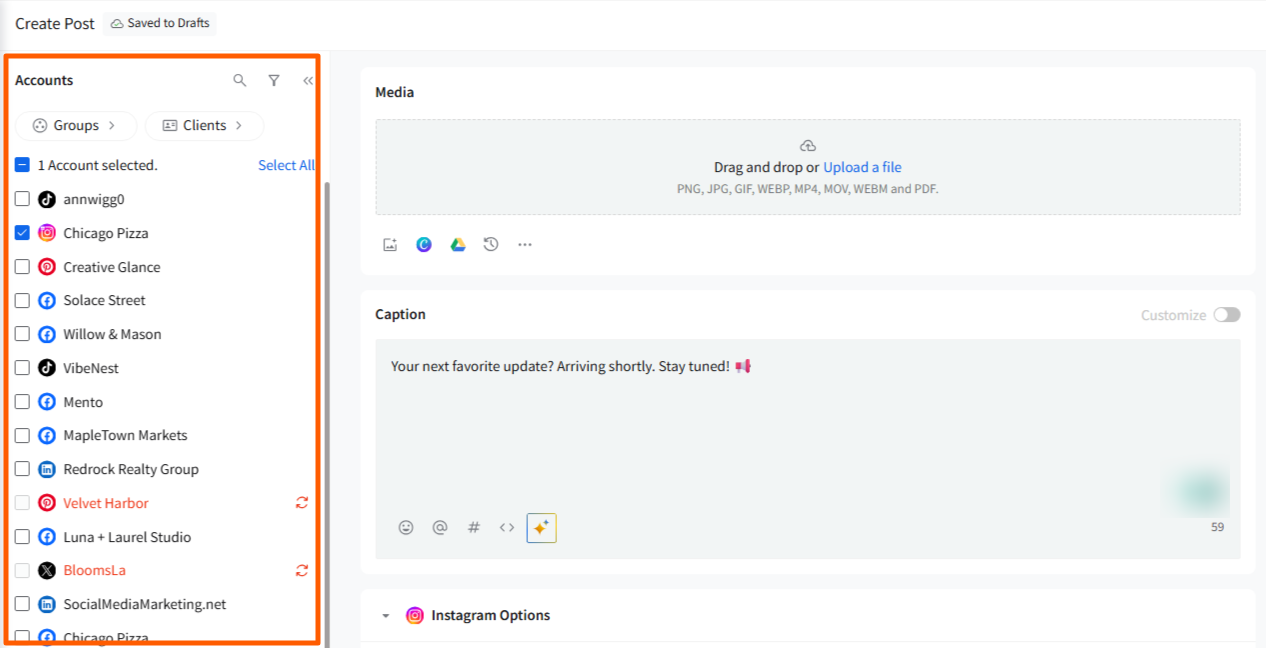
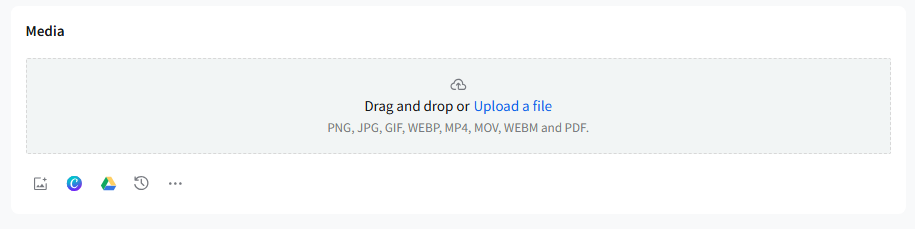
- Upload your images, videos, or a combination of both in the Media section (up to 10 total media items for Instagram Posts).
- You can upload media from your local device or choose files from Google Drive, Dropbox, Box, or the Recently uploaded option.
- You can also use stock images from the Unsplash integration. Click on the three-dots menu to access the options, search for a suitable keyword, and select an image from the results.
Note: After uploading an image, click the pencil/edit icon on it to open the image editor.
Under Crop, you can choose preset ratios such as 1:1, 16:9, 3:4, and more—or use a custom size.
These presets help you optimize the post for Instagram’s recommended formats.
Note: SocialPilot supports the following video formats:
- .avi
- .mp4
- .mov
- .webm
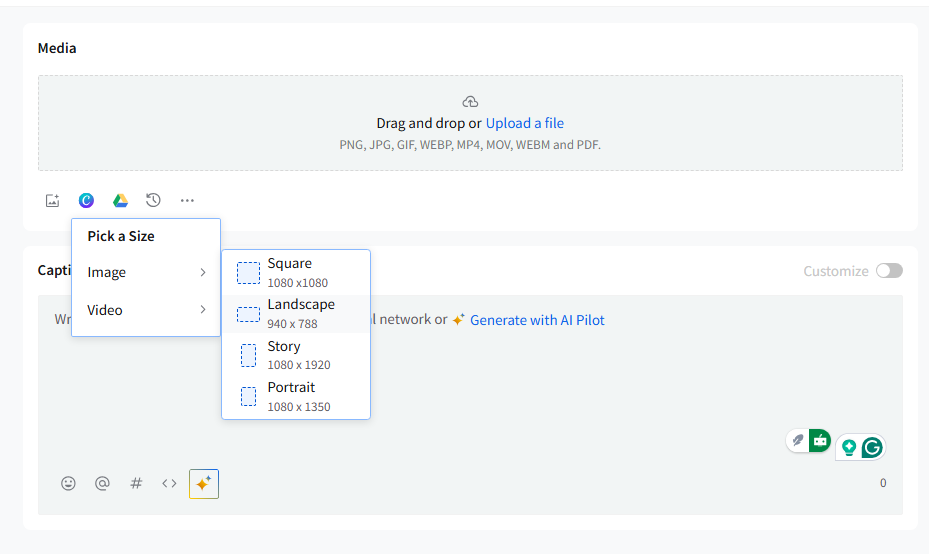
- To create graphics or short visuals, you can also use Canva through the built-in integration. Click the Canva icon, choose Image or Video, and select the size you want to design for. Your Canva file will be added directly to the post.
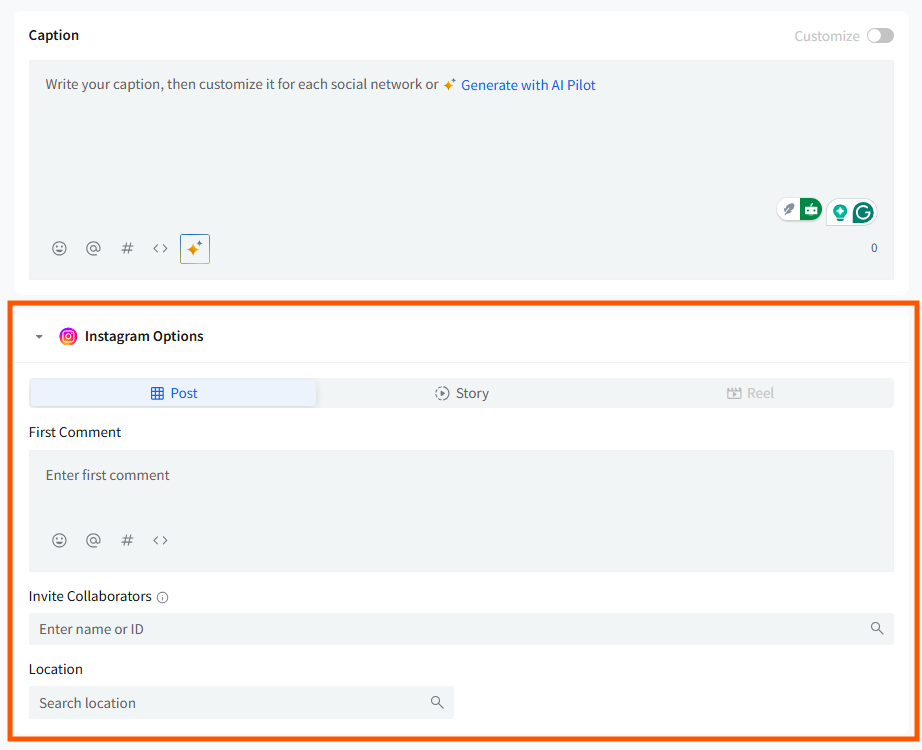
- Go to Platform-specific fields inside the Instagram Options section to select the Post Tab and add-
- First Comment
Add and schedule the first comment for your post.
This is useful for moving hashtags or extra text outside the main caption.
- Invite Collaborators
Search and select Instagram users you want to add as collaborators to your post.
- Location
Search and add a location to your post for improved discoverability.
Notes:
- You can upload up to 10 combined images and videos in a single Instagram Post.
- You can tag public profiles on each image within the carousel.
- You can schedule up to 25 posts via Direct Publishing for a Business account in 24 hours. Posting manually (via reminders or natively) has no limit.
Customizing Reels
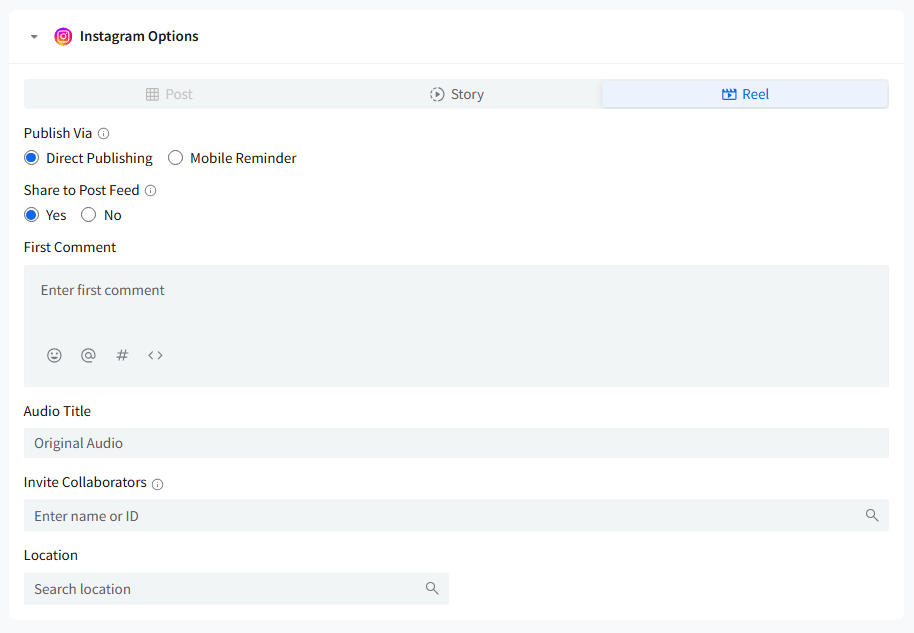
If you want to publish a Reel, select Reel under Instagram Options.
You will be able to:
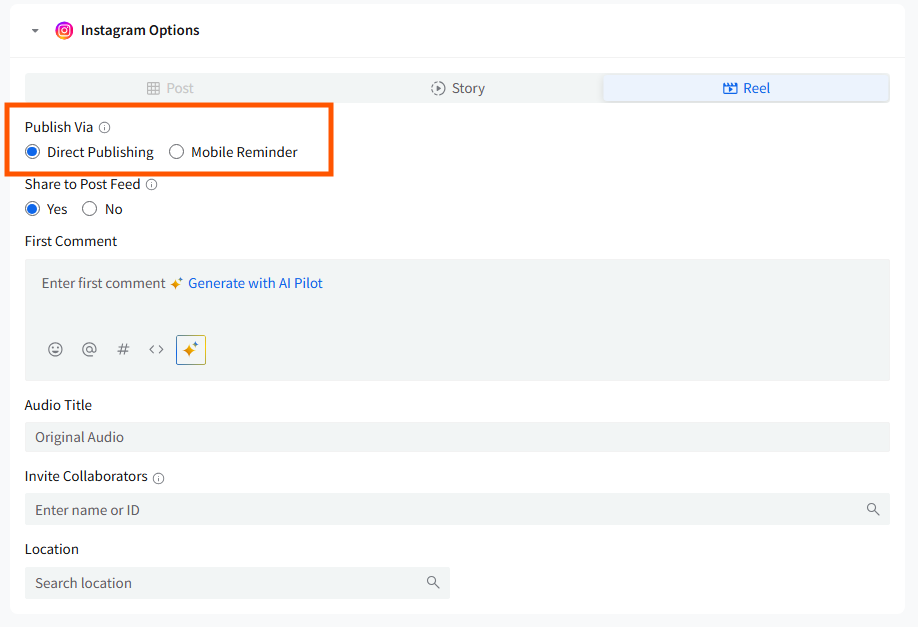
- Publish Via
a) Direct Publishing
b) Mobile Reminder
Choose your preferred publishing method depending on your account type.
- Share to Post Feed
A toggle that lets you decide whether the Reel should also appear on your main feed.
- First Comment
Add hashtags or additional text as the first comment.
- Audio Title
Add or modify the audio title if you want to change how your sound appears.
- Invite Collaborators
Search and add collaborators to your Reel and Post.
- Location
Tag a location for your Reel or Post.
Note: For direct publishing, your video must follow these guidelines:
- Length: 3 to 60 seconds for stores and 3 seconds to 15 minutes for regular posts.
- Supported formats: jpg, jpeg, gif, png, mp4, avi, mov
- Aspect ratio must be between 4:5 and 1.91:1
Pro Tips:
- If your video doesn’t meet these requirements, you can publish it only through Mobile Reminder.
- You can upload up to 10 combined images and videos in an Instagram Post and tag public profiles on all images.
- You can publish up to 25 posts in 24 hours through direct publishing on an Instagram Business account.
- Using Reminders or posting natively allows unlimited posts.
Additional Customization Options
To enhance your Instagram content, you can also:
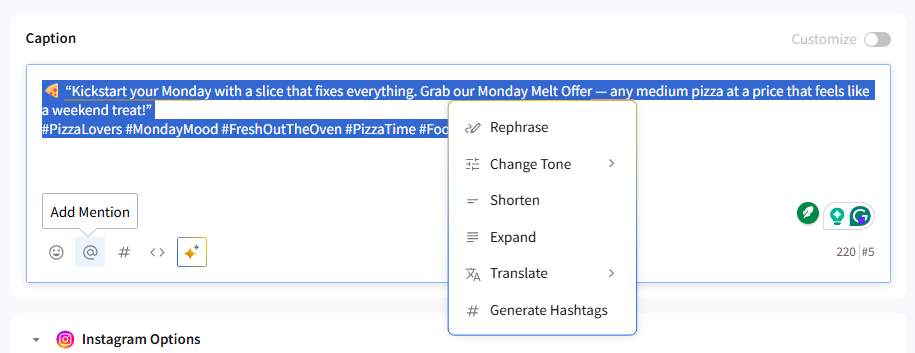
- Tag Instagram accounts by typing @ and selecting from suggestions
- Add emojis directly in the caption
- Use AI Pilot to refine your caption or generate a new one
Note:
Instagram allows a combined total of 30 hashtags across the caption and the first comment.
Previewing Your Instagram Post
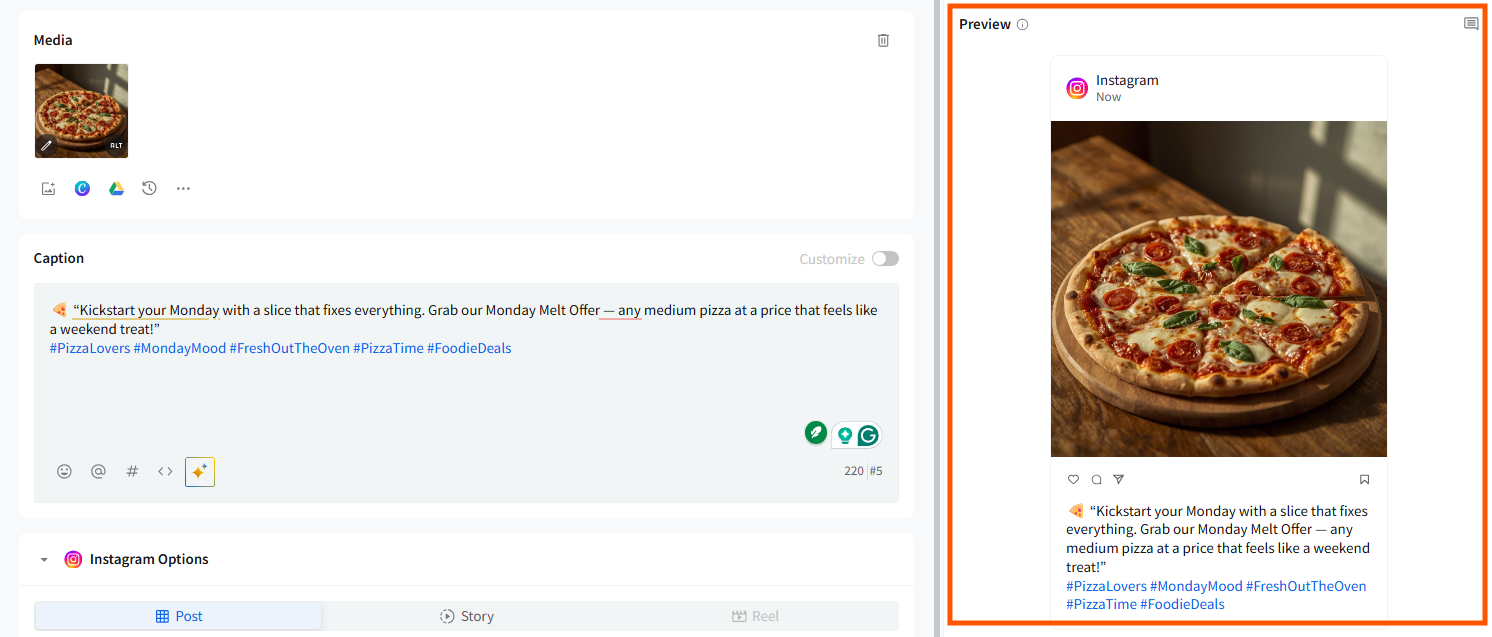
The redesigned Create Post experience includes a real-time preview panel on the right side of the screen.
- The preview updates automatically based on your selected type (Post, Story, or Reel).
- You can check how your caption, media, first comment placement, and layout will appear on Instagram.
- This helps ensure accuracy before scheduling, especially for Reels or Stories where formatting is crucial.
Publishing Methods
Direct Publishing (Business & Creator Accounts)
Direct publishing is available for:
- Posts
- Stories
- Reels
You can:
- Choose privacy settings for Reels and Stories (Public, Mutual Friends, Self)
Modify permissions for comments, duets, or stitches
(Instagram’s native privacy settings override these if they are disabled.)
Mobile Reminders (Personal Accounts)
For Personal profiles—or whenever you choose—SocialPilot will send a push notification through the app.
Steps:
- Select Mobile Reminder under Instagram Options for stories and reels.
- At the scheduled time, tap the notification on your phone.
Review and publish the content from Instagram manually.
Note: Ensure you are logged into the same SocialPilot account on your mobile app to receive reminders.
Related Articles:
- How to Create a Collaborative Instagram Post From SocialPilot in the New Create Post?
- What Are the Types of Instagram Posts You Can Publish From SocialPilot?
- How to Tag People/Pages While Creating Posts in the New Create Post?
-
How to Customize Posts for Google Business Profile in the New Create Post?
-
How to Customize Posts for Pinterest in the New Create Post?
-
How to Create a TikTok Carousel on SocialPilot in the New Create Post Experience?