
How To Customize Posts For Twitter in the New Create Post Experience?
SocialPilot offers social media marketers and businesses the flexibility to easily customize their Twitter posts to meet their marketing goals. With the redesigned Create Post experience: all media handling, editing, and customization tools are consolidated into a cleaner workflow—making it easier to tailor your Twitter content while maintaining brand consistency.
This guide walks you through various ways to enhance your Twitter posts and boost your engagement on the platform.
In This Article:
Customization Options for Twitter Posts
Here are some of the customization options you get while scheduling Twitter posts:
Create a standard text post: If you have a Premium Twitter account, you can write tweets up to 25000 characters. If not, you can still use the free 280-character limit.
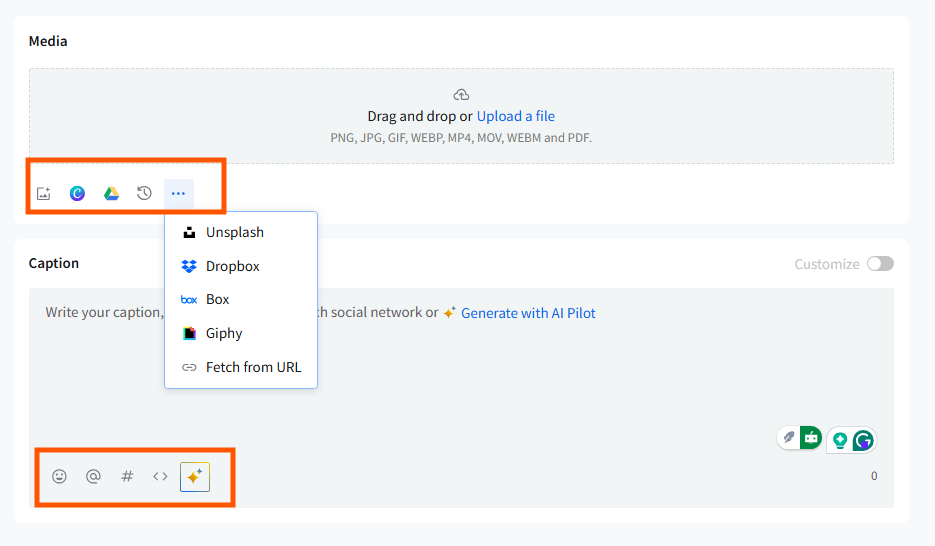
Create an Image Post: Upload images directly from Google Drive, Dropbox, Box, or your local computer. Alternatively, you can add a public URL to upload images.
Tag Another Twitter Account: Mention other Twitter handles in your posts to expand your reach.
Share a Video Post: Upload videos to build trust and engage your audience.
Add a GIF: Use GIFs to add humor and make your posts more engaging.
Design With Canva: Create and attach custom graphics using Canva without leaving SocialPilot.
Use Emojis: Add emojis to express your emotions and connect with your audience.
🚨 Note: These features are not available for users on the Professional plan.
How To Customize Twitter Posts on SocialPilot?
Follow the steps below to customize your Twitter post on SocialPilot:
- Click on the Create Post button from your SocialPilot dashboard.
- Select Twitter from the list of social networks on the left-side panel.
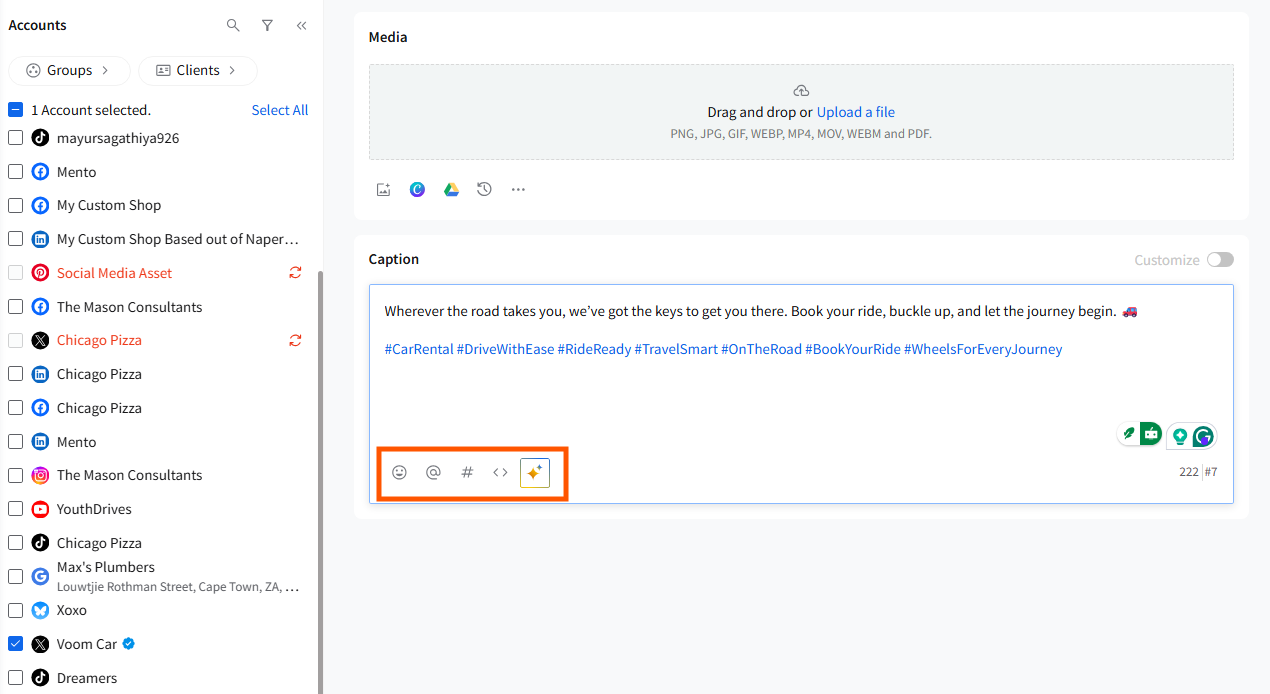
- Start writing your caption in the caption box and add emojis, hashtags, or mentions using the editor tools.
- Add Images, Videos, or GIFs
All media uploads now happen through the Media section at the top of the composer. Twitter currently supports only one media file per post, which means you can publish:
- 1 image, or
- 1 GIF, or
- 1 video
Upload Options
When you click the upload icon in the Media block, you can choose how you wish to add media-
- You can upload images, GIFs, and videos directly from your local computer, Google Drive, Dropbox, or Box by clicking the Add Media button.
- If you prefer stock images, click the Add media from external source button. This opens the Unsplash integration, where you can search for images by typing a keyword in the search bar. Once you find a suitable image, click Add Image to include it in your post.
- The Media section will also show your recently uploaded files, allowing you to reuse images, GIFs, or videos that you have already uploaded in the same session without re-uploading them.
- You can also upload images by pasting a public URL link in the designated field.
Note: Only directly accessible image URLs are supported. URL uploads work only for images, not for videos or GIFs.
💡 Supported Formats for videos are:
- .avi
- .mp4
- .mov
- .webm
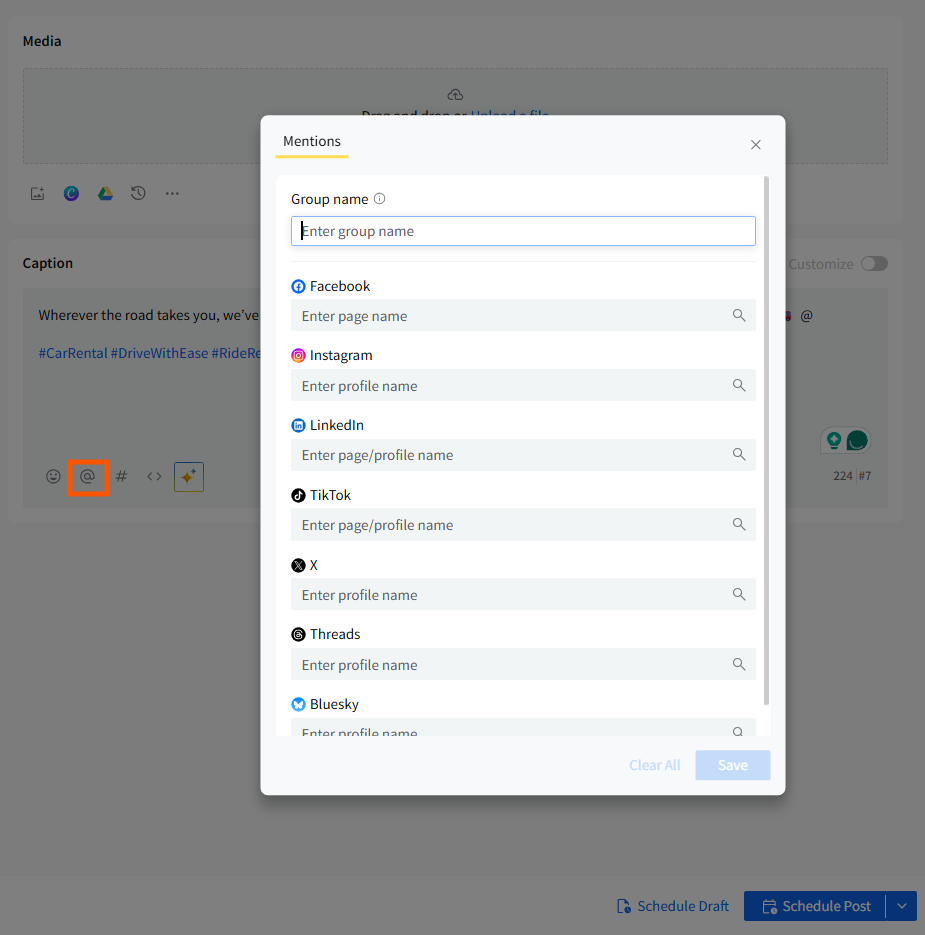
- Tag Twitter Accounts
To tag another Twitter account, type @ followed by the exact username in the caption area or click on the Add Mention option in the caption box. A dropdown list will appear. Select the correct handle from the list to add it to your post.
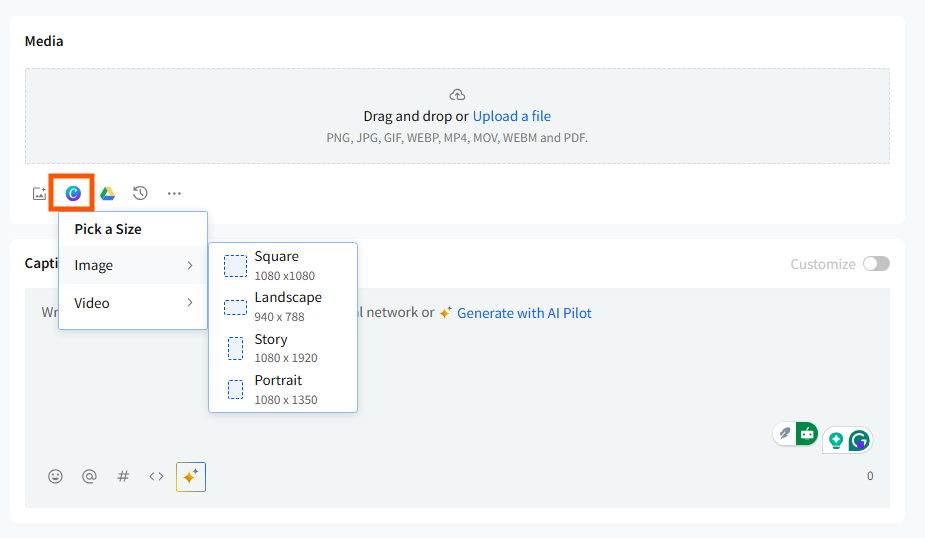
- Design With Canva
SocialPilot integrates with Canva, allowing you to design custom graphics directly within the post composer. Click the Canva icon inside the Media block, log in with your credentials, and start designing. Once completed, the design will be automatically attached to your post.
- Add Emojis
Use the emoji icon inside the caption editor to browse and insert emojis that fit your post.
URL Behaviour for Twitter Posts
When you add a link inside your caption:
-
Twitter may unfurl the link automatically depending on the URL type.
If Twitter does not provide a preview for that link type, the tweet will publish without a preview card.
- Removing the URL from your caption removes the preview as well.
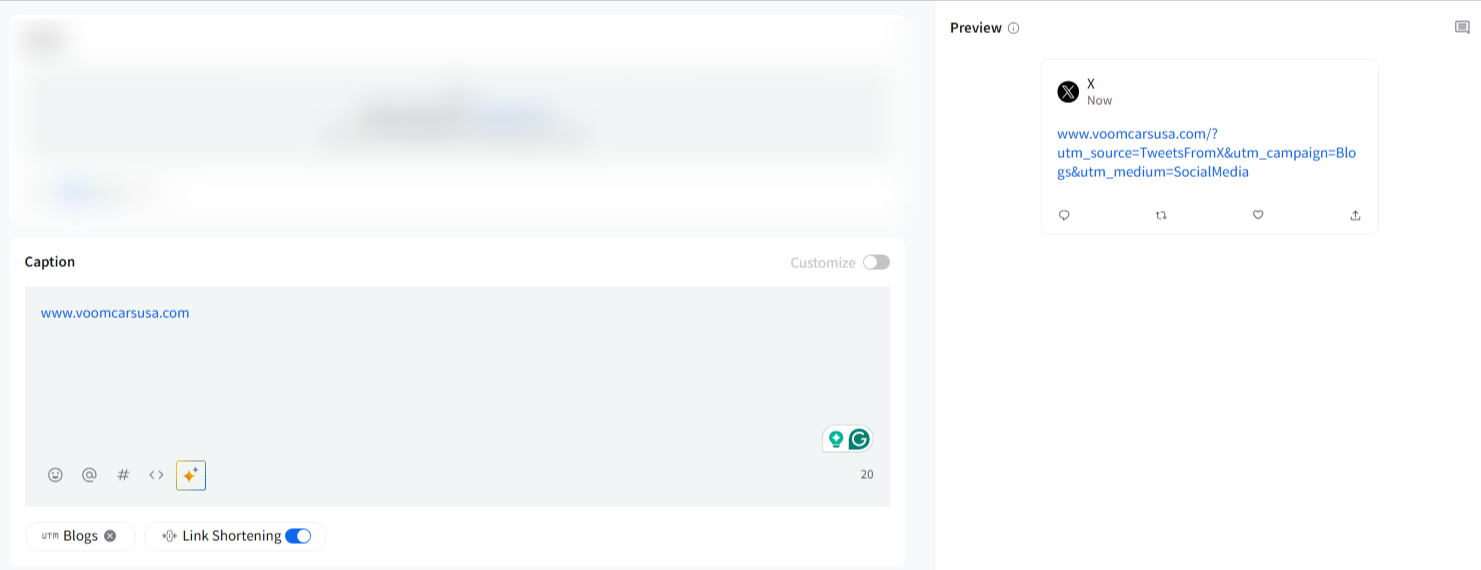
UTM Parameter Behaviour
If you have applied Custom UTM parameters in your workspace:
- The UTM parameters will automatically append to any URL you add in the caption.
- You can edit or remove them using the Add Parameters option below the caption area.
📋 Note: UTM parameters do not affect media and apply only to links included inside the caption.