Drafts let you save a post while it is still taking shape, place it on your content calendar, and share it with your team for feedback before it goes live.
In the new Create Post, every draft saves automatically as you work, and all your drafts sit together in the Drafts tab in Manage Posts.
In This Article
- How Drafts Work in the New Create Post Composer
- Save Drafts With Dates
- How to Access Drafts With Dates?
- How to Change or Remove the Date on a Draft?
- Where to Find and Manage Your Drafts?
How Drafts Work in the New Create Post Composer
Click on Posts in the main navigation menu.
- Select Create Post.
- Enter your content in the Caption box and add images, videos, or other media in the Media section.
With the redesigned Create Post experience, your posts are saved automatically.
As soon as you write a caption, upload media, or make any change, SocialPilot saves your draft in real time, and the indicator at the top shows Saved to Drafts.
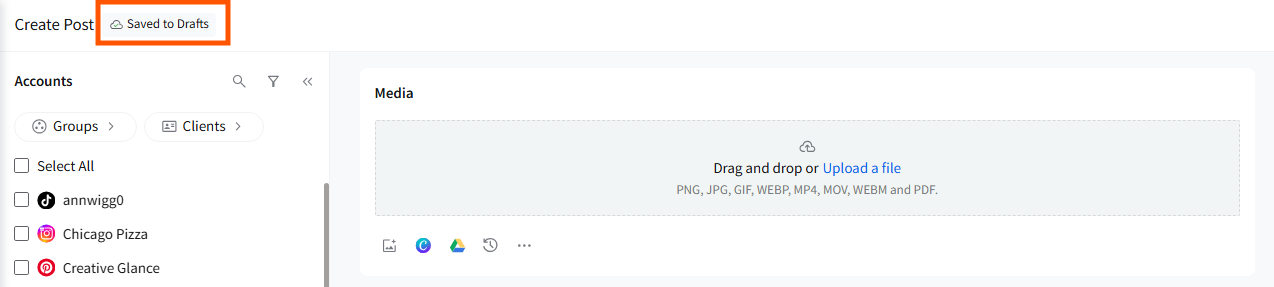
Note: Your auto-saved drafts appear in the Drafts tab in Manage Posts, where you can edit, tag, date, and organize them alongside the rest of your content.
Save Drafts With Dates
Saving drafts with dates helps you plan your content more effectively by placing them directly on your content calendar.
To save a draft with a date:
-
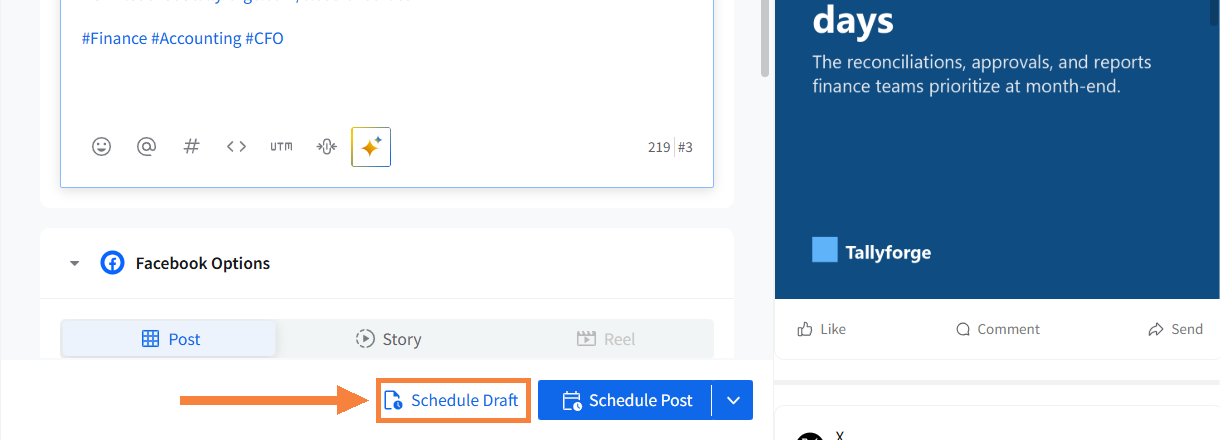
Click on Schedule Draft, next to the Schedule Post button.
-
Select the date in the calendar and set the Time.
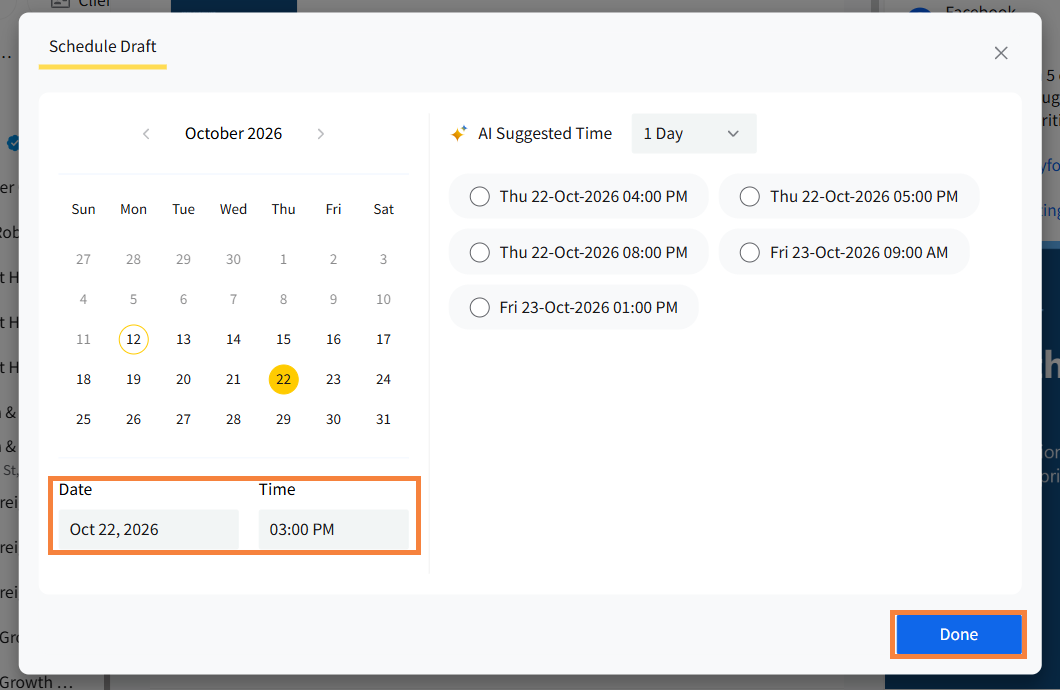
- Click on Done.
Your draft now appears on the calendar with a Draft badge beside it.
How to Access the Drafts With Dates?
Follow the steps to access Drafts with dates:
- Go to Posts in the left sidebar and select Calendar.
- Here, you will be able to see queued posts, published posts, and drafts with dates and times added to them with a Draft badge.
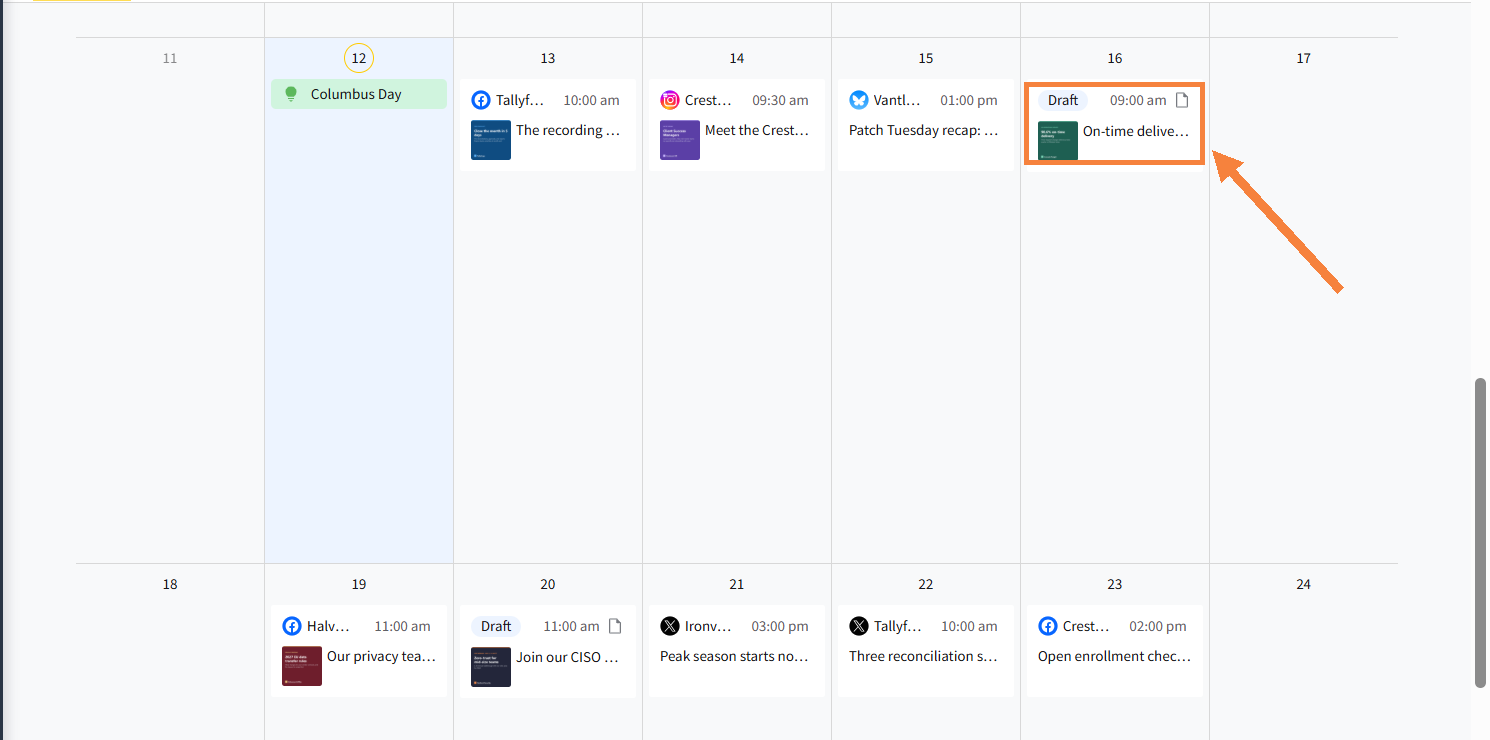
To focus the calendar on your drafts, click on Filter Posts, open Statuses, select Drafts, and click on Apply.
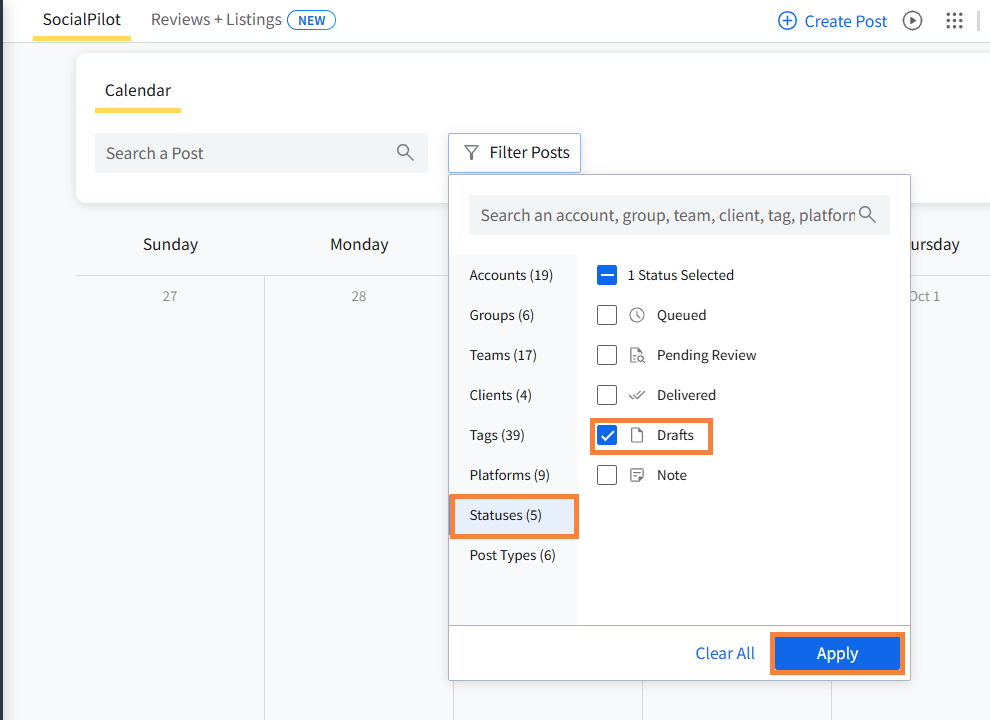
Note: Drafts with dates appear on the content calendar. Drafts without dates stay in the Drafts tab in Manage Posts until you add one.
Saving drafts with or without dates is your choice, and auto-save works the same way for both. Other than appearing on the calendar, drafts with dates behave exactly like drafts without dates.
How to Change or Remove the Date on a Draft?
To change the date from the Drafts tab:
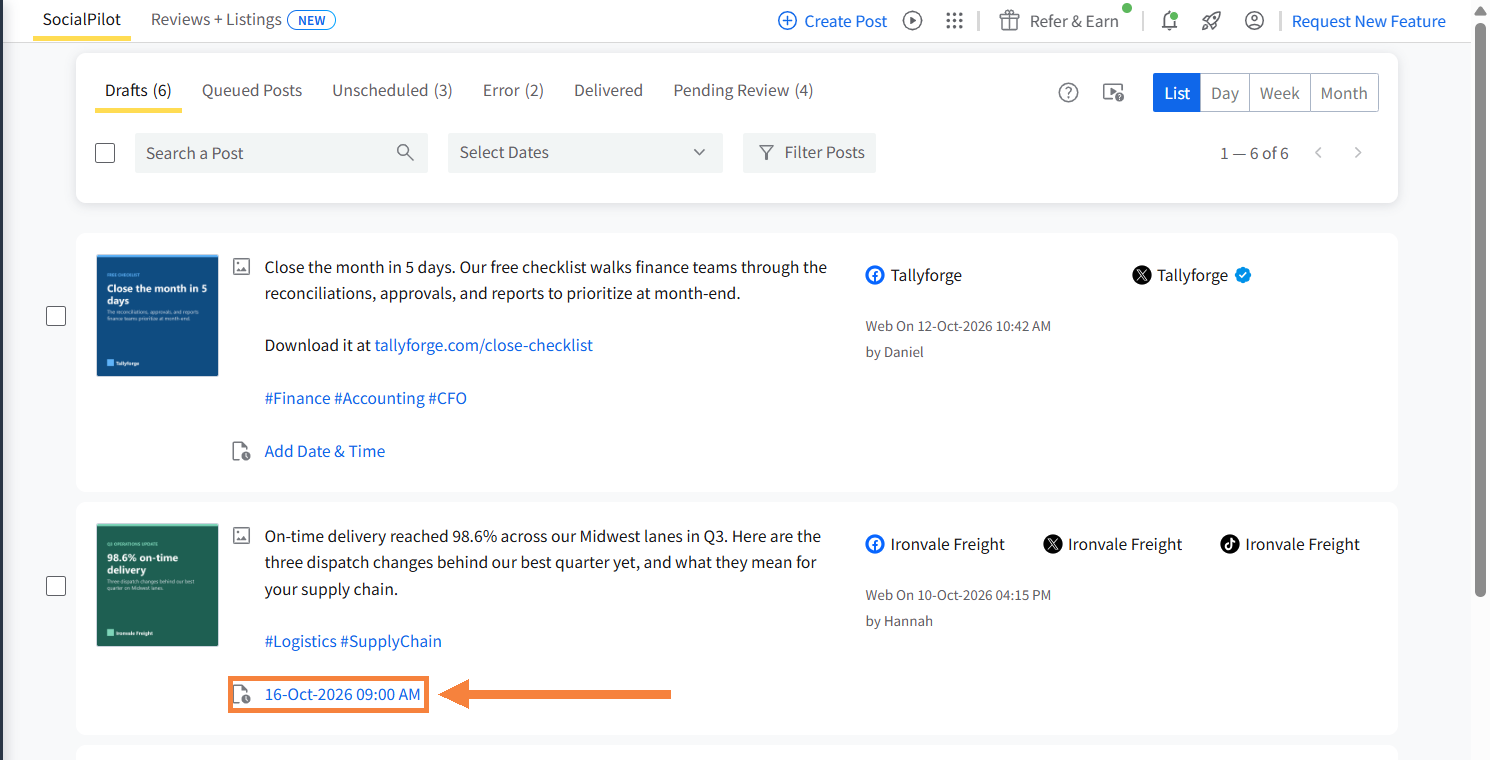
- Go to the Drafts tab in Manage Posts.
-
Click on the date and time shown on the draft.
-
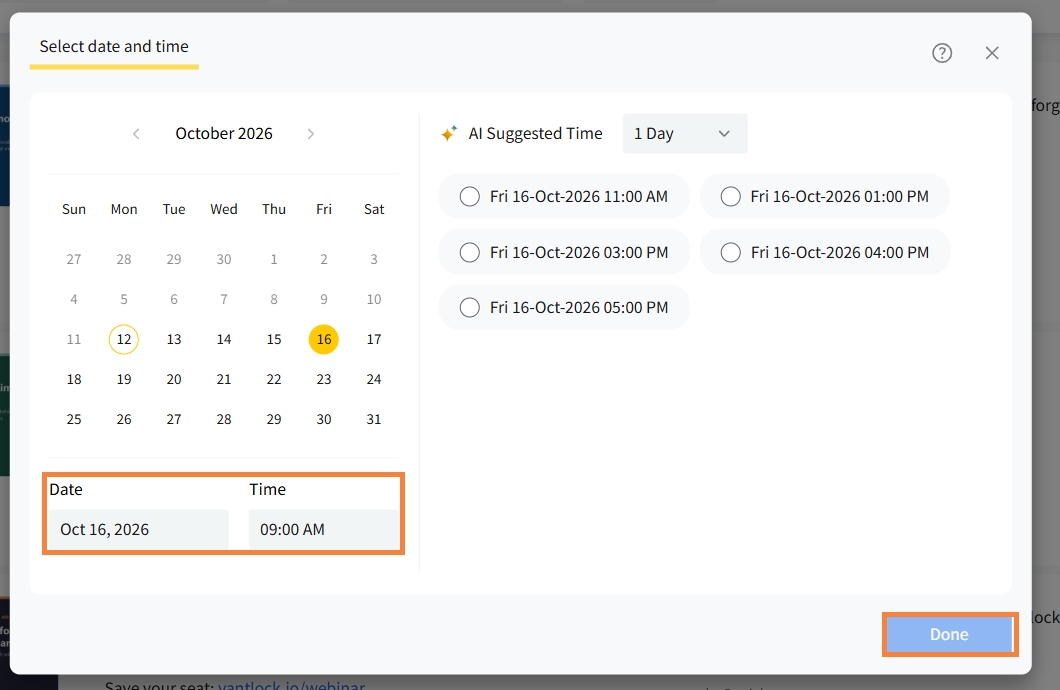
Pick a new date and time in the Select date and time window and click on Done.
To change or remove the date from the calendar:
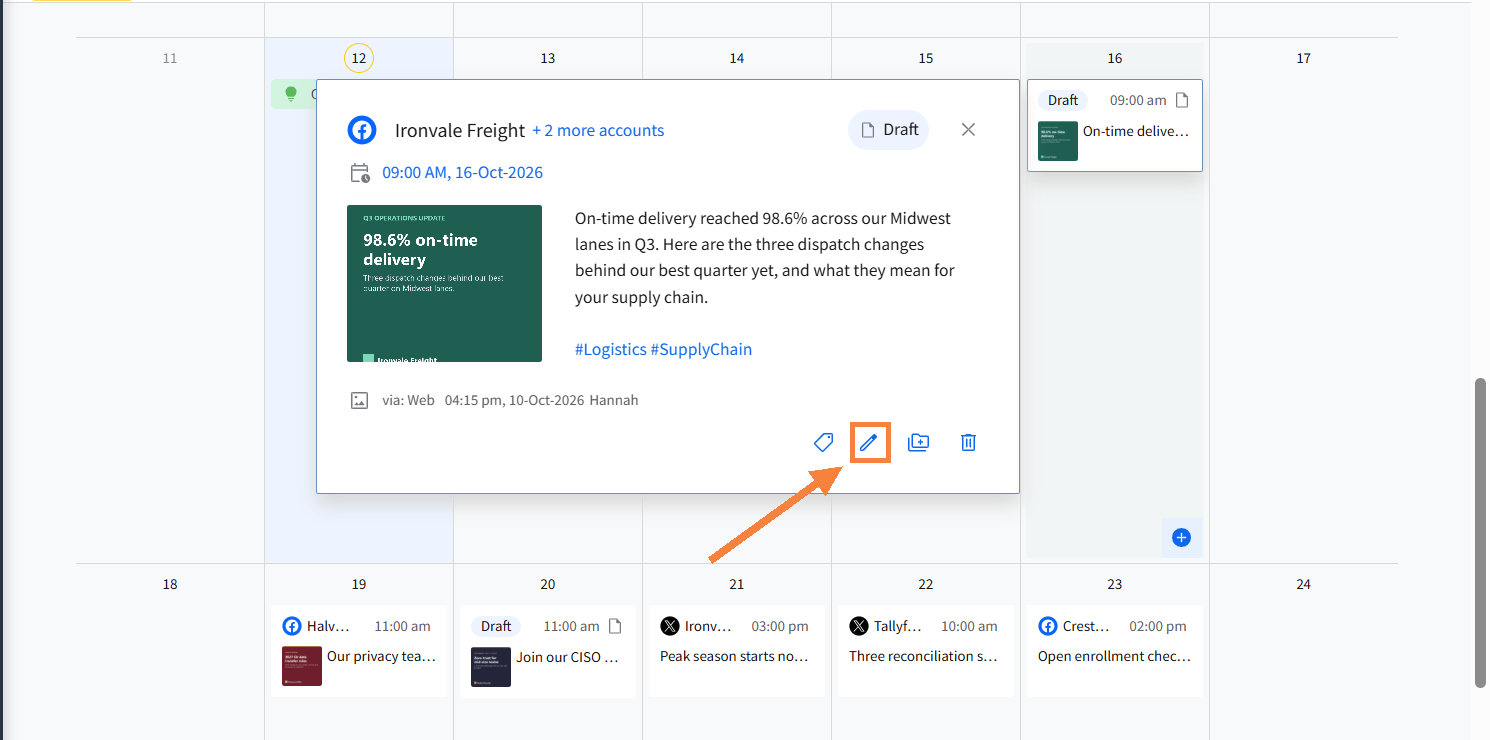
- Click on the draft card in the Calendar to open it.
-
Click on the Edit icon to open the draft in Create Post.
-
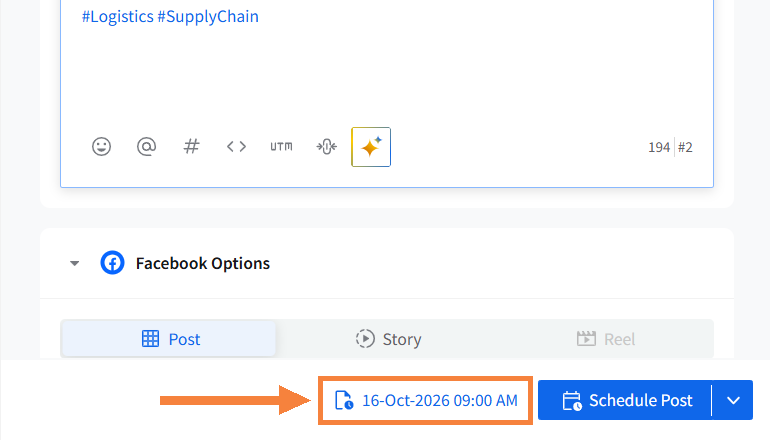
Click on the date shown next to the Schedule Post button.
-
Pick a new date and click on Done, or click on Remove to take the draft off the calendar.
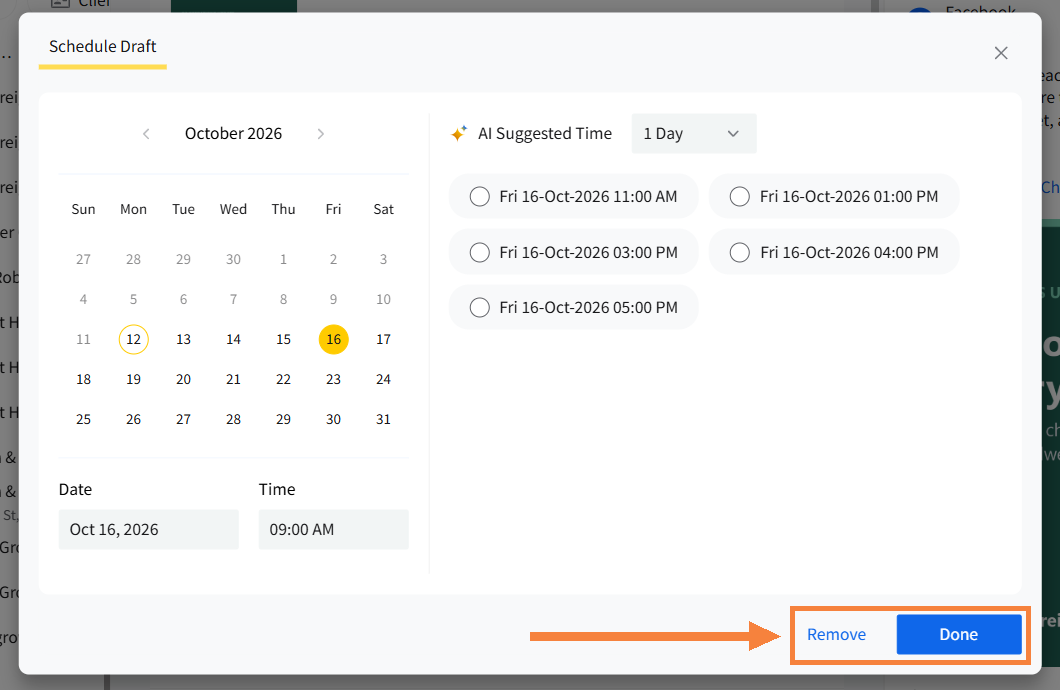
Note: After you click on Remove, the draft stays in the Drafts tab in Manage Posts, with Add Date & Time on it for whenever you want to plan it again.
Where to Find and Manage Your Drafts?
All your drafts live in the Drafts tab in Manage Posts, right beside your queued, unscheduled, error, delivered, and pending review posts.
Follow the steps to open your drafts:
- Click on Posts in the main navigation menu.
- Select Manage Posts.
-
Click on the Drafts tab.
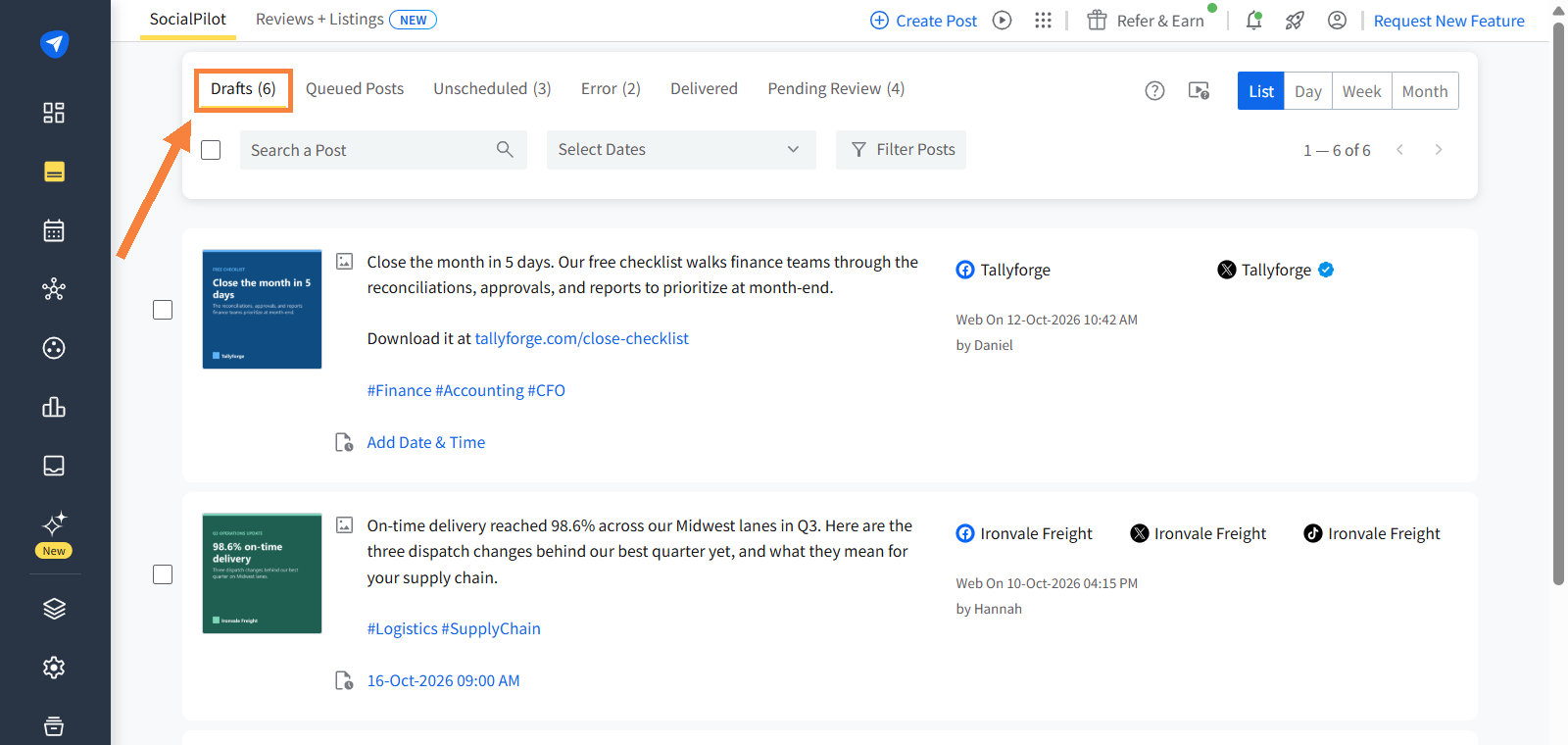
From the Drafts tab, you can search your drafts, filter them by Accounts, Groups, Tags, Platforms, or Post Types, edit them, add tags, save them to a library, and export or delete several drafts at once.
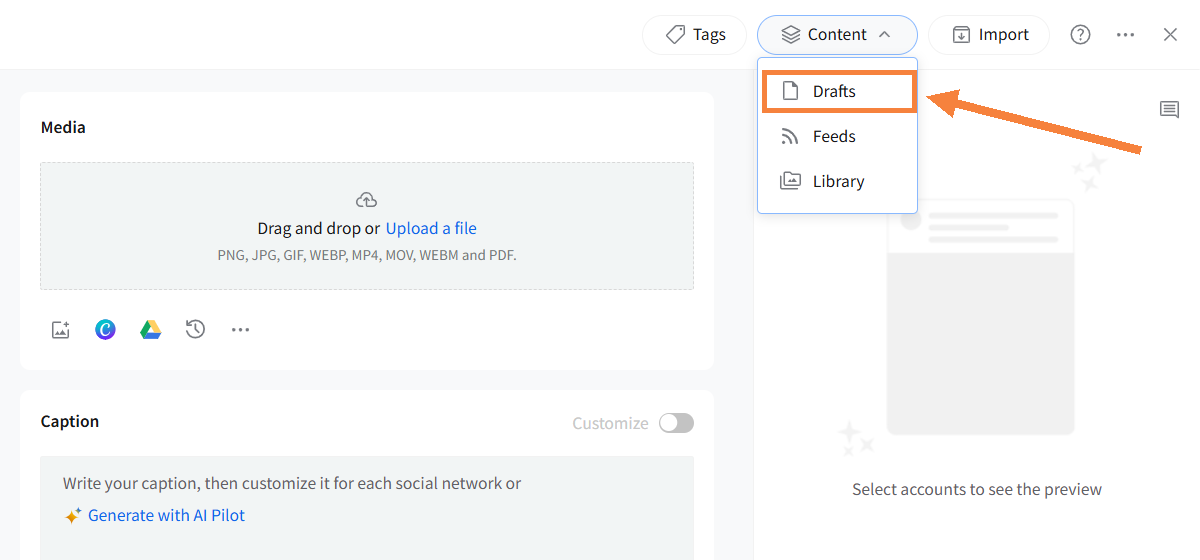
To open a saved draft while you are creating a post:
- Click on Content in the top bar of Create Post.
- Select Drafts.
-
Hover over the draft and click on Edit.
For every action, step by step, read How to Manage Your Drafts From Manage Posts?