
How Errors and Warnings Work in Create Post
The Create Post composer shows errors and warnings when something in your post needs attention.
This article explains how errors and warnings appear, how they are grouped in the Error Panel, and what they indicate.
For a complete list of specific error messages and how to fix them, refer to the Create Post Errors in SocialPilot and How to Fix Them guide.
In This Article
- What Are Errors and Warnings?
- Where Do Errors and Warnings Appear?
- Types of Issues You May See
- Platform-Specific Errors
- Account-Level Errors
What Are Errors and Warnings?
Errors
Errors indicate an issue that blocks your post from being scheduled or published.
If even one selected platform has an error, the post cannot be scheduled until it is resolved.
Warnings
Warnings highlight something that may affect your post but does not block publishing.
You can still schedule or publish the post, but the warning indicates information you may want to review, such as optional improvements or unsupported features.
Where Do Errors and Warnings Appear?
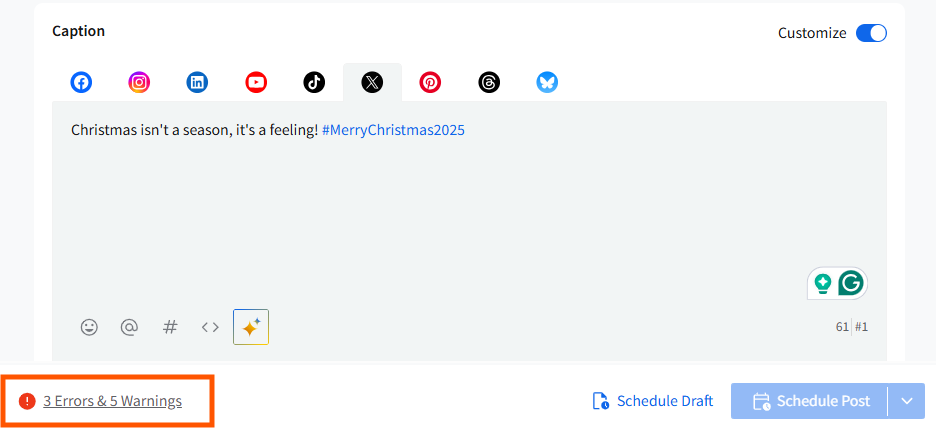
When an issue is detected for any selected account, an indicator appears next to the Schedule button in the Create Post screen.
The indicator shows a combined count of errors and warnings (for example, “2 Errors & 1 Warning”) so you can see how many issues need attention.
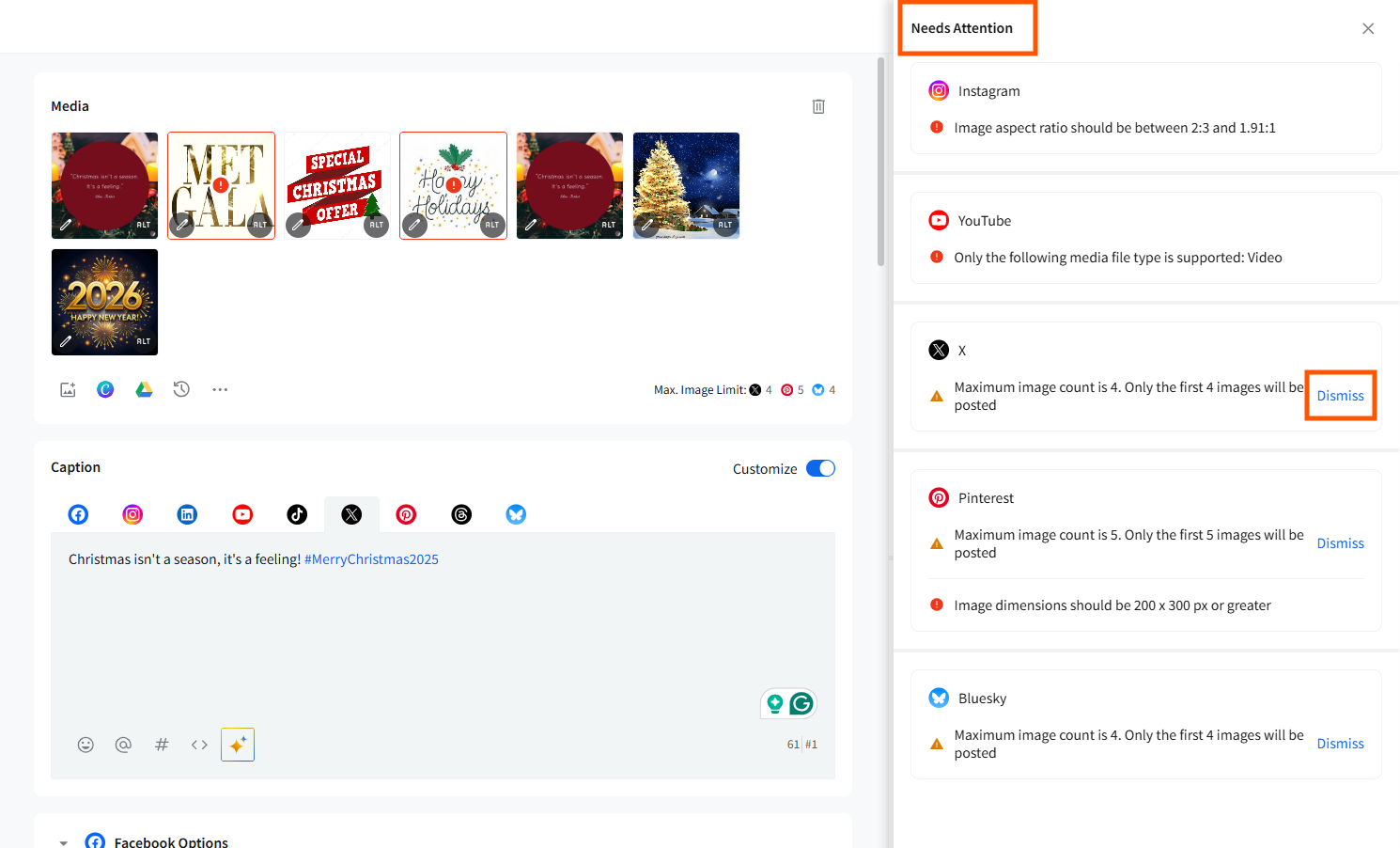
When you click this indicatior:
- The Error & Warning Panel opens on the right-hand side.
- All errors and warnings are grouped clearly by platform.
- Each issue includes a concise description explaining what needs to be reviewed or fixed.
Once all blocking errors are resolved, the red indicator disappears and publishing becomes available.
📋 Notes:
- You can dismiss a warning. It may reappear if the same condition occurs again.
- Errors cannot be dismissed and must be resolved before publishing.
- The panel updates in real time as you make changes to your post.
Types of Issues You May See
Errors and warnings are triggered by common publishing restrictions. These may include:
- Unsupported media formats
- Incorrect media dimensions
- Exceeding caption, mention, or hashtag limits
- Unsupported post types for a selected account
- Missing required fields
- Multiple media types selected where not supported
- Account-related restrictions
Each issue shown in the composer includes a short explanation of what needs attention.
Platform-Specific Errors
Some issues apply only to certain social networks. In the Error Panel, these are grouped under the relevant platform name (for example, Facebook, Instagram, LinkedIn, or Google Business Profile).
This grouping helps you quickly identify:
- Which platform has the issue
- What type of restriction applies
- Whether it blocks publishing or is only a warning
Platform-specific issues may relate to media requirements, caption limits, unsupported formats, or account permissions.
If a platform has no issues, it does not appear in the Error Panel.
Each platform section expands automatically, allowing you to review and resolve issues individually.
Account-Level Errors
Some errors relate to the connected account rather than the content of the post.
Examples include:
- Reconnect Required
- Missing Role or Permissions
- Account Paused
- Expired Access
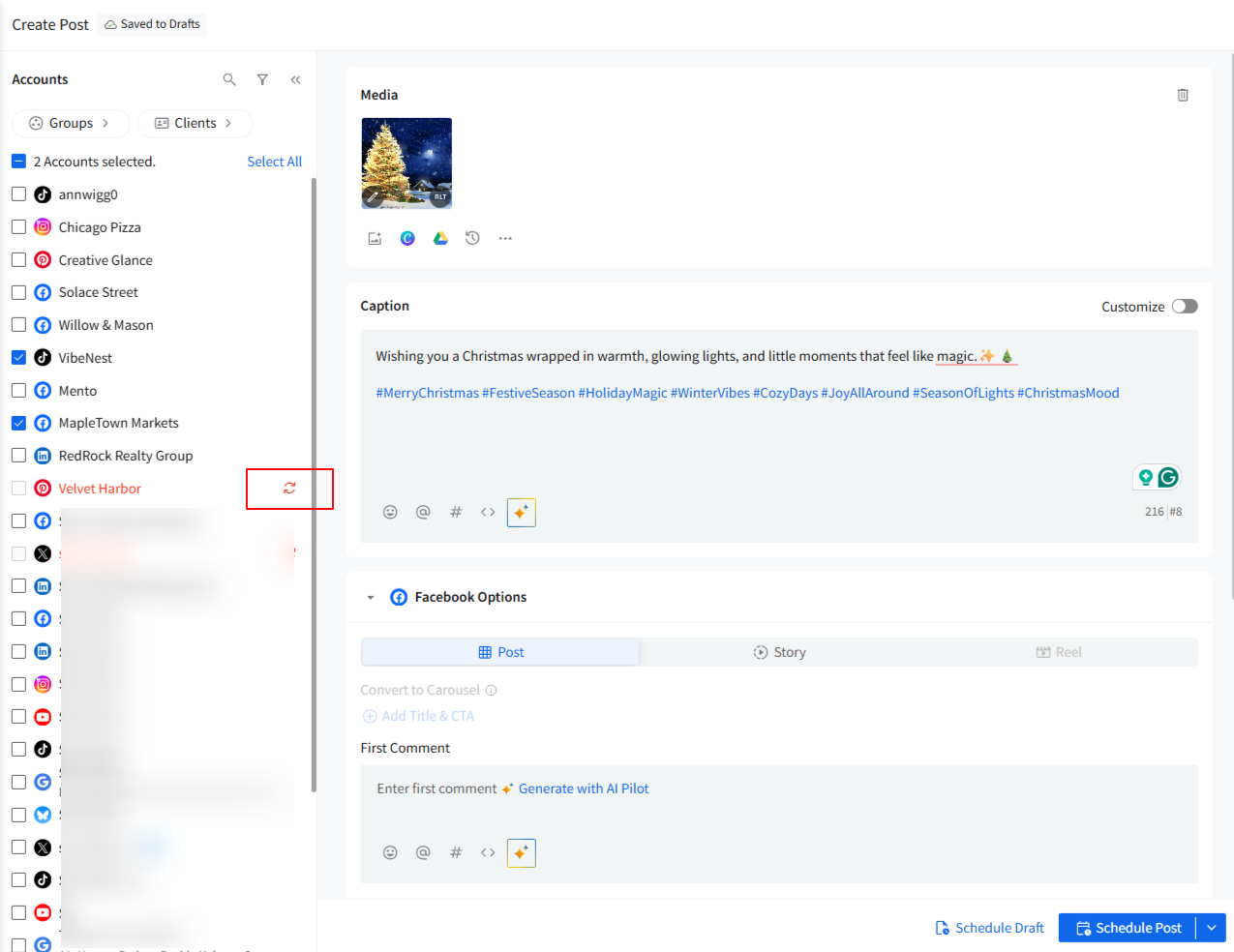
These errors appear:
- In the Accounts / Groups / Clients panel, next to the affected account.
- In the Error Panel, with a clear description.
Account-related issues must be resolved in the Manage Accounts section before publishing.