
How to Use the First Comment Feature in the New Create Post?
The First Comment feature in SocialPilot helps boost engagement on Instagram, Facebook, and LinkedIn by automatically publishing a comment immediately after your post goes live. Many brands use this space for CTAs, additional context, or extra hashtags—keeping the main caption clean while still maximizing reach.
With the new Create Post feature, the First Comment experience has been enhanced to make it easier to find, simpler to manage, and more reliable.
Platform options, including First Comment, now appear only when relevant, based on the social accounts you select. This ensures a cleaner interface and helps you focus only on the options you actually need.
In This Article
- Where to Find the First Comment in the New Create Post
- Guidelines for Using Instagram's First Comment
- Account Types Supported
- Availability on Mobile App
- Hashtag Counter Feature
- Troubleshooting First Comment Issues
Where to Find the First Comment in the New Create Post?
Accessing the First Comment field is now easier and more intuitive. It appears only when supported accounts are selected and sits inside the Platform Options section for that platform.
1. Go to the Create Post section to begin crafting your content.
2. In the left sidebar, select the accounts or groups you want to publish your post to.
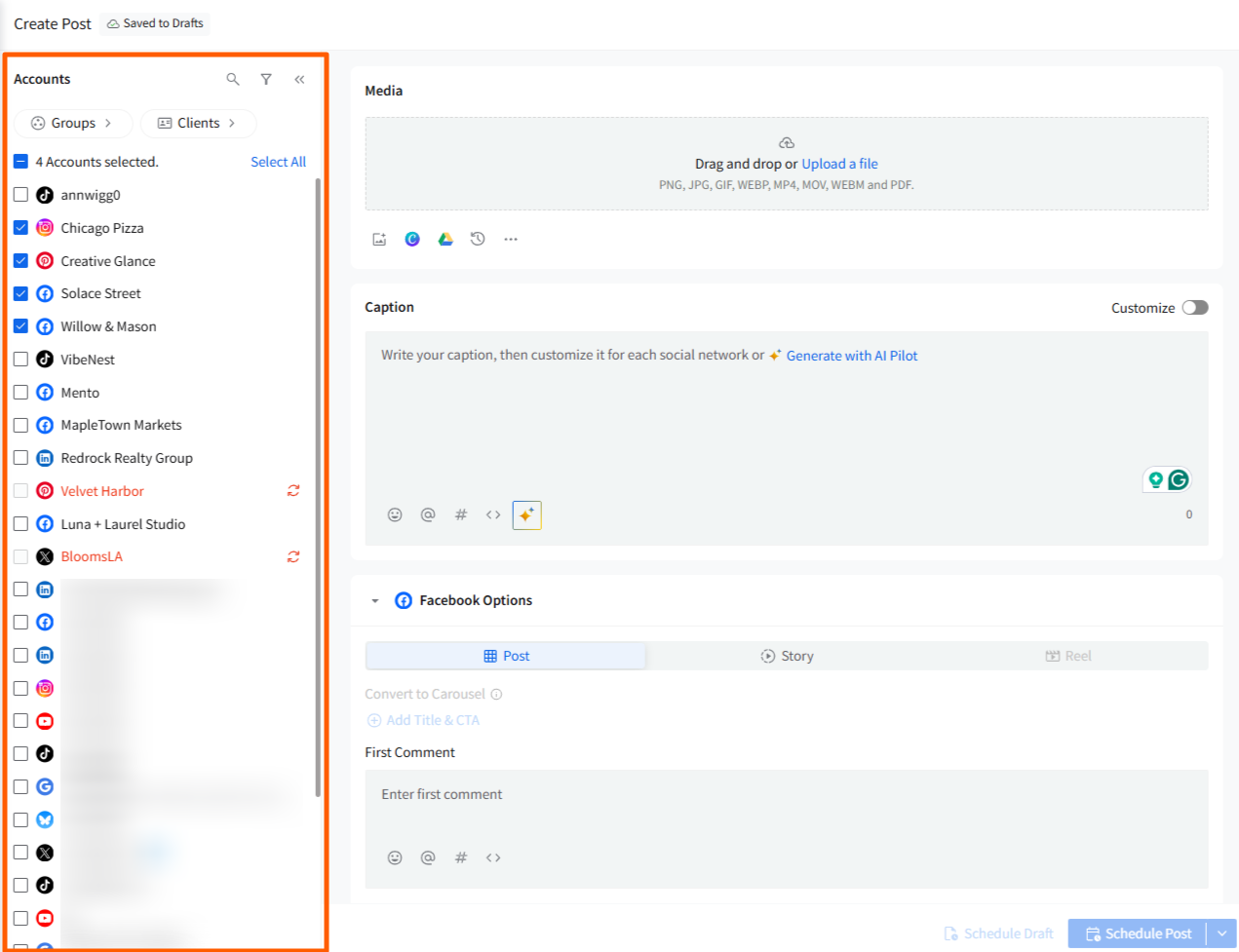
3. As soon as you select a platform that supports First Comment (Instagram, Facebook, or LinkedIn), the Platform Options section for that network appears below the caption area.
4. Scroll to that platform’s options, and you will see the First Comment field.
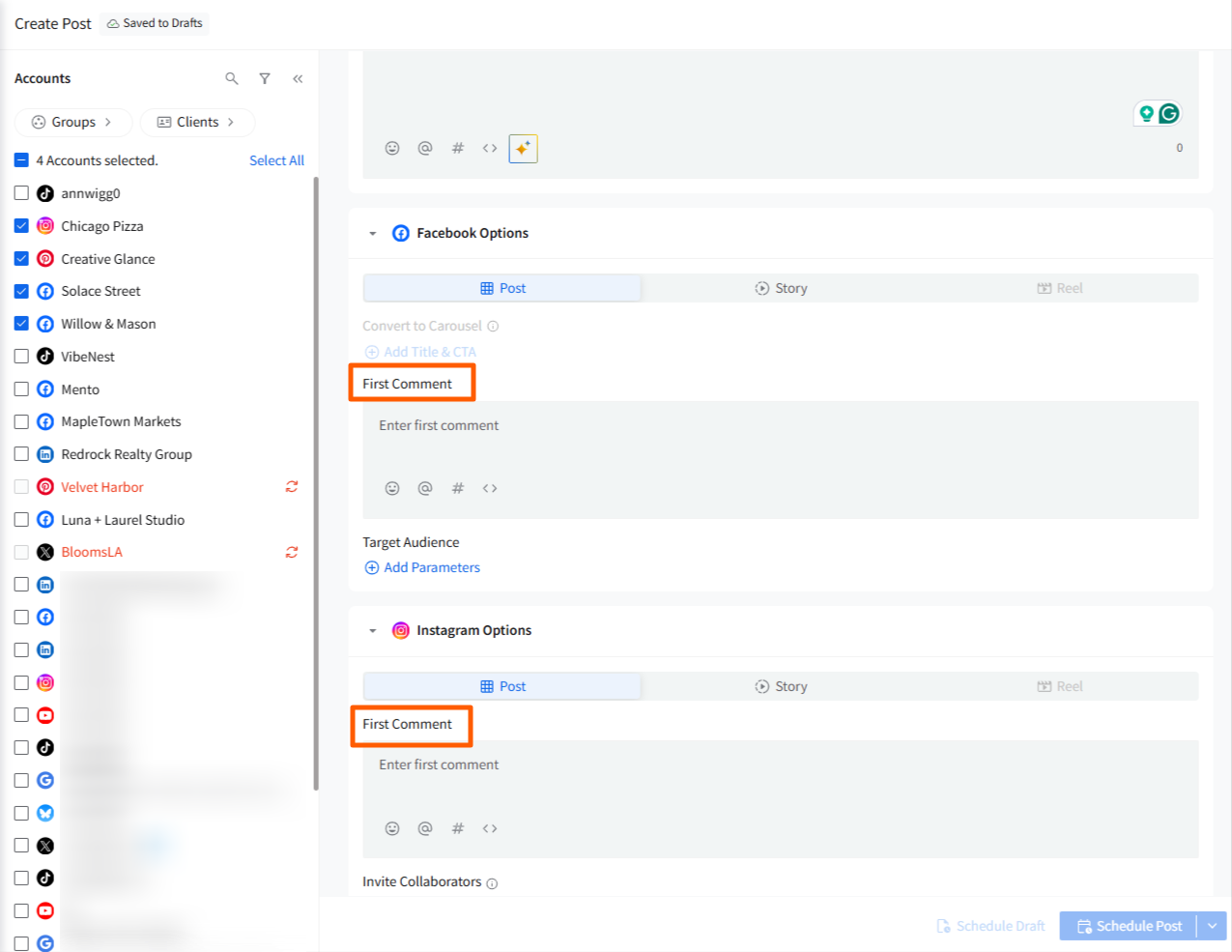
5. Type or paste your first comment—hashtags, CTAs, additional details, or promotional copy.
6. After adding your First Comment, continue composing your main post. Once done, you can either schedule the post for later or publish it immediately. The First Comment will automatically follow your main post based on your settings.
📋 Notes:
- The First Comment field appears only when at least one supported account is selected.
- When Customize for Each Platform is turned ON, each platform will show its own First Comment field. When it’s off, the First Comment is still added per platform, as each platform receives its own comment.
Guidelines for Using Instagram’s First Comment
To get the most out of the First Comment feature, it is important to follow Instagram-specific best practices and guidelines. By doing so, you ensure that your posts are optimized for visibility and comply with platform standards, avoiding any issues that might prevent your comment from being published.
Character Limit
- Maximize Your Space: Instagram allows up to 2,200 characters in the first comment. This generous limit gives you plenty of room to add additional information, engage your audience with compelling content, or include more detailed calls-to-action (CTAs) that complement your main post.
- Strategic Use: Use this space wisely by adding content that enhances your post, such as extra context, engagement questions, or promotional information. Remember, the first comment can be a great way to drive interaction, so think carefully about how to use this space.
Content Rules
- Avoid Redundancy: Make sure that the content in your first comment is distinct from your post caption. Repeating the same text or hashtags can appear redundant and may dilute the impact of your message. Instead, use the first comment to add value by introducing new ideas, engaging your audience, or offering additional resources.
- Hashtag Strategy: Instagram allows you to use a total of 30 hashtags combined between the post caption and the first comment. This flexibility lets you distribute your hashtags in a way that keeps your caption clean and focused while still benefiting from the discoverability that hashtags provide. For example, you might choose to place the most relevant hashtags in the caption and additional or broader hashtags in the first comment.
Compliance
- Follow Instagram’s Community Guidelines: Instagram has strict community guidelines that govern the type of content you can post, including the use of hashtags. If your first comment contains hashtags or content that violates these guidelines, Instagram prevents it from being published. This includes avoiding banned or restricted hashtags, as well as ensuring that your content adheres to the platform's standards for appropriateness and relevance.
- Avoid Non-Delivery Issues: Non-compliance with Instagram’s guidelines is one of the most common reasons why a first comment might fail to publish. To avoid this, always review your content for compliance before scheduling or posting. This not only helps ensure your first comment goes live as planned but also protects your account from potential penalties or reduced visibility on the platform.
By following these guidelines, you can effectively use the First Comment on Instagram to enhance your post's engagement and ensure compliance with Instagram's policies.
Account Types Supported
In the new Create Post, the First Comment feature is supported for Facebook Pages, Instagram Business accounts, and LinkedIn Pages. The availability and functionality of the First Comment depend on each platform’s API capabilities.
Facebook Pages
- First Comment is supported for all Facebook Pages connected to SocialPilot.
- The First Comment is published automatically via Facebook’s API after the main post goes live.
Instagram Business Accounts
- The First Comment feature is available exclusively for Instagram Business accounts.
- This availability aligns with Instagram's API, which permits advanced interactions such as automated comments only for business profiles.
LinkedIn Pages
- First Comment is supported for LinkedIn Pages.
- It automatically publishes after the main post is delivered.
Availability on Mobile App
Currently, the First Comment functionality is only available on the web version of SocialPilot. The mobile app does not yet support this feature, forcing users to plan and execute more complex posting strategies via the desktop interface.
Hashtag Counter Feature
The Hashtag Counter enhances your social media management by providing real-time insights into your hashtag usage, helping you optimize the impact of your hashtags across different platforms. This ensures that you stay within the recommended limits and effectively engage with your target audience.
Original Caption Usage
The main caption area (Original Draft) is where you begin composing your post.
- As you type, the hashtag counter displays the total number of hashtags used in the Original Draft.
- This helps you stay within platform-recommended limits before you begin customizing.
Platform-Specific Caption Customization
When you turn Customize ON, separate caption fields appear for each selected platform.
- Each platform shows its own individual hashtag counter, reflecting its hashtag best practices and limits.
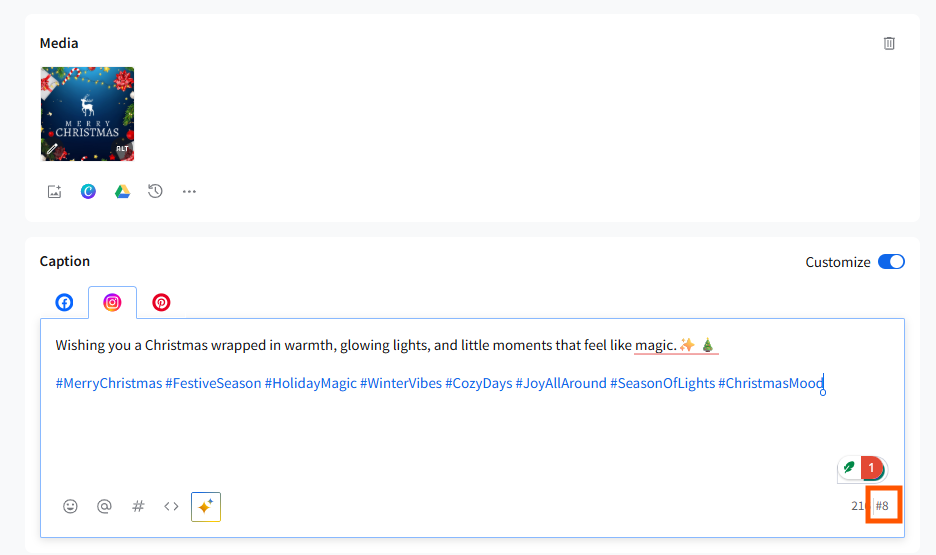
- The counters help you decide how many additional hashtags you can add without exceeding platform guidelines.
📋 Notes:
- Use the hashtag counter to strategically place your hashtags either in the body of the post or in the first comment, where applicable, particularly on Instagram.
- Use the hashtag counter to experiment with different numbers and combinations of hashtags to find what works best for your content and audience.
- Combine insights from SocialPilot’s analytics features with the hashtag counter to evaluate the effectiveness of your hashtag strategies over time and adjust based on performance data.
By leveraging the Hashtag Counter feature within SocialPilot, you can ensure that your social media posts are not only compliant with platform guidelines but are also optimized for maximum engagement and reach.
Troubleshooting First Comment Issues
Why can I not see my First Comment enabled?
To enable the First Comment feature, you need to reauthorize your Facebook/Instagram Business account.
- Go to Manage Accounts from the left panel.
-
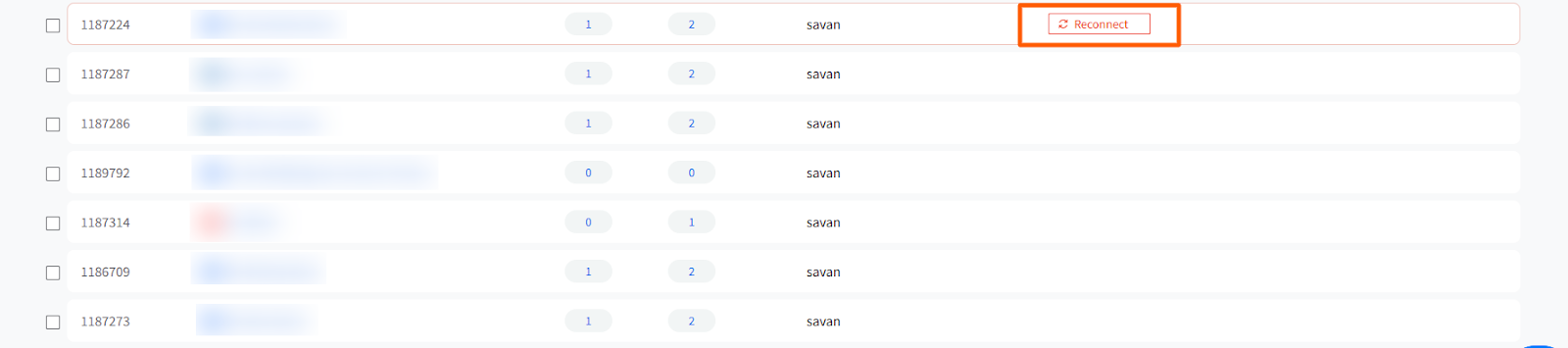
You will see a prompt asking you to reconnect your Instagram account.
-
Click on Reconnect, and you will only need to grant permission for SocialPilot to manage comments, since you have already allowed other permissions.
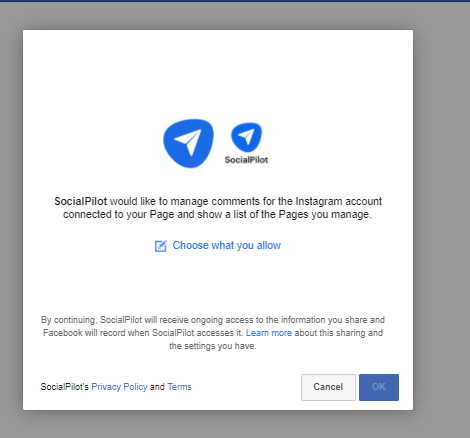
- After re-authorizing, the First Comment feature will be available for your Instagram Business accounts linked to the re-authorized Facebook profile.
If you haven’t granted these permissions, SocialPilot will notify you through Manage Accounts, in queued posts (indicating the first comment won’t be published), and in the delivered section (stating the first comment wasn’t published due to missing permissions).
Don’t worry, this re-authorization is a one-time setup.
My posts are delivered, but my First Comment is not. Why?
Your post might be delivered without the first comment due to the following reasons:
- Your post is not meeting the Community guidelines.
- You haven’t reauthorized your profile, which is needed to allow SocialPilot to manage comments on your Instagram account.
To fix this, make sure you follow the community guidelines and reauthorize your account. If the first comment isn’t delivered, SocialPilot will notify you:
- Queued Posts: A warning will prompt you to reauthorize your account, stating that the first comment won’t be published.
- Delivered Tab: It will show that the post was delivered, but the first comment wasn’t due to missing authorization.
Re-authorizing your account and enabling SocialPilot to manage comments will resolve the issue.
Related Articles:
-
Using the Accounts, Groups & Clients Panel in the New Create Post
-
How to Choose a Target Audience While Creating a Post in the New Create Post?
-
How to Use the First Comment Feature in the New Create Post?
-
How to Use Platform Options in the New Create Post Experience?
-
How to Tag People/Pages While Creating Posts in the New Create Post?
-
How to View Social Previews in the New Create Post Experience?