
How to Connect SocialPilot With Zapier Using MCP Server?
SocialPilot MCP Server lets you connect Zapier with your SocialPilot account so you can use SocialPilot workflows inside Zapier automations.
Instead of manually moving between tools to create drafts, schedule posts, review publishing status, and manage repetitive tasks, you can connect SocialPilot MCP Server to Zapier and automate those workflows through triggers, actions, and AI-powered processes.
This is useful for agencies, social media managers, marketing teams, and business owners who want to reduce manual work and scale content operations.
In This Article:
- Requirements
- How to Connect SocialPilot With Zapier via Login?
- How to Connect SocialPilot With Zapier Using API Key?
- How to Use SocialPilot MCP Tools in Zapier Workflows?
Requirements
Make sure you have:
- A Zapier account.
- Access to your SocialPilot account.
- Your SocialPilot API key (for API key setup).
- Internet access to connect with the SocialPilot MCP Server.
You can get your API key in SocialPilot by:
- Logging in to your SocialPilot account.
- Clicking your profile icon in the top-right corner.
- Going to Security.
- Scrolling to the API Key section.
- Copying your API key.
Use the SocialPilot MCP Server URLs:
Login Method
https://mcp.socialpilot.co/mcp
API Key Method
https://mcp.socialpilot.co/YOUR_API_KEY/mcp
How to Connect SocialPilot With Zapier via Login?
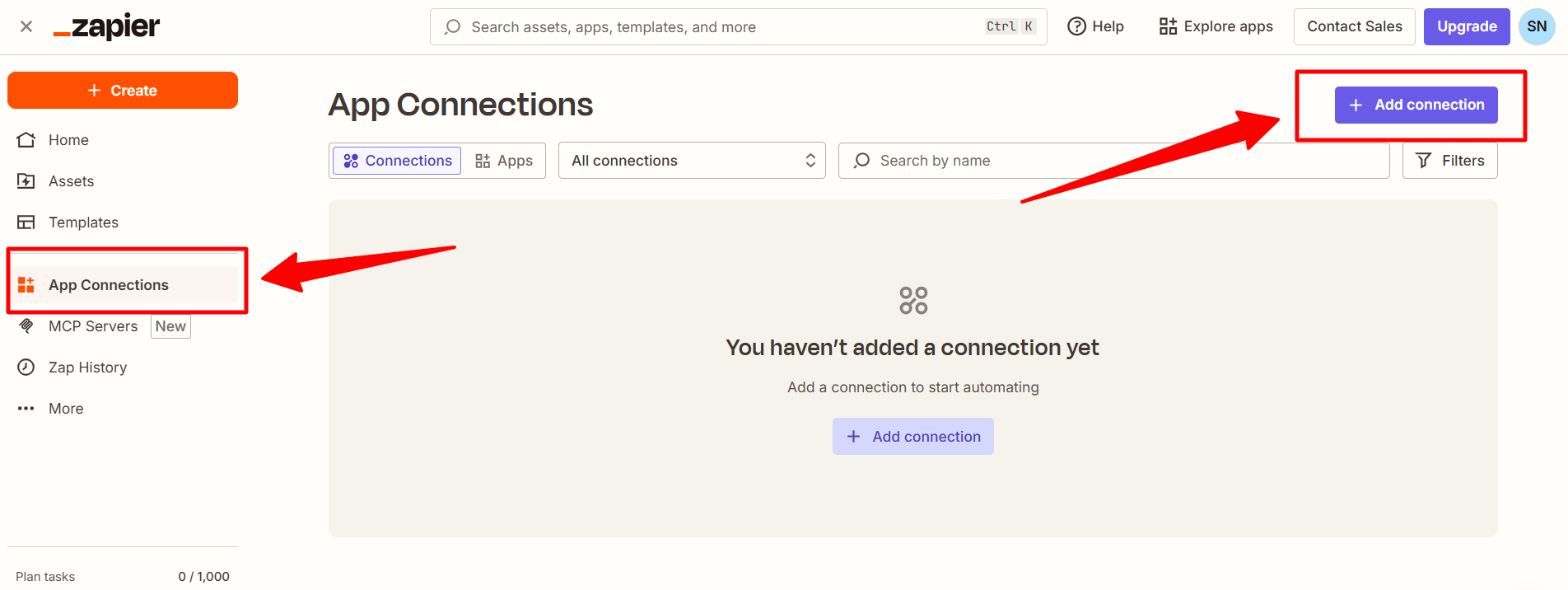
- In Zapier, go to App Connections.
-
Click Add Connection.
-
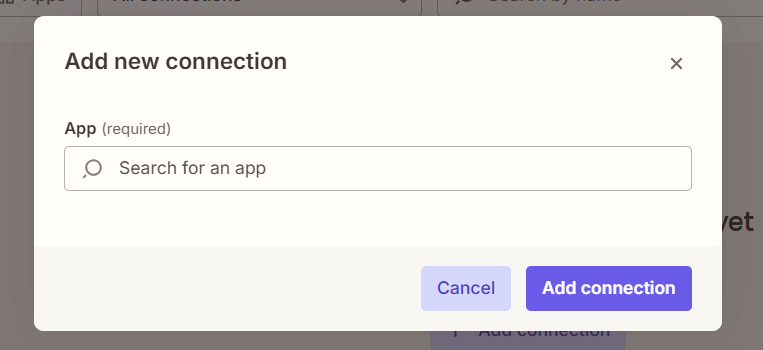
The Add new connection popup appears.
-
In the Search for an app field, search for MCP Client by Zapier.
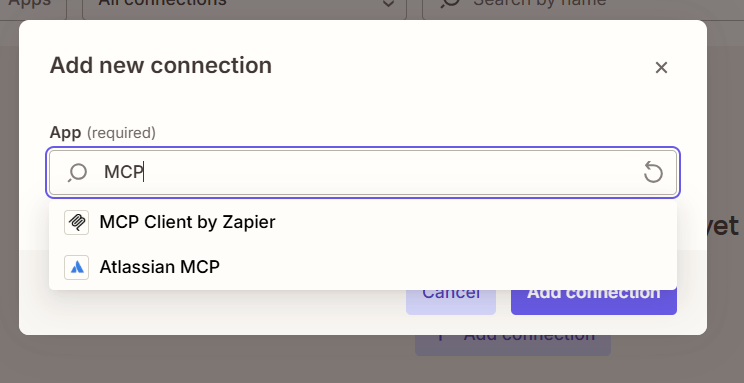
- Select MCP Client by Zapier and click Add Connection.
-
A new connection window will open.
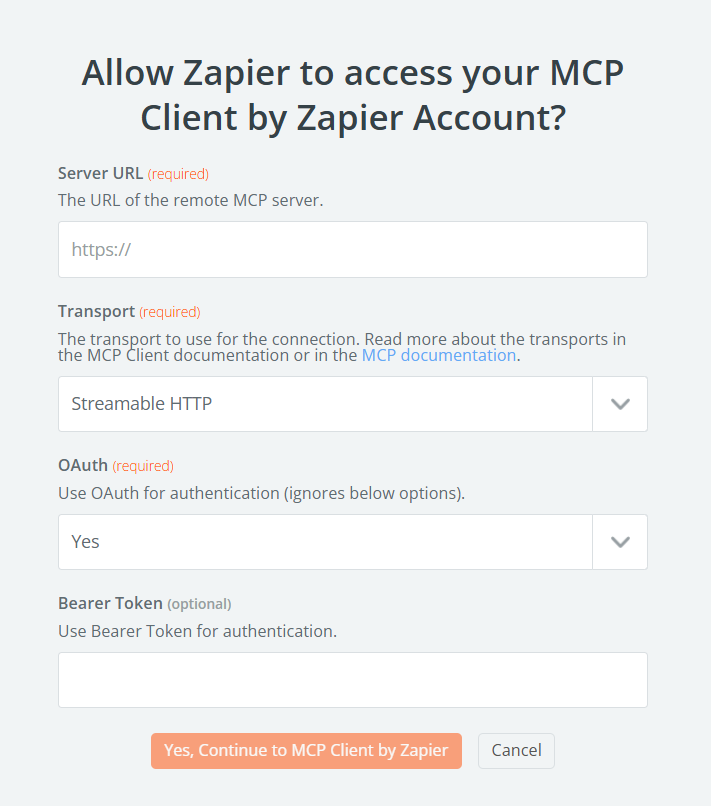
- Enter the following details:
- Server URL:
https://mcp.socialpilot.co/mcp - Transport: Streamable HTTP
- OAuth: Yes
- Bearer Token: Leave blank
- Click Yes, Continue to MCP Client by Zapier.
-
You will be redirected to the SocialPilot authorization screen.
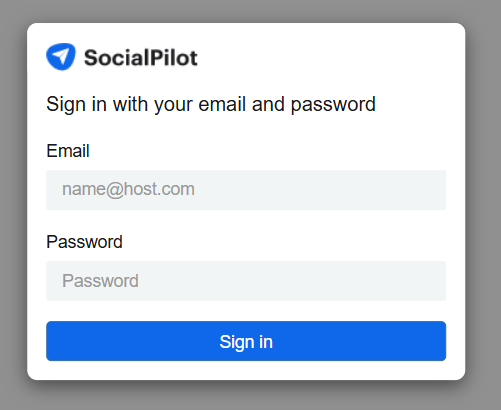
- Sign in using your SocialPilot email and password.
You should now see SocialPilot MCP listed under App Connections.

Once connected, SocialPilot becomes available inside Zapier.
How to Connect SocialPilot With Zapier Using API Key?
-
Go to App Connections and click Add Connection.
-
In the Add new connection popup, search for MCP Client by Zapier.
- Select MCP Client by Zapier.
- Click Add Connection.
- A new connection window will open.
- Enter the following details:
- Server URL:
https://mcp.socialpilot.co/YOUR_API_KEY/mcp - Transport: Streamable HTTP
- OAuth: No
- Bearer Token: Leave blank
Replace YOUR_API_KEY with the API key copied earlier.

- Click Yes, Continue to MCP Client by Zapier.
You should now see SocialPilot MCP listed under App Connections.
Now SocialPilot is available for use in all your Zapier workflows.
How to Use SocialPilot MCP Tools in Zapier Workflows?
Once connected, Zapier can access the tools available through SocialPilot MCP Server.
The exact tools shown in Zapier may vary based on your SocialPilot account access and the MCP tools currently available.
You can use those tools in Zapier workflows to streamline repetitive social media tasks and operational processes.
Common Use Cases
Content Planning
Use SocialPilot MCP tools to support post creation, drafts, and scheduling workflows.
Approval Workflows
Connect internal tools such as forms, spreadsheets, or project trackers with SocialPilot workflows after approvals are completed.
Monitoring and Operations
Use workflows to review publishing activity, monitor scheduled content, or route updates to your team.
Multi-Step Automations
Combine SocialPilot MCP tools with other Zapier-connected apps in broader workflows.
Finding Available Tools
After connecting SocialPilot MCP Server:
- Create a new Zap or workflow.
- Choose MCP Client by Zapier as the app.
- Review the available SocialPilot tools shown in your account.
- Select the tool you want to use in the workflow.
If SocialPilot Does Not Appear:
Refresh the Zap editor or reconnect the MCP Client connection. Zapier notes newly connected remote MCP servers may require a refresh before appearing in the editor.
Troubleshooting
MCP Client by Zapier Is Not Showing
Search for MCP Client by Zapier in App Connections. Availability may vary during rollout because MCP Client is currently in beta.
Connection Failed
Check that the SocialPilot MCP Server URL is entered correctly.
Use one of these:
https://mcp.socialpilot.co/mcphttps://mcp.socialpilot.co/YOUR_API_KEY/mcp
Invalid API Key
Make sure your API key is active and pasted correctly in the Server URL.
You can get your API key in SocialPilot by going to Profile Icon, clicking on Security and get the API Key.
Reconnect Prompt Appears Immediately
Zapier notes some MCP servers may request reconnection if authentication details, permissions, or transport settings are incorrect. Recheck your settings and try again.
No Tools Available After Connecting
Disconnect and reconnect the connection, then refresh the Zap editor or App Connections page.
Newly connected MCP servers may not appear immediately in active sessions.
Connection Works but Actions Fail
Confirm your SocialPilot account has access to the accounts, groups, or features required for that workflow.
Which Transport Should I Use?
Use Streamable HTTP first.
If your connection does not work, retry with SSE if supported. Zapier supports both transport types.
Notes:
- MCP Client by Zapier is currently a beta feature and may change over time.
- Login authentication is the easiest option for most users.
- API key authentication is useful for repeatable internal workflows or technical setups.
- All SocialPilot actions follow your existing account permissions.
- Access is limited to accounts and data already available in your SocialPilot workspace.
- Available SocialPilot tools inside Zapier may vary based on the MCP tools currently exposed by the server.
- If you update your API key, reconnect the Zapier connection using the new key.