
How to Connect SocialPilot With Windsurf Using MCP Server?
Run your entire social media workflow without leaving Windsurf.
With SocialPilot connected via MCP Server, you can create, schedule, review, and track posts in one continuous flow.
This gives you faster execution, fewer interruptions, and full control over your social media operations within your prompt-based environment. Let's see how you can set up the connection in a few simple steps .
In This Article:
- Requirements
- How to Set Up SocialPilot MCP in Windsurf Using API Key?
- How to Use SocialPilot in Windsurf?
Requirements
Make sure you have:
- Cursor installed and signed in.
- Access to your SocialPilot account.
- Your SocialPilot API key.
- Internet access to connect with the SocialPilot MCP Server.
You can get your API key in SocialPilot by:
- Log in to your SocialPilot account.
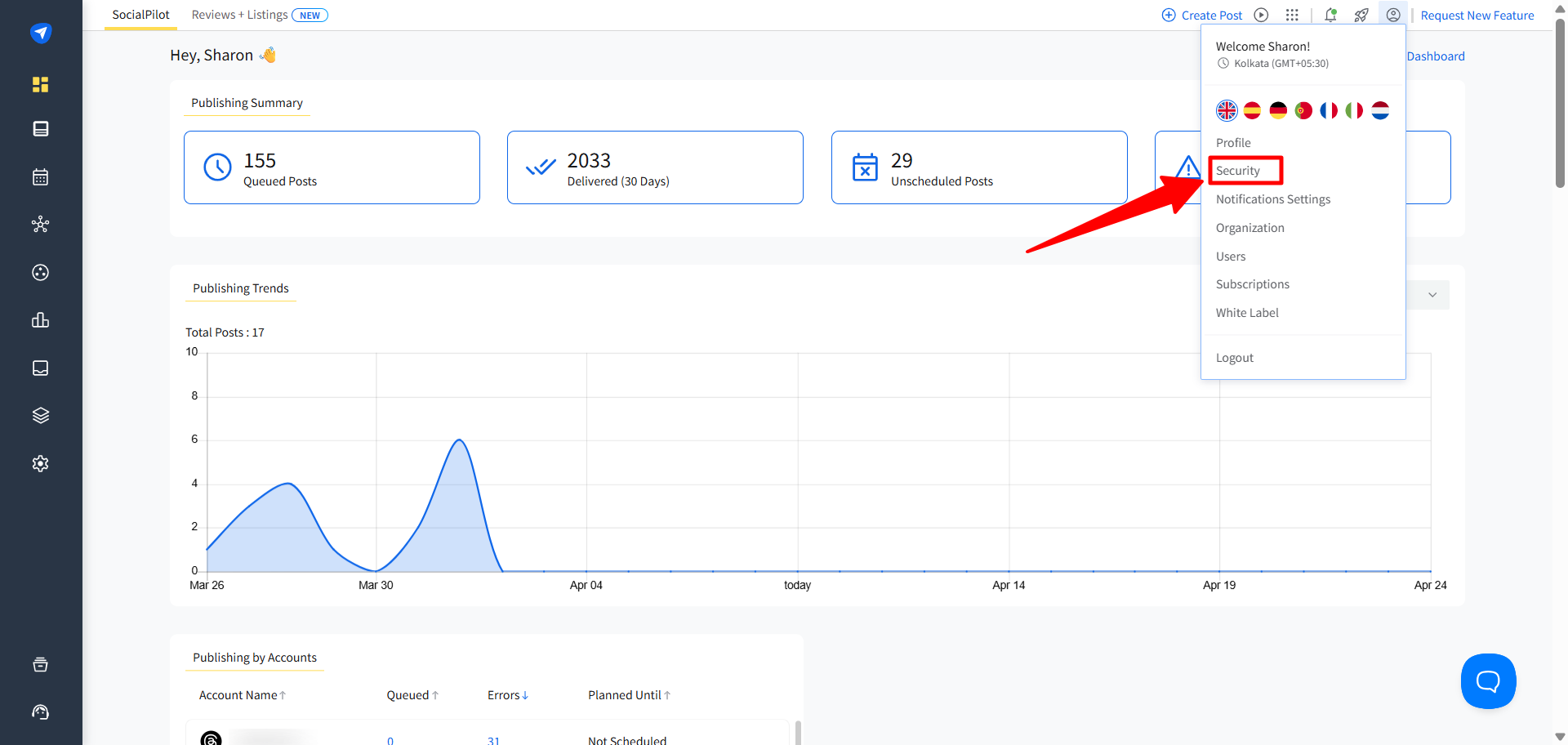
- Click your profile icon in the top-right corner.
-
Go to Security.
-
Scroll to the API Key section.
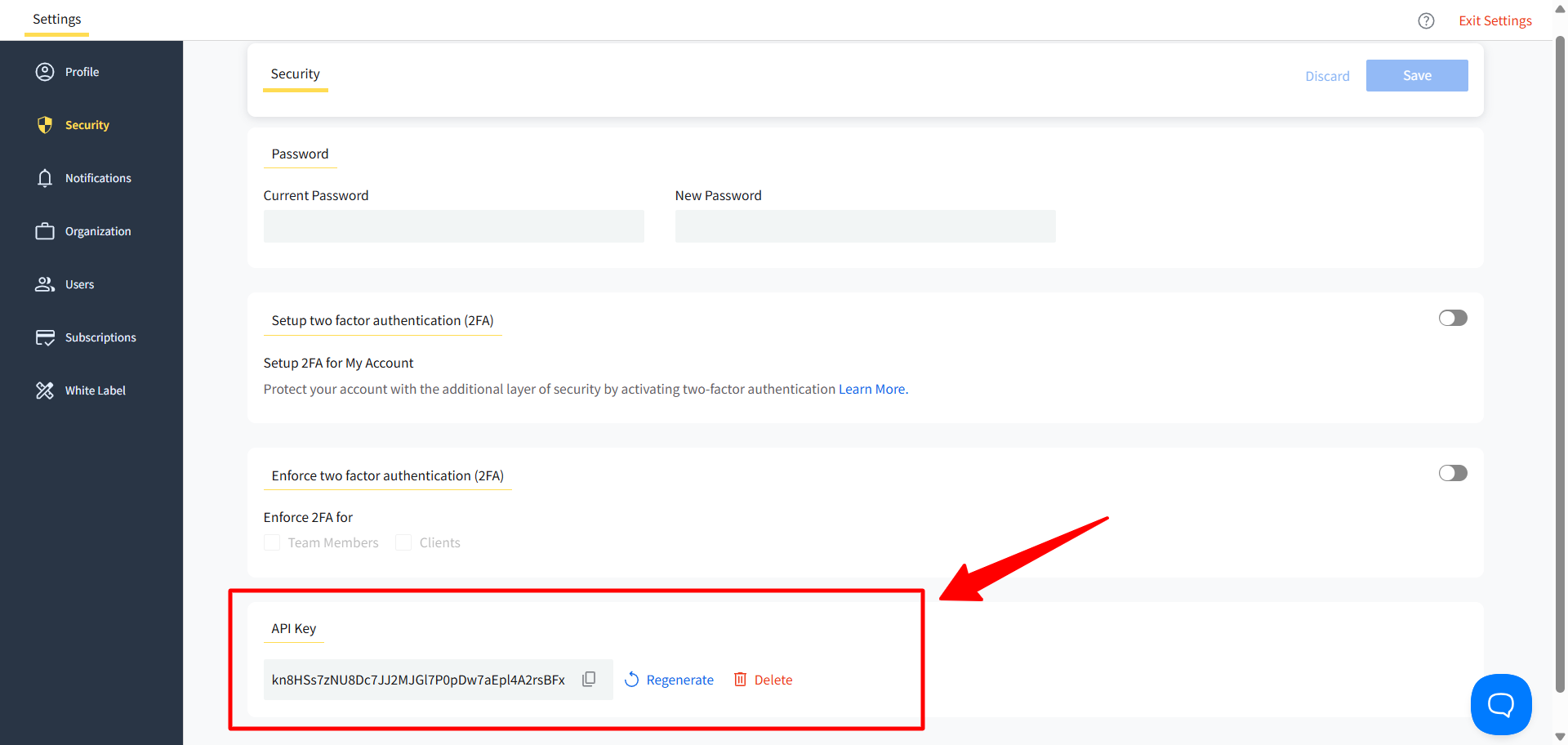
- Copy your API key.
Use the MCP Server URL format below during setup:
https://mcp.socialpilot.co/YOUR_API_KEY/mcp
Replace YOUR_API_KEY with your actual API key.
How to Set Up SocialPilot MCP in Windsurf Using API Key?
-
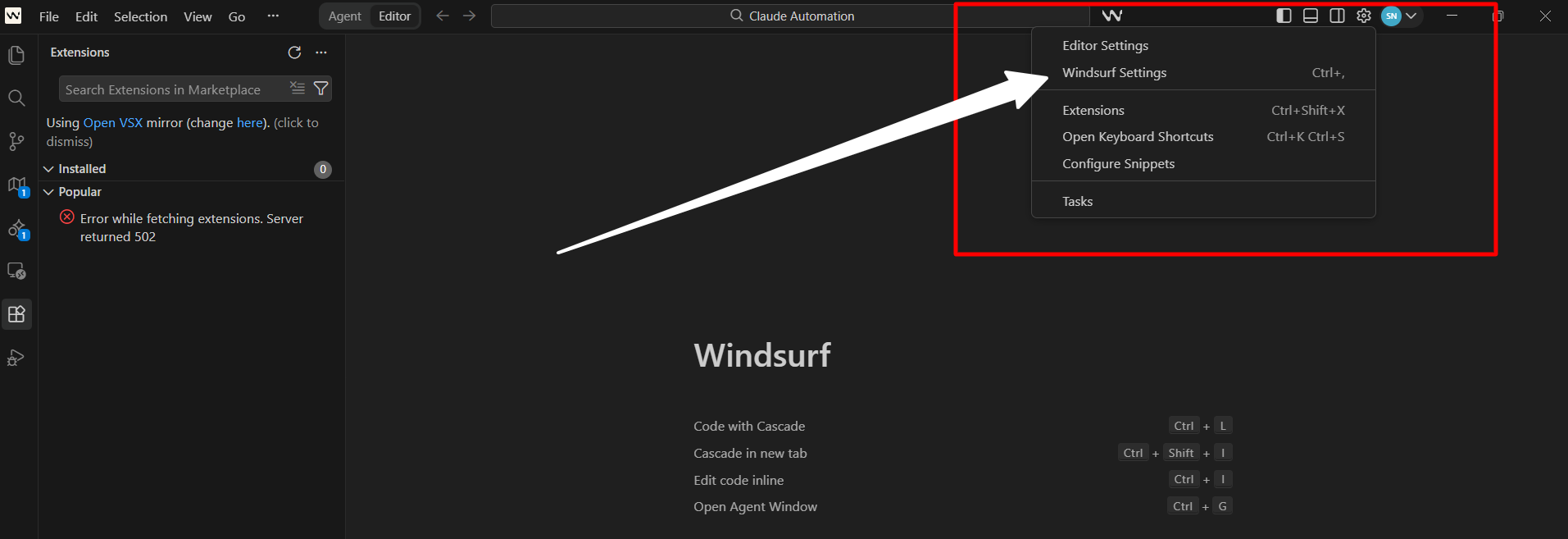
Open Windsurf, go to Settings and select Windsurf Settings.
-
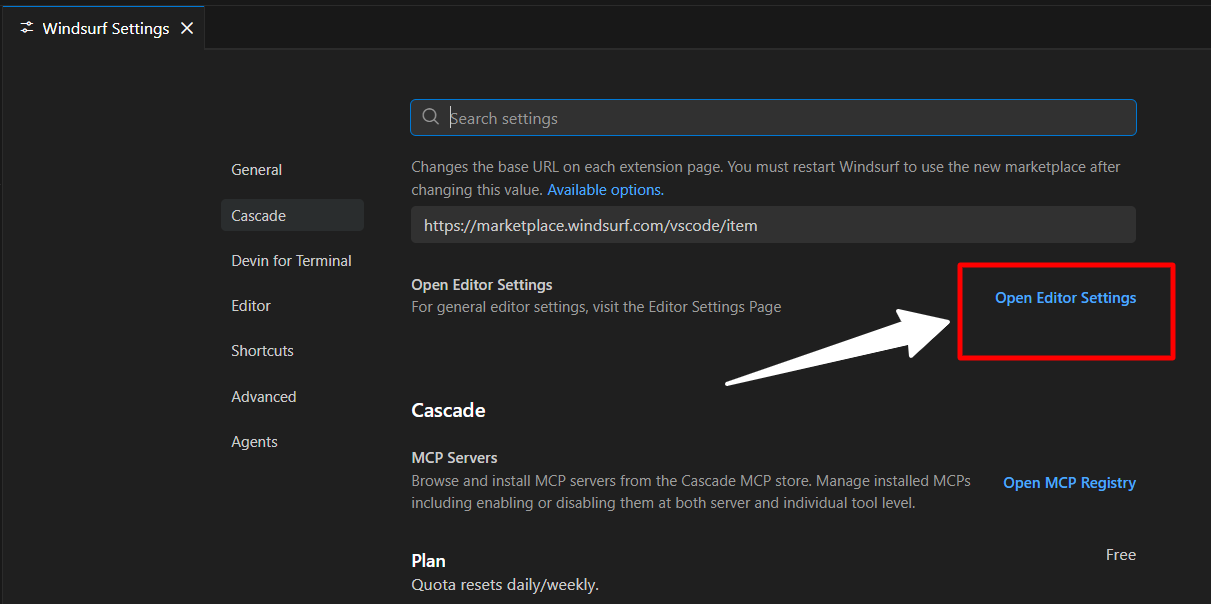
In Cascade, click Open MCP Registry
-
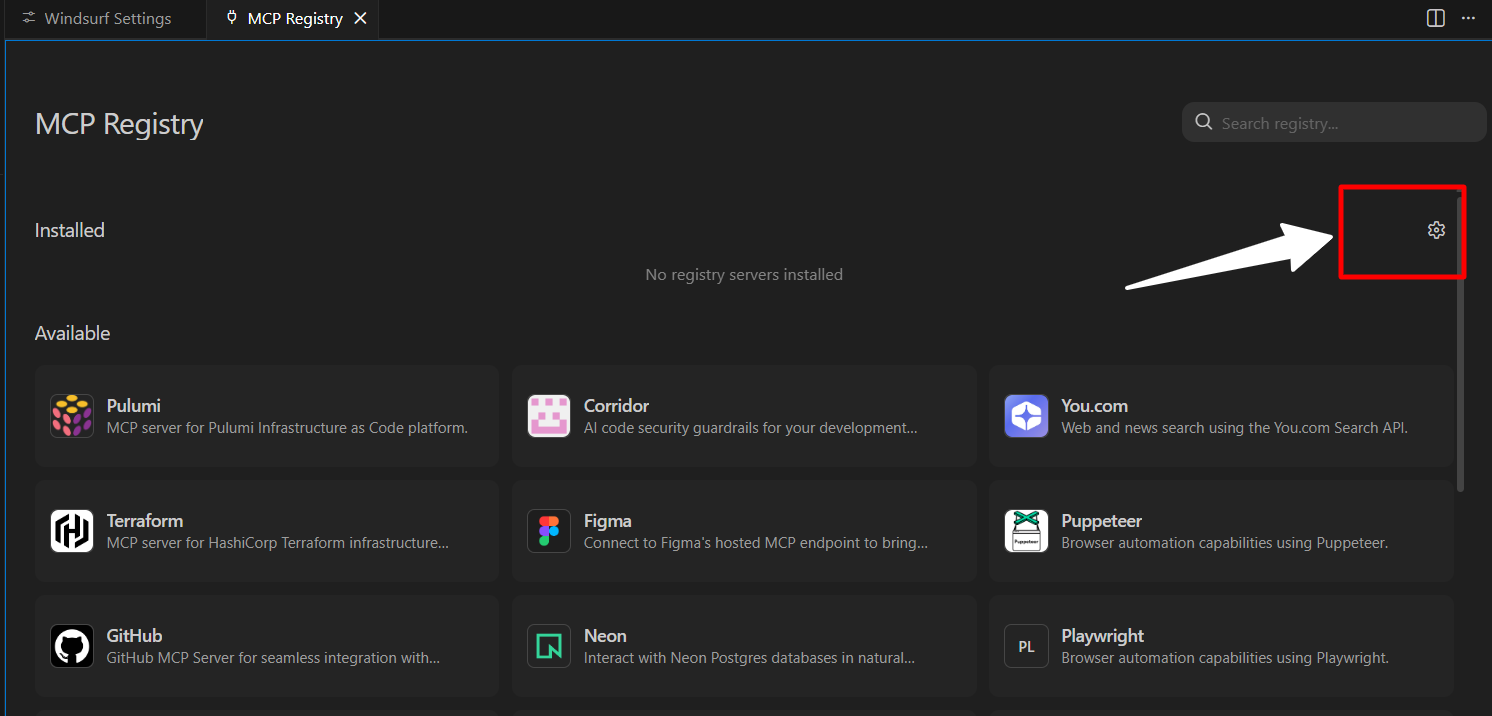
In the MCP Registry screen, click the Settings icon in the top-right corner.
-
Windsurf will open the
mcp_config.jsonfile.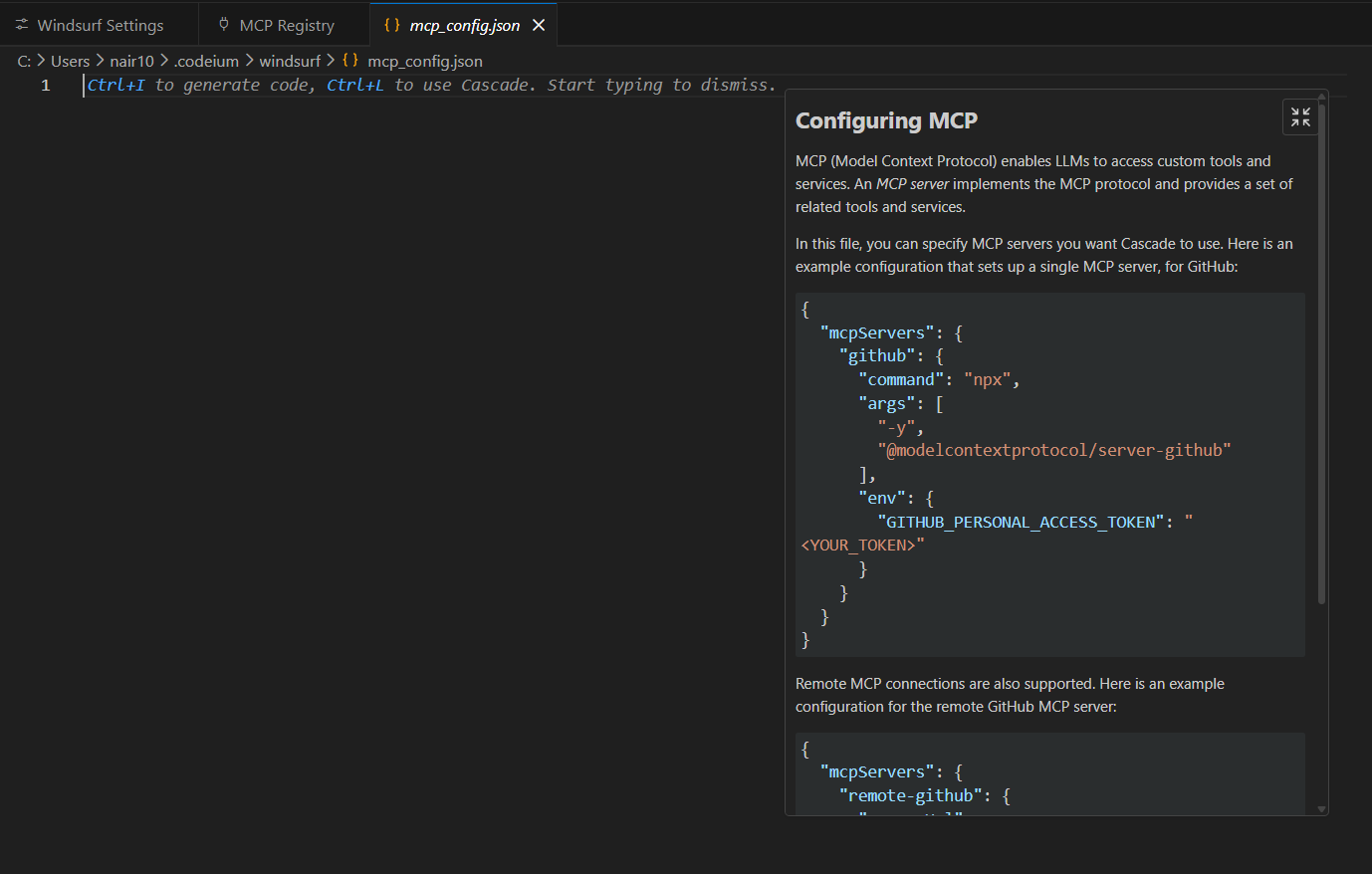
- Paste the following code:
{
  "mcpServers": {
    "socialpilot": {
      "command": "npx",
      "args": [
        "mcp-remote",
        "https://mcp.socialpilot.co/YOUR_API_KEY/mcp"
      ]
    }
  }
}
-
Replace
YOUR_API_KEYwith your SocialPilot API key.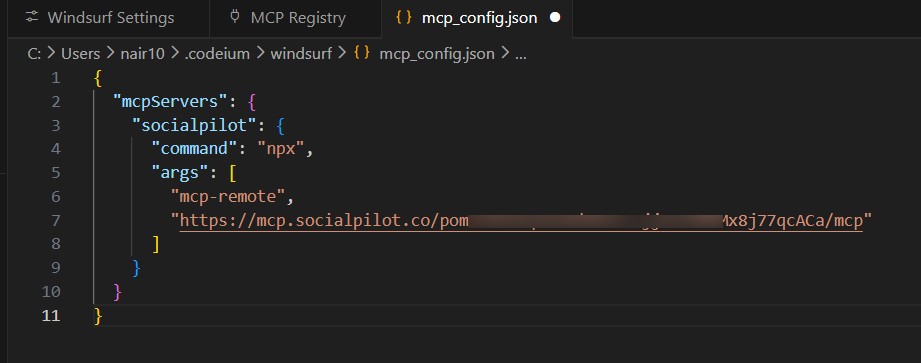
- Save the
mcp_config.jsonfile. - Return to the MCP Registry screen.
- You should now see SocialPilot listed under Installed with tools enabled.
Once connected, your SocialPilot account becomes available inside Windsurf for execution.
How to Use SocialPilot in Windsurf?
You can now use prompts in Windsurf to run SocialPilot workflows.
Example Prompts
Creating and Publishing
- Schedule this launch post to all LinkedIn accounts tomorrow at 10 AM.
- Publish this weekend offer to Instagram and Facebook today at 6 PM.
- Create and schedule a campaign post for Group X next Monday morning.
Drafting and Reviewing
- Save this post as a draft for Client A.
- Show drafts waiting for review.
- Update the latest draft with a shorter caption.
Monitoring and Troubleshooting
- What posts are scheduled today?
- Show posts that failed in the last 7 days.
- Which posts missed their scheduled time this week?
Troubleshooting
SocialPilot Is Not Showing in Windsurf
Check that the mcp_config.json file is saved correctly and the JSON syntax is valid.
Then return to the MCP Registry screen and refresh the server list. If it still does not appear, restart Windsurf.
Invalid API Key
Make sure your API key is active and entered correctly in the MCP Server URL.
Use this format:
https://mcp.socialpilot.co/YOUR_API_KEY/mcp
You can generate or copy your API key from the Security section in SocialPilot settings.
Windsurf Cannot Reach the MCP Server
Verify that the MCP URL is correct and your internet connection is active.
Also make sure no firewall or network restriction is blocking the connection.
Tools Are Connected but Not Working
Refresh the MCP Registry or restart Windsurf after saving the config file.
Some tool changes may require Windsurf to reload the MCP connection.
Invalid JSON Error
Check for:
- missing commas
- extra brackets
- duplicate quotation marks
- broken formatting inside
mcp_config.json
Windsurf requires valid JSON before loading MCP servers.
Notes:
- SocialPilot stays connected till the configuration is removed, changed, or requires reconnection.
- All actions follow your existing SocialPilot account permissions.
- Access is limited to the accounts and data available in your SocialPilot workspace.
- If you regenerate your API key, update the Windsurf configuration using the new key.
- Keep your API key private and do not share the
mcp_config.jsonfile publicly. - Restarting Windsurf may help apply recent configuration changes.