
How to Connect Your WhatsApp Business Account to SocialPilot Reviews?
SocialPilot Reviews lets you add WhatsApp to the same review request campaign as Email and Text. This helps you reach customers on another channel without creating and managing a separate campaign.
Before you can send WhatsApp review requests, you need to connect a WhatsApp Business account to a brand through Meta.
This article explains how to connect your account, understand the account information shown in SocialPilot Reviews, and disconnect or reconnect it when required.
In This Article
- How to Connect Your WhatsApp Business Account?
- What Information Appears After You Connect?
- What Do Messaging Limit and Quality Rating Mean?
- What Do the WhatsApp Account Statuses Mean?
- How to Disconnect or Reconnect Your WhatsApp Account?
- Who Can Manage the WhatsApp Connection?
How to Connect Your WhatsApp Business Account?
Here is how you can connect a WhatsApp Business account to SocialPilot Reviews:
-
From the main menu, click Setup and select Integrations.
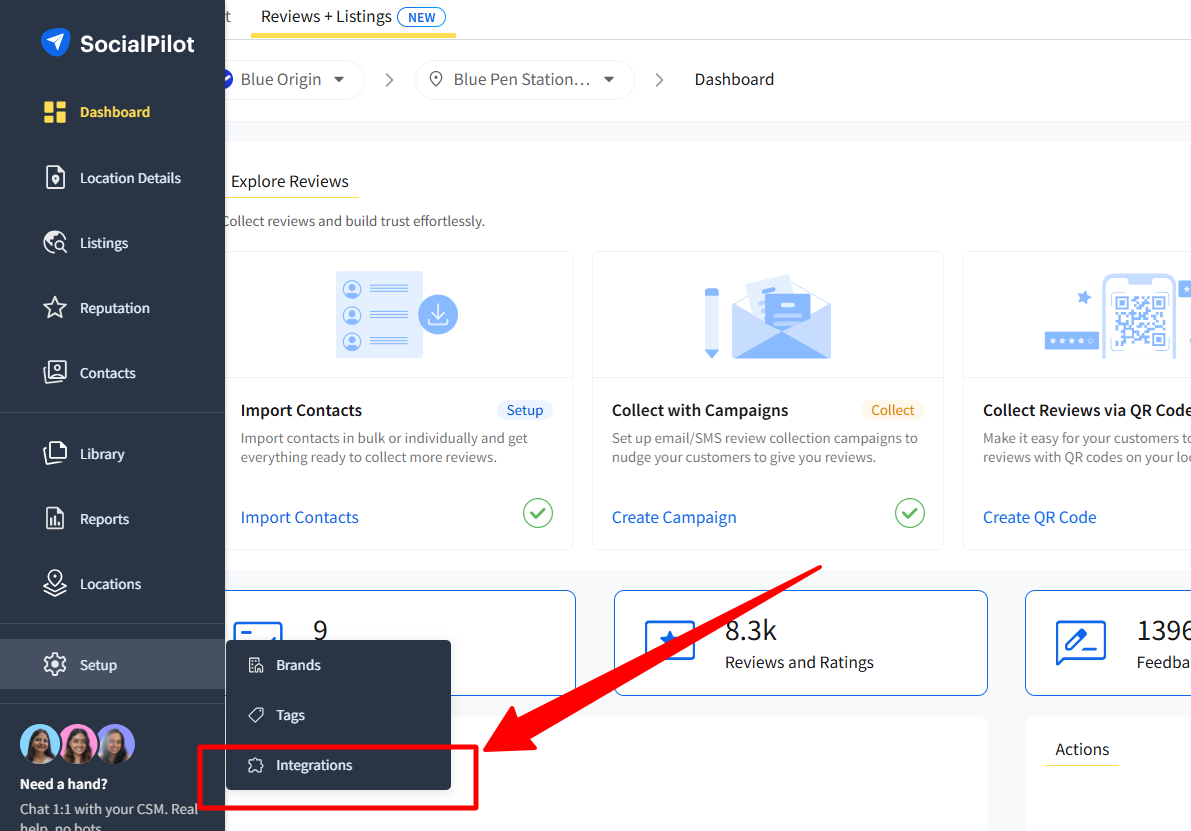
- Open the WhatsApp integration and click Connect Account.
-
Select the brand you want to associate with the WhatsApp account and click Continue.
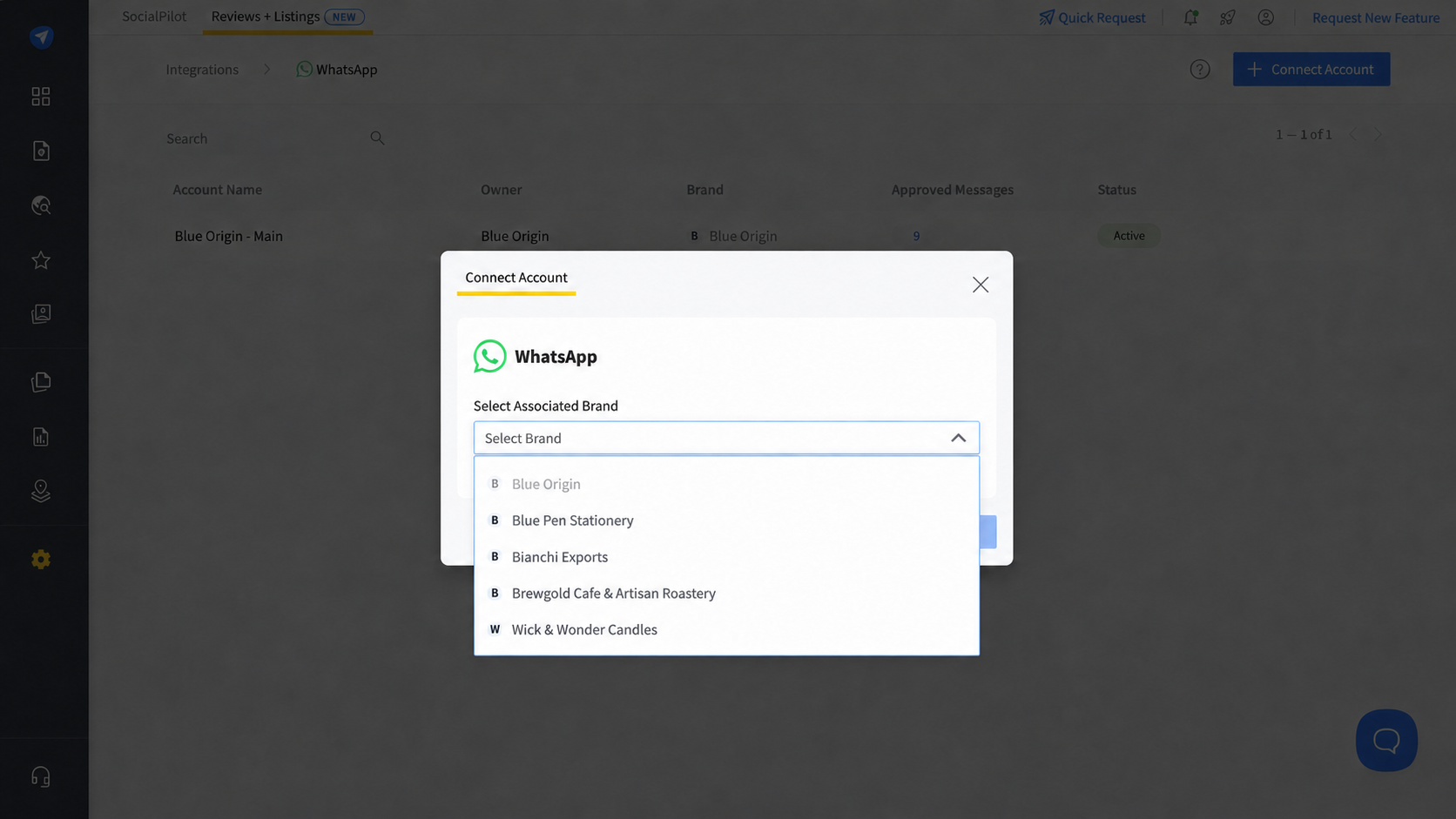
Note: The selected brand cannot be changed after the connection is created. Each brand can have only one connected WhatsApp account.
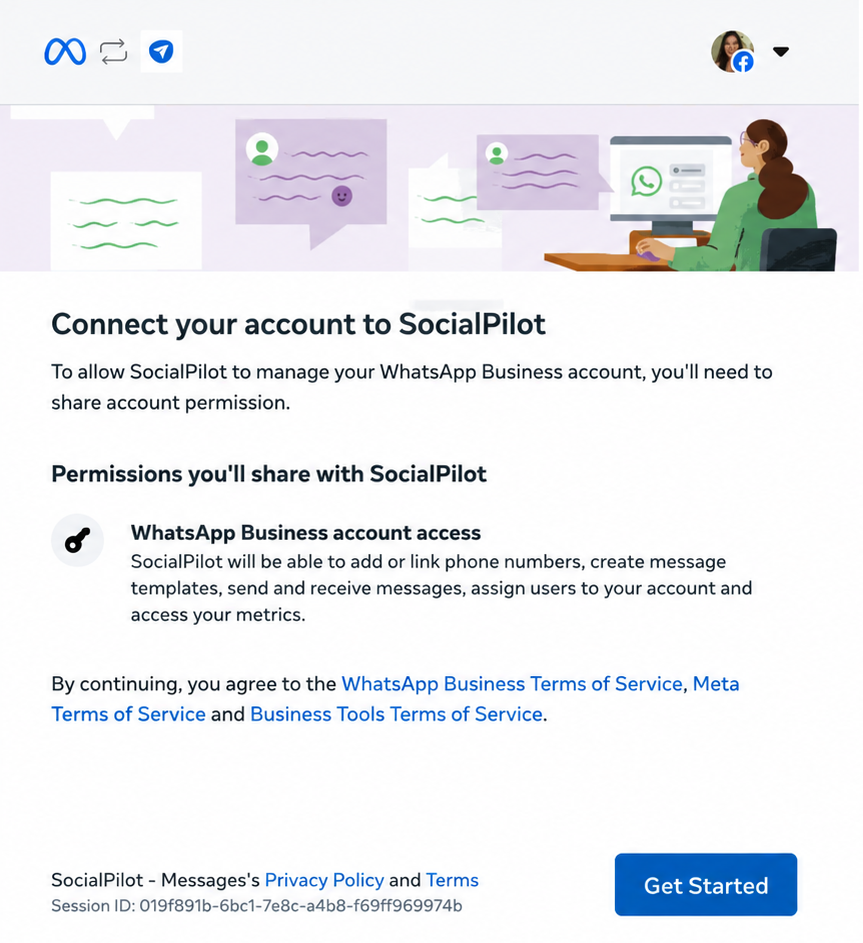
- Continue with your Facebook account when the Meta setup window opens.
-
Follow the instructions shown by Meta to confirm your business information, select or create a WhatsApp Business account, grant the required permissions, and complete any verification steps.
-
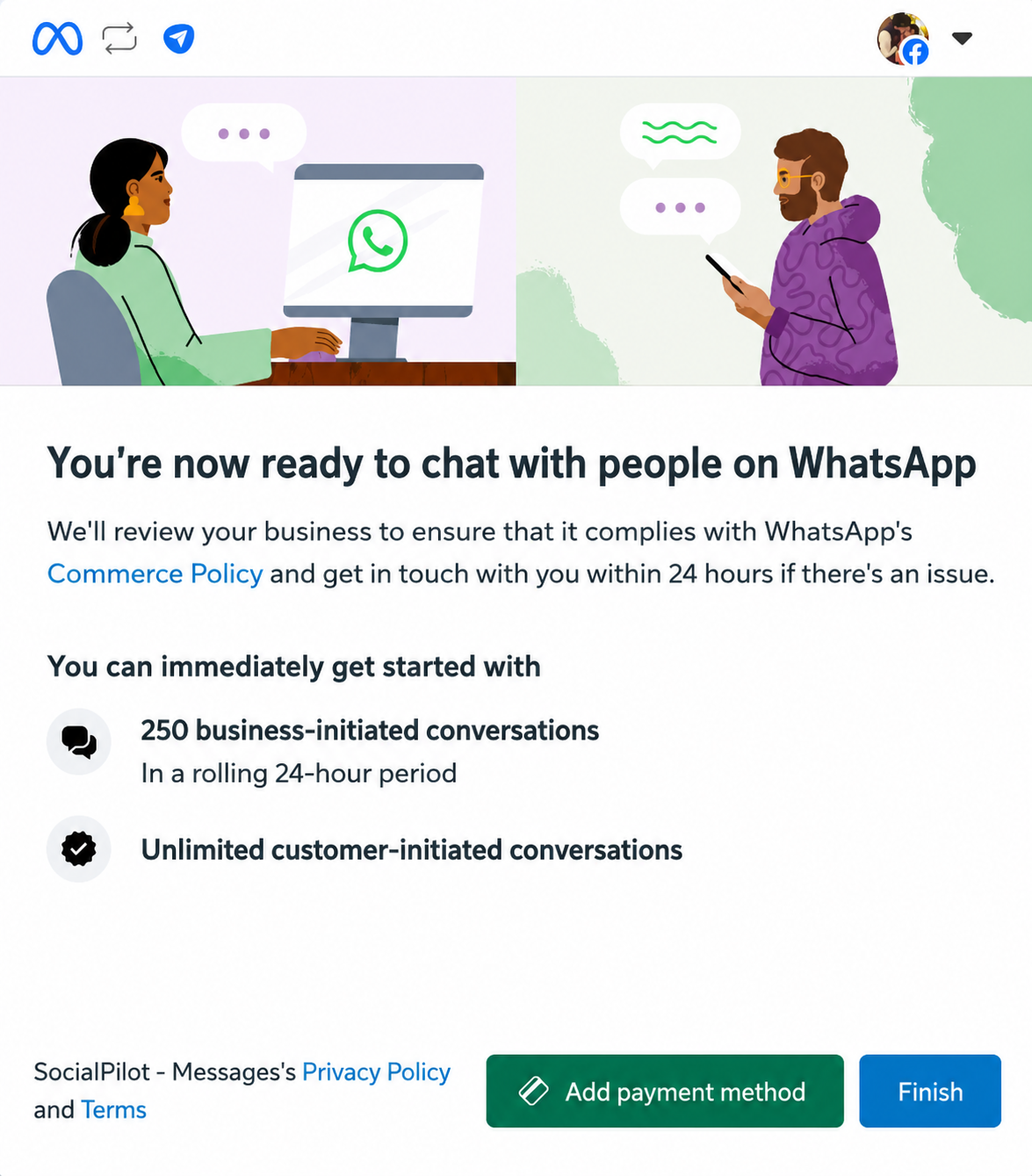
Once Meta confirms that the account is ready, click Finish.
-
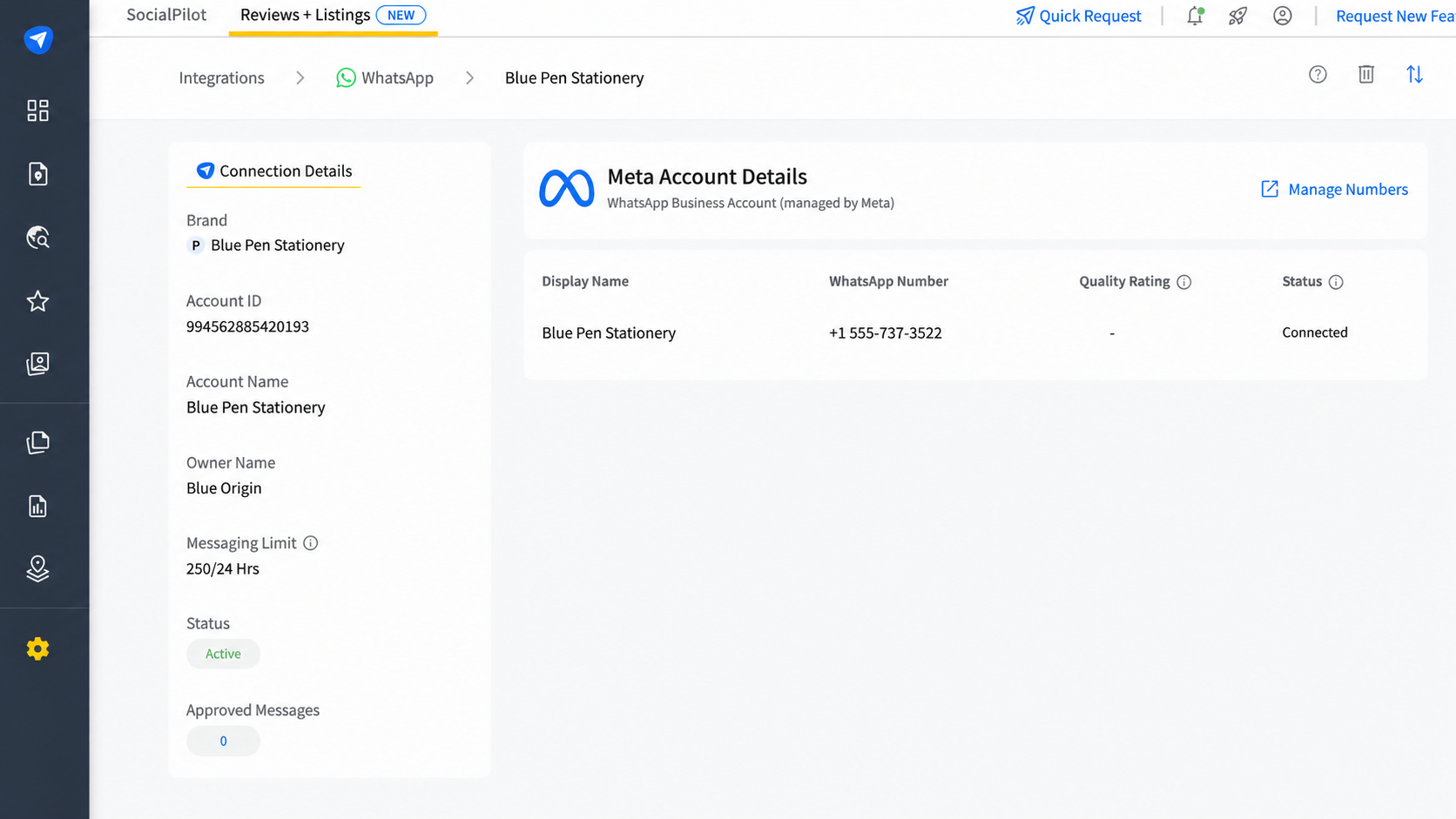
You will return to SocialPilot Reviews and see a confirmation that the WhatsApp account has been added successfully. The connected account details will also appear on the screen.
You can also connect an account while creating a campaign:
- Go to the Workflow section of the campaign.
- Click the Add button within the relevant day.
- Select WhatsApp.
- Click the Setup button and complete the connection steps shown by Meta.
What Information Appears After You Connect?
Once your WhatsApp account is connected, its information is displayed in two cards.
Connection Details
The Connection Details card shows:
- Associated brand
- Account ID
- Account name
- Owner name
- Messaging limit
- Status
- Approved messages
The associated brand is selected in SocialPilot Reviews. The remaining account information is generated automatically from the connected account and cannot be edited.
Meta Account Details
The Meta Account Details card shows:
- Display name
- WhatsApp number
- Quality rating
- Status
These details come directly from Meta and cannot be edited in SocialPilot Reviews.
Click the Sync button to refresh the account information shown in SocialPilot Reviews.
What Do Messaging Limit and Quality Rating Mean?
Messaging Limit
The messaging limit is the number of business-initiated conversations the connected WhatsApp account can start within a rolling 24-hour period.
The limit is assigned and updated by Meta.
Quality Rating
The quality rating is assigned by Meta based on how recipients respond to your messages, including signals such as blocks and reports.
You can use this rating to monitor the health of your connected WhatsApp number.
What Do the WhatsApp Account Statuses Mean?
Your connected WhatsApp account can show one of the following statuses:
Connected
The account is active and can send messages within its current messaging limit.
Flagged
The account’s quality rating has dropped, and the WhatsApp number is at risk.
If the quality rating improves within seven days, the status returns to Connected. Otherwise, Meta may lower the account’s messaging limit.
Restricted
The account cannot start new business-initiated conversations while the restriction is active.
Note: Sending relevant messages to customers who expect to hear from your business can help maintain a healthy quality rating.
How to Disconnect or Reconnect Your WhatsApp Account?
How to Disconnect the Account?
Here is how you can disconnect a WhatsApp account:
- Go to Setup and select Integrations.
- Open the connected WhatsApp account for the relevant brand.
- Click the Disconnect button.
- Enter DISCONNECT in capital letters in the confirmation field.
- Click the Disconnect button to confirm.
Note: Any live campaign using the disconnected WhatsApp account will pause automatically. The Account Owner or Admin will receive an in-app and email notification.
How to Reconnect the Account?
Here is how you can reconnect a disconnected WhatsApp account:
- Open the WhatsApp integration for the disconnected brand.
- Click the Reconnect button.
- Complete the connection steps shown by Meta.
The relevant brand will already be selected during reconnection. Campaigns paused because of the disconnection will resume after the account is reconnected.
Who Can Manage the WhatsApp Connection?
The Account Owner and Admin can connect or disconnect WhatsApp accounts.
Managers and Clients can manage a brand’s WhatsApp connection only when they have access to all current and future locations under that brand.
Team members with partial location access cannot view or manage WhatsApp under Integrations. Once an authorised user connects the account, they can still use WhatsApp in campaigns for the locations they are allowed to manage.
For more information about assigning access, see How to Add Team Members on SocialPilot Reviews.