Managing contacts efficiently helps you organize your outreach campaigns, maintain accurate customer information, and send review requests seamlessly. SocialPilot Reviews allows you to add, edit, filter, tag, and manage contacts from one centralized dashboard.
In This Article
- How to Access and Manage Contacts?
- How to Add Contacts?
- How to Send Quick Review Requests?
- How to Search, Filter, and Bulk Select Contacts?
How to Access and Manage Contacts?
To access your contact database:
- Go to Reputation from the left-side navigation menu, then Contacts.
- Click on Manage Contacts.
You will now see a list of all saved contacts for the selected brand and location.
The contacts table displays:
- Contact Name
- Email Address
- Phone Number
- Status
- Tags
You can also identify contacts using status labels such as:
- Active
- Unsubscribed
- Bounced
Hovering over a contact row reveals additional action icons for:
- Send Quick Request
- Edit
- Delete

How to Add Contacts?
To manually add a contact:
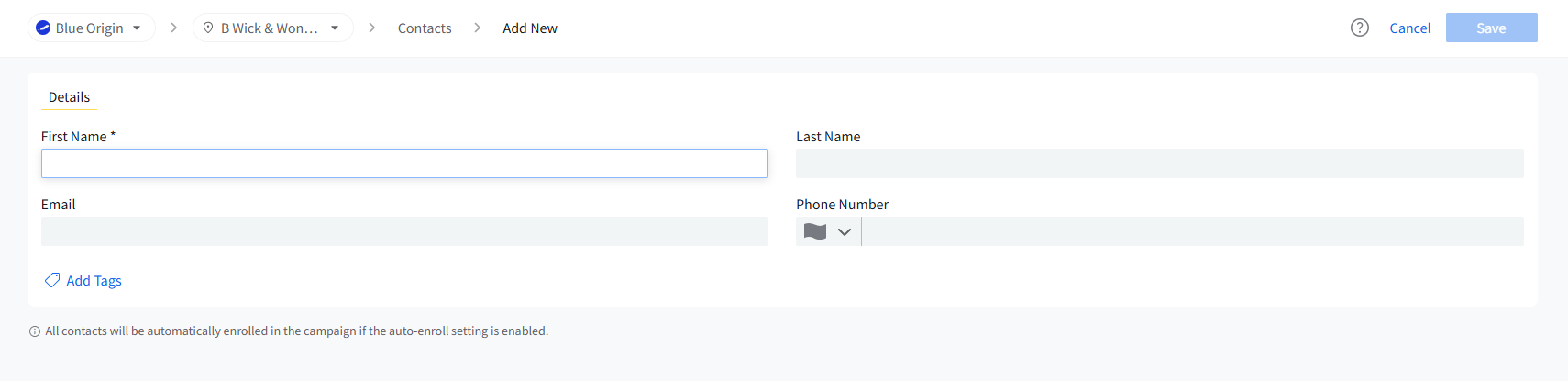
- Click on + Add Contact from the top-right corner.
- Enter the following details:
- First Name
- Last Name
- Phone Number
- Click on Add Tags to assign tags to the contact.
- Click Save.
⚠️ Note:
If auto-enroll is enabled for a campaign, newly added contacts may automatically get enrolled into that campaign.
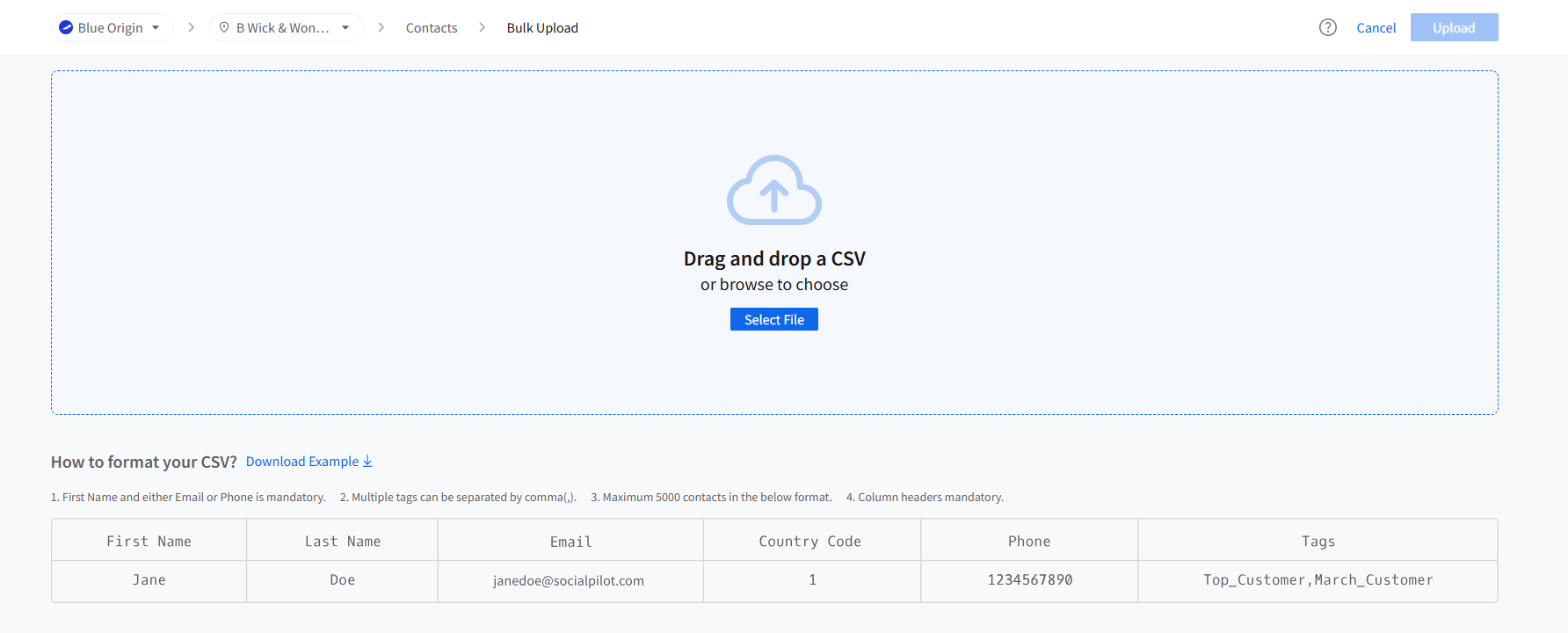
You can also bulk upload contacts by clicking on Bulk Upload from the top-right corner.
Before uploading:
- Prepare a CSV file with contact details
- Ensure each contact is on a separate row
- Include Email or Phone Number for identification
After uploading:
- Review the uploaded data
- Confirm the upload to add contacts to your database.
How to Send Quick Review Requests?
You can send one-time review requests directly from the Contacts section.
- Hover over the contact row.
- Click on the Quick Request icon.
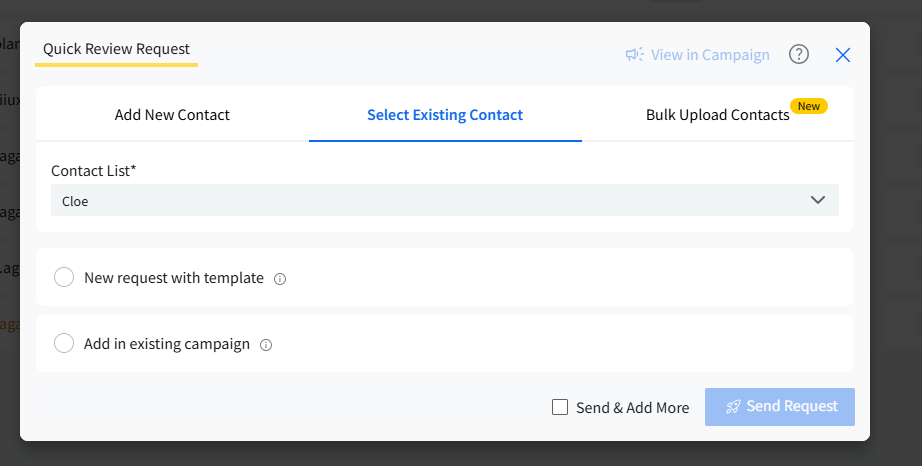
- The Quick Review Request modal opens on Select Existing Contact with the contact already selected.
- Select New request with template or Add in existing campaign.
- Click Send Request.
To send a request to several contacts at once, select them with the check boxes and click Quick Request above the list. The modal opens with the number of contacts selected, such as 6 Contacts Selected.
How to Search, Filter, and Bulk Select Contacts?
Use the Search bar to quickly find contacts using:
- Name
- Email address
- Phone number
Click on Filter to narrow contacts by Status, Tags, or Request Prevention.
To perform bulk actions:
- Use the checkboxes beside contacts to select multiple entries.
- Use the master checkbox at the top-left to select all contacts on the page.
- To select every contact in the list, click Select all [number] Contacts in the bar above the table. Click Clear All to clear the selection.
Once selected, the total selected contact count appears at the top of the table.
With contacts selected, you can:
- Quick Request: send a quick review request to all selected contacts.
- Delete (trash icon): delete the selected contacts. In the Delete Contacts window, click Delete to confirm. Deleted contacts are removed permanently.
This helps streamline contact organization and management.