There are times when you want to monitor and update campaigns based on real-time data. You can do it efficiently from the Manage Campaigns section.
Here is how you can manage and make changes to your existing review campaigns:
In this article
- How to Manage Campaigns?
- How to Edit Campaigns?
- How to Check Campaign Engagement?
- Why Might a Campaign Get Paused, and How Do I Fix It?
How to Manage Campaigns?
Here is how you can have a comprehensive overview of all your running campaigns on SocialPilot Reviews:
-
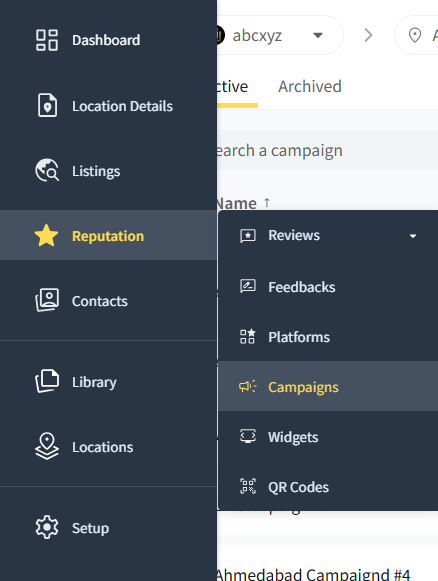
Go to Reputation from the side menu and click on Campaigns.
-
Select the brand and location from the respective dropdown lists.
You will see your campaign dashboard with the following details.
- Name: This column lists the titles of your campaigns for easy identification.
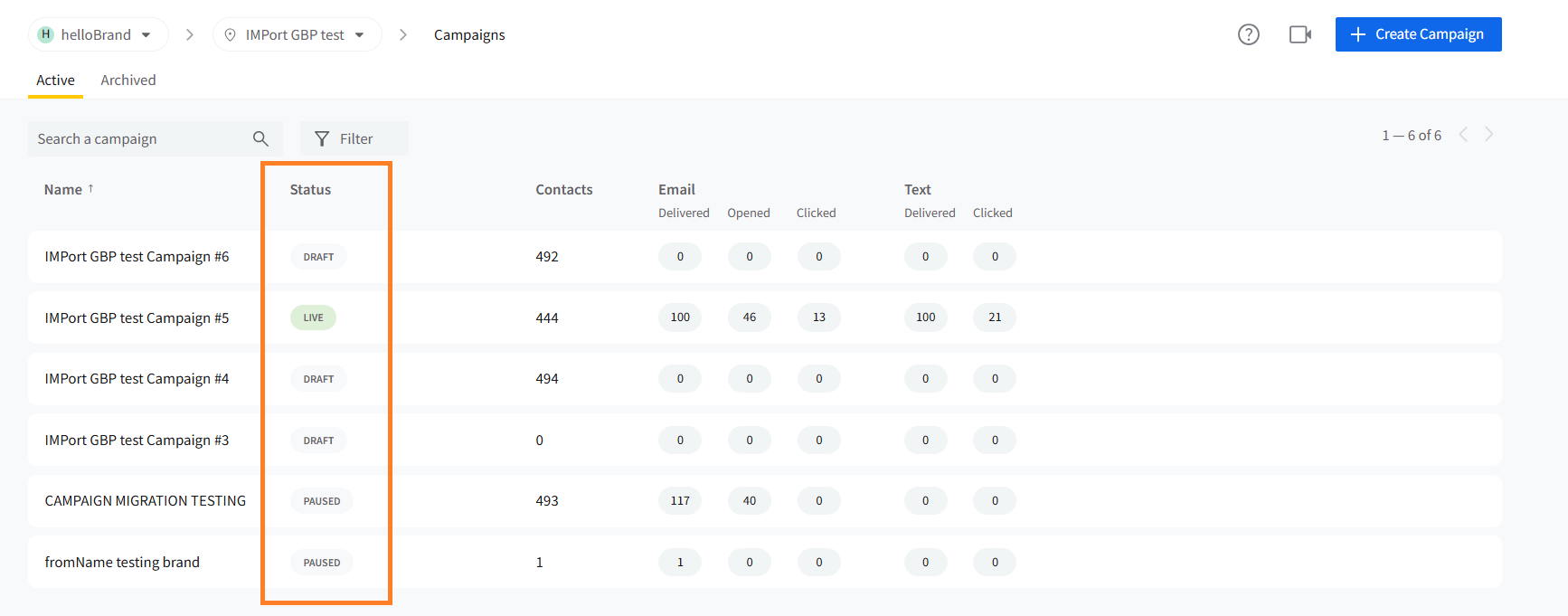
- Status: Displays the current status of your campaigns: Draft, Live, Paused, or Ended. A red alert icon beside the status means the campaign has issues that need your attention. Hover over it to see Campaign has issues.
- Contacts: Number of contacts targeted in each campaign.
- Email Metrics: Shows how many emails have been delivered and opened, as well as the click rate.
- Text Metrics: Similar to emails, you will get an idea of the status of the campaigns.
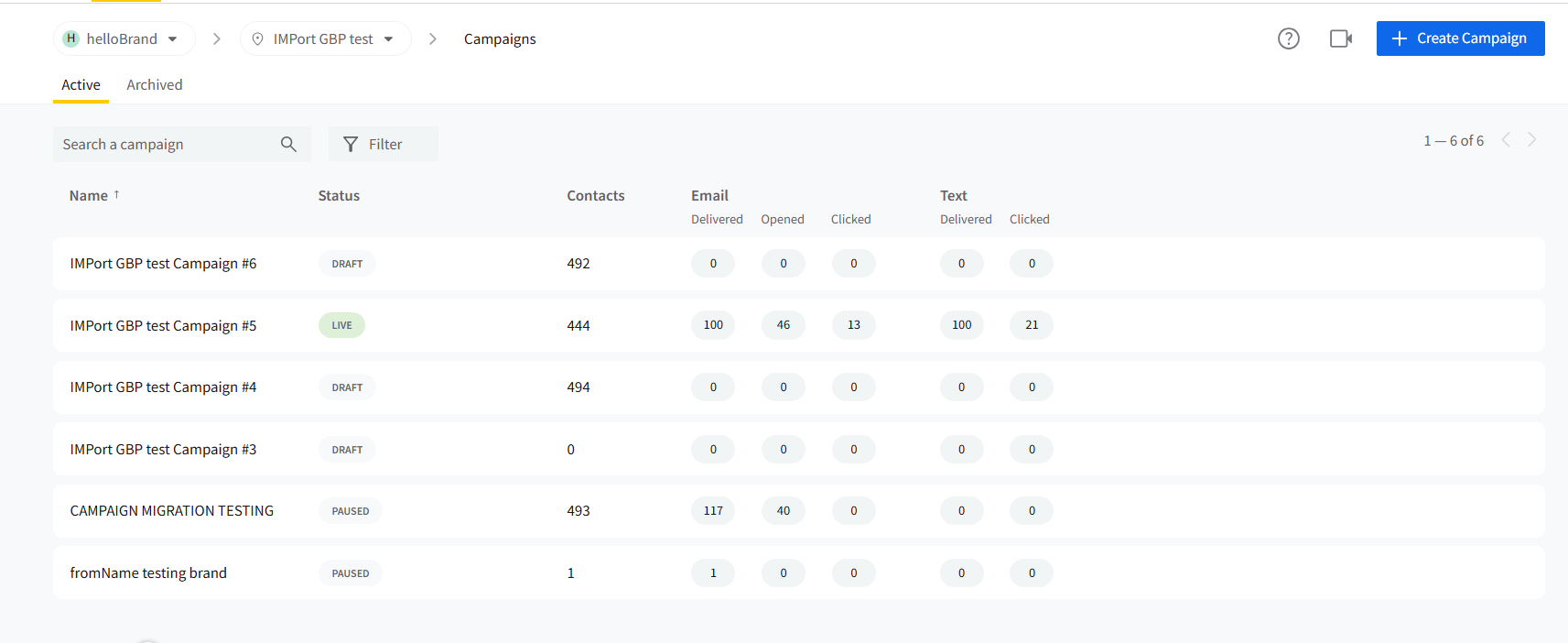
- WhatsApp Metrics: Similar to Email and Text, shows the delivery and engagement status of messages sent through WhatsApp.
Note: Campaigns created using Quick Review Request (including bulk uploads) may appear directly as Draft (if you used Preview) or Live (if you sent the request immediately). You can edit and manage these campaigns the same way as any other campaign.
How to Edit Campaigns?
If you need to make changes to an existing campaign, follow these steps:
- Locate the campaign you wish to edit in the Campaigns list.
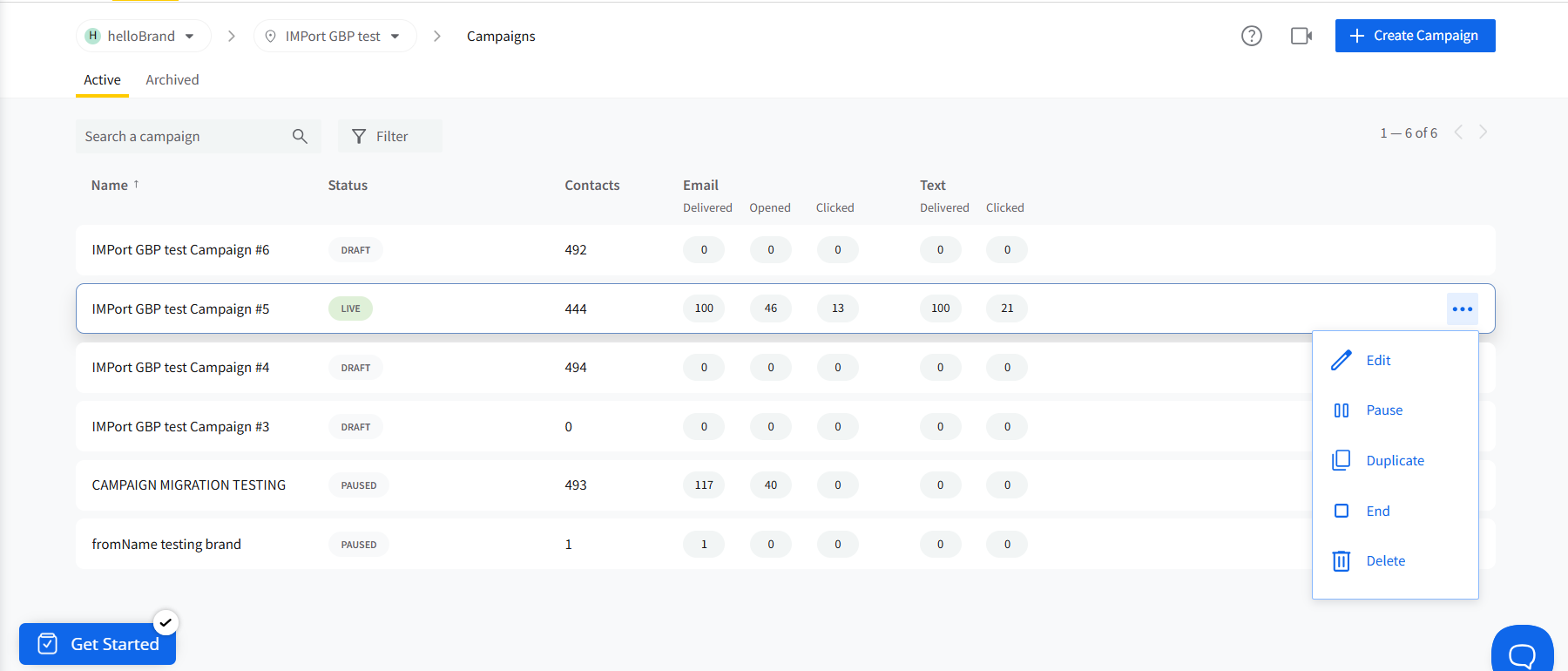
- Click on the three dots located on the right-hand side of the campaign entry.
- Click the Edit button (pencil icon) from the dropdown menu. This will take you to the campaign’s detailed editing screen.
- Here, you can make changes to:
- Content: Modify the review request messaging. To add a new message, click Actions and select Add Message.
- Scheduling: Update the start date and time for the campaign.
- Recipients: Enroll or unenroll contacts from the Recipients tab. To enroll contacts from any tab, click Actions and select Enroll Contacts.
- To duplicate a campaign, click the three dots next to the campaign and choose Duplicate.
- A dialog box will confirm your action. Click Yes to proceed.
✨ Enroll Contacts: After duplicating or editing, click Actions and select Enroll Contacts to add more contacts to the campaign. If the campaign is still a draft, click Launch to activate it.
Note: If a contact is already enrolled in the campaign, either manually or through Quick Review Request, you will see the message "Contact already enrolled in selected campaign".
How to Check Campaign Engagement?
Look at the Email and Text columns to understand how your campaign is performing in terms of engagement. You can use this data to make informed decisions about changes to campaign strategy or content.
- For Draft campaigns, you can complete the setup, fix any issues listed in Needs Attention, and launch them.
- For Live campaigns, you can pause or end them, enroll more contacts, or add messages.
- For Paused campaigns, you can fix the issues listed in Needs Attention, enroll contacts, add messages, or end the campaign.
- For Ended campaigns, you can see what worked and what didn't to plan upcoming review campaigns. Ended campaigns can no longer be edited.
💡 If you have a long list of campaigns, use the search bar and filter options to quickly find the one you want to manage.
For more detailed, communication-level engagement data, you can refer to Campaign History from the History tab.
Why Might a Campaign Get Paused, and How Do I Fix It?
A campaign can pause automatically when one of the channels or review links it uses cannot deliver requests.
A campaign may pause for the following reasons:
- Email: The brand has run out of email credits.
- Text: There is an issue with the Twilio connection.
- WhatsApp: The connected WhatsApp account has been disconnected, or a WhatsApp message used in the campaign has become Unavailable.
- Review link: The campaign only uses a Facebook review link, and reviews have been turned off for that Facebook Page.
- Feedback form: The Intermediate Feedback Form selected in the campaign has been unpublished.
How to Identify the Issue?
When a campaign pauses automatically, a red alert icon appears beside its status in the Campaigns list.
The same alert icon appears whether the issue affects one channel or the entire campaign. Hover over it to see Campaign has issues.
Here is how you can see exactly what needs fixing:
- Open the campaign. A red badge with the number of issues appears next to its status at the top.
- Click the badge to open the Needs Attention panel. Issues are grouped by Setup, Recipients, and each Workflow step.
- Hover over an issue to see a quick link to fix it, such as Manage Platforms.
- Click the issue to go straight to the step that needs attention. On a paused campaign, each issue is also written out below the field it relates to.
What Notifications Will You Receive?
When a campaign pauses automatically, you will receive an in-app notification.
Campaigns paused because of an Email, Text, or WhatsApp issue will also trigger an email notification. For example, the WhatsApp notification states:
WhatsApp in your campaign has been paused due to issues with the WhatsApp account. Reconnect WhatsApp to resume.
How to Resume the Campaign?
Resolve each issue listed in Needs Attention. For example, reconnect the affected WhatsApp or Twilio account, or publish the feedback form again.
Once the issue is resolved, the campaign resumes automatically. You will also receive an in-app notification confirming that it has resumed.