
How to Add Clients and Manage Them in SocialPilot Reviews?
Clients can be added to SocialPilot Reviews with access to only the brands, locations, and features they need.
You can let clients manage reviews, listings, contacts, campaigns, QR codes, widgets, forms, and reports without giving them full workspace access.
Watch the walkthrough below to learn how client access works in SocialPilot Reviews:
In This Article
- How to Invite a Client?
- How to Choose Client Permissions?
- How to Assign Brands and Locations?
- How to Update Client Access?
- How to Remove Client Access?
How to Invite a Client?
- Log in to your SocialPilot Reviews account.
-
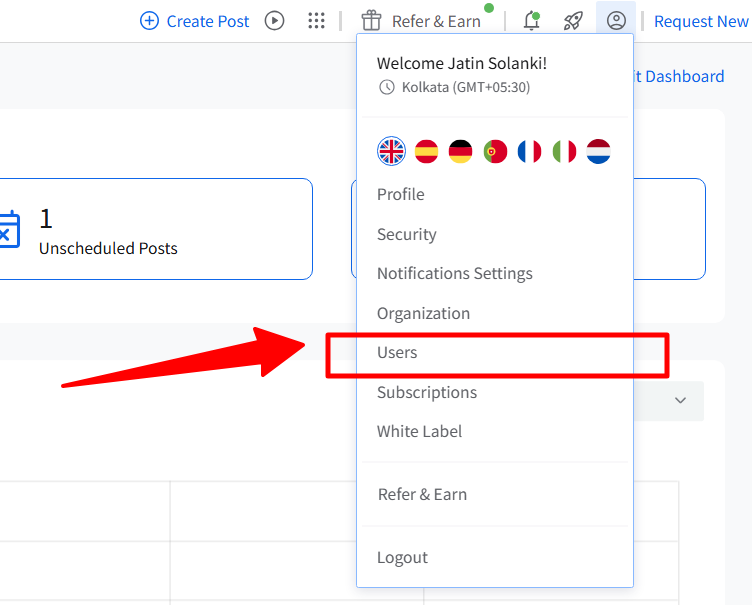
Click the profile icon in the top-right corner and select Users.
-
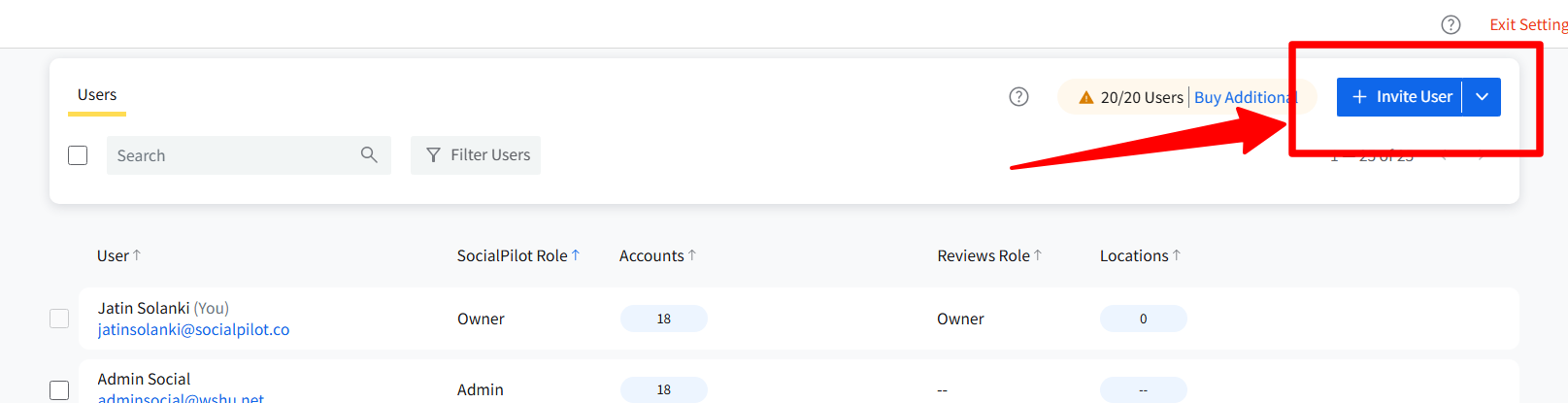
Click Invite User.
-
Enter the client's email address.
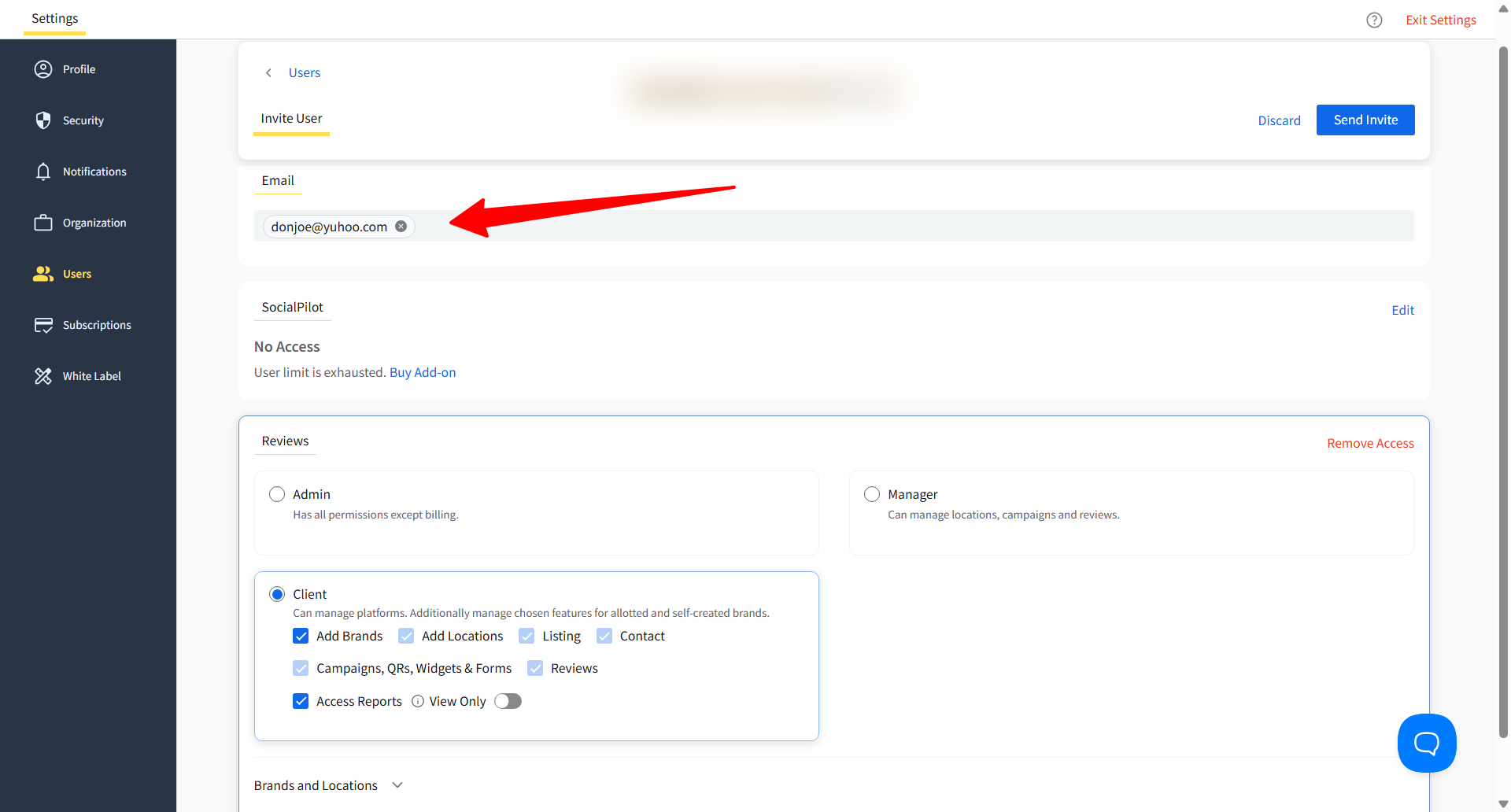
- In the Reviews section, select Client.
- Choose the permissions you want to give the client.
-
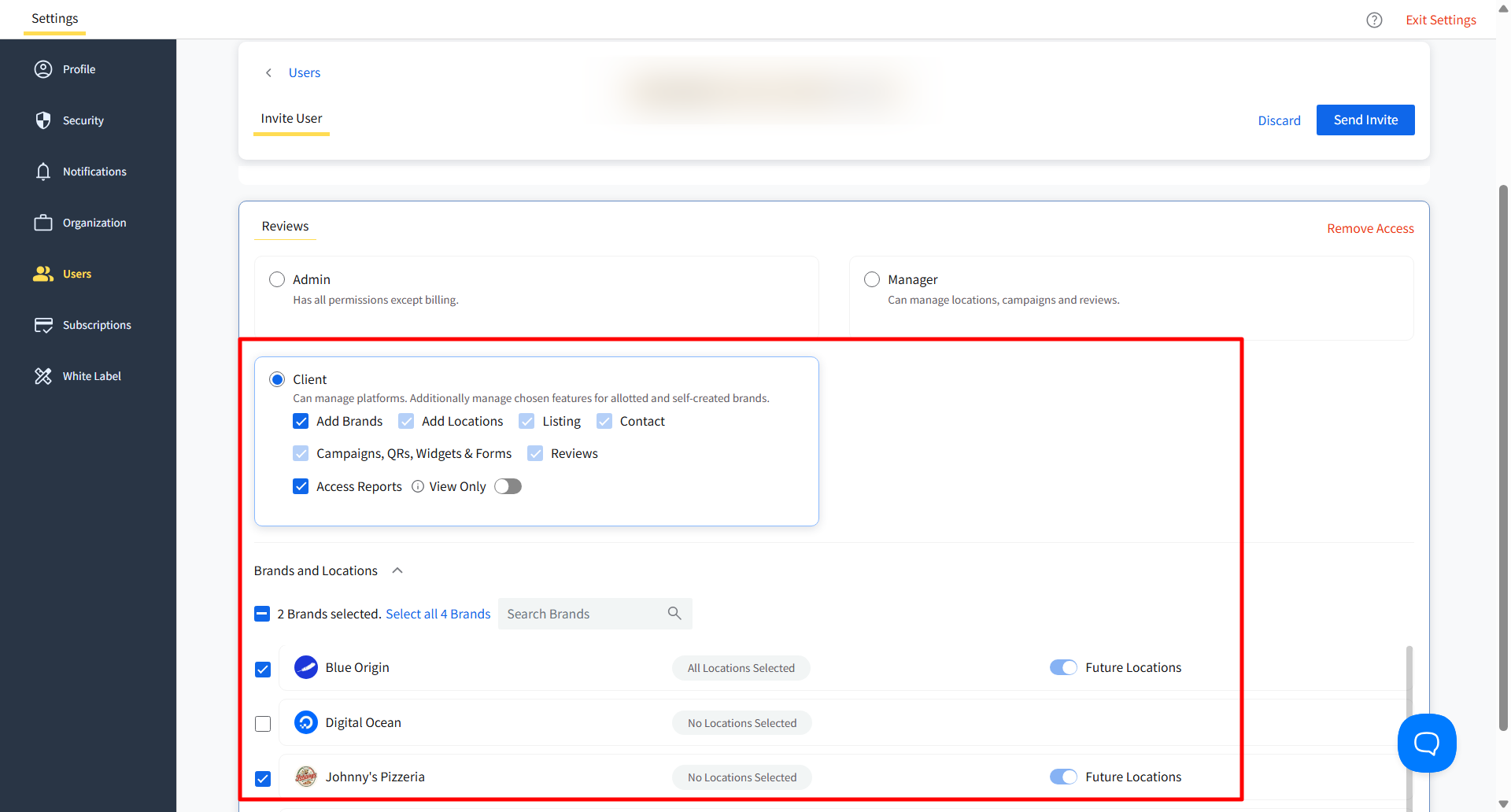
Select the brands and locations the client can access.
- Click Send Invite.
The client will receive an email invitation to join your SocialPilot Reviews workspace.
Note: You must be the Account Owner or Admin to invite clients.
How to Choose Client Permissions?
After selecting the Client role, choose the features the client should be able to manage.

Add Brands
Allows the client to create new brands.
Add Locations
Allows the client to create new locations.
Listings
Allows the client to manage business listings.
Contacts
Allows the client to manage contacts.
Campaigns, QRs, Widgets & Forms
Allows the client to manage review campaigns, QR codes, widgets, and feedback forms.
Reviews
Allows the client to manage reviews.
Access Reports
Allows the client to access reports for the brands and locations assigned to them.
If Access Reports is enabled, you can also turn on View Only to let the client view reports without making changes.
Note: If you enable Add Brands or Add Locations, related permissions may be enabled automatically so the client can manage the brands or locations they create.
How to Assign Brands and Locations?
After choosing permissions, select the brands and locations the client can access.
You can:
- Select one or more brands.
- Select specific locations under a brand.
- Select all locations under a brand.
- Turn on Future Locations to give the client access to new locations added under the selected brand later.
Clients can only access the brands and locations assigned to them.
Note: Client access depends on both permissions and brand and location selection. For example, a client with Reviews access can manage reviews only for the brands and locations assigned to them.
How to Update Client Access?
To update a client's access:
- Go to Users.
- Find the client you want to update.
- Click Edit.
- Update their permissions, brands, or locations.
- Click Update.
You can change what the client can manage at any time.
Note: Client notifications are managed separately from permissions, in Team Notifications. See How to Manage Notification Settings for Team Members and Clients in SocialPilot Reviews?
How to Remove Client Access?
To remove a client's access:
- Go to Users and find the client you want to remove.
- Click the delete button that's available for the user.
-
Confirm the action.
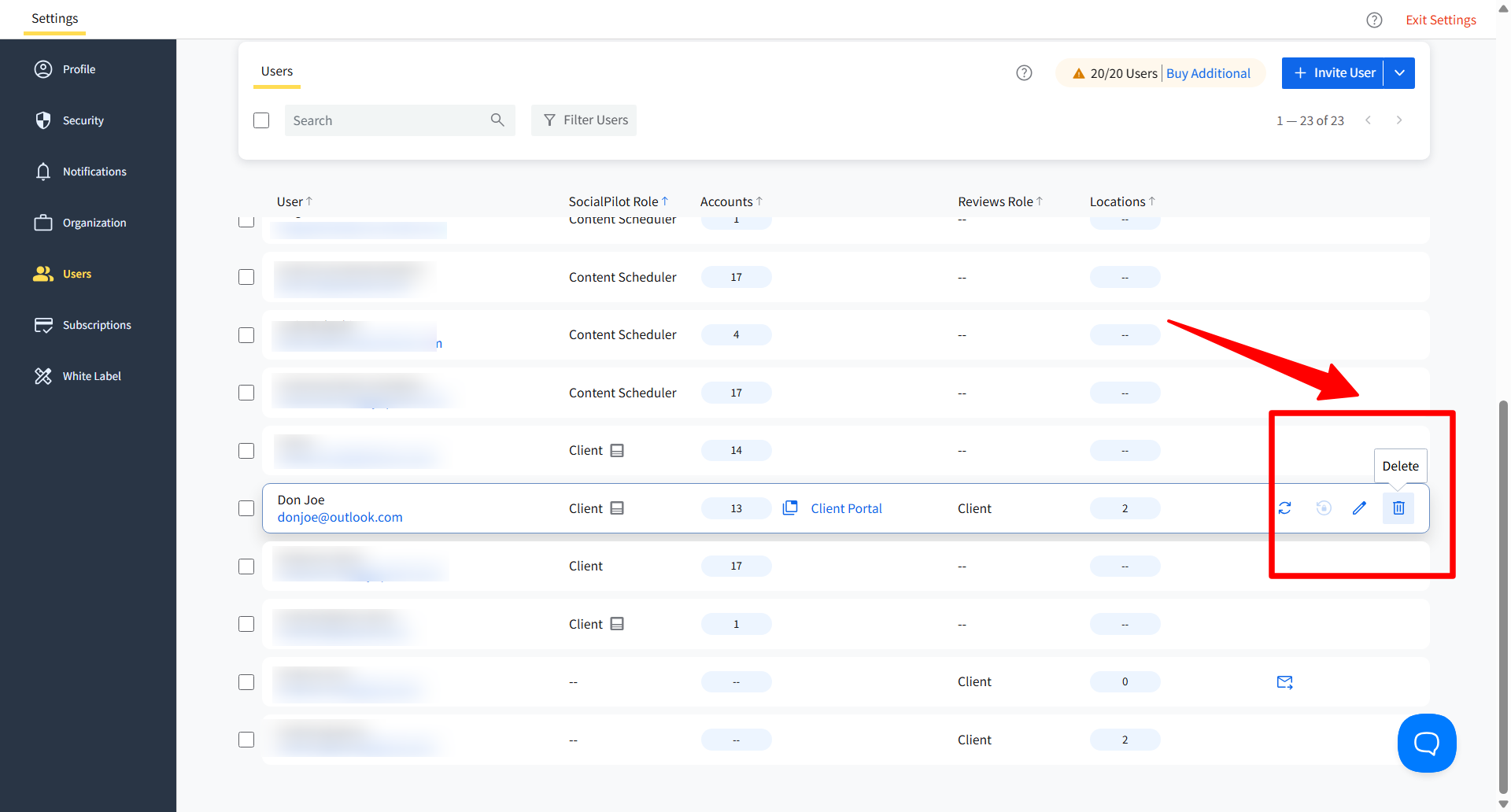
Once removed, the client will no longer be able to access the assigned brands, locations, or Reviews features.
Note: Removing a client's access does not delete the brands, locations, reviews, campaigns, forms, QR codes, widgets, or reports they worked on.
Related Articles: