
How to Save and Use Feedback Form Templates in SocialPilot Reviews?
Feedback Form Templates let you save an existing feedback form and reuse it when creating new forms. This helps keep questions, structure, and review link settings consistent across locations and brands.
Note: Feedback Form Templates are created from existing feedback forms. You cannot create a template directly from the Form Templates library. The library only displays templates that have already been saved.
You can also check out this walkthrough video to see how it works:
In This Article
- How to Save a Feedback Form as a Template?
- How to Create a Feedback Form From a Template?
- How to Manage Feedback Form Templates?
How to Save a Feedback Form as a Template?
-
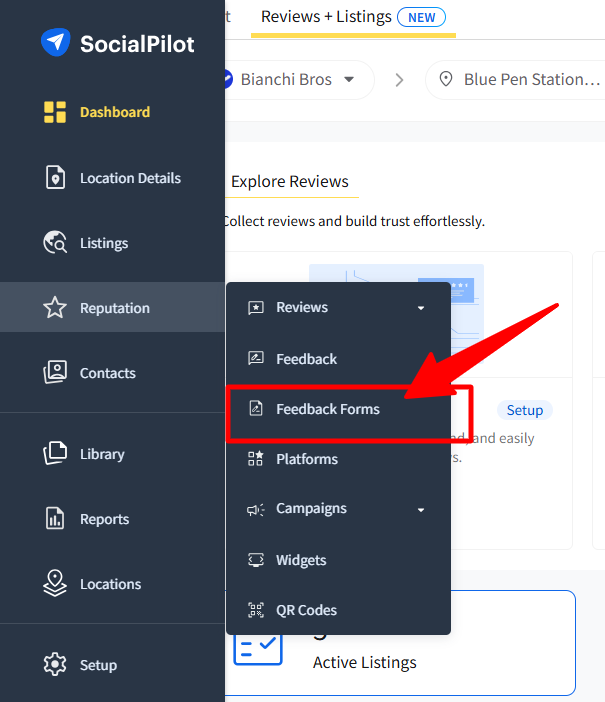
Open Feedback Forms from the Reputation menu.
- Create a new feedback form or open an existing one.
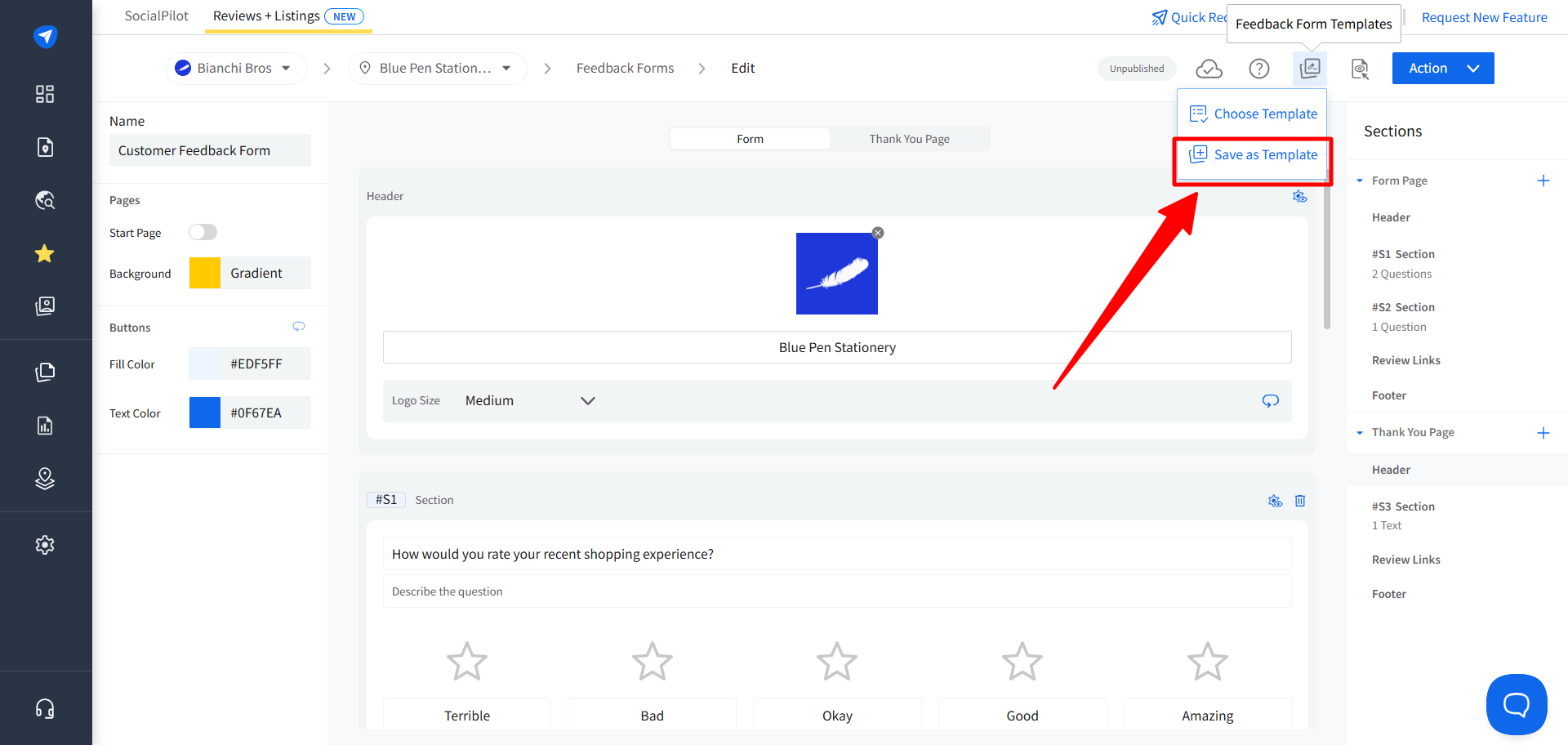
- Click the Feedback Form Templates icon in the top-right corner of the form builder.
-
Select Save as Template.
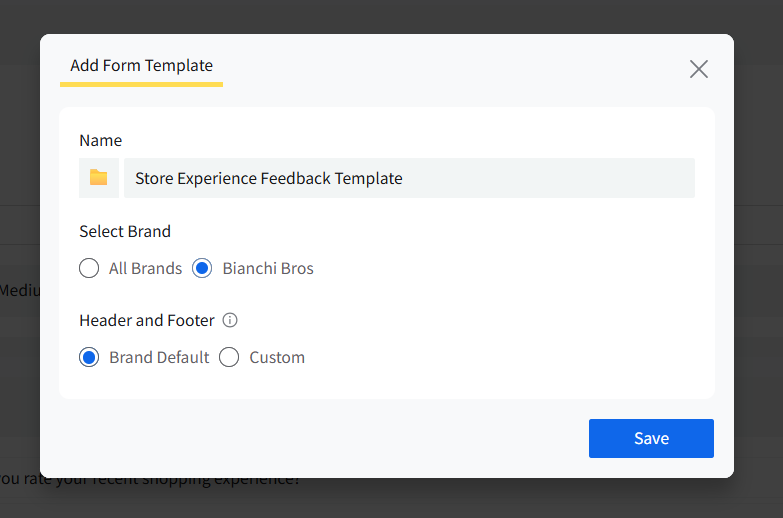
- In the window that appears, enter the following details:
- Template Name: Enter a name that helps you identify the template later.
- Brand Scope: Select All Brands to make the template available across your workspace, or select a specific brand to make it available only for that brand.
-
Header and Footer: Select Brand Default to automatically use each brand's configured header and footer settings when the template is applied. Select Custom to keep the exact header and footer values saved in the template.
- Click Save.
The template will now be available in the Form Templates section of the Library.
Templates include the form's questions, structure, review link settings, and page configuration.
Note: Templates saved under All Brands are available across the workspace. Templates saved for a specific brand are only available within that brand.
How to Create a Feedback Form From a Template?
-
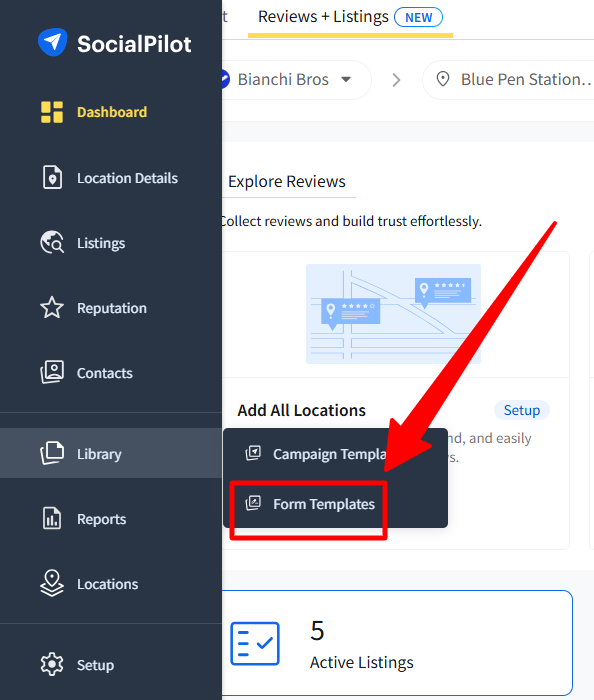
Open the Form Templates section from the Library menu.
-
Select the template you want to use and click Create Form.
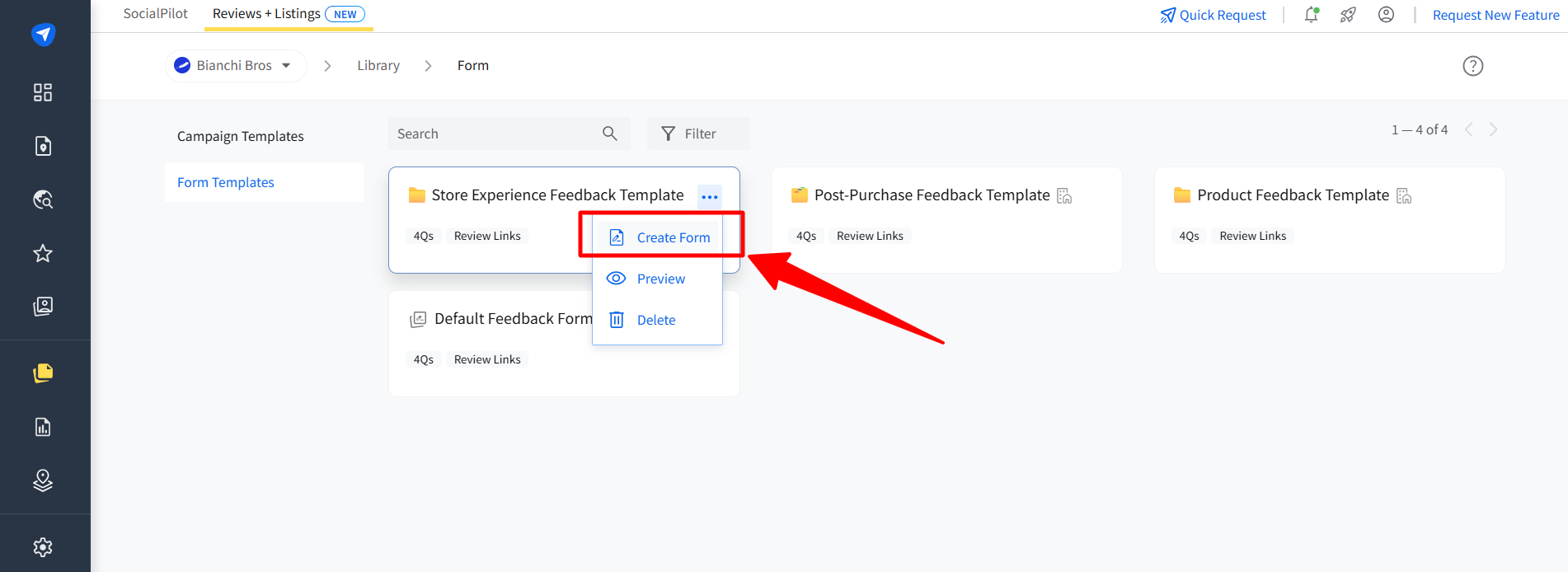
-
Select the location where you want to create the form.
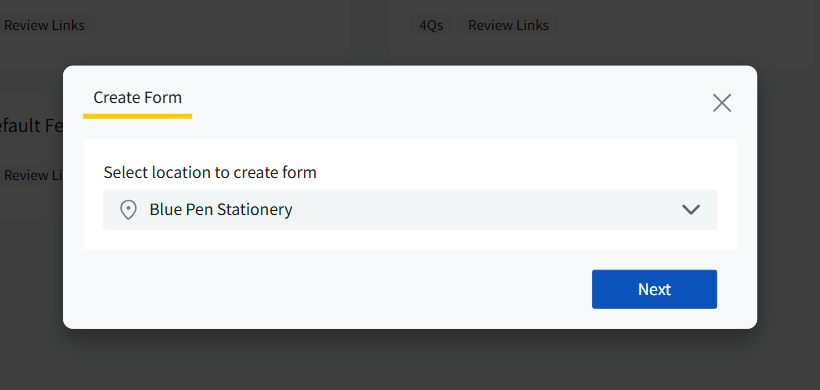
- The new form will be created using the template's saved questions, structure, review link settings, and page configuration.
You can make changes to the new form at any time. Changes made to the form do not affect the original template. Likewise, updates made to a template do not affect forms that were previously created from it.
Review platform connections are applied based on the location selected when the form is created.
Note: You can also apply a template while building a feedback form. Click the Feedback Form Templates icon and select Choose Template to browse and apply an existing template.
How to Manage Feedback Form Templates?
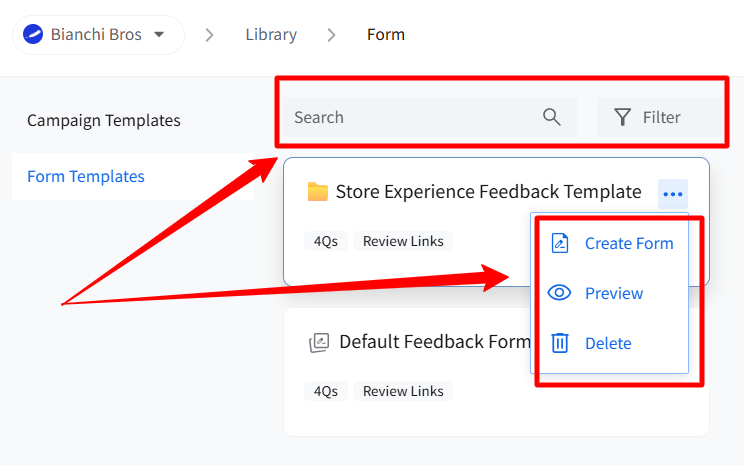
Open the Form Templates section from the Library menu to manage your saved templates.
From here, you can:
- Preview a template before creating a form from it.
- Search and filter templates to quickly find the one you need.
- Duplicate a template to create a separate copy.
-
Delete a template you no longer need.
Note: Deleting a template does not affect forms that were previously created from it.